Skip to content

Changelog ​

What’s new in Vellum, from small fixes to major new ways of working. Releases are listed newest first.
v0.2.15

Proper full-vault backups

Backups

  • Vellum can now make a full backup of your vault on a schedule. Choose a folder under Settings > Backup; once a day, immediately before your first change, Vellum copies the entire vault. The folder can be on another disk or in a cloud service such as iCloud Drive, Dropbox, or Nextcloud
  • every attached image, PDF, and file is included once. Media is kept in one folder inside the backup folder, so thirty days of backups do not create thirty copies of every image
  • choose how long backups are kept. The default retains every day for a month, one per week for a year, and one per month after that. Alternatively, keep every backup indefinitely. Settings lists each backup with its date and size, and lets you delete any of them
  • Back up now in Settings makes a full backup whenever you like. Use Stop backing up to disable scheduled full-vault backups
  • if the backup folder cannot be reached, a note at the bottom of the window explains why. Your notes remain safe, and Vellum tries again the next time you make a change
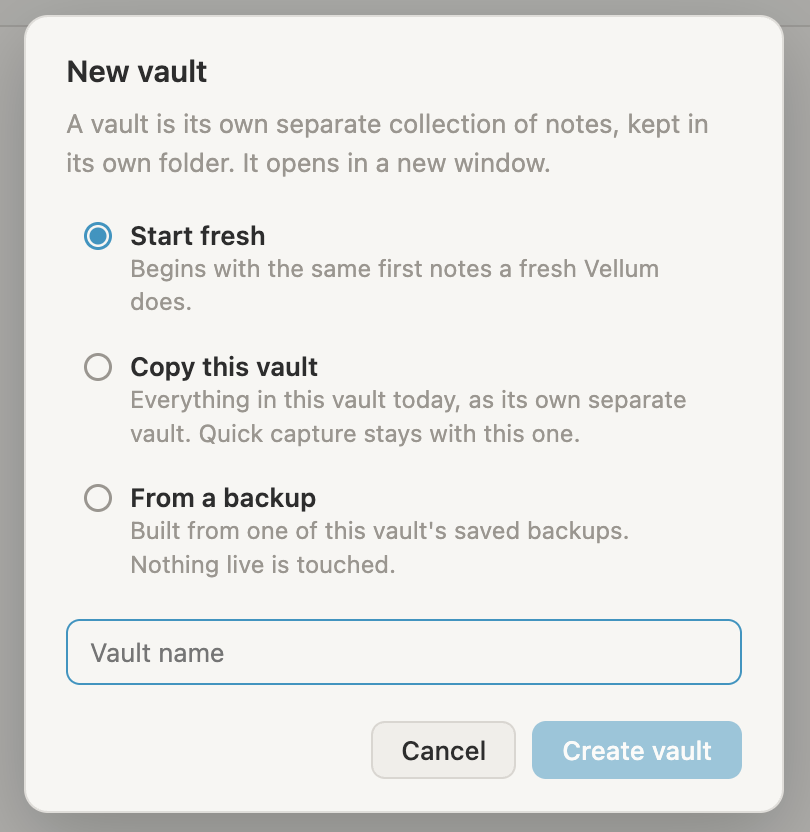
  • to restore, open the vault menu and choose New vault > From a backup. The list shows your five newest backups with their dates and sizes, a row that opens the backup folder in Finder for older backups, and the safety copies Vellum keeps beside your notes. A restore always creates a new vault beside the current one; your current vault is untouched

Settings

  • Settings is reorganized into Backup, Restore, Export, and Import. Restore explains that a backup brings back everything and how this differs from an import, which restores only what the imported files contain. The Markdown export switch is now called Export automatically

v0.2.14

Yet even more ❤️ on sections…

Sections

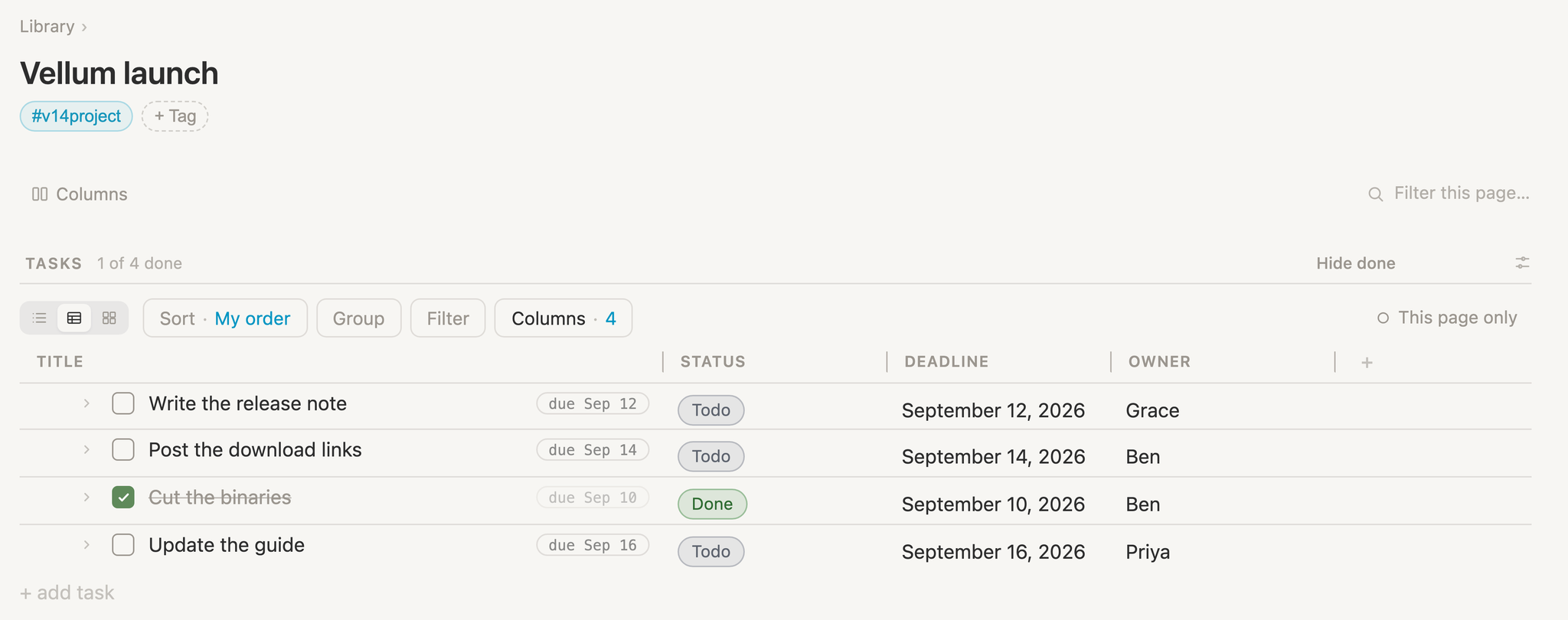
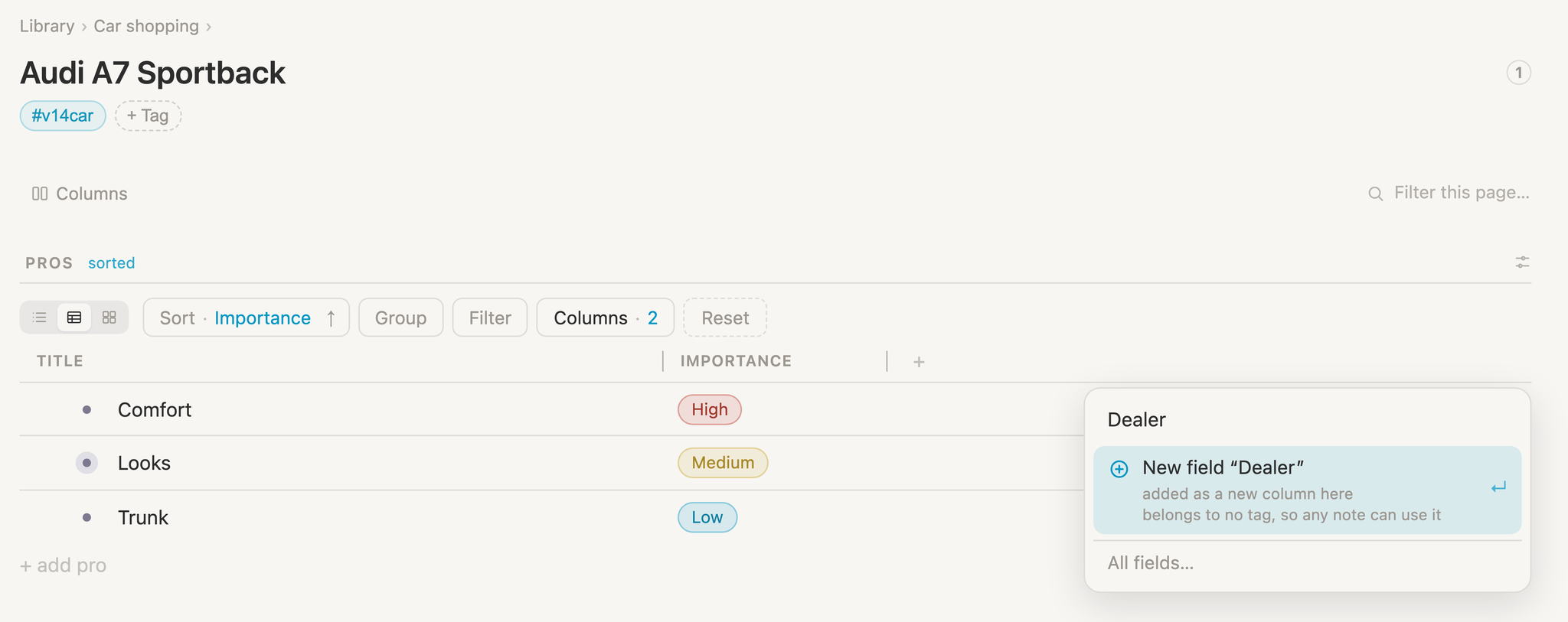
  • show every section on a page as a list, table, or cards from the same controls used for sorting and filtering. For example, show a project’s Tasks as a table with Deadline and Owner, or add a Dealer column to a Pros table in place. A tag’s schema page offers the same choice under “Shown as”
  • a section powered by a saved search initially looks like the search’s own page, so an existing table appears as a table everywhere it is used. After that, the section has its own arrangement: changing one does not change the other
  • table columns resized on one page retain their width on that page only, even when the rest of the arrangement is shared
  • when you add the first section to a page already sorted or shown as a table, that arrangement moves into the new section instead of disappearing, and a toast explains what happened
  • a sectioned note opened inside another note now presents every section as its own page does, with the same table or cards, sorting, and filtering
  • shift-cmd-L—or ctrl-shift-L on Linux and Windows—toggles view options. On a sectioned page, it opens that section’s sort, group, and filter bar; from any other row, it toggles the page’s own view options
  • the Zoom in link on a row’s view strip now opens the page with its controls already showing
  • view all the sections on a page together as one list, table, or set of cards covering every bullet, with Section available as a column and grouping. Sections powered by saved searches or fields continue to appear separately for now
A project Tasks section displayed as a table with Status, Deadline, and Owner columns
Show any section as a list, table, or cards.
A Pros section displayed as a table while adding a new Dealer field as a column
Add fields as table columns directly inside a section.
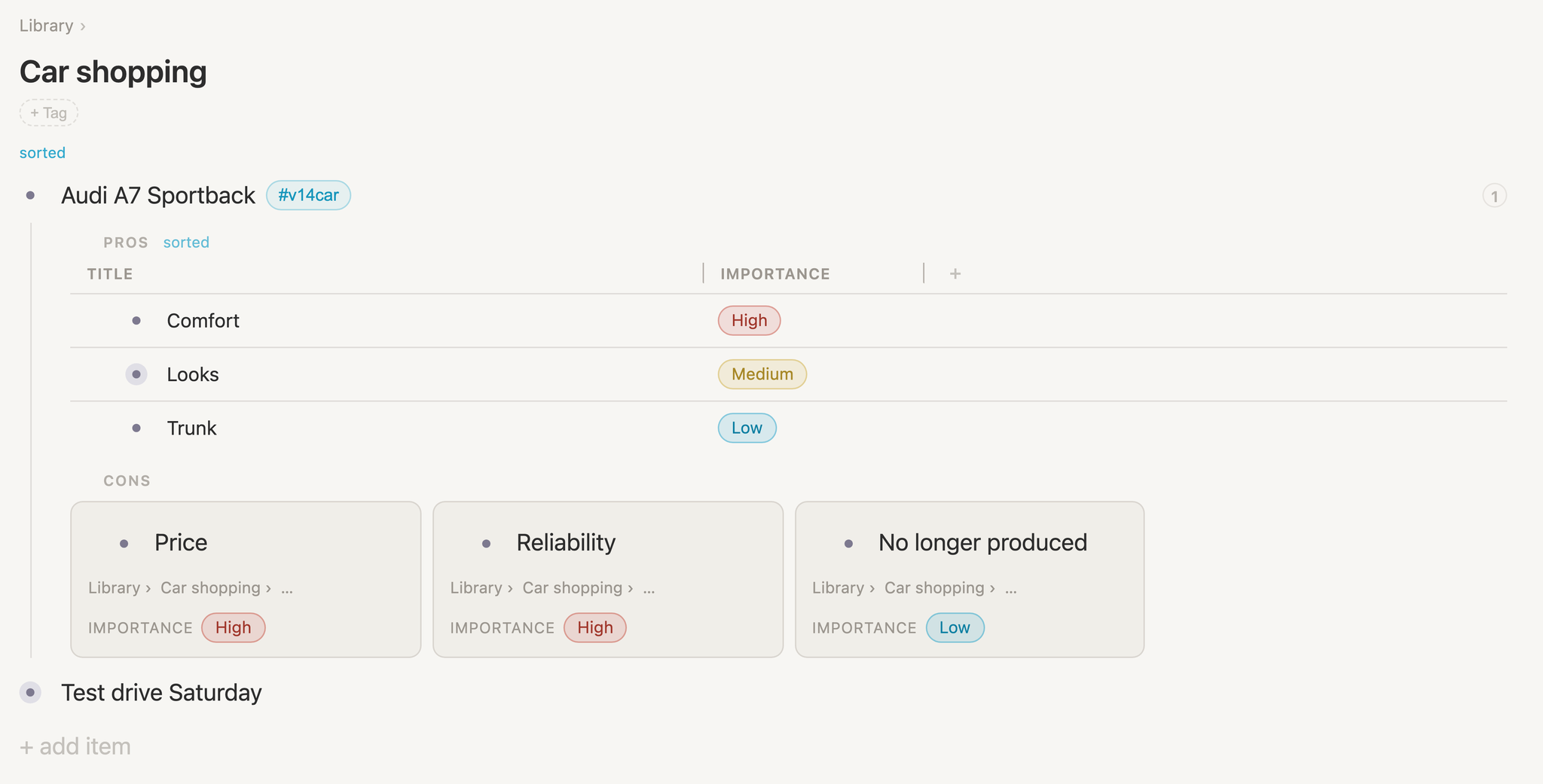
An expanded Audi note showing its Pros as a table and Cons as cards inside its parent note
Expanded notes preserve each section’s chosen view.
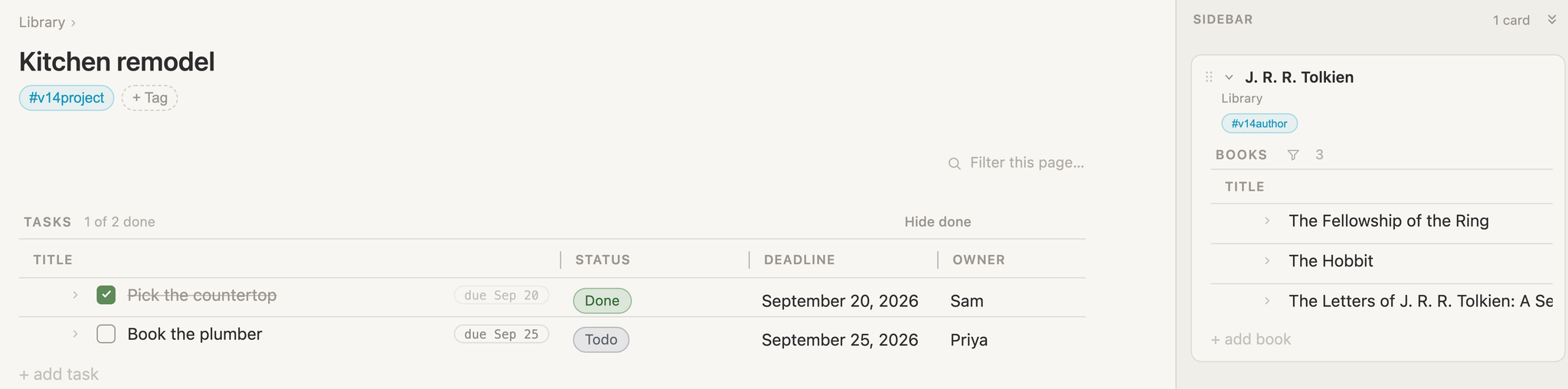
A Books section displayed as a table inside a J. R. R. Tolkien sidebar card
Section views also work inside sidebar cards.
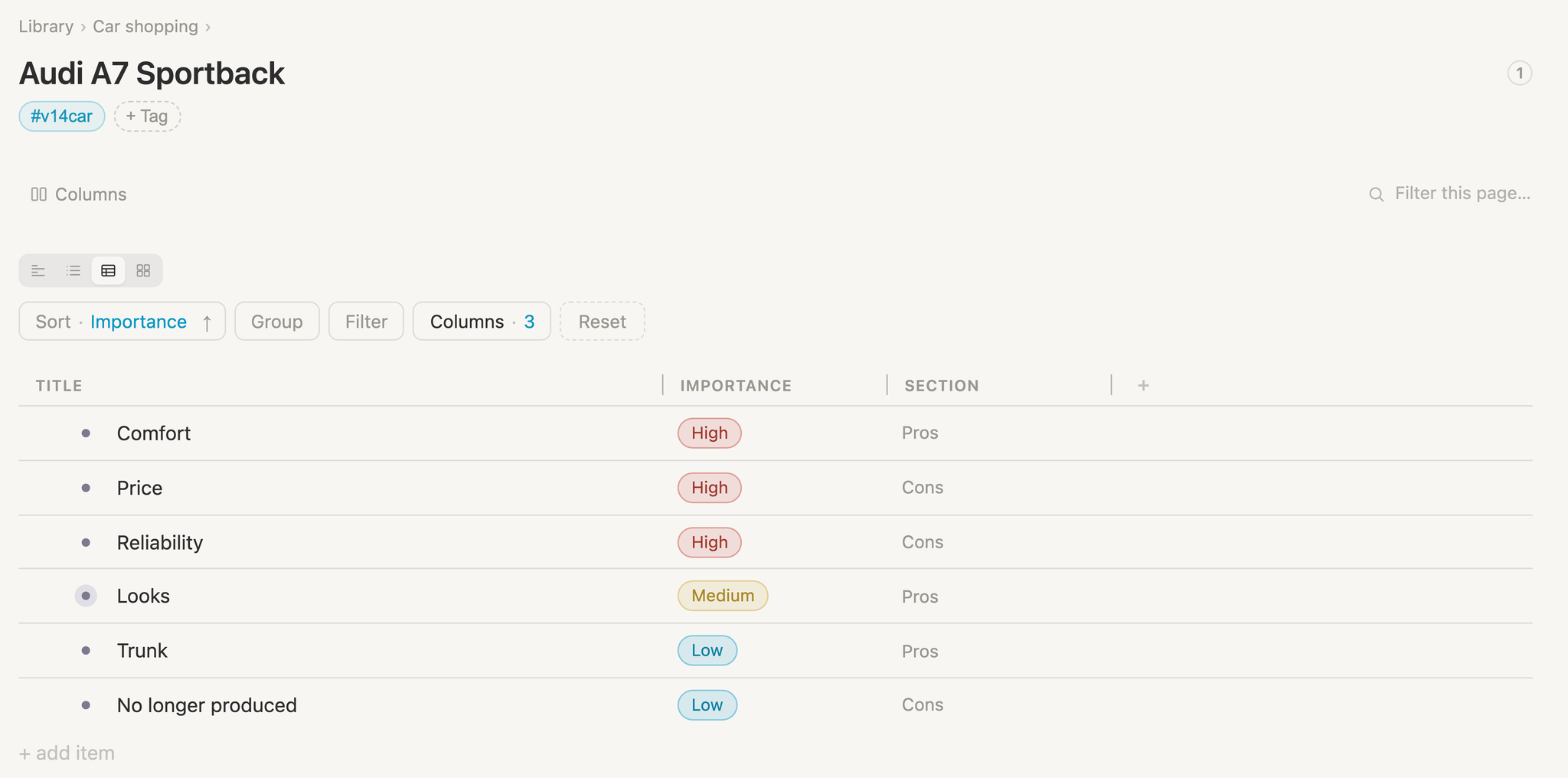
A page combining Pros and Cons into one table with a Section column
View a page’s sections together, with Section available as a column or grouping.

Fields

  • number fields now accept >= and <= when filtering

v0.2.13

A bunch of small updates to complement the last release

Sections

  • sorted and filtered lists now behave while you work in them. Previously, a list sorted by title re-sorted on every keystroke: the row and cursor hopped away, Tab did a headshake, and margin-drag couldn’t select rows. Now the order freezes while your cursor is in the list; a row added with Enter appears where you entered it; Tab moves it under the row above; and margin-drag selects rows normally. The list re-sorts when you click out. Dragging a bullet to move it remains disabled while sorting is active
  • rows inside a section now display at the same font size as the note’s own title, and a note mirrored several levels deep no longer shrinks at each level

Notes

  • Tab on a bullet beneath a mirrored note now adds it to the original
  • a link in a page title now offers Open and Change the words from cmd-k, just like a link in a bullet

Search

  • Used in N notes now counts notes that show the search as a section, not only as a field

Fields

  • the rule menu on a tag no longer repeats the same sentence once per tag that has a field of that name

Under the hood

  • plus a handful of small internal cleanups

v0.2.12

It’s all about the section!

Search

  • live search can now find notes that have a section, not only what’s inside one: every person with a To discuss section, only those with something in it, or only the empty ones. Leave the name blank to find every note with any section at all
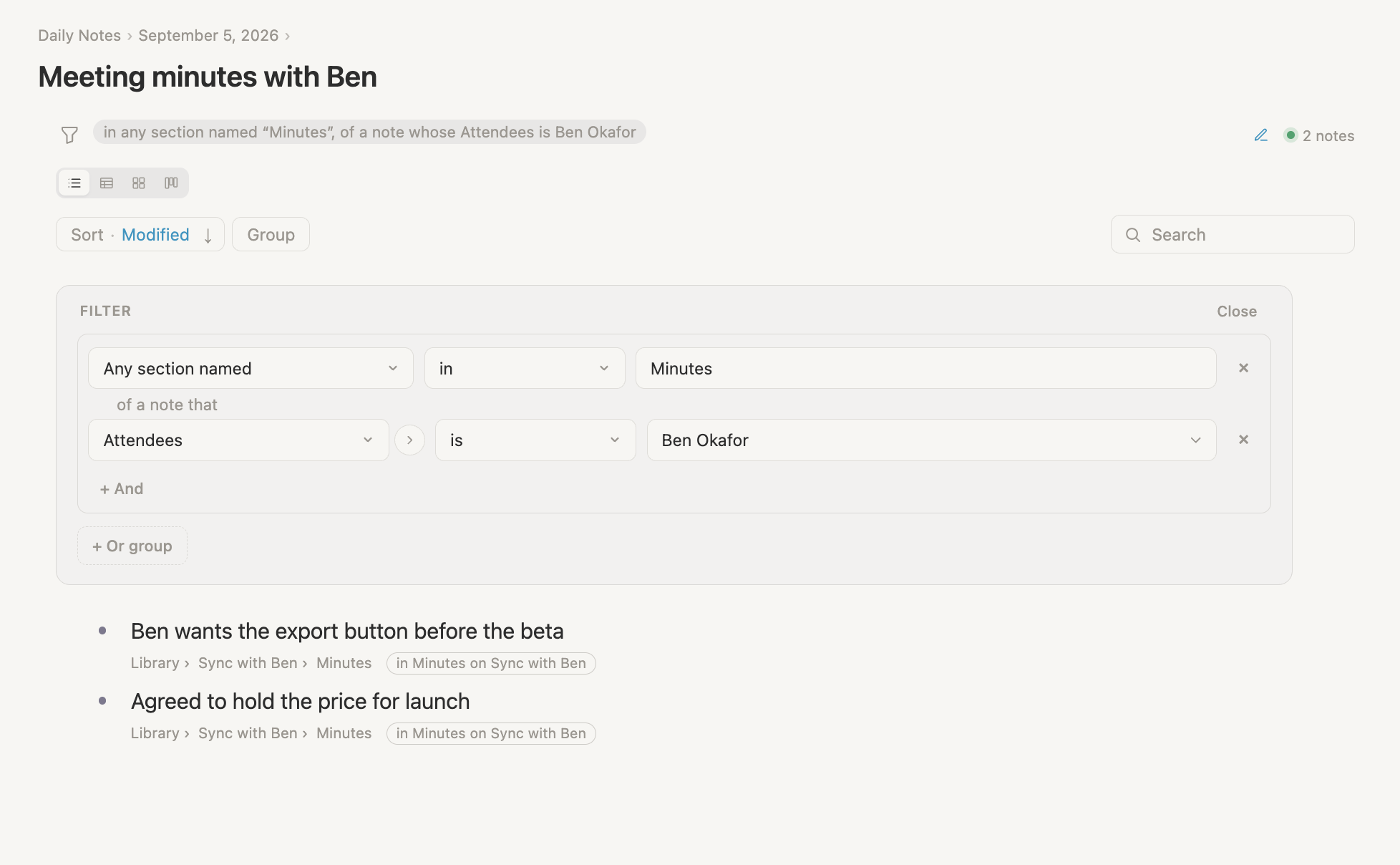
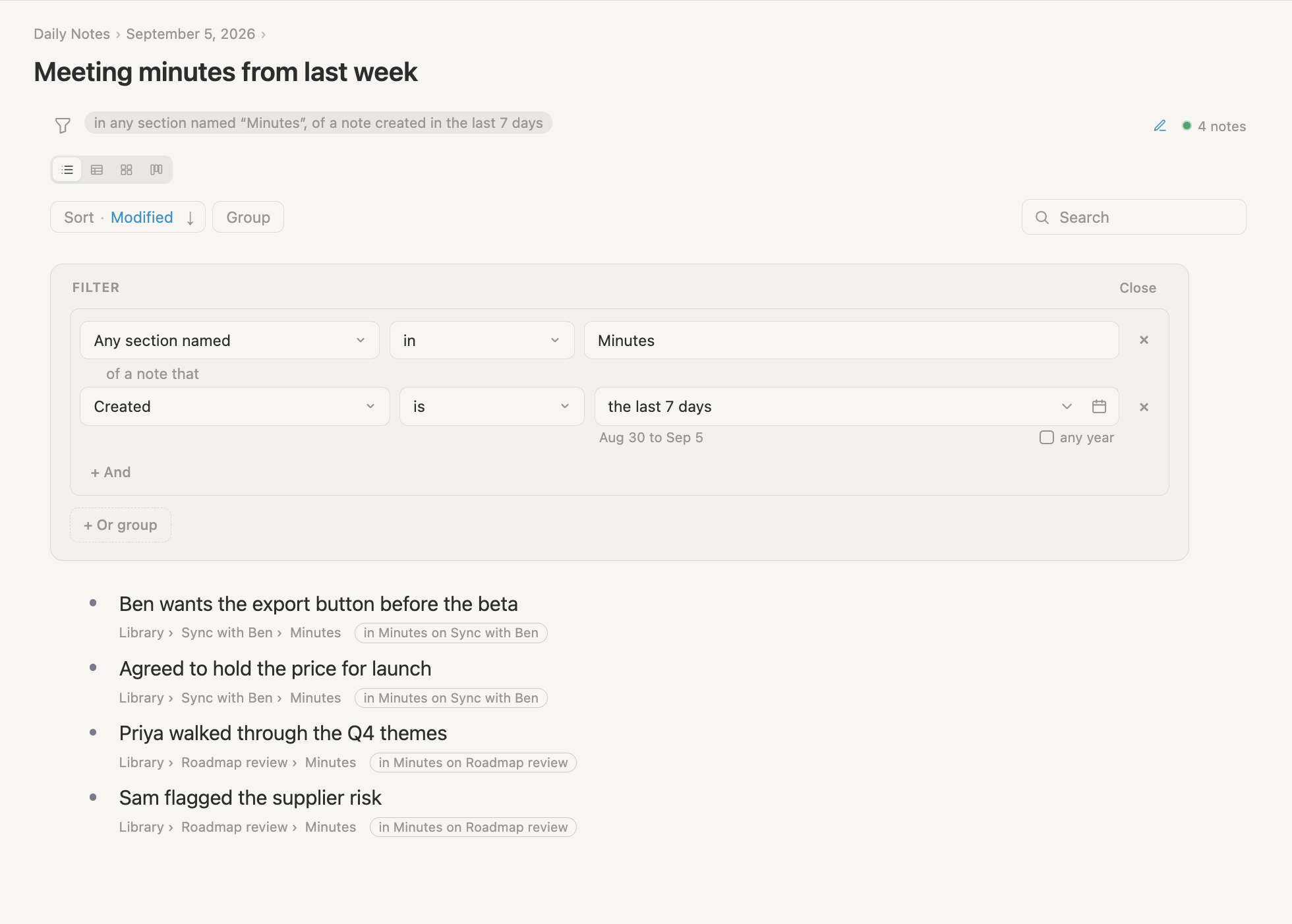
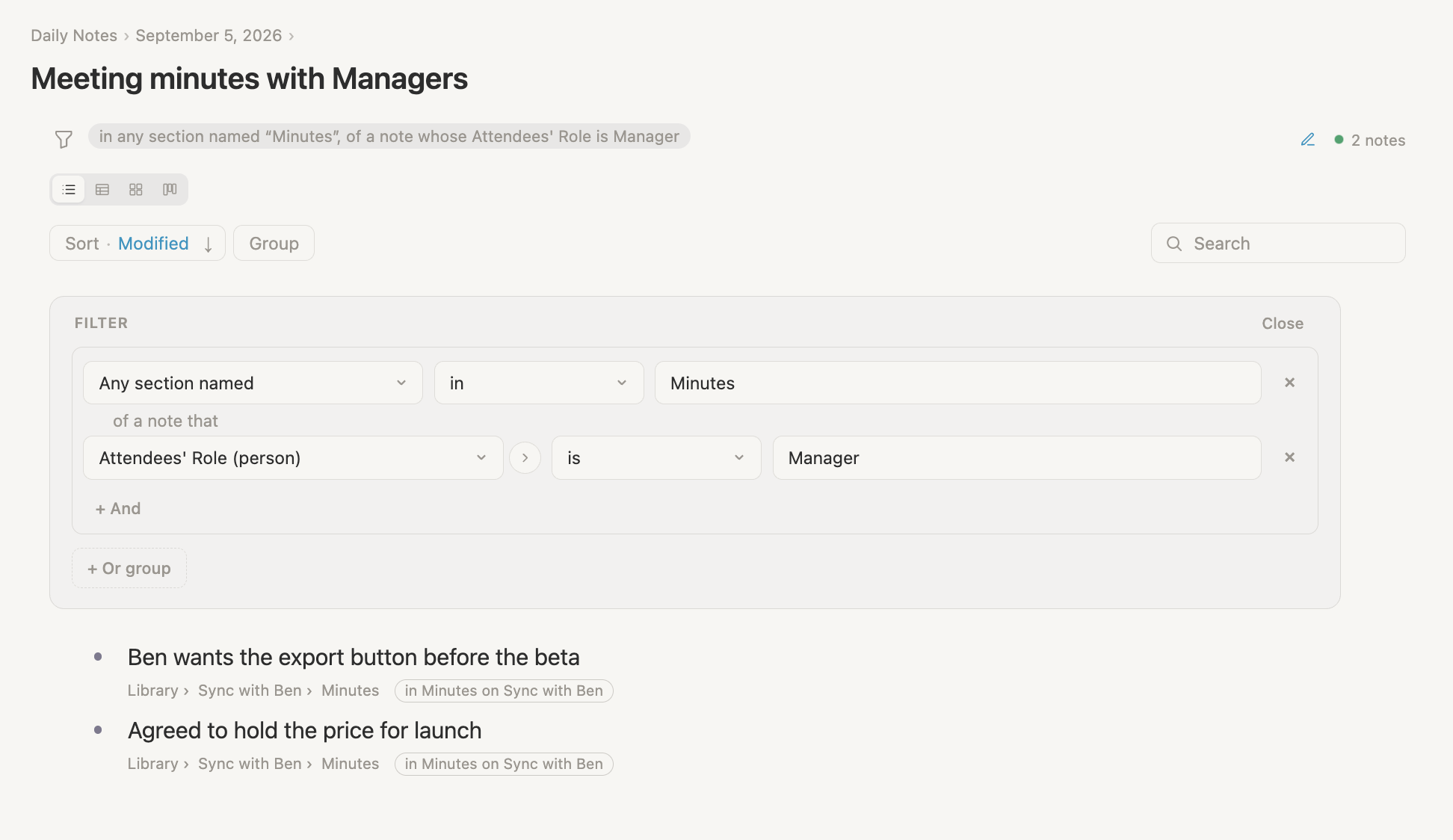
  • a section search can now inspect the note holding the section—for example, minutes of meetings Ben attended, minutes from the last week, or minutes of meetings a manager attended
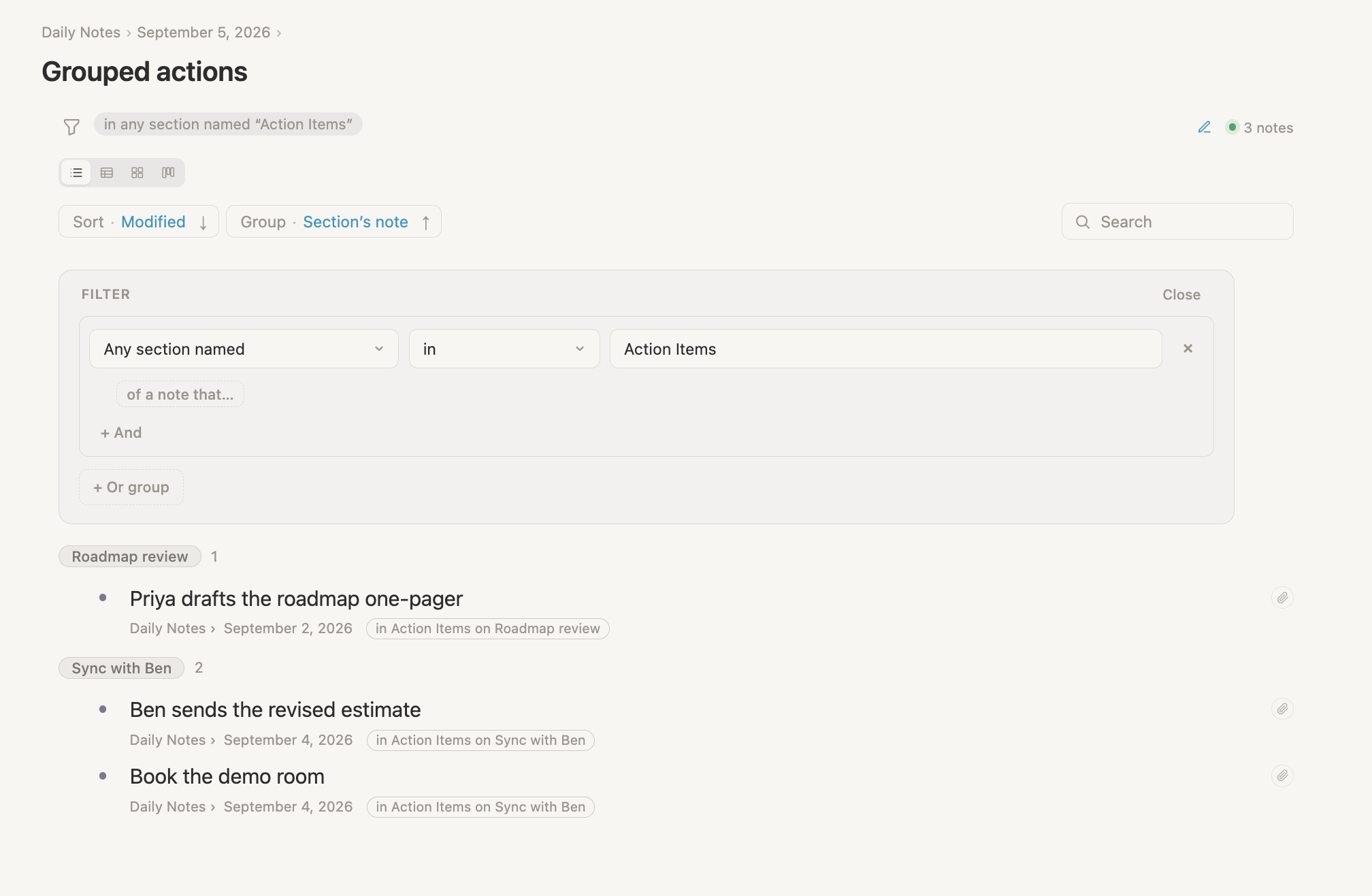
  • group section-search results by the note they came from, with one band per note holding a matching section. Each result displays a small chip naming the section it came through, alongside the breadcrumb showing where the note lives
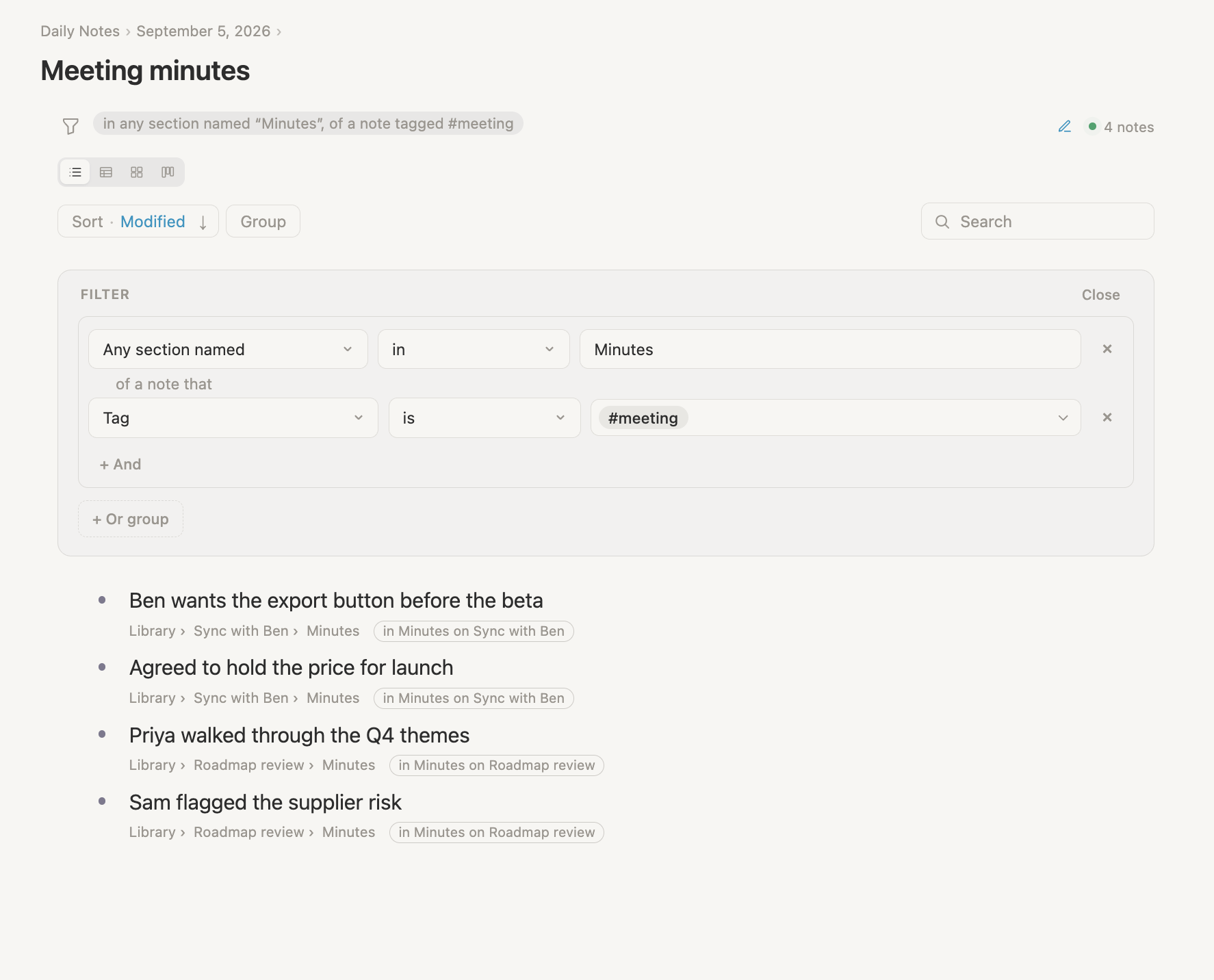
A search finding rows in Minutes sections belonging to notes tagged meeting
Find content inside a named section on matching notes.
A search finding Minutes from notes whose Attendees field includes Ben Okafor
Filter by fields on the note that holds the section.
A search finding Minutes sections on notes created during the last seven days
Combine section searches with dates on their parent notes.
A search finding Minutes from notes attended by people whose Role is Manager
Follow field paths from the note that holds a section.
Action Items search results grouped by the note containing each matching section
Group results by their section’s note and see each source section in a chip.

Sections

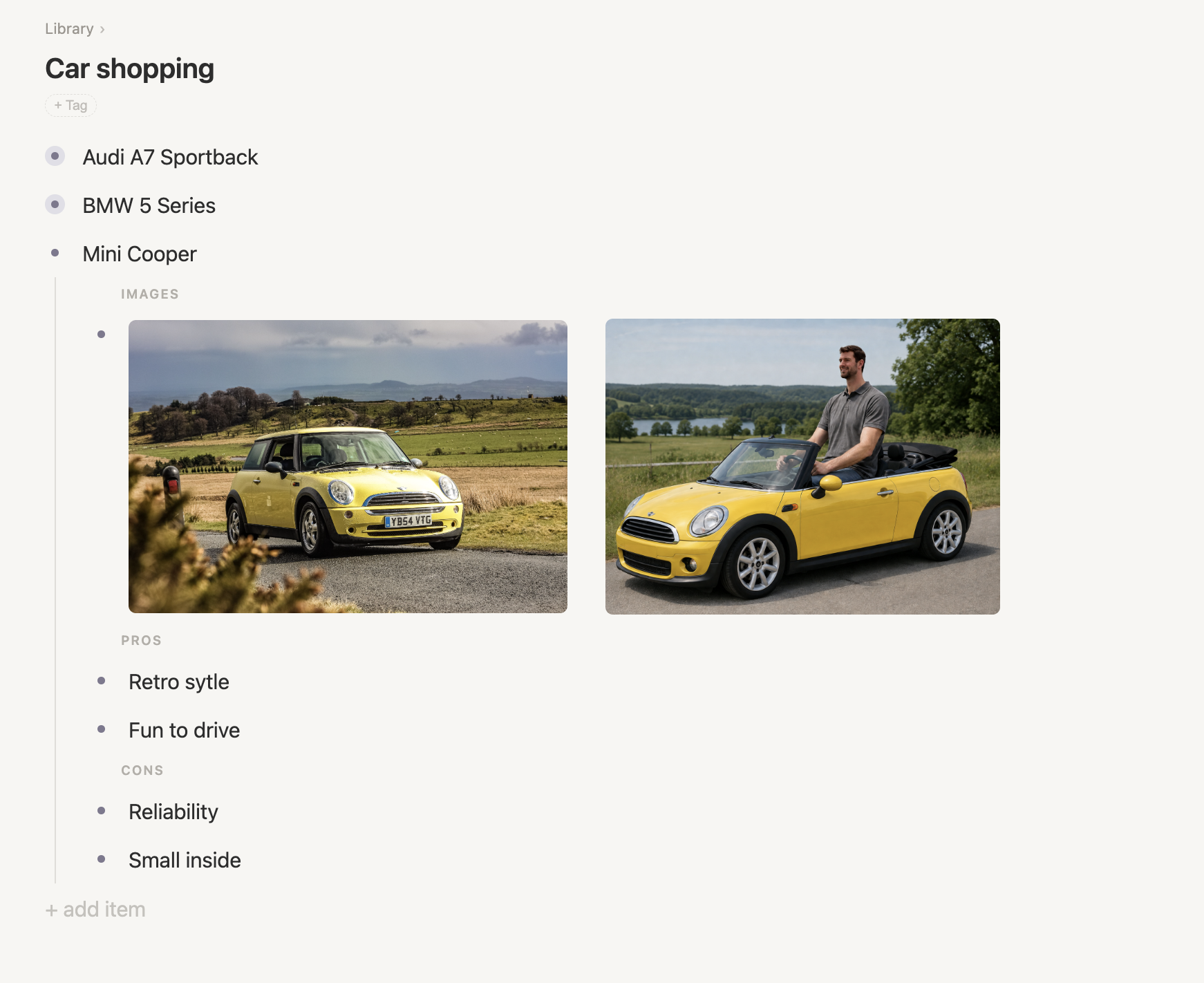
  • sections now appear in the outline. When a note with its own sections is expanded inside another note, a label sits above each group; drag a bullet beneath a label to file it into that section
  • when you add the first section to a note that already has bullets, Vellum asks whether to move them into the new section or keep them together above it in a renameable section called Notes
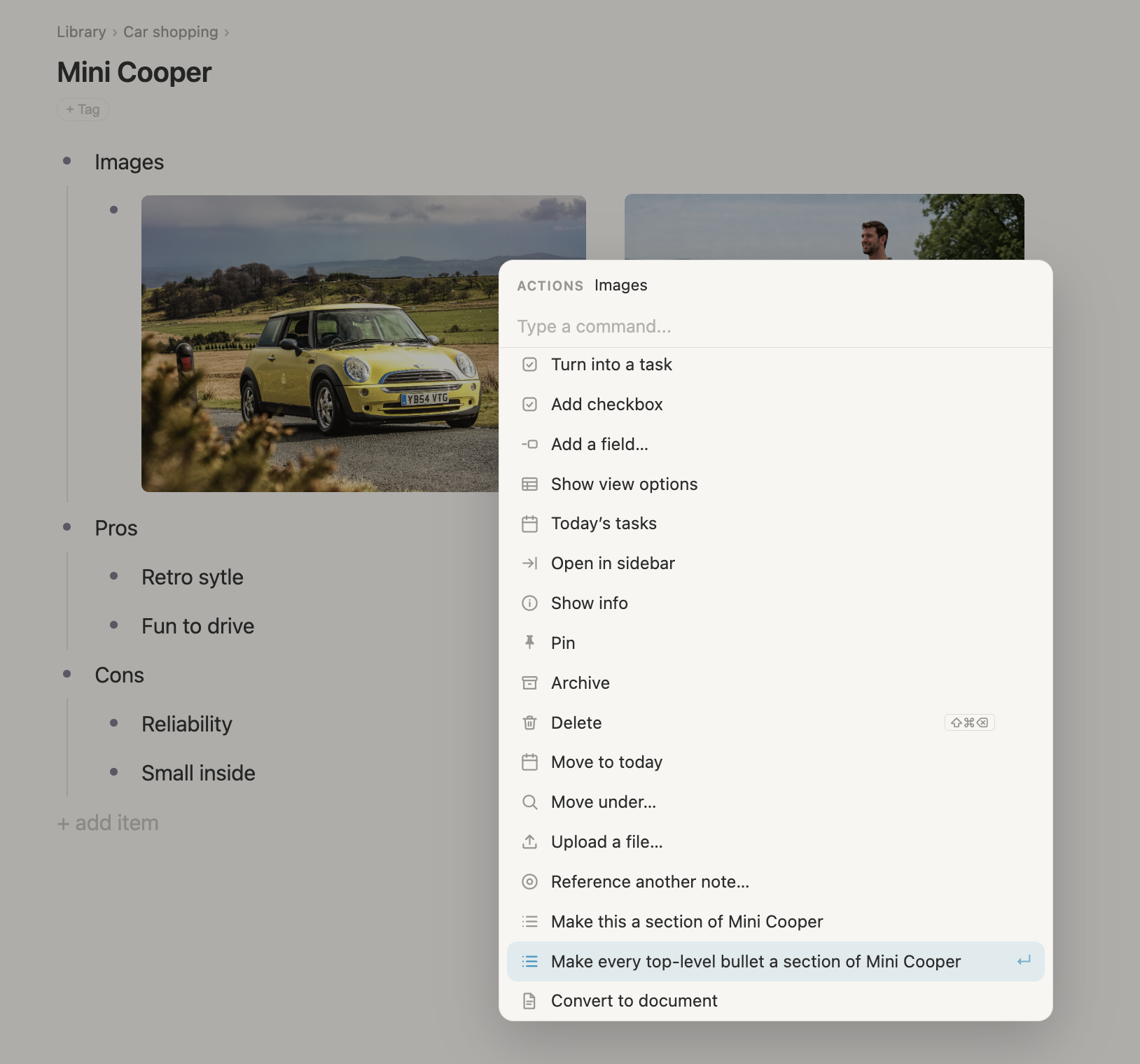
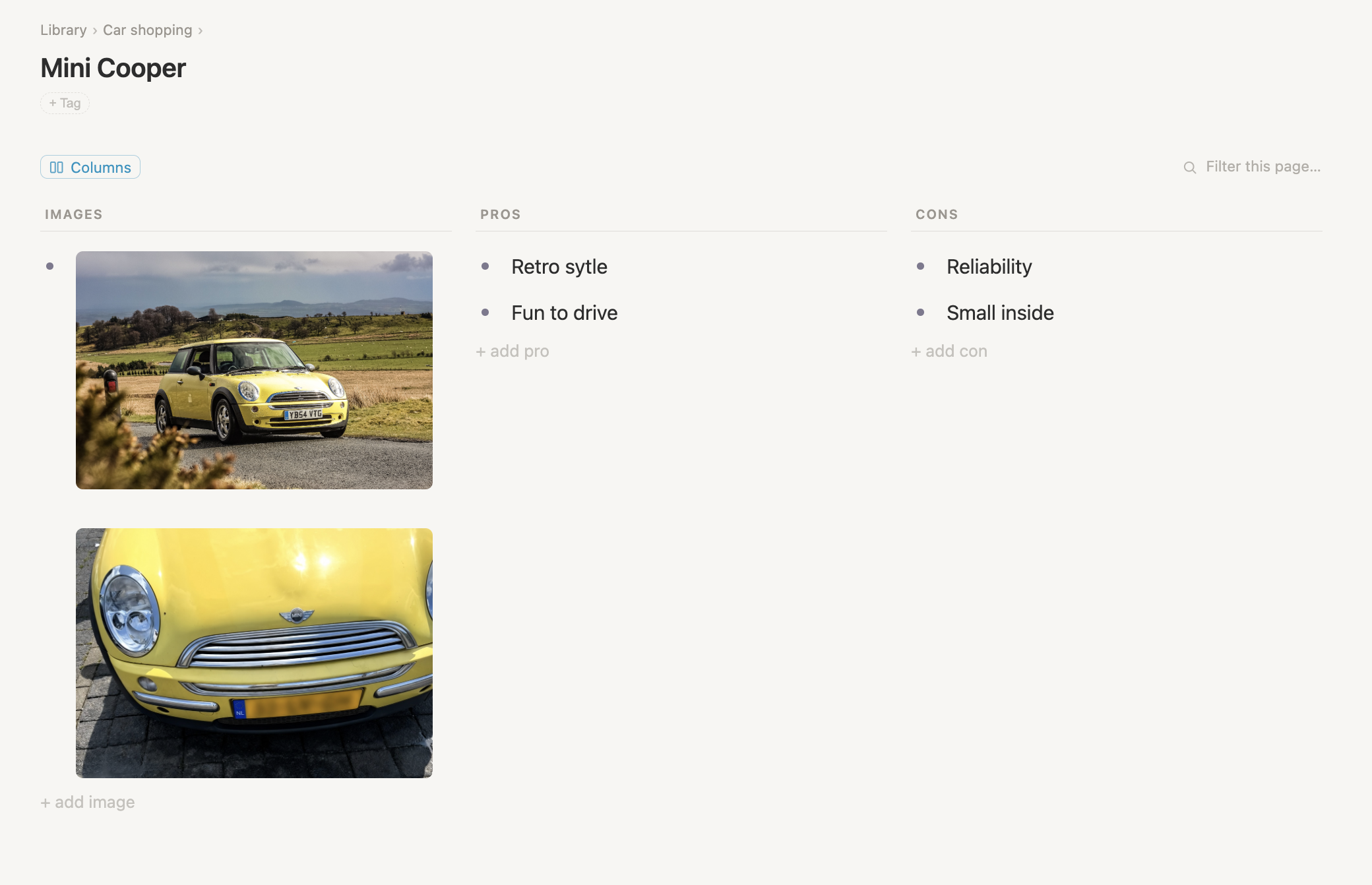
  • turn a bullet into a section in one step: a Pros bullet with three children becomes a Pros section holding those three. Use cmd-k or type / on the bullet and choose Section. Cmd-k also offers “Make every top-level bullet a section…” to convert them all at once
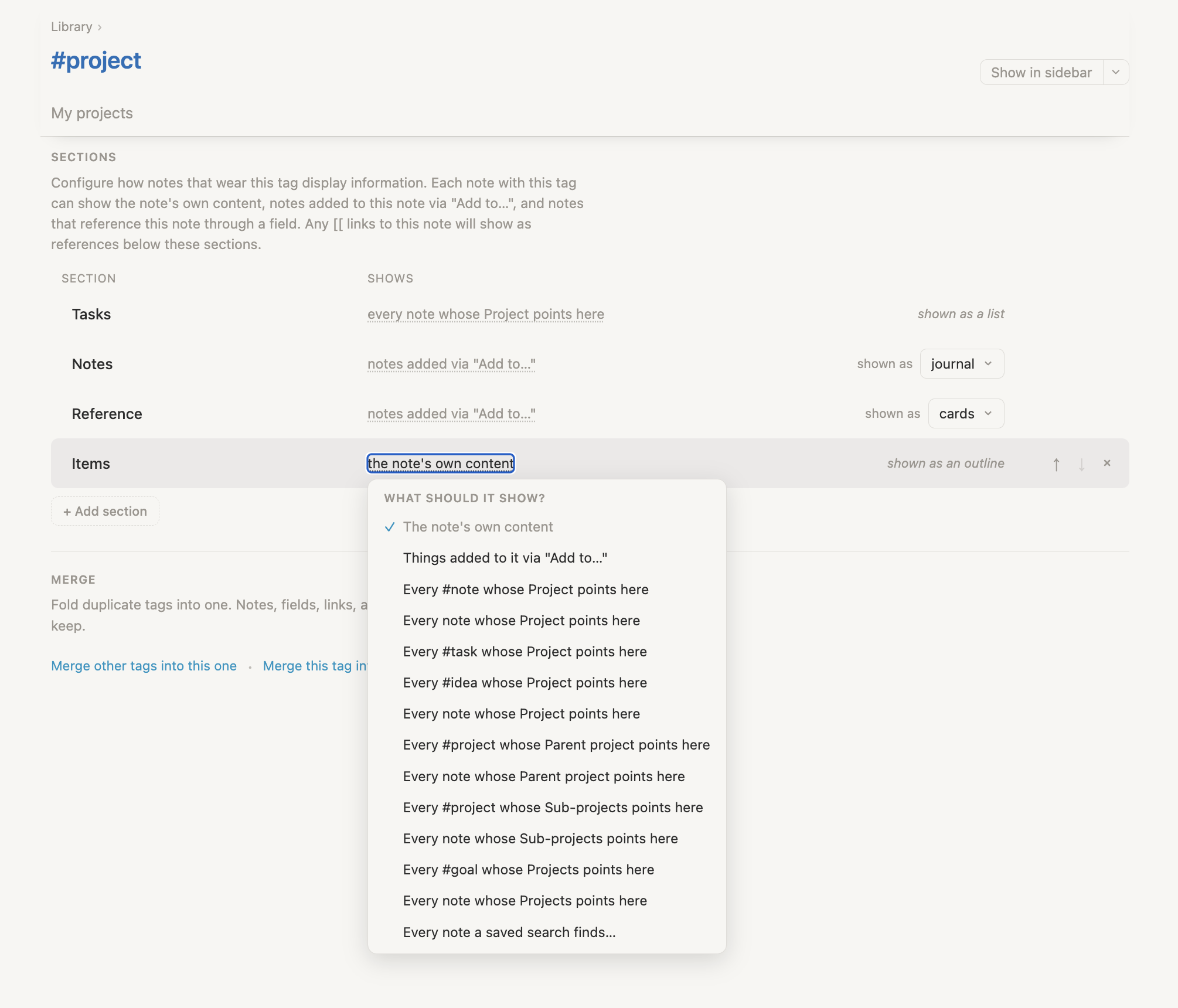
  • change a section’s rule after the fact by selecting its sentence and choosing a new one. The section keeps its name, sorting, folds, and every search that names it
The command menu offering to turn every top-level bullet on a Mini Cooper note into a section
Convert every top-level bullet into a section in one step.
The Mini Cooper note after conversion, with Images, Pros, and Cons shown as columns
Each former top-level bullet becomes a named section.
The Mini Cooper note expanded inside Car shopping with Images, Pros, and Cons section labels
Section labels remain visible when a note is expanded inside another note.
A project tag schema changing what its Items section should show
Change a section’s rule without rebuilding its other settings.

Interface

  • sidebar cards now show a note’s sections—live, editable, and foldable

v0.2.11

Archive, backups, images, and a few more…

Archive

  • archiving a note now archives everything nested under it, and unarchiving brings it all back
  • archived tasks stay out of Today’s tasks
  • archived tags leave the sidebar and All tags, and aren’t shown when you type #

Backups

  • restore from a backup file of your own, not just the app’s recent automatic backups
  • backups are now made immediately before your first change after starting, so opening Vellum only to read never pushes an old backup off the shelf

Images

  • words and a picture in the same bullet or paragraph now sit side by side, like a magazine column
  • pictures in bullets and documents have a placement strip: hover over it—or press and hold on a phone—and choose automatic, its own line, left, or right
  • in a document, the paragraphs after a tall picture keep flowing beside it until the image ends
An outline combining car images and text with automatic, full-line, left, and right image placement
Place images beside text or give them a line of their own in an outline.
A prose document with paragraphs flowing around car images placed on the left and right
Document paragraphs continue flowing beside tall images.

Search

  • the search box on a search now also finds rows inside a nested search you’ve opened
  • a saved search’s own page now lists notes that include the search in a field. A note or tag showing the search as a section is not counted yet

Import

  • a note property containing multiple links now imports as a reference field holding those notes. A list that mixes links with plain words, or names a note outside the import, stays text as before

v0.2.10

Various fixes & enhancements

Editor

  • Tab after an archived row no longer makes the row disappear
  • splitting a bullet that holds several lines no longer leaves an empty line behind
  • cmd-a inside a mirror now selects all the way up
  • Korean and Japanese typing: Enter now finishes the character and creates the new row in one go
  • applying bold and then italic now keeps the bold formatting
  • the “Mirrored in” list now starts with the original note and leaves out the row you’re on
  • Backspace and Tab in a grouped or sorted section follow the visible row above

Sections

  • pasting on a page with sections puts the rows in the visible section, never a hidden one
  • copying and pasting a note with sections keeps its bullets in their sections
  • you can now rename sections you created directly on the page. Sections supplied by a tag are still renamed on the tag’s page
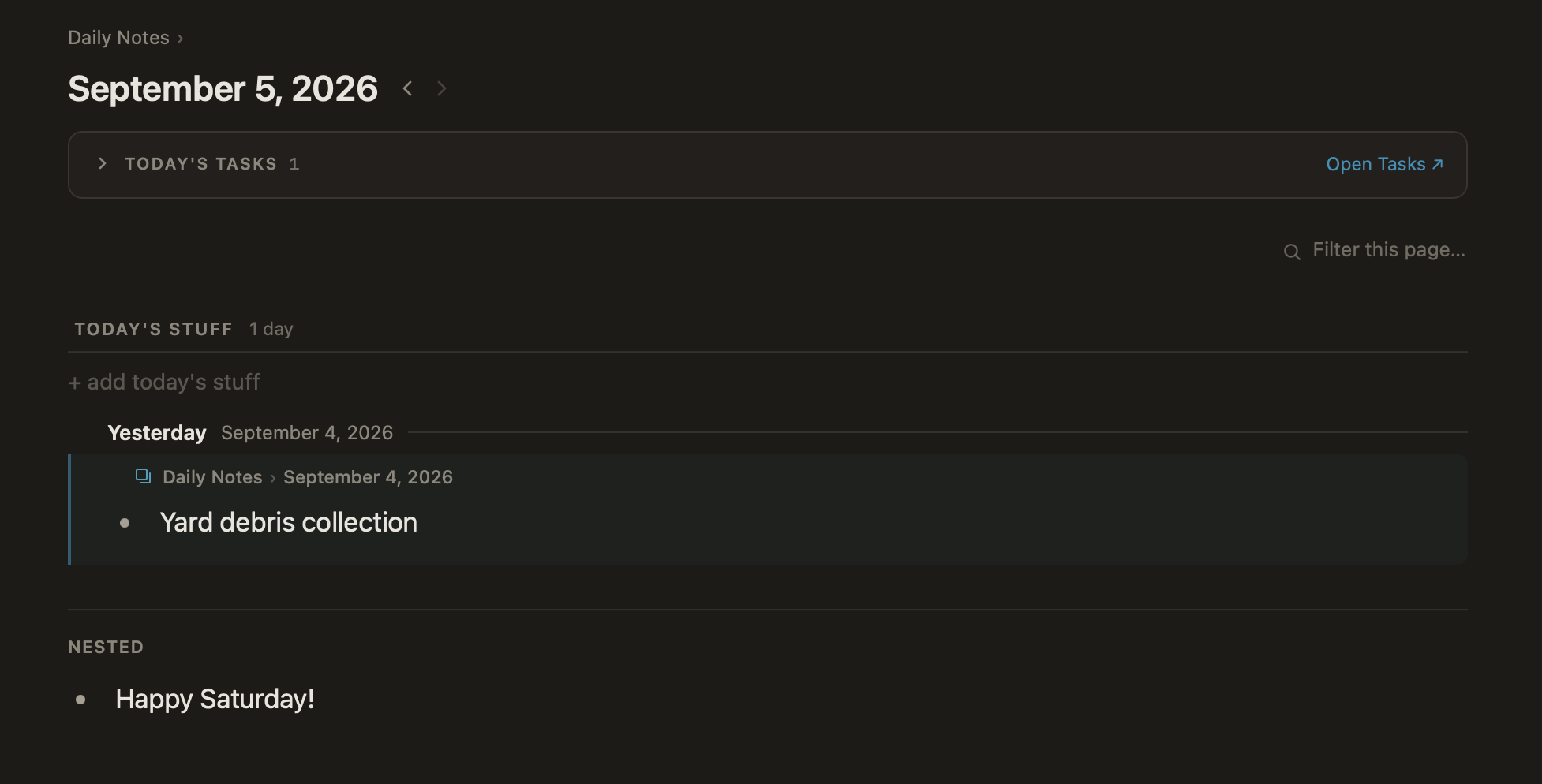
  • add sections to daily notes; cmd-k > Add to… can also land in a daily note’s section
  • no more stray empty lines when a row moves between groups in a grouped section
A daily note with Today’s stuff and Nested sections beneath Today’s tasks
Daily notes can now have their own sections.

Interface

  • pinned notes always show their name in the sidebar
  • the typed code-block examples in Settings are easier to read
  • a view shown on a note’s own page now tells you to zoom in for the rest of its options

Search

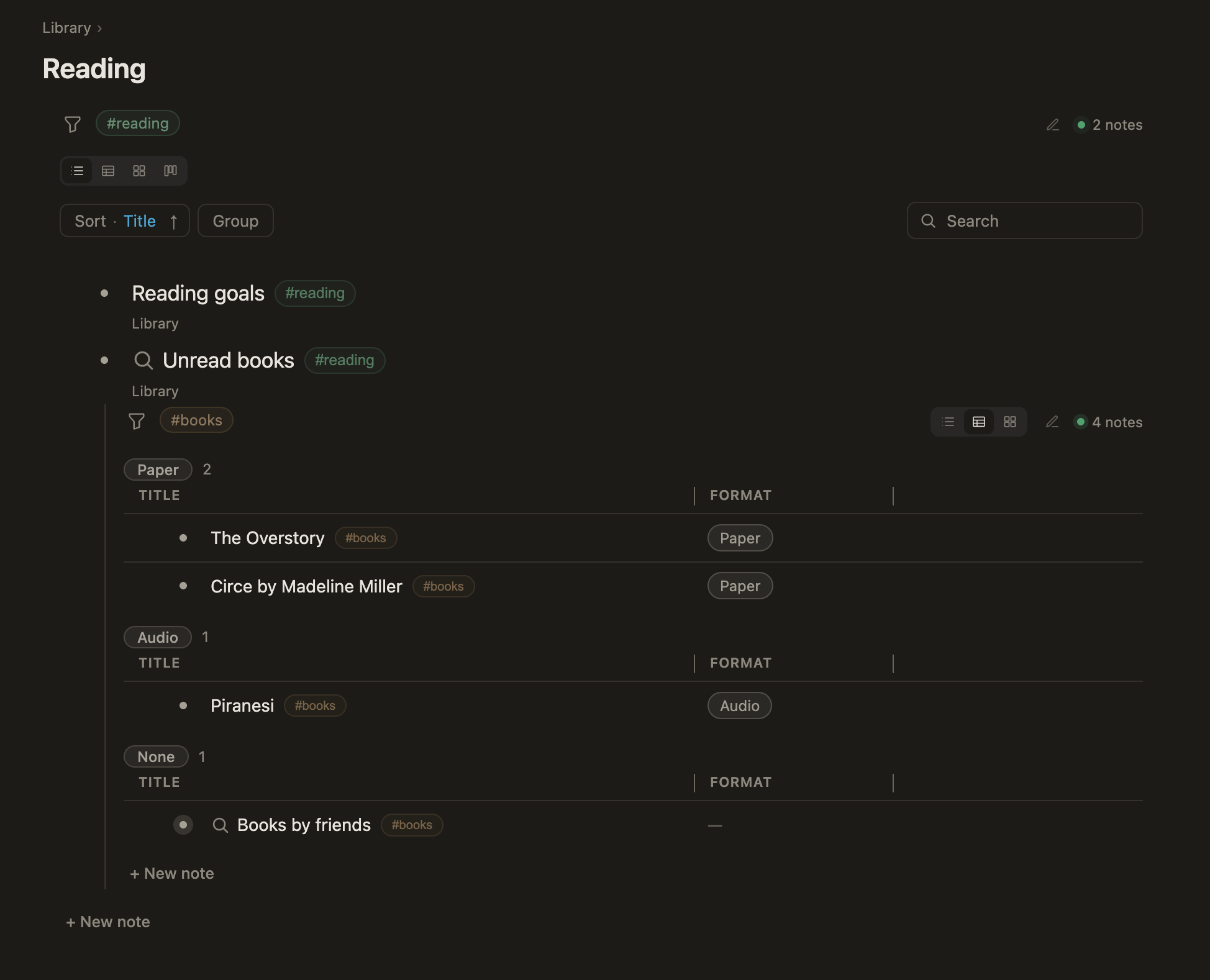
  • a saved search inside another search’s results can now be unfolded one level deep
A Reading search with the Unread books saved search unfolded inside its results
Unfold a saved search inside another search’s results.

v0.2.9

Sections

Sections

  • sections just got a whole lotta love
  • add sections to any note, including prose documents—no tag required
  • split a note’s own bullets into named sections such as Notes, Sources, and Ideas
  • type straight into a section with the full editor; new entries automatically pick up the section’s tags and fields
  • fold, sort, group, and filter any section. Each section remembers its arrangement
  • a note wearing several tags now shows sections from all of them
  • a section can be powered by any saved search
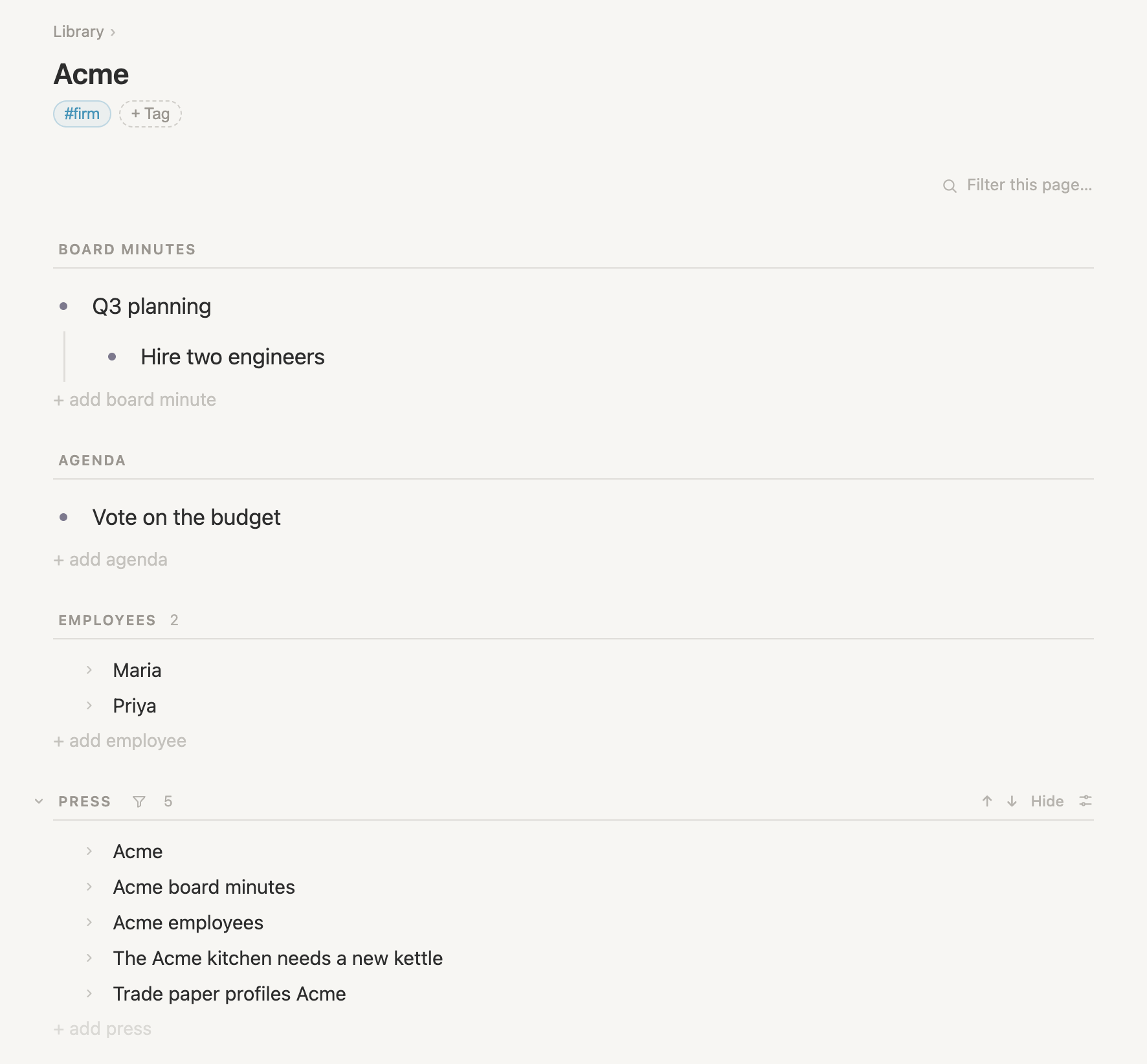
  • flip a page’s sections into side-by-side columns
An Acme note organized into Board minutes, Agenda, Employees, and Press sections
Divide any note into focused, named sections.
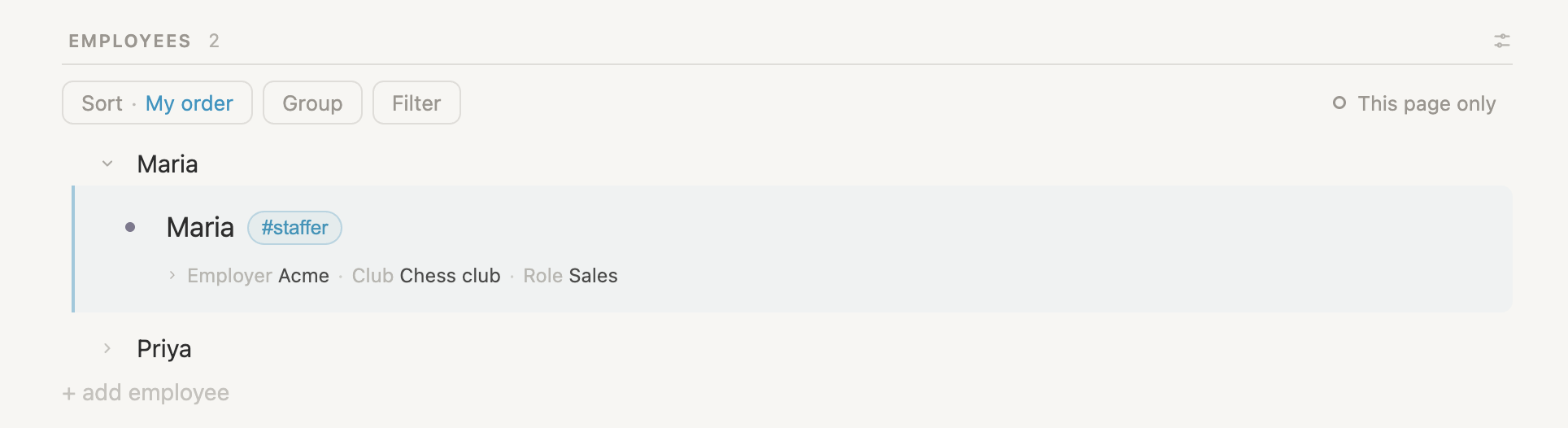
An Employees section with controls to sort, group, and filter its entries
Give each section its own sort, group, and filter arrangement.
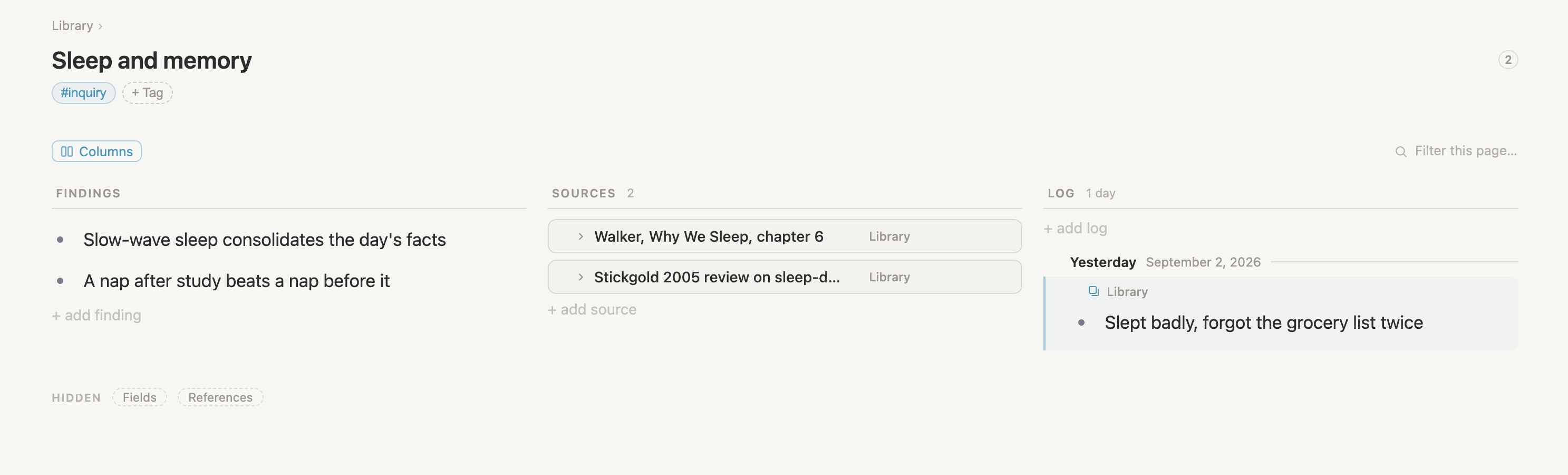
A Sleep and memory note showing Findings, Sources, and Log sections in side-by-side columns
Switch a page to columns to see sections side by side.

v0.2.8

Merge and aliases

Merge

  • you can now merge tags and fields
  • no pre-staging is required: visit any tag and choose “Merge other tags into this one” or “Merge this tag into…”, or visit any field and choose “Merge into this field” or “Merge this field into…”
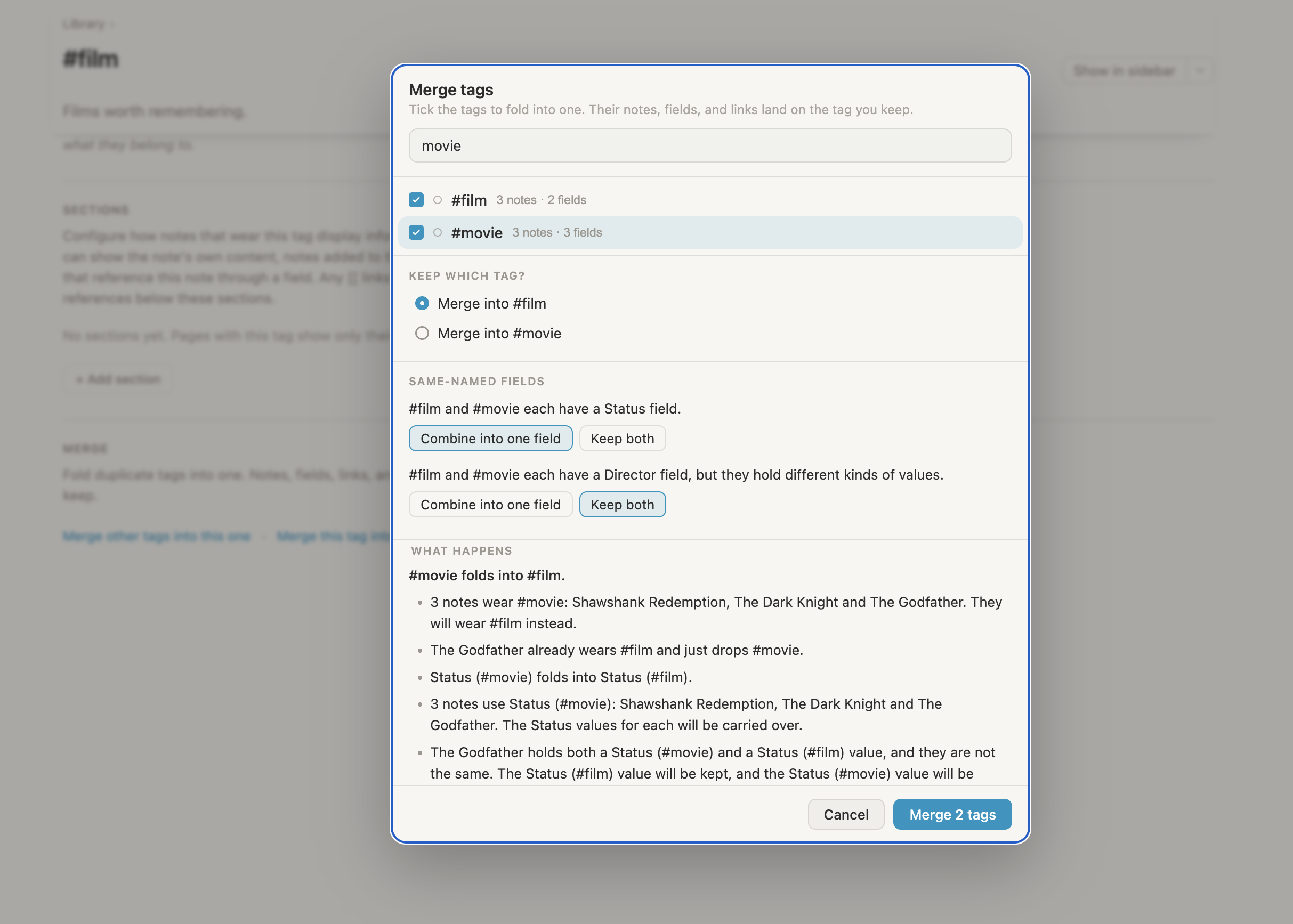
  • the merge dialog describes everything that will be updated
The Merge tags dialog comparing the film and movie tags, their fields, and everything the merge will update
Review every affected note, field, and link before merging tags.

Aliases

  • you can now refer to any node by other names
  • aliases work in search, cmd-p, and the link pickers
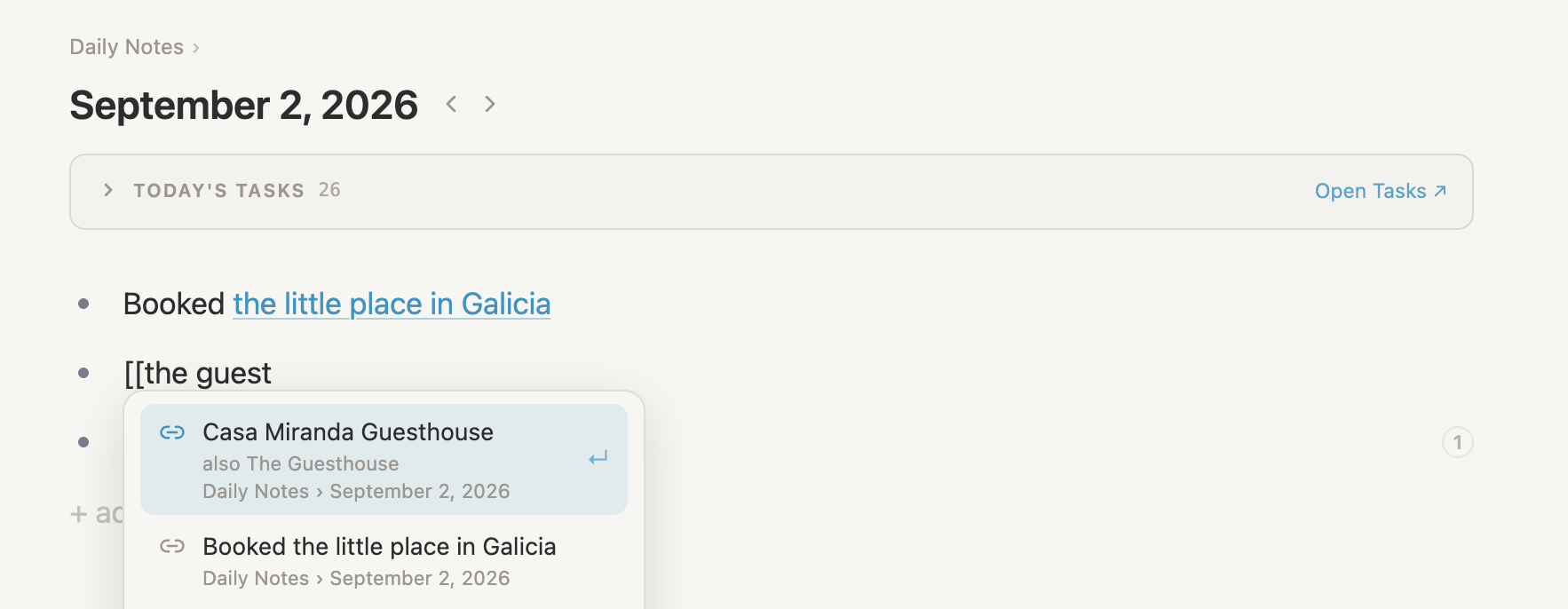
  • any single link can also show its own words
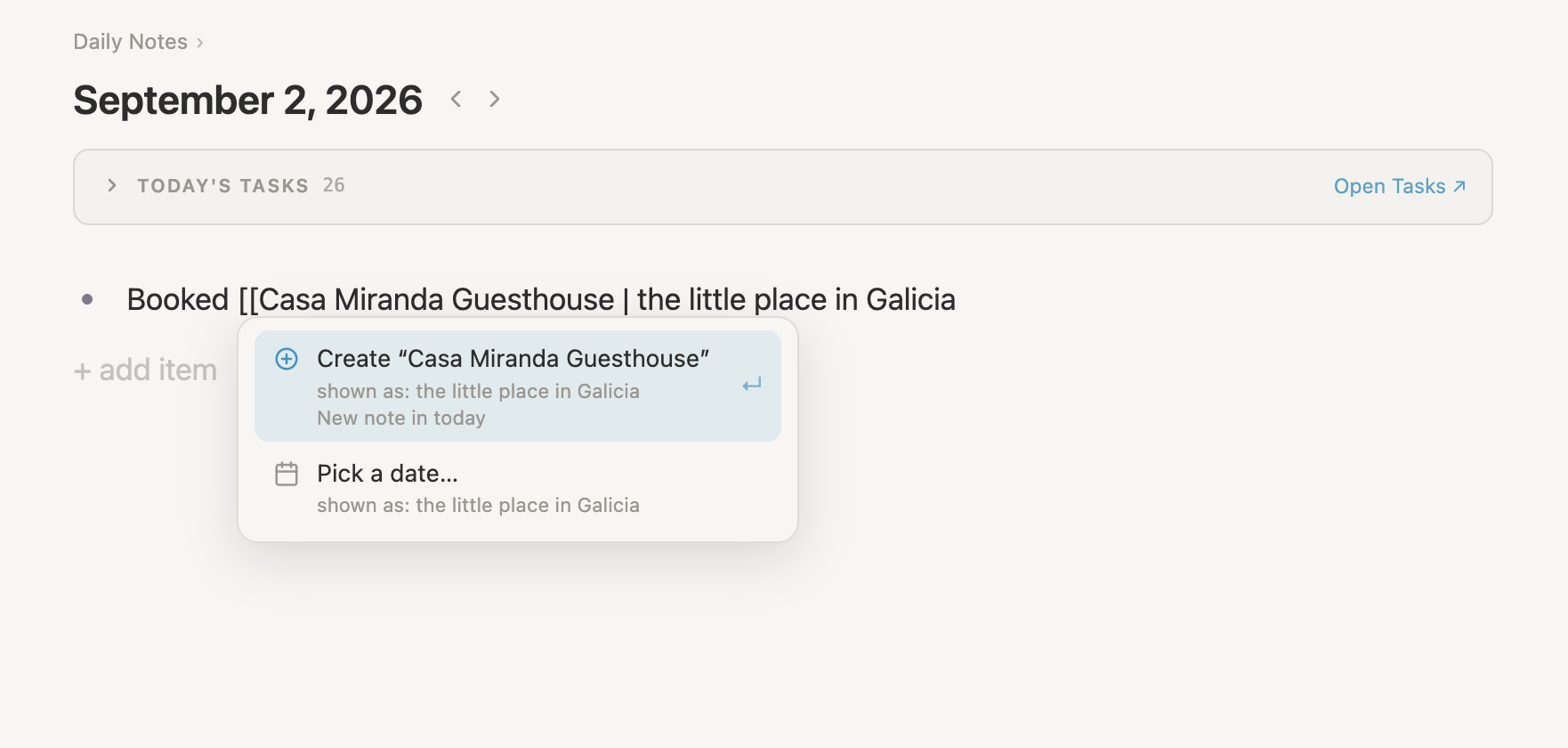
A link to Casa Miranda Guesthouse being created with the custom words the little place in Galicia
Give an individual link its own words as you create it.
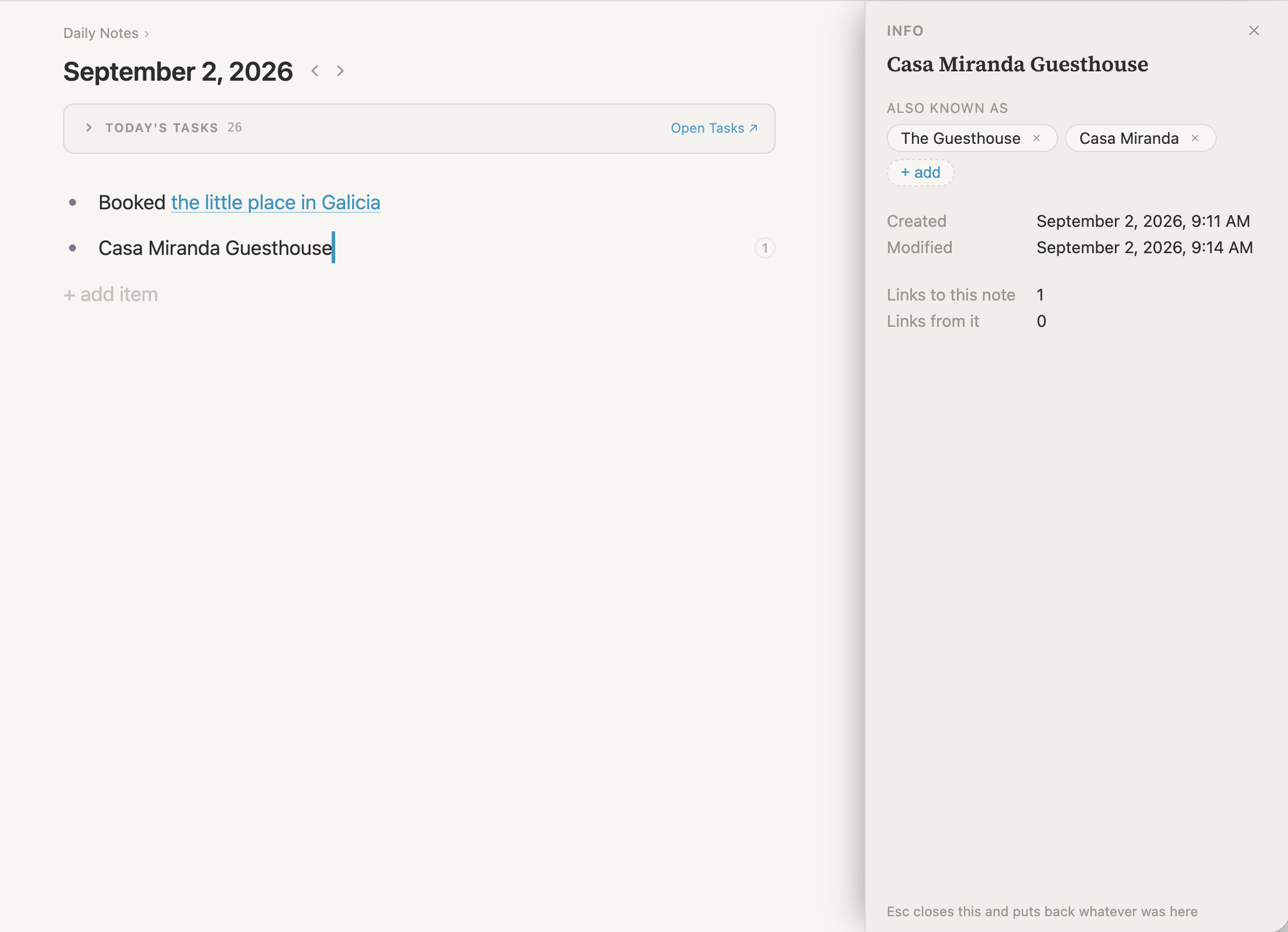
The Casa Miranda Guesthouse info panel listing The Guesthouse and Casa Miranda as aliases
Add and manage aliases in the note’s info panel.
The link picker finding Casa Miranda Guesthouse by its alias The Guesthouse
Find notes by their real names or any alias.

v0.2.7

Yet even more import improvements, plus a few other tweaks

Import

  • import now processes YAML frontmatter in Markdown files

Editor

  • performance: after a large import, typing [[ could show a delay before displaying candidate links. The same could happen when selecting a note under cmd-k > Move under. Both are now fixed
  • checkboxes in prose documents are now supported
  • pasting Markdown checkboxes into the outliner now works

v0.2.6

And even more JSON import improvements 😁

Import

  • attachments: you now have the option to leave files on their remote server or copy them into Vellum (the default). If you choose to copy files into Vellum, downloads now occur in the background, so you can start using your notes right away. Any failed downloads automatically retry when Vellum starts, and you can manually retry them at any time
  • performance: after importing a JSON file with thousands of note-to-note links, typing could lag. This is now fixed
  • heads up: v0.2.6 updates your vault’s storage format, so there’s no going back to an older release after you update

v0.2.5

More JSON import improvements

Import

  • fixed: a tag still in use could be skipped if the JSON trash objects also pointed at that same tag schema
  • enhanced the pre-import report with more details: each missing tag now says how many notes it covers, and tags sitting in the JSON trash are noted
  • fixed: dates written into the JSON by externally connected tools used a format Vellum didn’t recognize. This is now addressed

v0.2.4

JSON import enhancements

Import

  • fixed: handle cases where one or more notes carry the same date or number field twice (for example, the same Rating number field listed twice on one note)
  • fixed: handle cases where one or more notes wear tags that contain the same field name (for example, two different tags, each with a Due date field, assigned to the same note)
  • enhanced error capture: rather than aborting the JSON read on the first error, Vellum now continues reading the entire JSON and captures a full list of data errors for reporting

v0.2.3

hotfix release

Import

  • fixed: JSON import failing on big exports with lots of attachments
  • fixed: JSON import refusing files where a calendar page is also linked from a note

Notes

  • deleting folded notes now warns you first and names exactly what would be removed

v0.2.2

richer dates, safer imports, multiple vaults, and a sidebar you control

Date and time

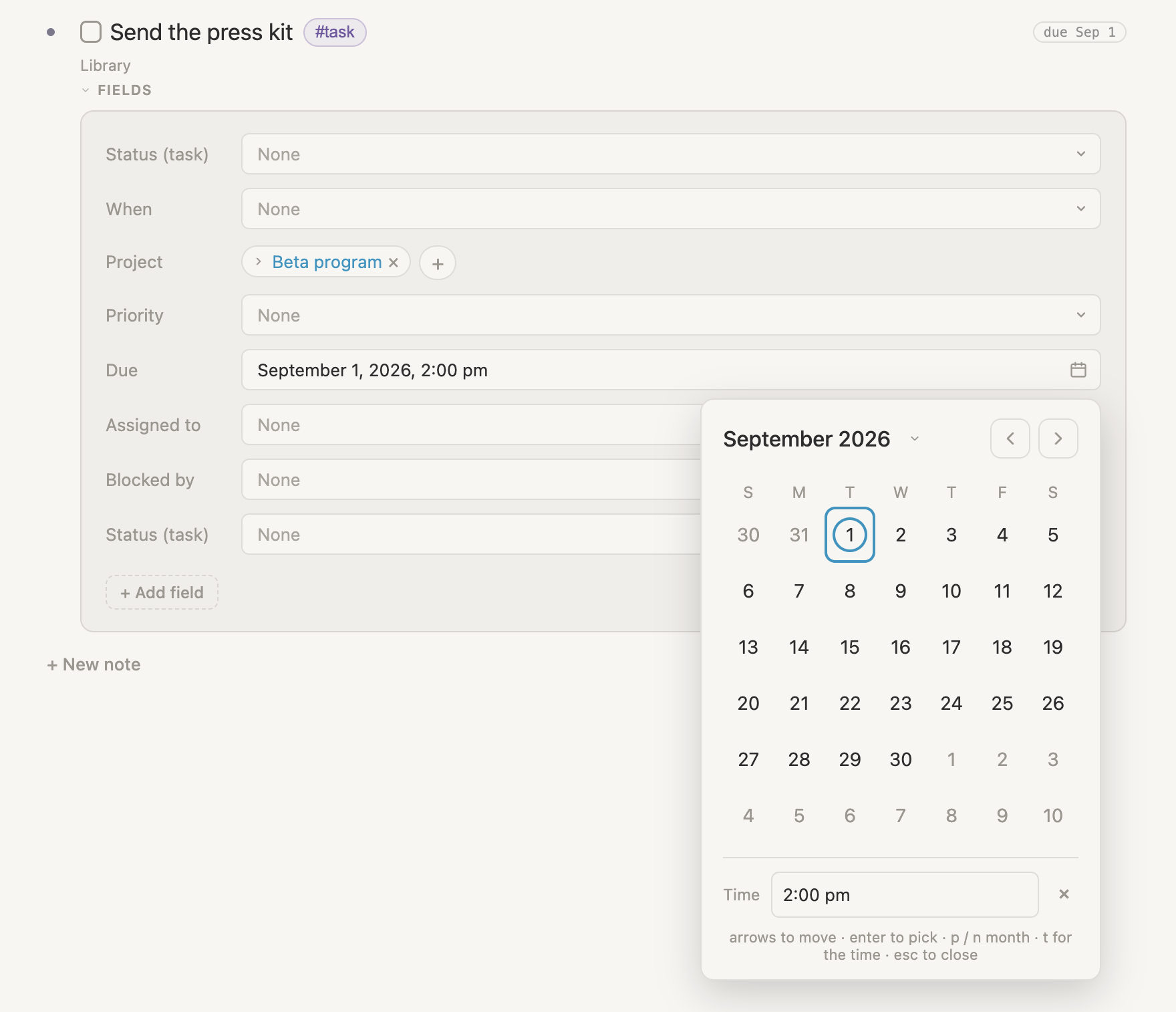
  • date fields can now capture a time
  • enter just a year, a month and year, or a full date
  • sorting and grouping work across all supported date formats
  • times can include a location, such as “2pm London”. Vellum saves the location, but does not use it yet—that will come in a future release
A Vellum date field set to September 1, 2026 at 2:00 pm
Date fields can now capture a date and time together.

Import

  • import a Markdown folder or JSON workspace
  • review a summary before importing so you know exactly what will happen
  • undo an import immediately or at any point later

Multiple vaults

  • use unlimited, independent vaults—handy for separating work and personal notes
  • open multiple vaults at once, each in its own window
  • choose which vault receives a Markdown folder or JSON workspace when importing
The New vault dialog with options to start fresh, copy the current vault, or restore a backup
Create a fresh vault, copy one, or restore from a backup.

Areas: Collections redux

  • Collections are no longer shown in the sidebar
  • customize the sidebar with your own sections, called Areas
  • put any combination of tags, nodes, and documents in an Area
  • rename, rearrange, and remove Areas whenever you like
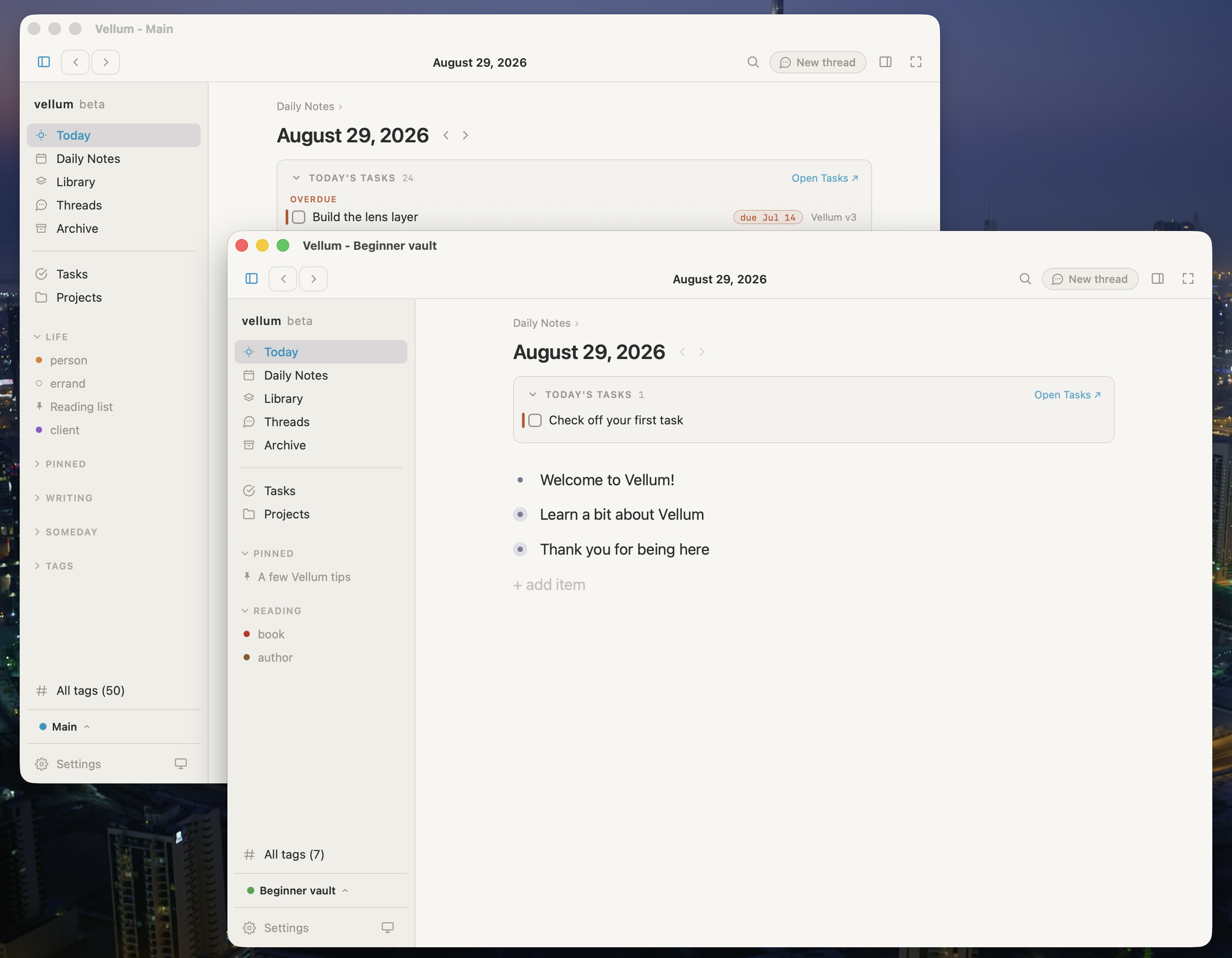
Two Vellum vault windows with different custom Areas in their sidebars
Each vault is independent, with its own notes and sidebar Areas.

v0.1.36

small release note, big update.

  • hidden markdown symbols. check it out.
  • for those of you who prefer seeing them, see Settings >Appearance

v0.1.35

a handful of QOL stuff

  • support customized Collection names
  • delete node shortcut (cmd/ctrl-shift-backspace). works on node titles as well.
  • file uploads: cmd-k > Upload a file. Drops wherever your cursor is (or creates a new node if no cursor)
  • saved searches can now show up in search results (when they match the rules)
  • fix: a rule that starts with "as far as it goes" no longer counts the note itself. NB: this also means a search like "Parent project as far as it goes, then Goal is X" now lists only the projects under the one that has the goal. if you also want the project that names the goal directly, add a second rule group saying goal is X
  • fix: pages now scroll again while a filter popup is open
  • fix: links to notes with code in the title now display properly

v0.1.34

a bit more love to date-based querying

  • proper date with range value options
  • “this note's ...” referencing (the note that shows this search in one of its fields)
  • date verbs like before, after, on or before, on or after
  • rolling date rules (e.g. “Due this week”, “Birthdays this week”, “Due before today”)
  • natural language in values like “the next 12 days” or “within 7 days of this note's Start date”
  • proper date-based sorting
  • support for year and no year, making date fields birthday-friendly
  • change your week start day in Settings > Appearance
More in this release
  • Before this release, date querying required manually typing dates into the value field and offered only limited verbs.
  • Phrases from the dropdown menu—this week, the next 7 days, today, and so on—roll with the calendar.
  • A typed specific day like “next friday” or “24 july” is stored as that exact day.
  • Dates can now be captured with or without a year. When a birth year exists, the birthday can still appear every year.
  • The new “Your week starts on” setting defaults to your computer’s region and affects the calendar picker and all week-based date queries.

v0.1.33

field path querying

  • this is something @ag has been quietly working on for awhile: field path querying. search rules can now follow a field into other notes. a rule used to look at just one field on the note being searched. now it can keep going.
  • sample use-cases: all tasks that roll up to a goal; tasks whose project's Owner is me; projects whose goal's Status is Paused; tasks assigned to my reports' reports; books whose Author's Country is Japan; places whose Country's Region is Europe; recipes whose Ingredients' Season is Spring.
  • where a field points at its own kind (a project's Parent project, a task's Blocked by), an “as far as it goes” switch lets the search climb the chain. loops are harmless, and the climb stops at 20 steps.
More in this release
  • nothing to set up: no marks on fields, no new field types. just build your search query and each step offers only the fields that tag actually carries, plus any fields you placed by hand.
  • if you delete a field that a rule walks through, the rule calls out where it breaks, matching nothing rather than showing incorrect data. the search page and any note showing it will tell you why.