Where a note lives
We write most things on today's daily note. That's where we are when we think of them. For instance, car related stuff: That we filled up the tank. Where the spare key is. A reminder to ask Sam about that funny noise the engine keeps making.
And every one of those also belongs with the car's own page.
So which is it? Today's page, or the car's page? In Vellum it can be both. Every note lives in exactly one place, and there are four ways to have it show up somewhere else as well: move it, Add to, a mirror, and a link. From a distance they look a lot alike. Up close, each one does something different, and once we know which is which, picking one is easy.
Let's build a page for a car, and use all four along the way. By the end, the Car page looks like this:
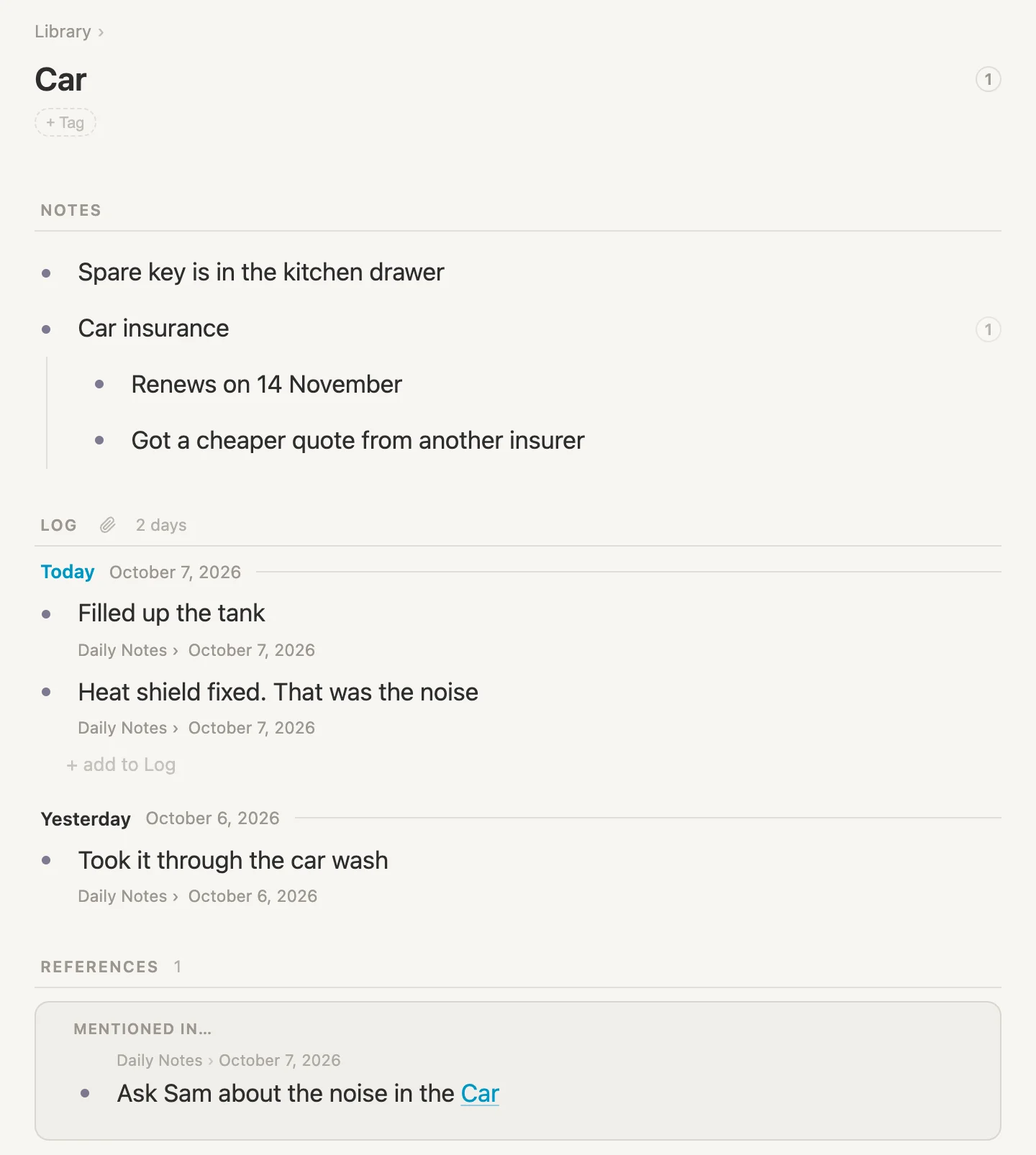
NOTES that really live under Car, one of which shows up on another page as well. A LOG of things we jotted down on our daily notes, grouped by day. And at the bottom, a REFERENCES box with a line that mentions the car. Most of it was written somewhere else.
Every picture on this page was taken on Wednesday, October 7, so in the examples "today" is October 7.
NB: Cmd throughout is the Mac key. Use Ctrl on Windows and Linux.
Every note lives somewhere
Let's start with the car itself. On today's page, click + add item, type Car. Then click the bullet dot next to Car to open it on its own page.
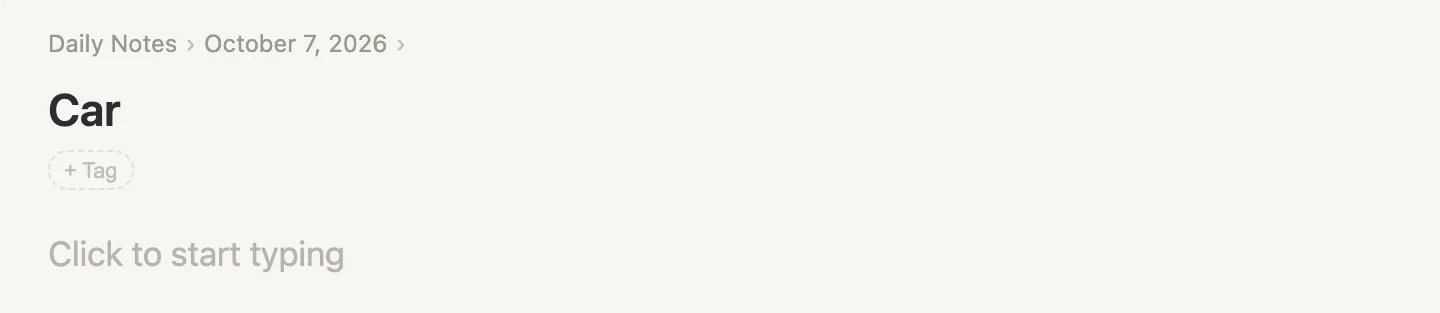
Look above the title: Daily Notes › October 7, 2026. That line is where the note lives. Car lives on October 7, because that's where we typed it.
Every note has exactly one home: the note it's nested under. The line above the title shows that home, and that home's home, all the way up. The rest of this page is about getting a note in front of us somewhere else as well, and that line above the title is how we'll be able to tell what changed and what didn't.
Moving it: when it belongs somewhere else
A car isn't something that happened on October 7. We'll be writing about it for years. It shouldn't live on one day. It should live in the Library, where the things we keep go.
Press Cmd-D to go back to today. Click in the Car line, press Cmd-K and type move.
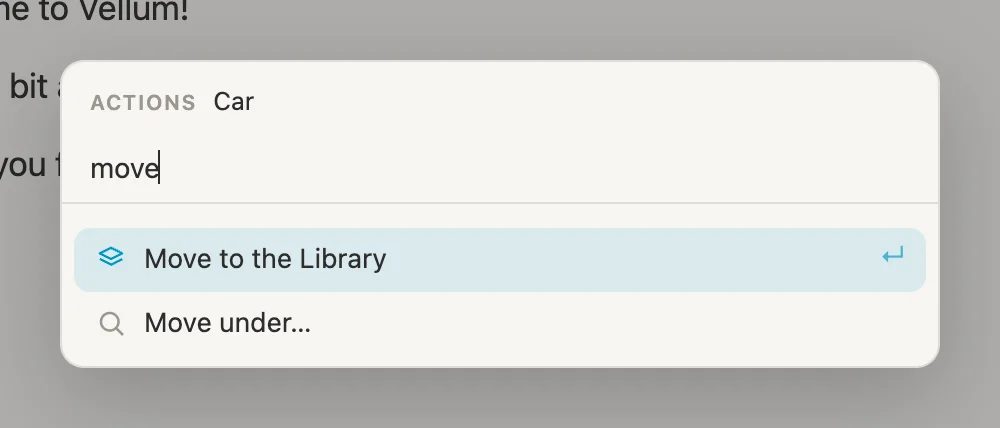
Press Enter to accept Move to the Library. Car leaves today's page, and the message at the bottom of the window says Moved "Car" to the Library, with Go to beside it. Click Go to. We're in the Library, and Car is in its list, under Untagged. Click Car.
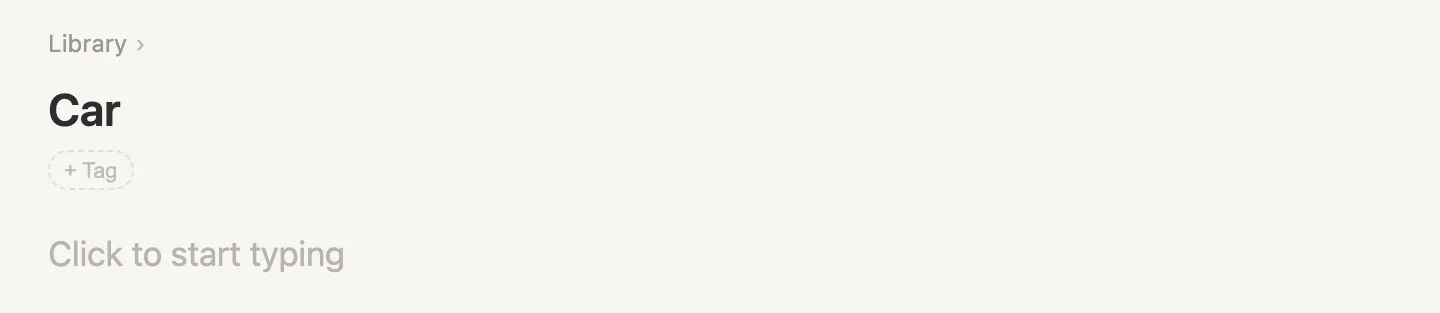
Same note, same page. Only the line above the title changed. It says Library now.
Now the spare key. Press Cmd-D, click + add item and type Spare key is in the kitchen drawer. This one belongs under Car, not just somewhere in the Library. With the cursor still in the line, press Cmd-K, type move under and press Enter to take Move under…. Then type Car.
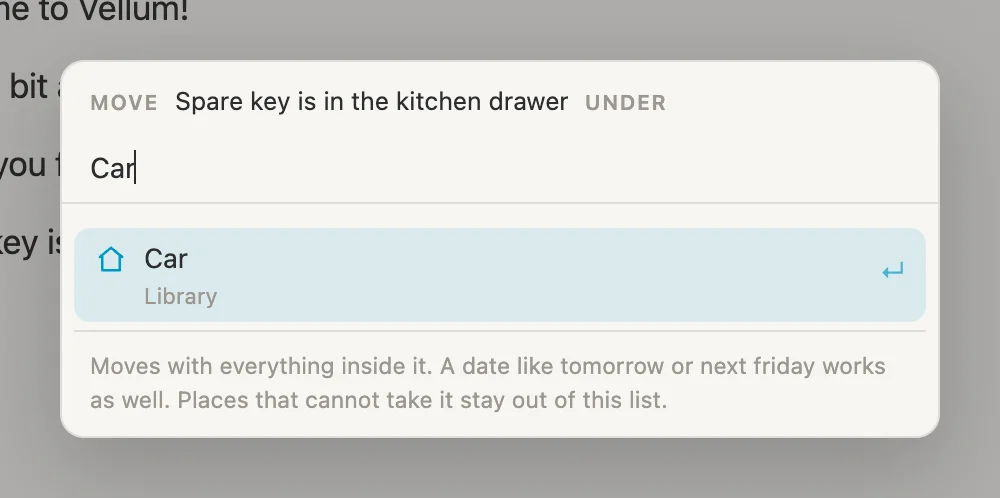
Every place in the list says where it lives, in grey under its name. The line at the bottom says the important bit: Moves with everything inside it. Press Enter. Moved "Spare key is in the kitchen drawer" under "Car".
There are other ways to move a note, and they all do the same thing:
- Drag a bullet by its dot and drop it where it should go. Everything under it comes along.
TabandShift-Tabmove a line in and out, under the line above it or back out again.
A move is the only one of the four that changes where a note lives. Afterwards the note has a new home, and the old place doesn't show it any more. Anything that links to it or mirrors it (more on those in a moment) follows it to its new home, because it's still the same note.
Add to: when the day is its home
Some things are best left on the day we wrote them. Filling up the tank is a little piece of a day, and when we look back at that day, we want to see it there. But we'd also like all of them together, on the car.
That's what Add to is for. It puts a note on another page without taking it out of the one it lives in.
Two shelves for the car
Add to needs somewhere to put things: a section on the other page that accepts them. A section is a named shelf on a page. (Planning a trip has a lot more on them.)
We'll give Car two shelves: Notes, for the things that live under Car, like the spare key, and Log, for the things we add to it from our daily notes.
Open Car again: press Cmd-P, type Car and press Enter. Click at the end of the title Car, press Cmd-K, type section and press Enter to take Add a section….
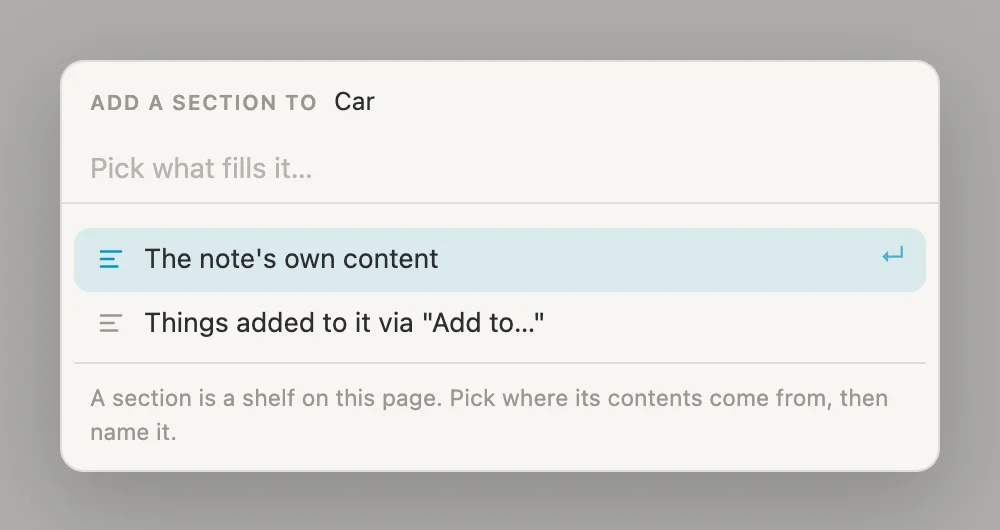
First the Notes shelf. Pick The note's own content. The name box comes filled with Items, already selected.
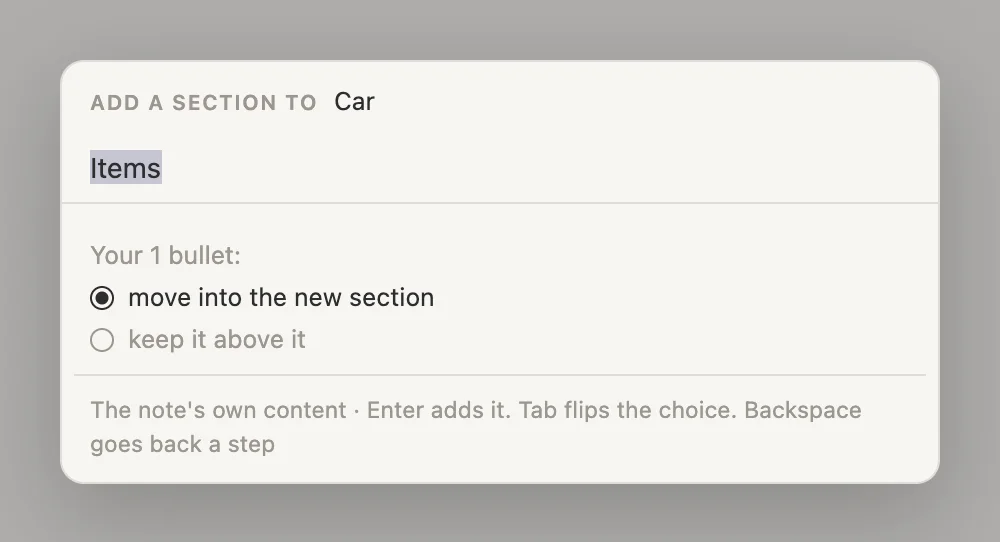
Type Notes over it. Underneath, Your 1 bullet: is set to move into the new section, which is what we want: the spare key goes onto the new shelf. Press Enter. Notes added. Your 1 bullet now sits in it. Add a second section to sort it.
Now the Log. Click at the end of the title again, press Cmd-K, type section, press Enter, and this time pick Things added to it via "Add to…". The name box comes filled in again, this time with Notes. Type Log over it and press Enter. Added "Log" to "Car".
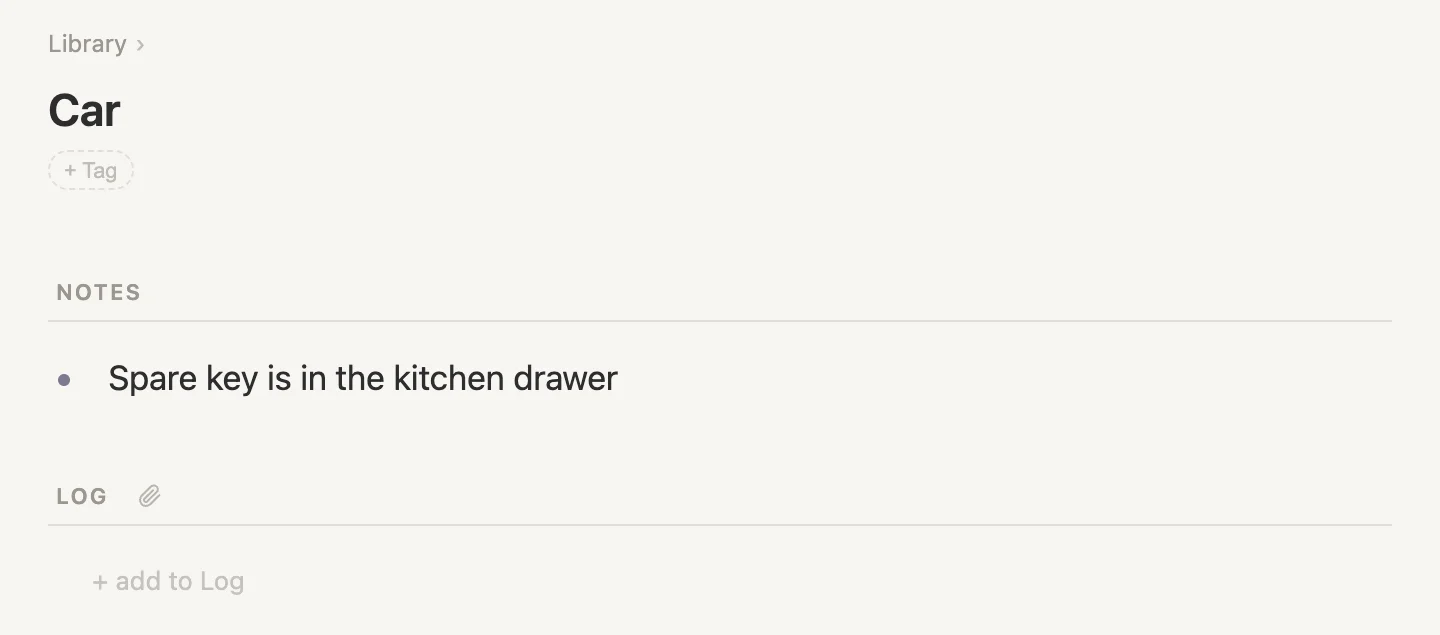
NOTES holds the spare key. LOG is empty for now, with a small paperclip beside its name: that's the shelf Add to will fill.
Sending a line to it
Press Cmd-D. Click + add item and type Filled up the tank. With the cursor still in that line, press Cmd-K, type add to and press Enter to take Add to…. Then type Car.
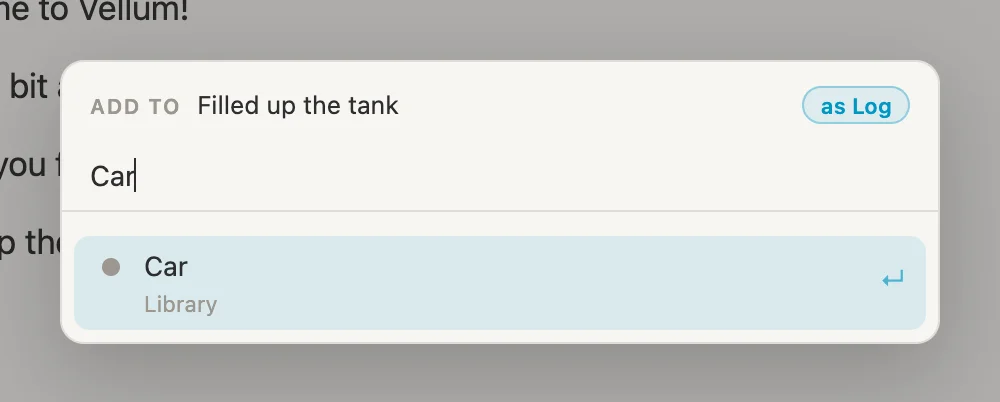
The chip in the top right corner, as Log, is the shelf it's headed for. Log is the only shelf on Car that takes added lines, so there's nothing to choose. (On a page with two or more of them, Tab flips between them.)
Only notes with a shelf like this show up in the Add to list. That's why we made the Log first.
Press Enter. Added to "Car" · your line is under Log.
Where did it go? Nowhere
Look at today's page. Filled up the tank is still there, exactly where we wrote it. The only change is a small paperclip at the right end of the line. Point at it.
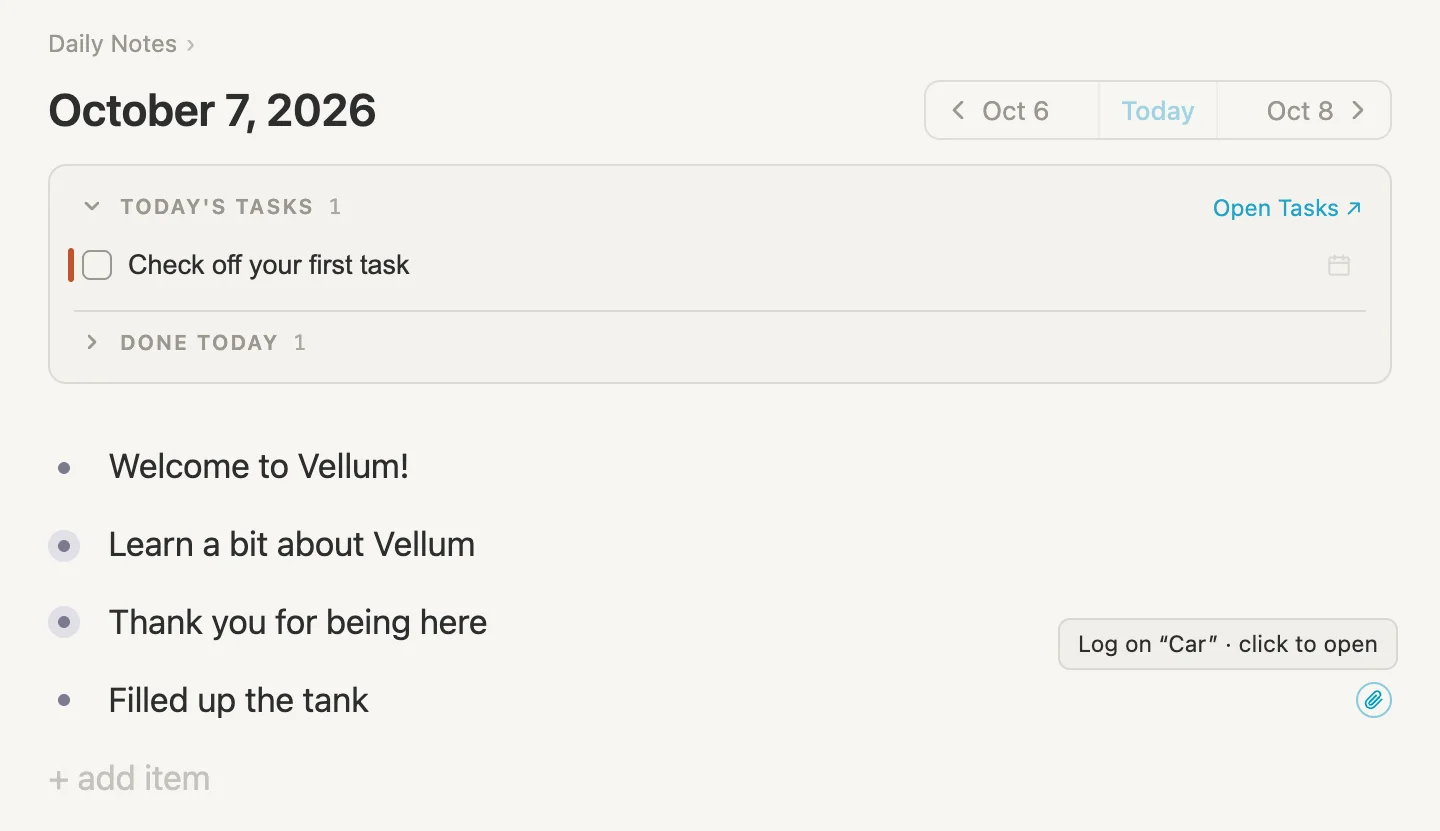
Log on "Car" · click to open. That's how to tell, in any list, that a line has been added somewhere else, and where to. Clicking it takes us to Car.
Click the bullet dot next to Filled up the tank to open the line on its own page.
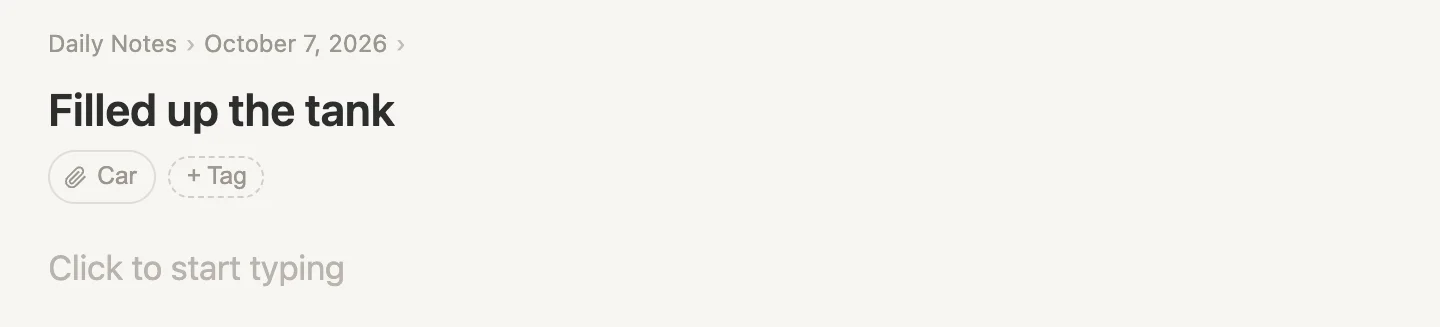
Above the title, it still says Daily Notes › October 7, 2026. It lives on the day. And under the title, a pill with a paperclip and Car: the page it was added to.
The Log
One line doesn't make much of a log, so let's add another, from yesterday. Press Cmd-D, then click Oct 6 at the top right of today's page to go back a day. Click Click to start typing (or + add item, if you already wrote something that day), and type Took it through the car wash. Then the same as before: Cmd-K, Add to…, type Car, Enter.
Now open Car: press Cmd-P, type Car and press Enter.
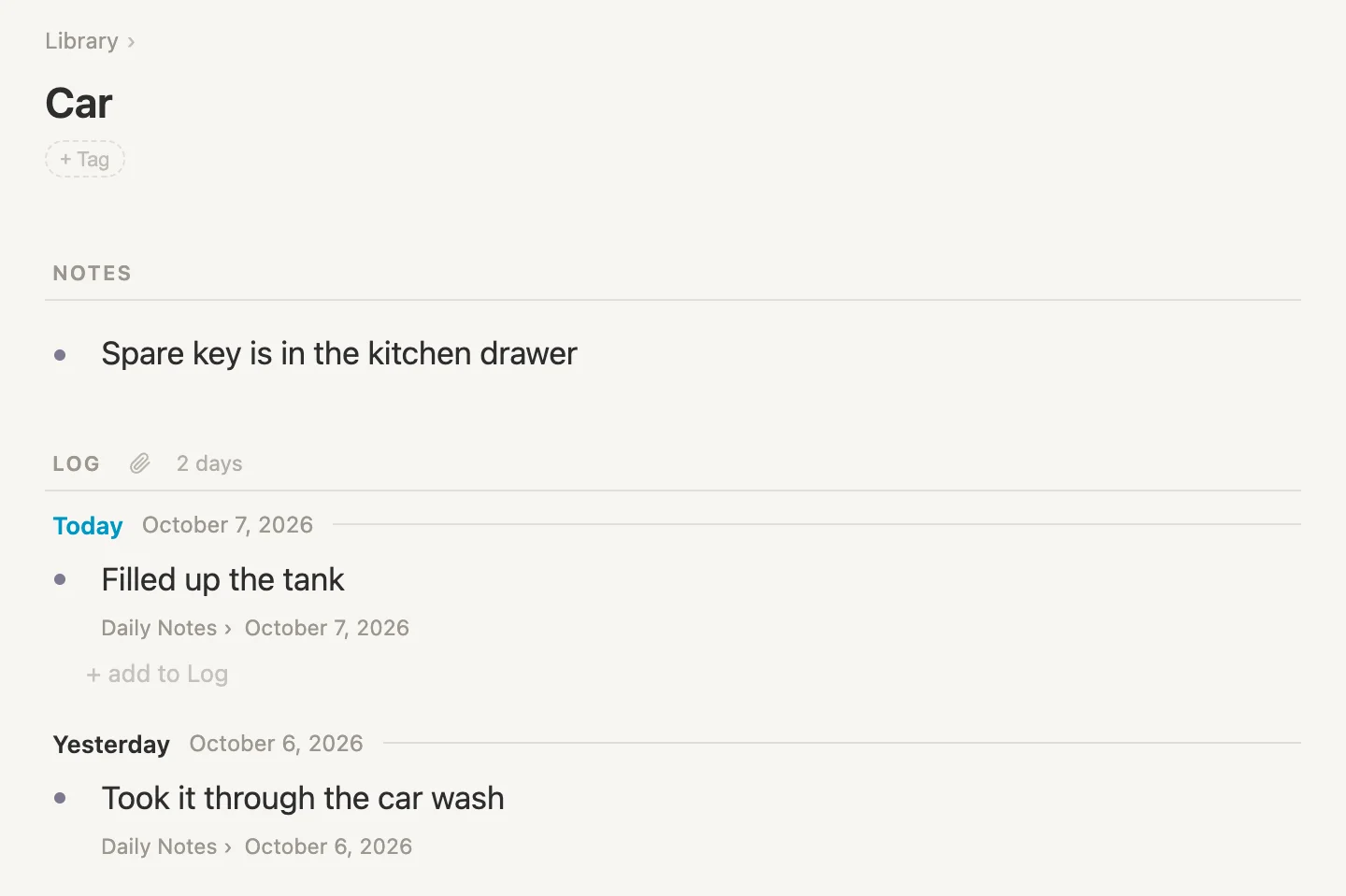
Both lines are in the Log, grouped by the day they were written, newest first. Under each one, in grey, the place it lives. These aren't copies. Click into either line and change it, and it's changed on its day as well, because it's the same line.
Taking it back
If you ever change your mind about a line, click in it on its day, press Cmd-K, type detach and press Enter to take Detach from "Car". Detached from "Car". The line stays put. It's gone from the Log, and still on its day. On the Car page, pointing at a line in the Log shows a small mark at the right end of the grey line under it. Hold the pointer on it and it says Remove from Log, which does the same.
A mirror: one note, in two outlines
Add to puts a note on a shelf. A mirror puts it right into another outline, in among the other bullets, with everything nested under it.
Car insurance belongs with the car. It also belongs with the rest of our insurance, next to the house insurance. Not a copy in each place, though. One note, so that whatever we write in one place is there in the other.
Open Car (Cmd-P, type Car, Enter). Under NOTES, click + add to Notes and type Car insurance. Press Enter, then Tab, and type Renews on 14 November. Press Escape.
Now a page for insurance. Press Cmd-D, click + add item, type Insurance, and move it to the Library the same way as Car: Cmd-K, type move, Enter. Then open it: Cmd-P, type Insurance, Enter.
Click Click to start typing, type Home insurance and press Enter. On the new, empty line, type (( (the closing brackets appear on their own) and then Car ins.
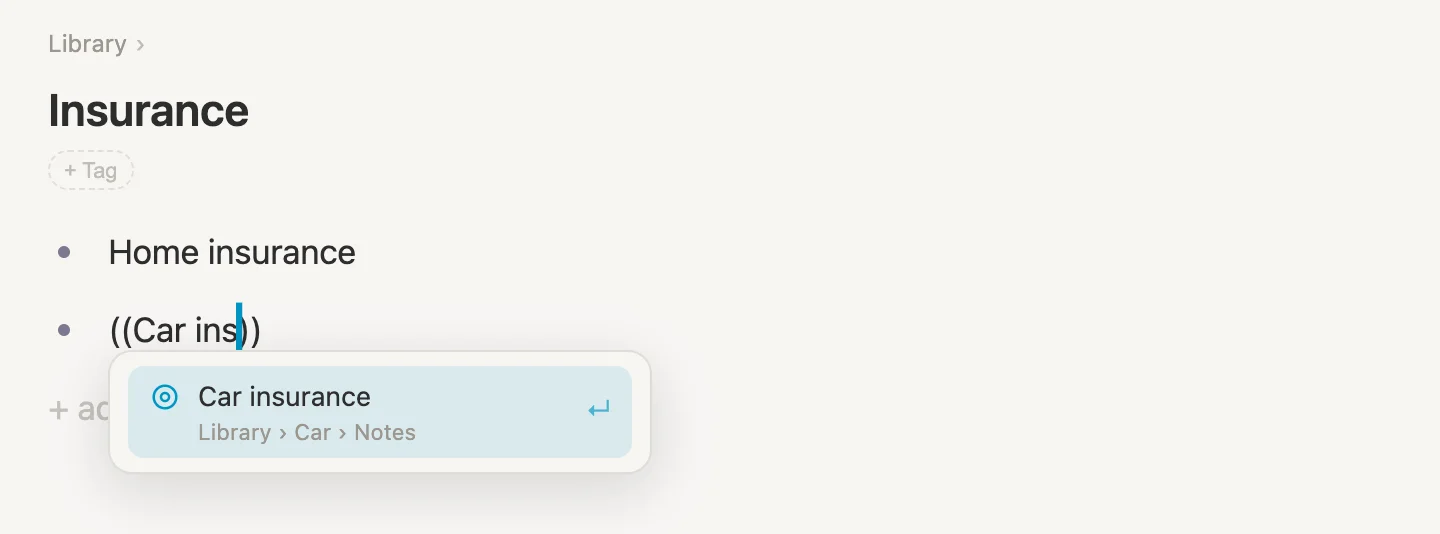
Two round brackets (parentheses) at the start of an empty line is how we make a mirror. The list says where each note lives, so it's easy to pick the right one. Press Enter.
Car insurance is on the Insurance page now, with a dashed ring around its bullet. That ring means it's a mirror: the note itself lives somewhere else. A mirror starts out folded. Point at it, and click the small arrow that appears to the left of its bullet to unfold it.
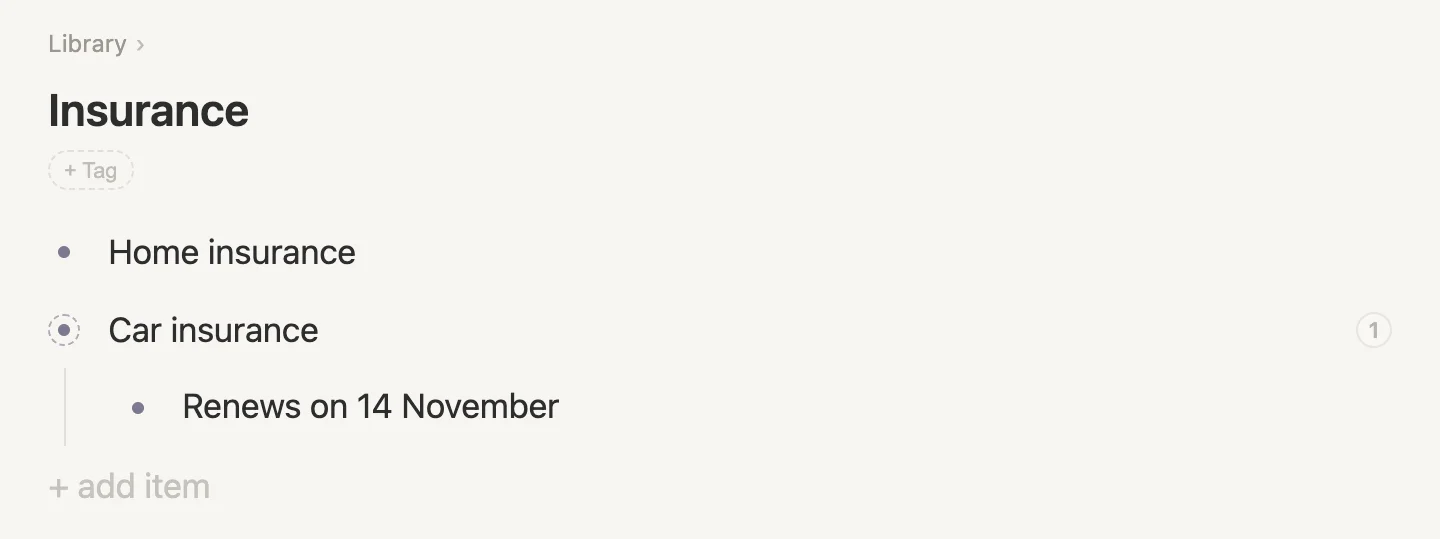
Renews on 14 November is here, and we typed it on the Car page. Now, here on the Insurance page, click at the end of Renews on 14 November, press Enter, and type Got a cheaper quote from another insurer. Press Escape. Then open Car.
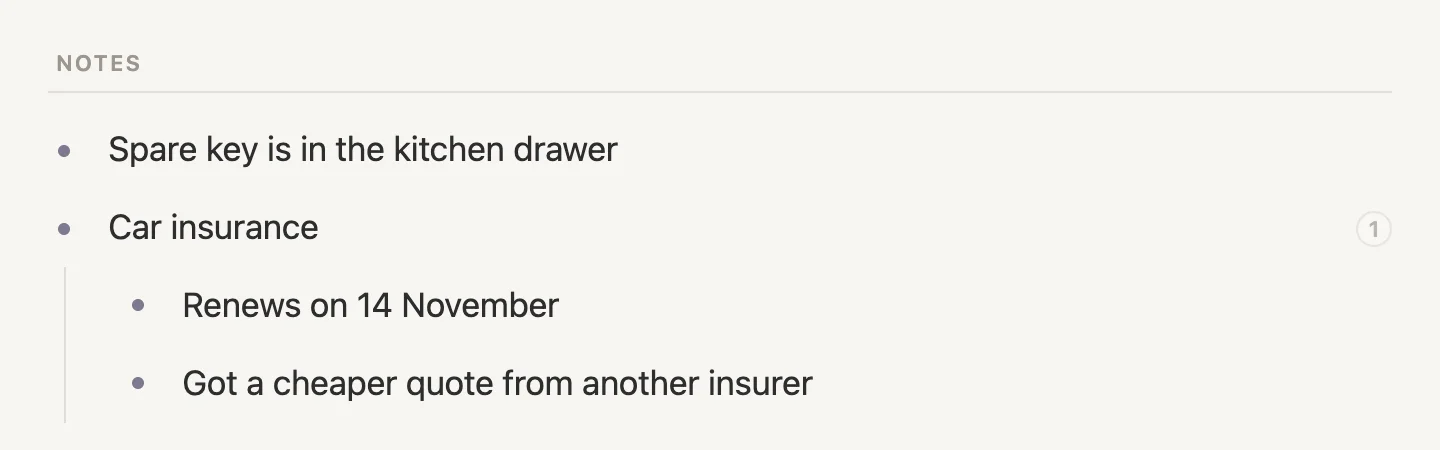
The quote we typed on the Insurance page is on the Car page. It's one note, showing in two places, and either place is a fine place to write in.
Click the bullet dot next to Car insurance to open it.
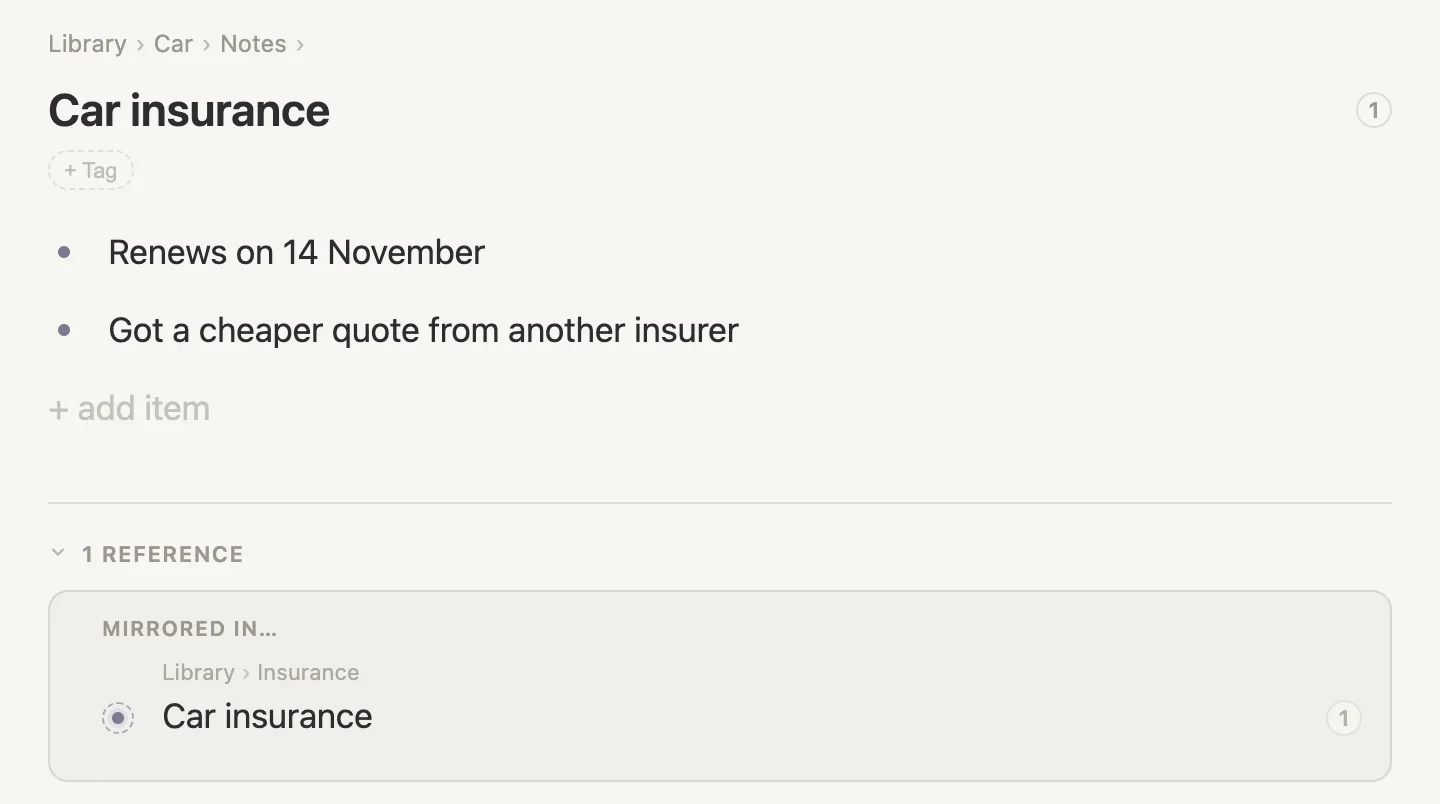
Above the title, Library › Car › Notes: that's where it lives, on Car's Notes shelf. And at the bottom, under 1 REFERENCE, MIRRORED IN… with Library › Insurance: the other place it shows. The small circled 1 beside the title counts it as well.
If typing parentheses for a mirror isn't your thing, there's a menu way. On an empty line, press Cmd-K, choose Reference another note…, type part of the name and press Enter.
A mirror always reads exactly like the note it mirrors, because it IS the note. Change the words on the Insurance page and they're changed under Car as well.
Deleting
There are two different things we could delete here: the mirror of Car insurance on the Insurance page, or the original Car insurance note itself on the Car page. They do very different things, so let's look at both. (We'll keep everything, so don't worry.)
Deleting the mirror. Open Insurance (Cmd-P, type Insurance, Enter). Click in Car insurance, the line with the dashed ring, press Cmd-K, type delete and press Enter.
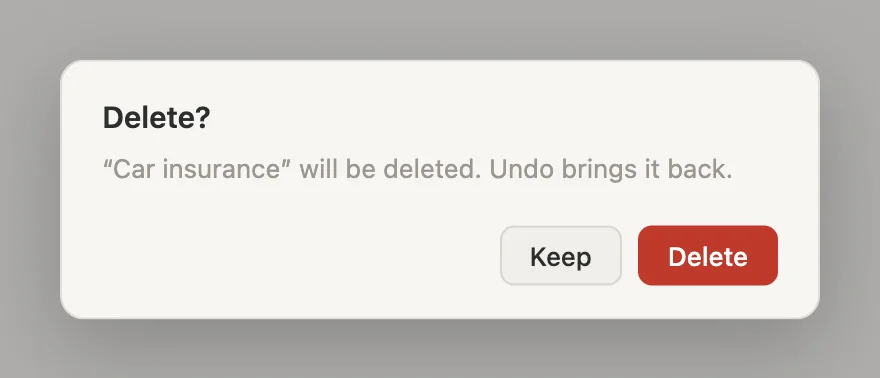
The box names Car insurance, which sounds scarier than it is. Pressing Delete here only takes the mirror off the Insurance page. The original Car insurance note itself stays under Car, with everything in it. We want the mirror where it is, though, so press Keep.
Deleting the note itself. Now open Car (Cmd-P, type Car, Enter). Under NOTES, click in Car insurance, press Cmd-K, type delete and press Enter. This time it's the real note, and Vellum knows this note shows up somewhere else, so it stops to check:
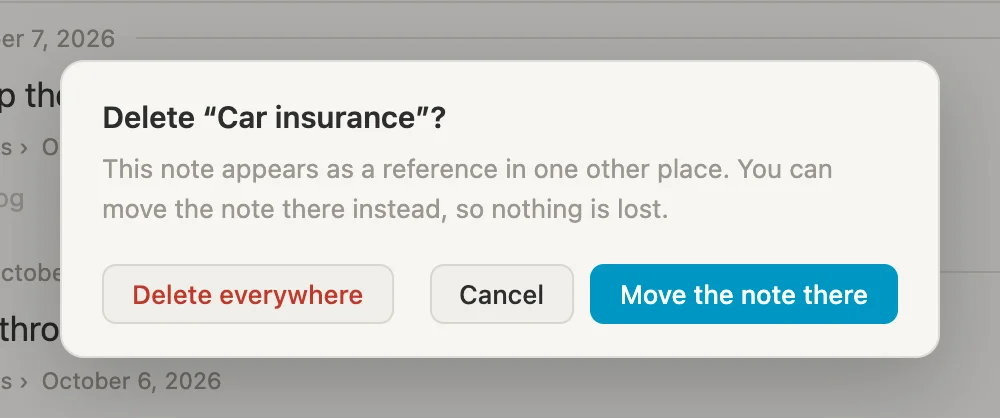
Move the note there keeps it, living on the Insurance page instead. Delete everywhere removes it from both pages. And Cancel is the one we'll press, because we still need car insurance 😁
A link: just mentioning it
Sometimes a note doesn't need to be anywhere else at all. We just want to mention the car, and be able to get there in one click.
Press Cmd-D, click + add item, and type Ask Sam about the noise in the [[Car.
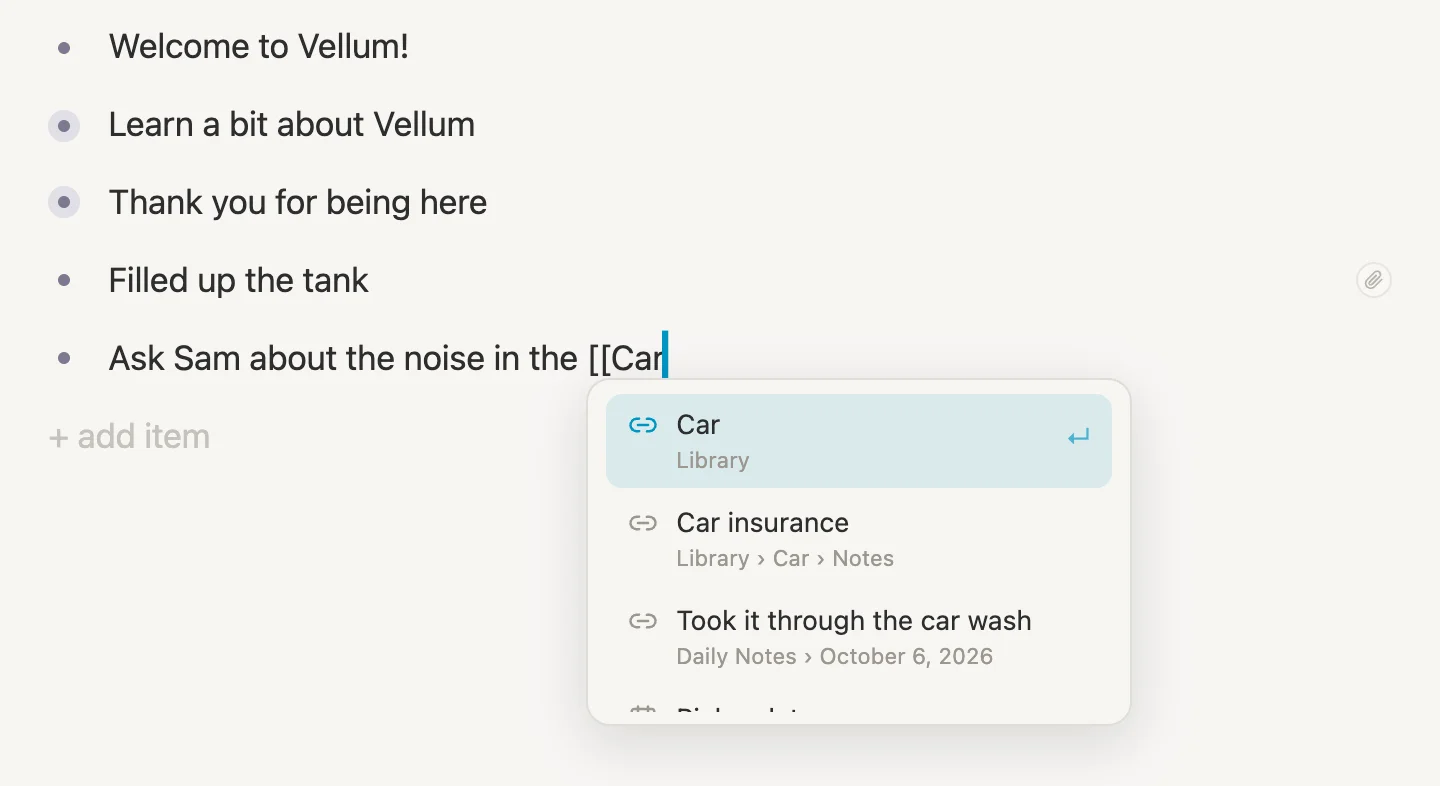
Press Enter to accept Car, then Escape. The word Car is now a link, and clicking it opens the Car page. The line itself is still a line about Sam, living on today's page, and that doesn't change.
But the Car page now knows about this new reference. Open Car and scroll to REFERENCES.
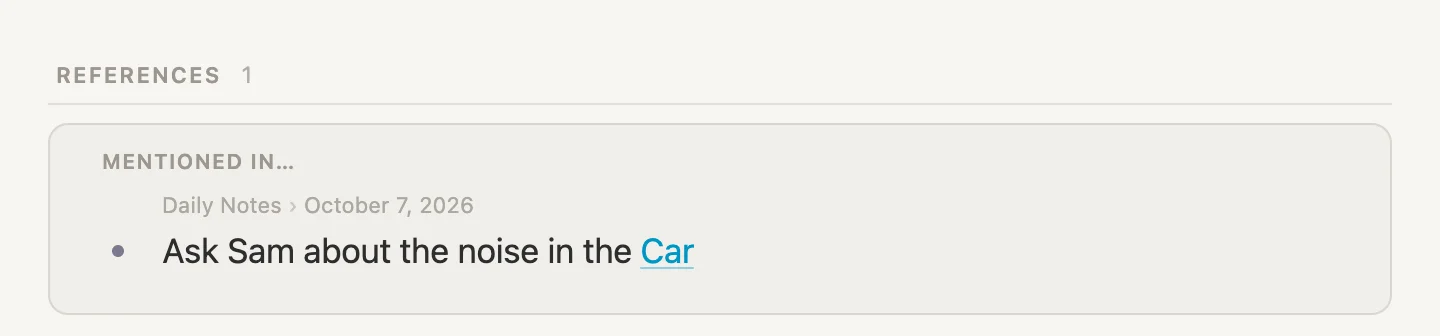
MENTIONED IN…, with the line and where it lives. That's the difference in a nutshell. A mirror puts the note itself in another place. A link points at it from another place, and the note keeps a list of everywhere that points at it.
A link can also use a name other than the note's name. Back on today's page (Cmd-D), click just past the end of the Ask Sam about the noise in the Car line, so the cursor sits right after the link (clicking the link itself opens Car, so don't do that here), press Cmd-K and select Change the words…. A small box, SHOWN AS, holds the words the link shows. Type a new name like Auto and press Enter. And now you see the word Auto serving as a reference to your "Car" note. (The pictures on this page still say Car.) A mirror can't do that, because, once again, a mirror IS the note.
Which one, when
| The note lives | The other page shows | Reach for it when | |
|---|---|---|---|
| Move | in its new place | the note, because that's its home now. The old place no longer shows it | it belongs somewhere else, full stop |
| Add to | where we wrote it | the note, on a shelf, grouped by day | the line belongs to its day, and also to a page that collects lines like it: a log, ideas, photos |
| Mirror | where it already was | the note, in among the bullets, with everything under it | it belongs in two outlines equally, and we'll write in both |
| Link | where it already was | the line that mentions it, under MENTIONED IN… | we're mentioning it, not filing it |
A few rules of thumb we've found handy:
- Writing during the day? Write it on today's page and send it with Add to. It keeps its day, and the page it belongs to collects it.
- Wrong place altogether? Move it.
- Can't decide between two pages? Let it live in one and mirror it into the other.
- Just talking about it? Link it. It costs nothing, and the other page still finds out.
Wrapping up
So ... what was the noise? Sam took one look: a loose heat shield. Back on today's page, click + add item, type Heat shield fixed. That was the noise, and send it to Car with Add to, like we did for filling the tank. And there's the Car page from the top of this walkthrough.
Three notes moved (Car, the spare key and Insurance), two shelves, three lines added to the Log, one mirror and one link. And not a single copy anywhere.
The ideas underneath it all:
- Every note lives in one place, and the line above its title says where. Only a move changes it.
- Add to puts a note on another page's shelf and leaves it where it was written. The paperclip at the end of the line, and the pill under its title, say where else it shows.
- A mirror is the note itself, showing in a second outline. Write in either place. Delete the mirror and only the mirror goes.
- A link points at a note, and the note lists it under MENTIONED IN….
- Links, mirrors and Add to all follow a note when it moves, because it's still the same note.
Nothing here is special to cars. Swap the car for a client, a house, a course or a project, and it's the same four ways to put a note in a second place: move it, Add to, a mirror and a link. Which, in a way, is the whole point: write it where you are, and let it show up where it belongs. Enjoy your Vellum travels 🚗