Dates on a trip
What we're building
Here's the backstory for our fictitious adventure ... we go up to Edinburgh to see my parents a few times a year. Usually by train. Which means the vault slowly fills up with notes called "Train to Edinburgh" and "Train home", over and over again. The names aren't very distinguishable. Which Train home was ours? Only the dates can tell them apart.
So this walkthrough is all about dates. A trip whose Date covers several days, the journeys that fall on any day of it, what's still to come, and what we were doing this very week in other years. Along the way we'll see what each date comparison actually means, and what you can type into a date rule.
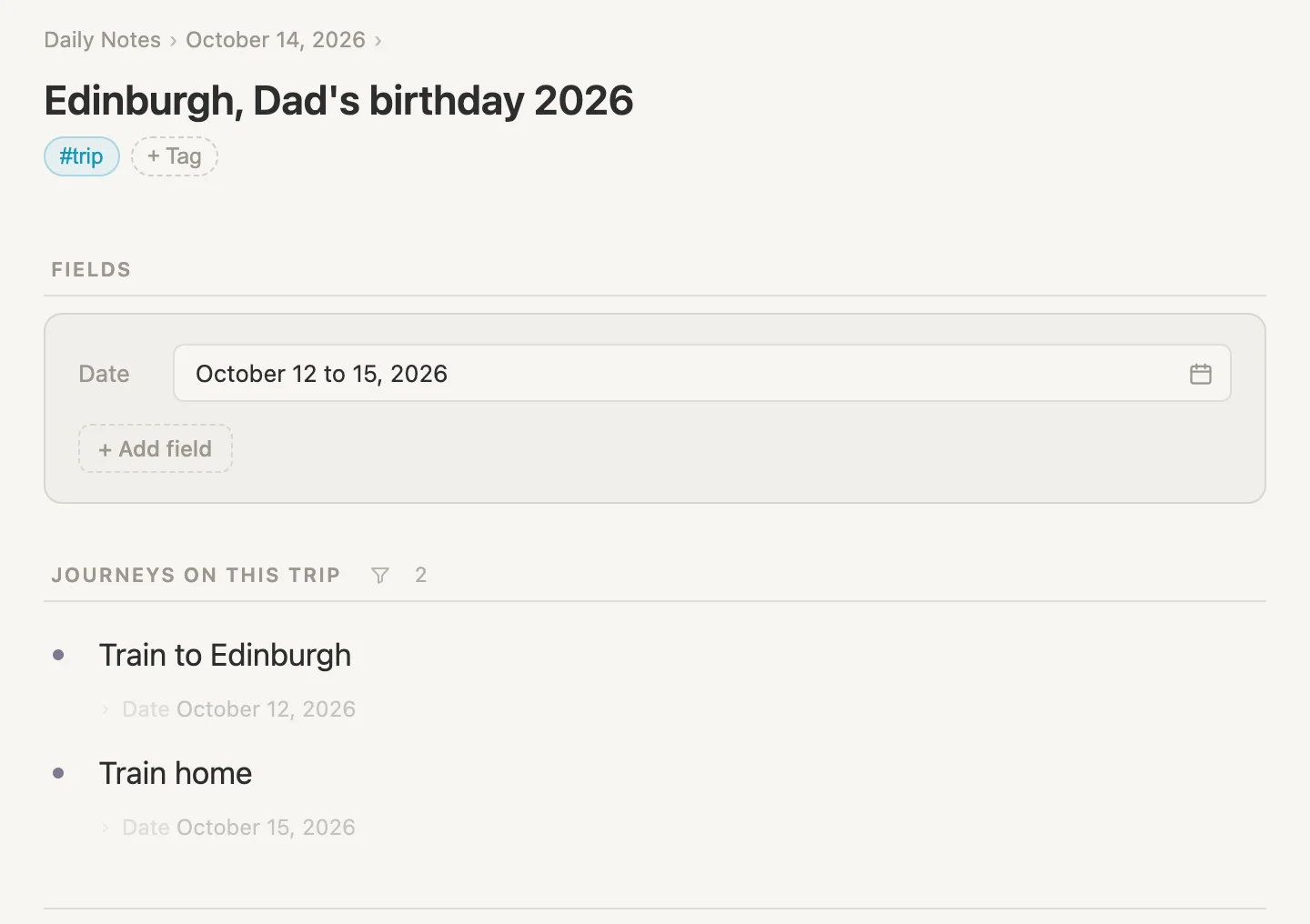
Here's this year's trip, for Dad's birthday. Its Date covers four days, 12 to 15 October. Underneath are its journeys, the train up and the train home. We never linked either one to the trip ... they flow in automatically as you'll see. There are six notes called Train to Edinburgh or Train home in the vault, and the page picks out the two whose Date falls on a day of the trip.
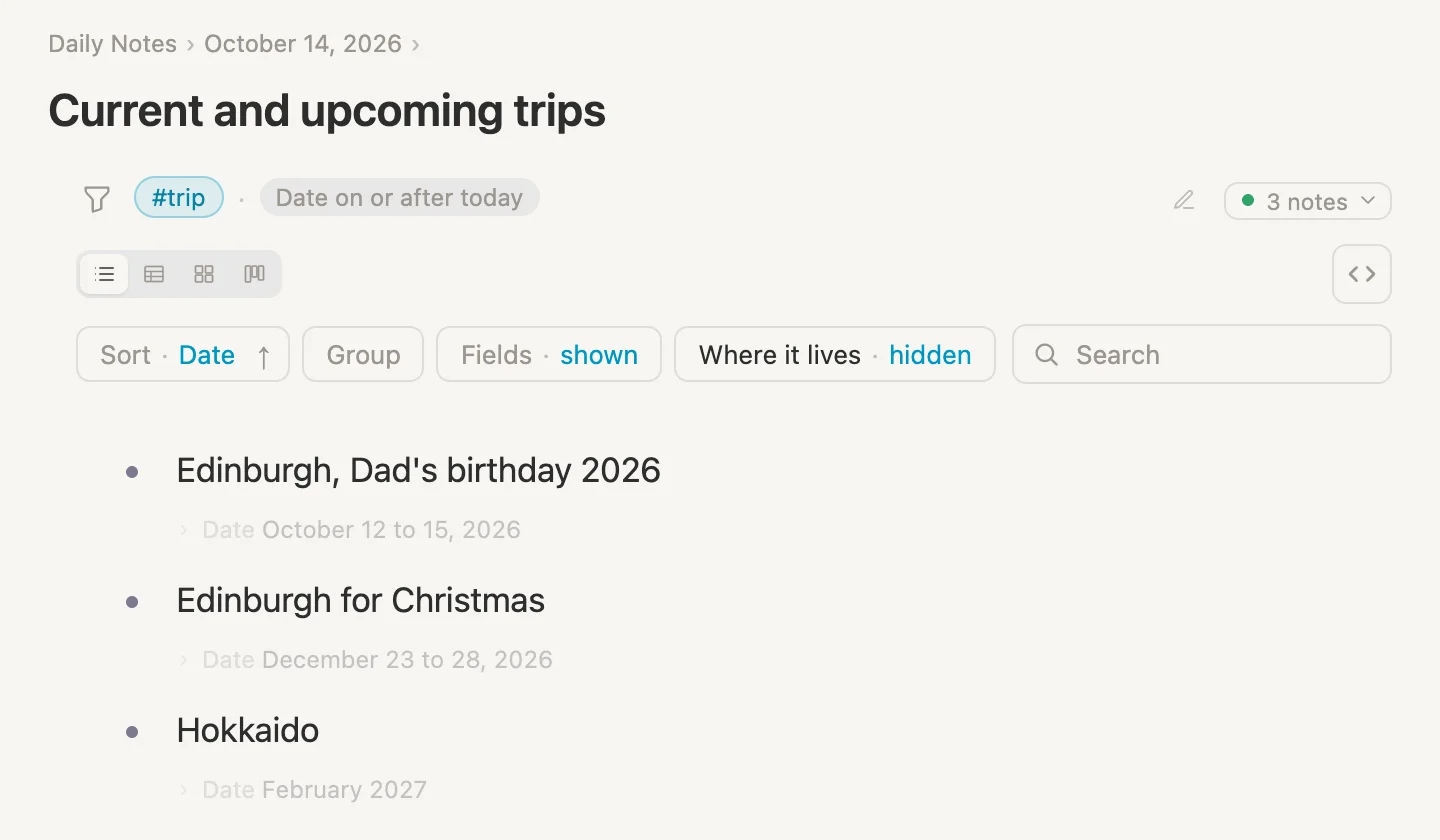
Every trip that isn't over yet. Today is Wednesday 14 October, halfway through the birthday trip, so that one is on the list along with Christmas and Hokkaido. Getting a trip that's still going onto a list like this comes down to one small word in the rule, and we'll see which.
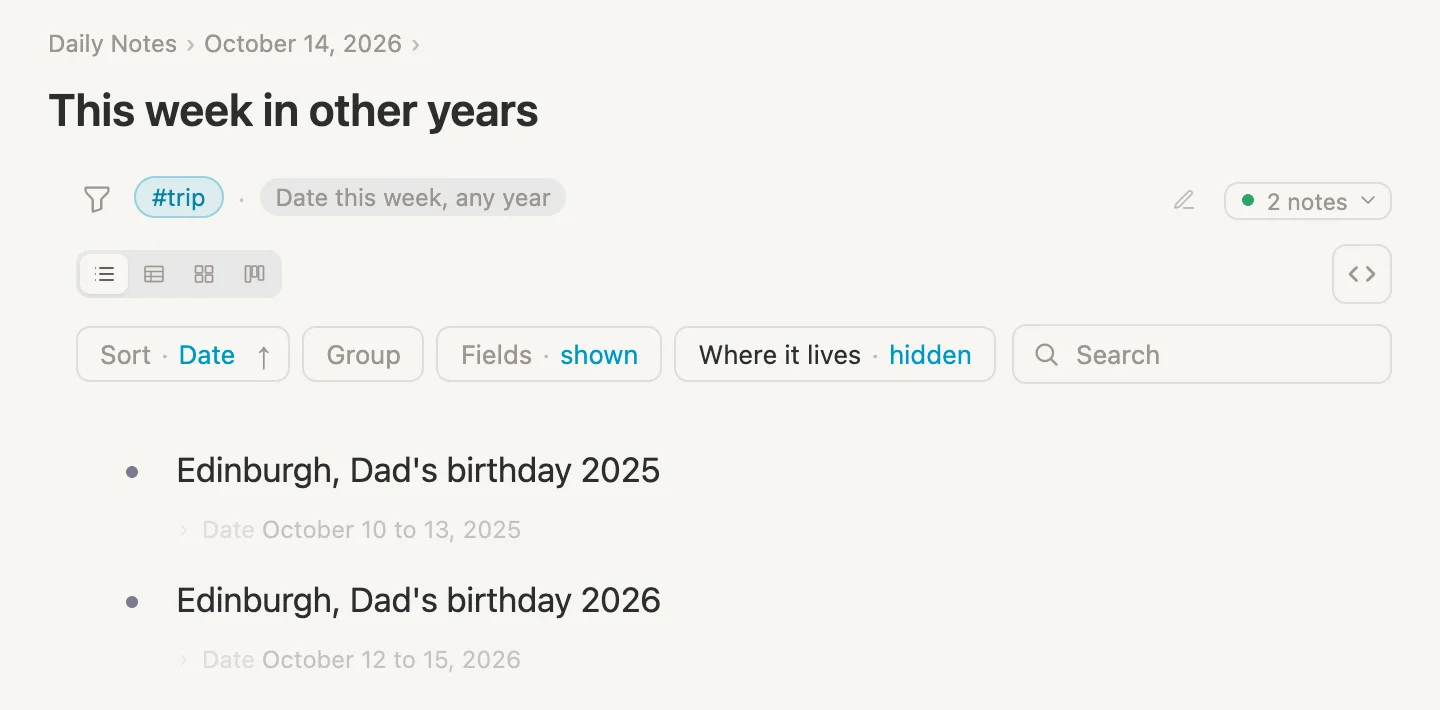
And a look back. The trips we took this same week in other years. Last year's birthday trip turns up next to this year's, because its Date shares a few days with this week, whatever the year.
That's where we're headed. So let's get started.
NB: Cmd throughout is the Mac key. Use Ctrl on Windows and Linux.
Every picture here was taken on Wednesday 14 October 2026. Anything that says "today" or "this week" moves with the calendar, so if you follow along on another day, your lists will follow your today.
Setting up as we go
Just like the other walkthroughs, we won't set anything up in advance. We'll make each tag the moment we first need it.
The trip
On today's page, click + add item, type Edinburgh, Dad's birthday 2026 #trip, pick Create #trip, then hit Enter. Click the bullet dot next to it to open the trip on its own page.
A Date for every trip
Click the #trip pill, then Schema, then + Add field. Type Date, pick New field "Date", and in the card that opens change Type from text to date.
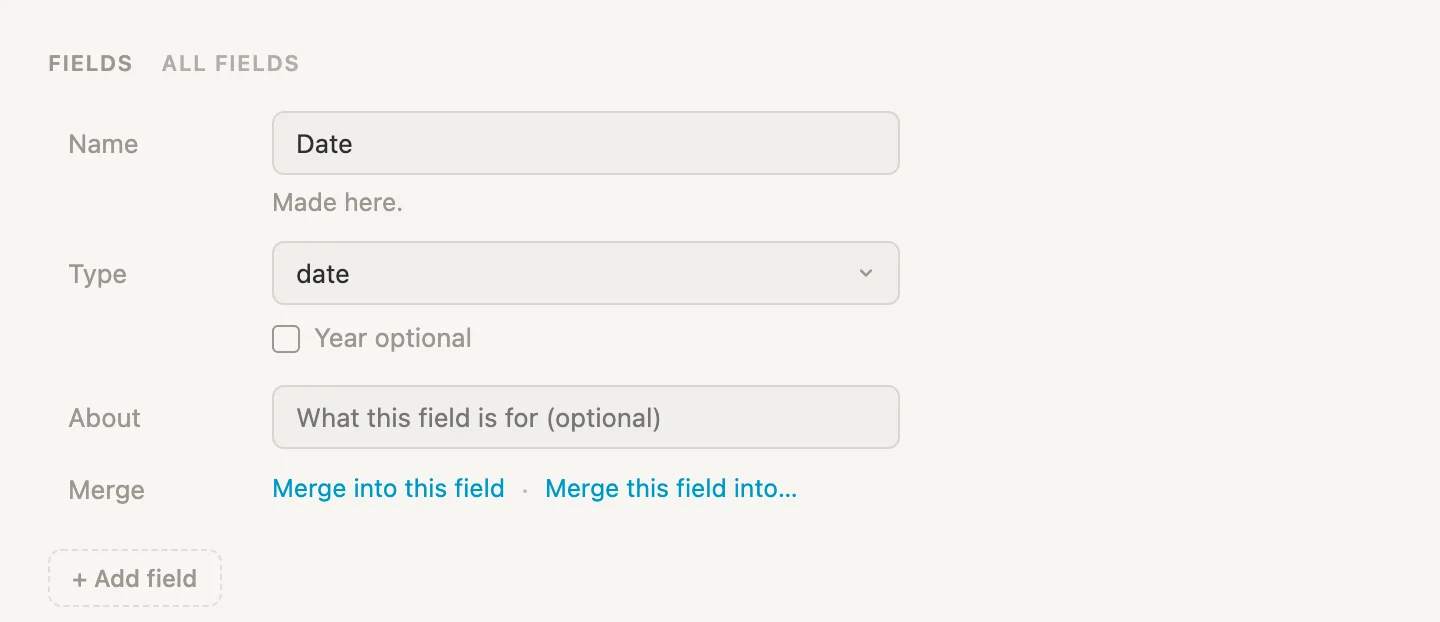
(Your vault may already have a field called Date. If it does, the list shows it first, with a line underneath saying which tag it's from. As long as its Type is date, pick that one rather than making a second Date. Everything below works the same.)
Now go back to the trip, click its Date box and type 12 to 15 October 2026. Before you press Enter, look just under the box.
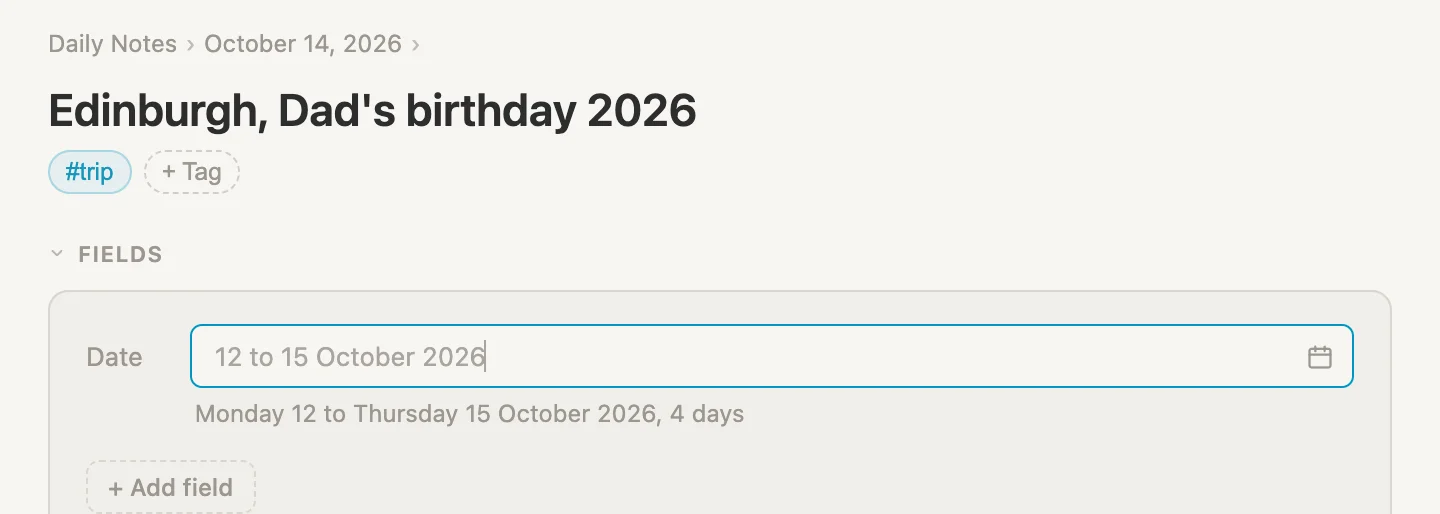
The app reads it back to us: Monday 12 to Thursday 15 October 2026, 4 days. That's a range, every day from the 12th to the 15th. Press Enter and the box settles on October 12 to 15, 2026.
A date field can hold one day, a range of days, or just a month or a year. We'll use the first three.
The journeys
Now the train up. Back on today's page, + add item, type Train to Edinburgh #journey, pick Create #journey, Enter.
A journey needs a Date as well. Click the #journey pill, Schema, + Add field, and type Date. This time the list offers two lines.
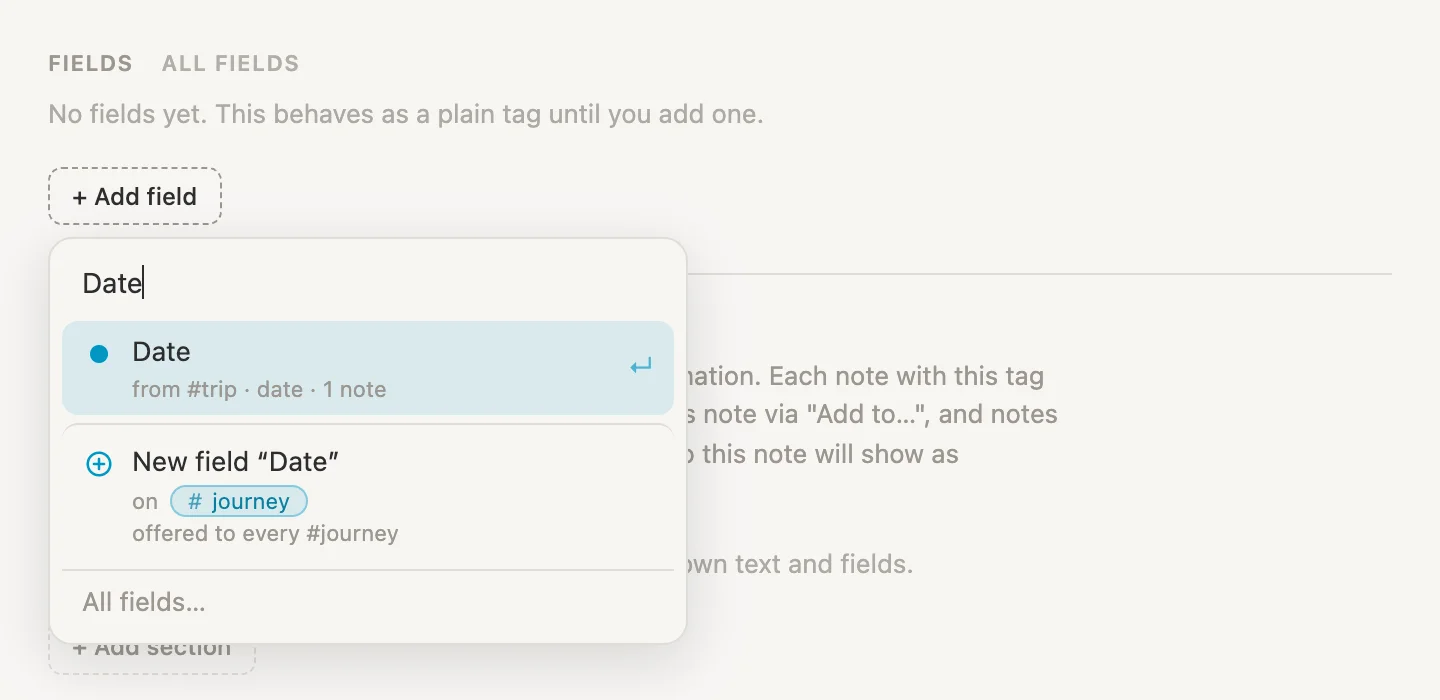
The first line is the Date we just made on #trip: Date, from #trip · date · 1 note. The second would make a brand new field that just happens to have the same name. Pick the first. Trips and journeys now share one Date field, and that's what lets a trip go looking for the journeys on its own days later on.
Open Train to Edinburgh, type 12 October 2026 into its Date and press Enter. One day this time.
Fill in the rest
The rest is the same two moves each time: write the note on today's page with its tag on the end, then open it and type its Date.
Four more trips:
| Note to type | Date |
|---|---|
Edinburgh, Dad's birthday 2025 #trip | 10 to 13 October 2025 |
Edinburgh for Christmas #trip | 23 to 28 December 2026 |
Hokkaido #trip | February 2027 |
Lisbon, someday #trip | leave it empty |
Hokkaido's Date is just a month. We know we're going in February, we just haven't picked the days yet. And Lisbon is a someday trip with no Date at all. Both are there on purpose, and both will teach us something later.
Seven more journeys:
| Note to type | Date |
|---|---|
Train home #journey | 15 October 2026 |
Train to Edinburgh #journey | 10 October 2025 |
Train home #journey | 13 October 2025 |
Train to Edinburgh #journey | 23 December 2026 |
Train home #journey | 28 December 2026 |
Flight to Sapporo #journey | 8 February 2027 |
Flight home #journey | 21 February 2027 |
Now click any #journey pill, and click the table icon above the list.
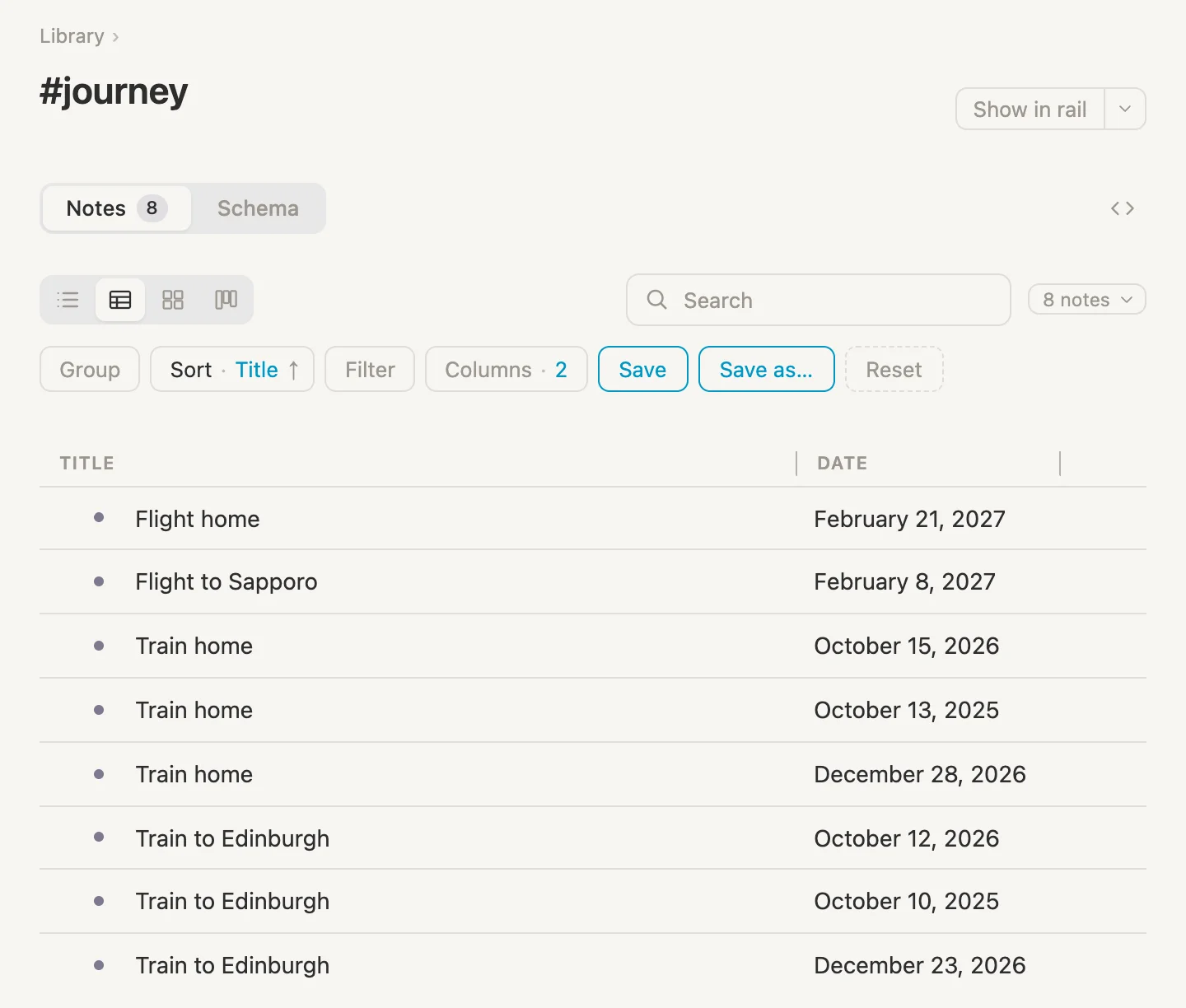
There's the problem from the top of the page. Three notes called Train home, three called Train to Edinburgh. The only thing telling them apart is the Date beside each one. So let's put those Dates to work.
Journeys on any day of the trip
We want each trip page to show its own journeys, without us linking a single one. A trip already knows its Date. So what we need is a search that finds every journey whose Date falls on a day of the trip.
The search
On today's page, click + add item, type /search and pick Live search. It opens ready for its first rule, with a menu of what a rule can look at. Choose Tagged…. The rule starts out as Tag is #author (the first tag in the list), so click #author, type journey and press Enter.
Now click + And. In the menu, under Fields, there's Date. Choose it. The new rule reads Date is today. Click today, replace it with this note's Date, and press Enter.
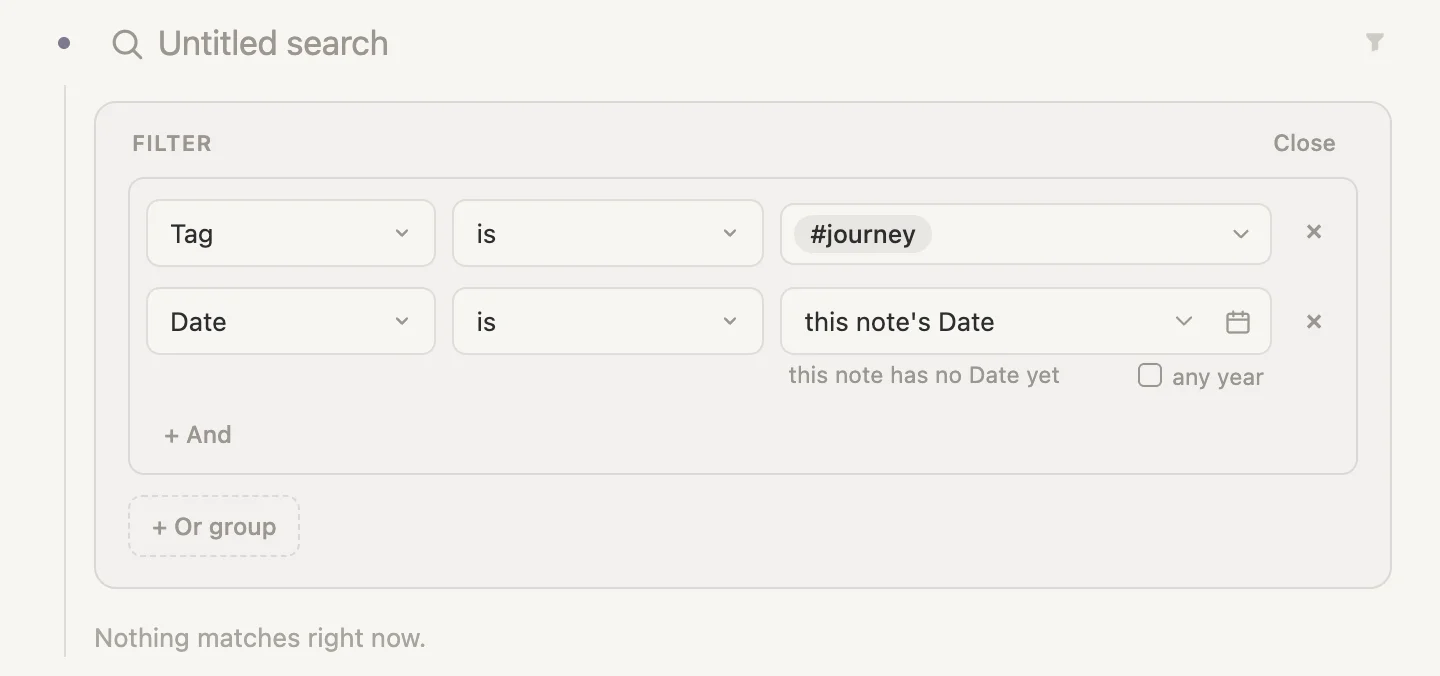
This note means whichever note is showing the search. Right now the search sits on today's page, and a day page has no Date field, so the line under the box says this note has no Date yet and the search finds nothing. That's expected. It comes to life once it sits on a trip.
Click Close, then click Untitled search and call it Journeys on this trip.
One more thing while we're here. Click the bullet dot next to the search to open it, click Sort, pick Date, then click the arrow beside it so it points up. Earliest first, so the train up always comes before the train home.
A section on every trip
Click any #trip pill, then Schema, scroll down to Sections and click + Add section.
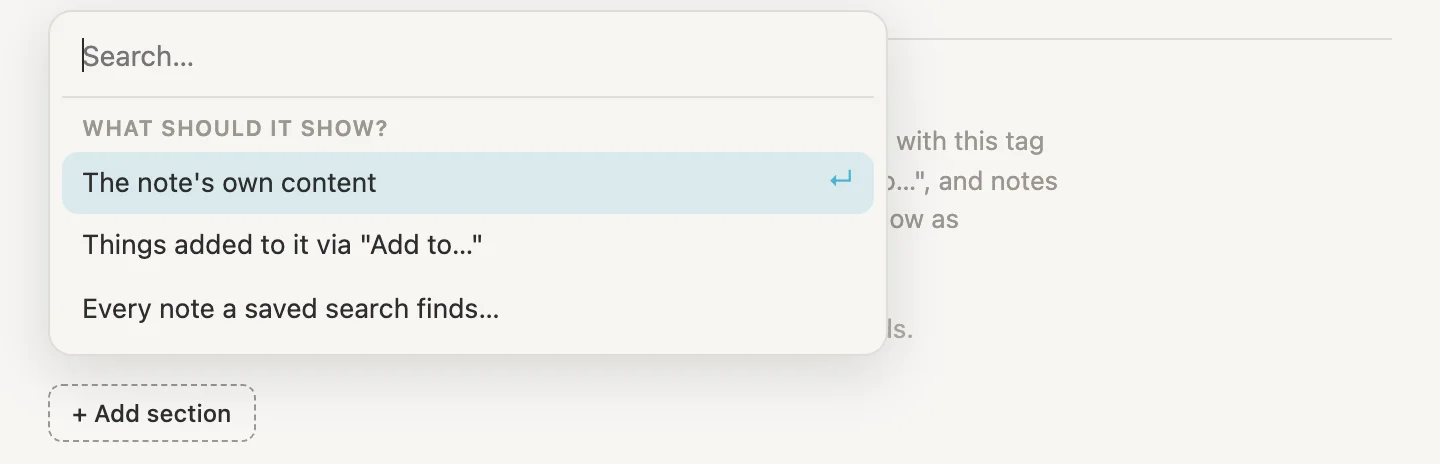
Choose Every note a saved search finds… and pick Journeys on this trip. Now open Edinburgh, Dad's birthday 2026.
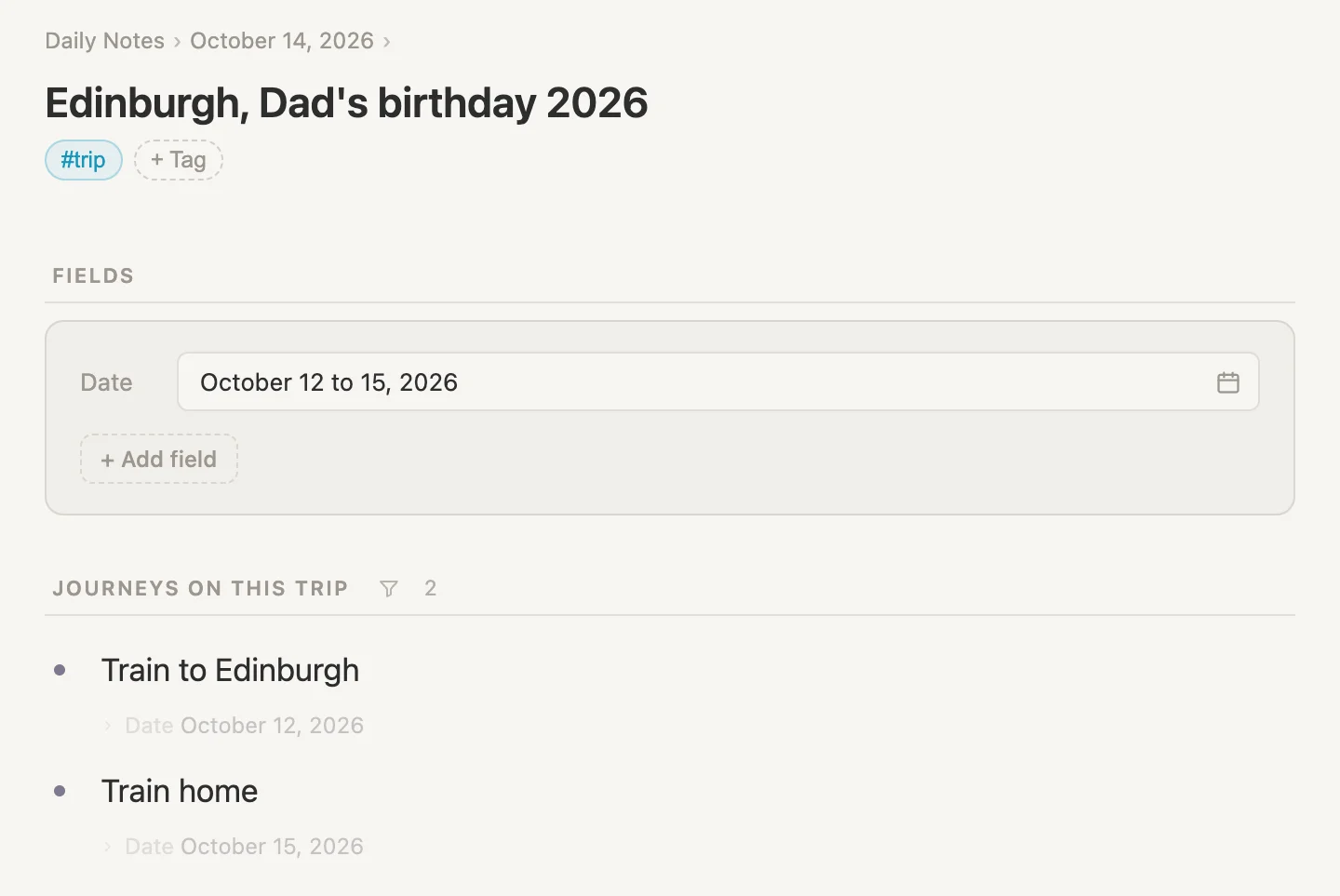
There they are. The train up on the 12th and the train home on the 15th, out of the six trains in the vault. Every trip page now runs the same search, each with its own Date filled in.
What "is" means
Here's the idea underneath everything in this walkthrough, so it's worth slowing down for.
Every date is a run of days. A journey's Date is a run of one day. The trip's Date is a run of four, 12 to 15 October. Hokkaido's February is a run of 28.
Put two runs side by side, the Date in a note and the comparison date in the rule, and there are only three ways they can sit:
- the note's Date is completely over before the comparison date starts
- they share at least one day
- the note's Date is completely still to come after the comparison date ends
is means the second one: they share at least one day. The train home on 15 October shares a day with 12 to 15 October, so it's found. The Christmas train on 23 December shares nothing with it, so it isn't.
Every other comparison picks a different mix of those three. We'll meet them one by one in the next sections, and they all come back together in one table at the end.
A trip that's just a month
Open Hokkaido.
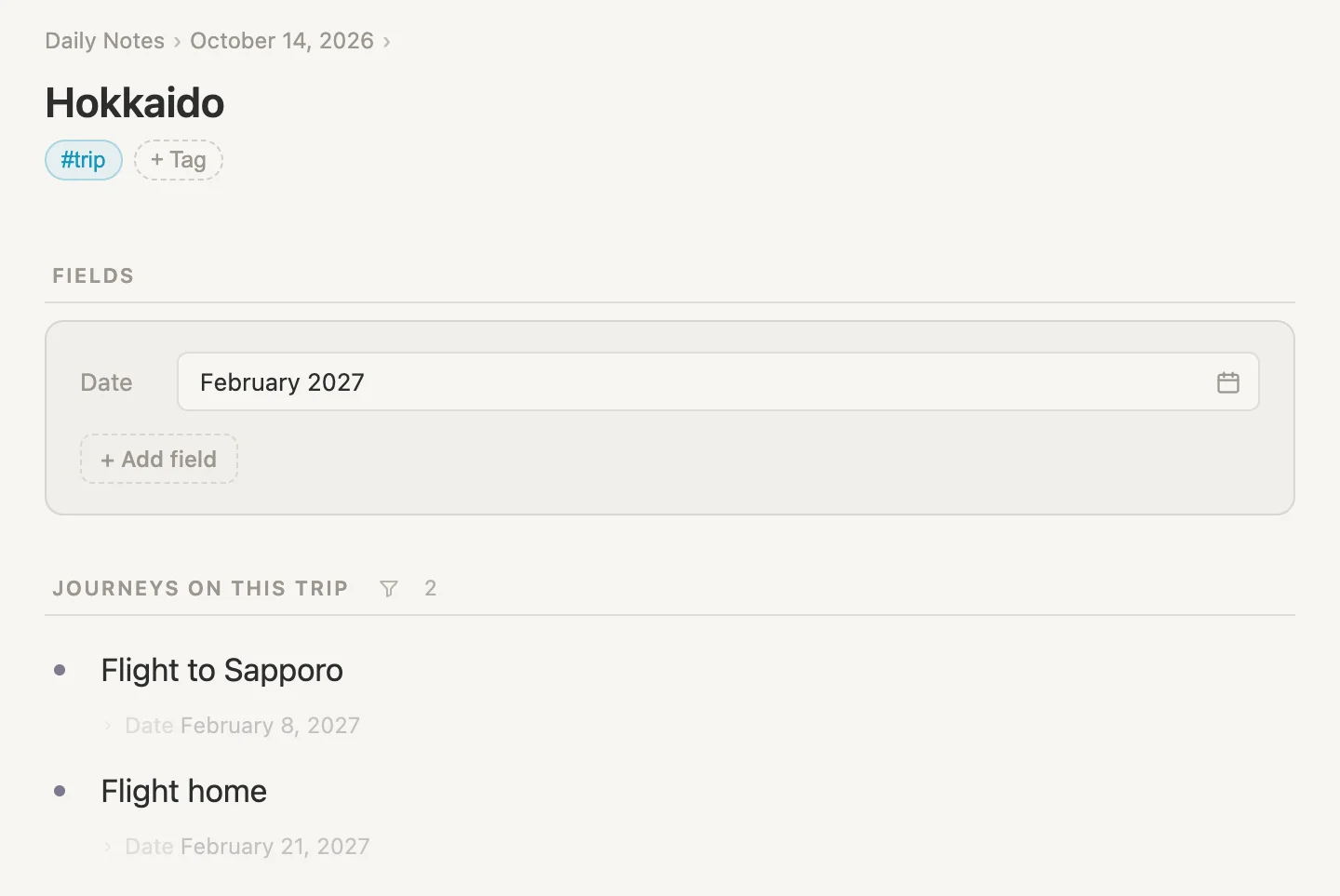
Hokkaido's Date is just February 2027. We haven't picked the days, so the search reads the trip as the whole of February. Both flights, on the 8th and the 21st, share a day with that, so both are found.
That's a month as the comparison date. When a month is the note's own Date, there's a twist, and we'll get to it.
Underway, or still to come
Current and upcoming trips
Now a list of every trip that's coming up. Back on today's page, + add item, /search, Live search. Choose Tagged…, click #author, type trip and press Enter. Then + And and Date. This time change the comparison as well: click is and pick after. Leave the comparison date as today.
Click Close and name the search Current and upcoming trips. Then click its bullet dot to open it, and sort it by Date, arrow pointing up, the same as before. While you're there, click Where it lives and pick Hidden. That's the grey line under each result saying which page it was written on, and we don't need it here.
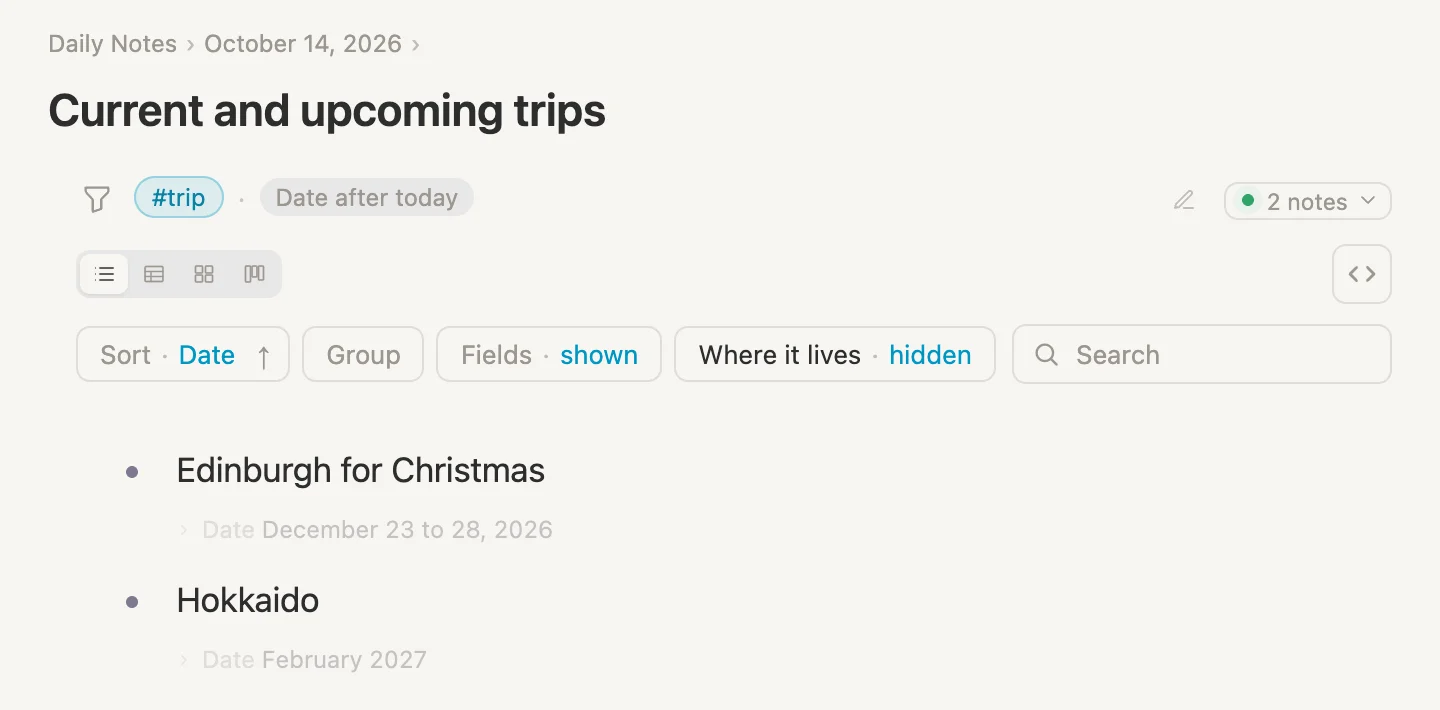
Christmas and Hokkaido. But hang on. We're in Edinburgh right now, and the birthday trip isn't on the list.
That's the three ways at work. Today is 14 October, and the trip's Date is 12 to 15 October. The trip isn't completely still to come, it started two days ago. after only ever means the third way, completely still to come, so the trip is left out.
Click the pencil beside the rules, click after, and pick on or after instead.
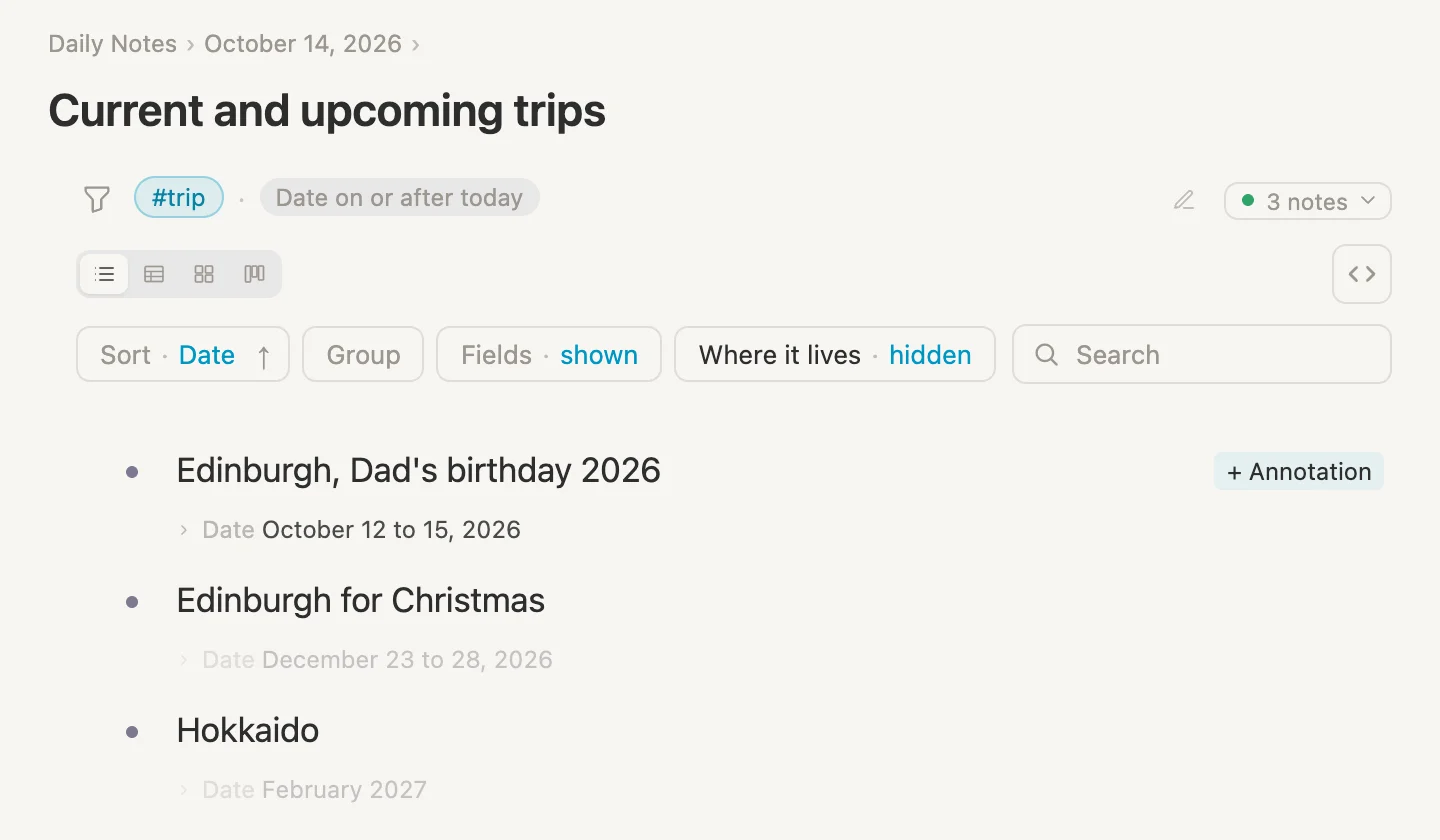
There it is. on or after means the second way or the third: shares a day with today, or is completely still to come. In other words, not over yet. Which is exactly what "current and upcoming" means.
Notice Lisbon isn't here. Its Date is empty, so it's never before or after anything. We'll come back to Lisbon in a moment.
One more search, to try things out
Let's make one more search, purely to experiment in. Same steps as before: Live search, Tagged… trip, + And, Date, and this time leave it as is today. Name it Trying out dates, open it, sort it by Date and hide Where it lives. Then click the pencil, so the rules stay open while we play.
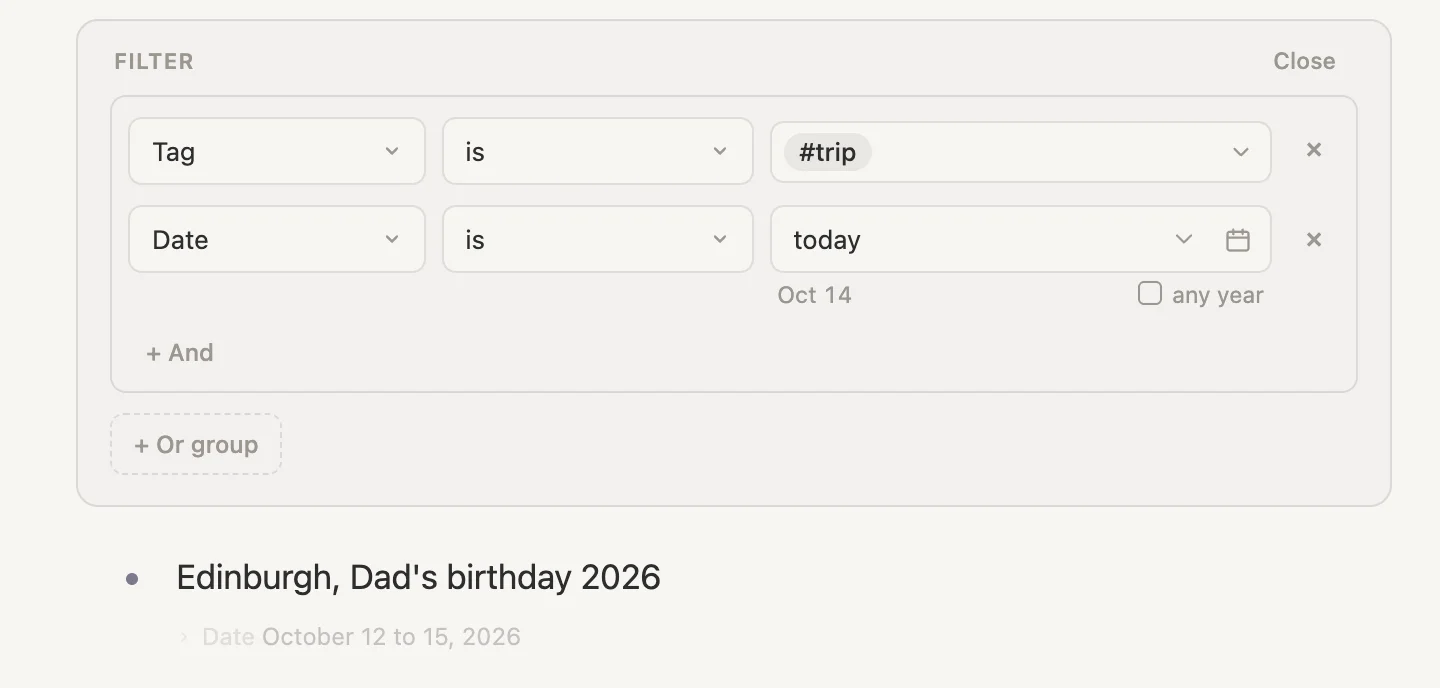
is today finds the birthday trip, and only that. Today is one of its days, so they share a day. The second way.
Now click is and change it to before.
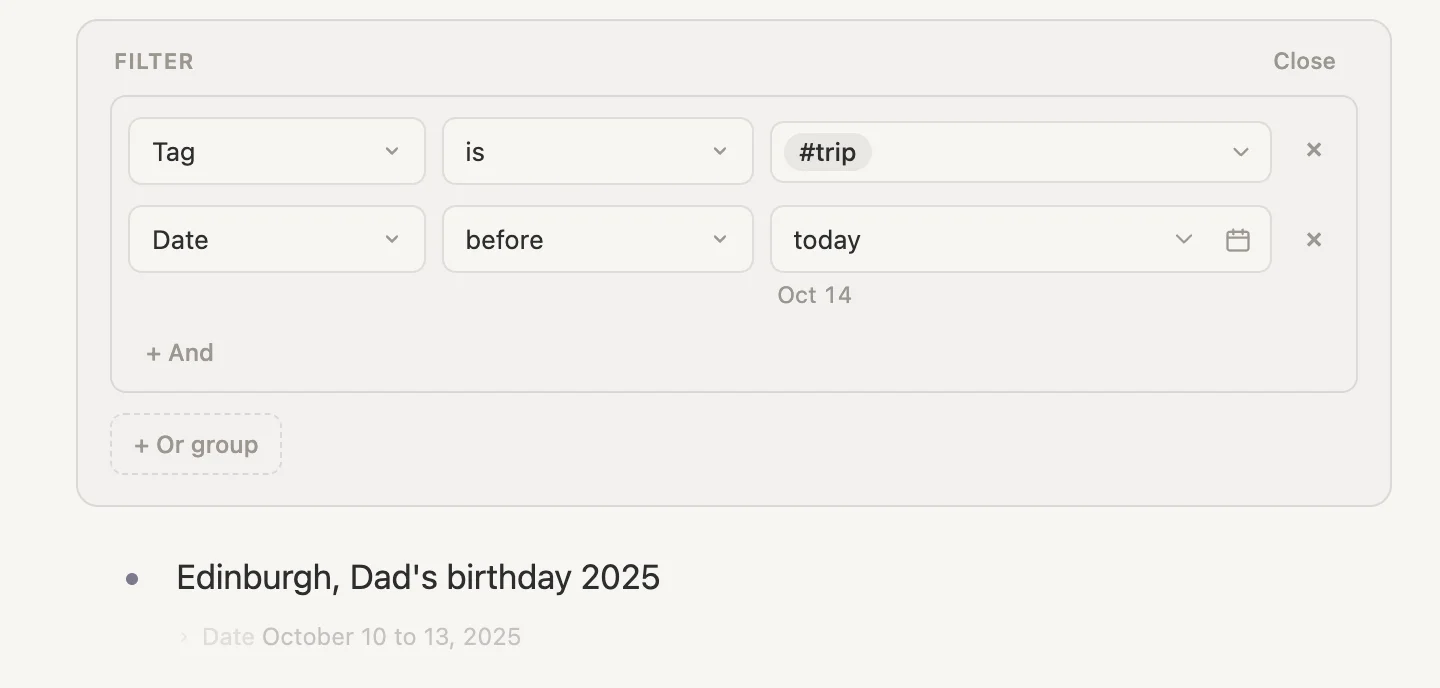
Last year's trip, and nothing else. before means the first way only: completely over. This year's birthday trip started before today, but it isn't over, so it's left out.
Change it to on or before.
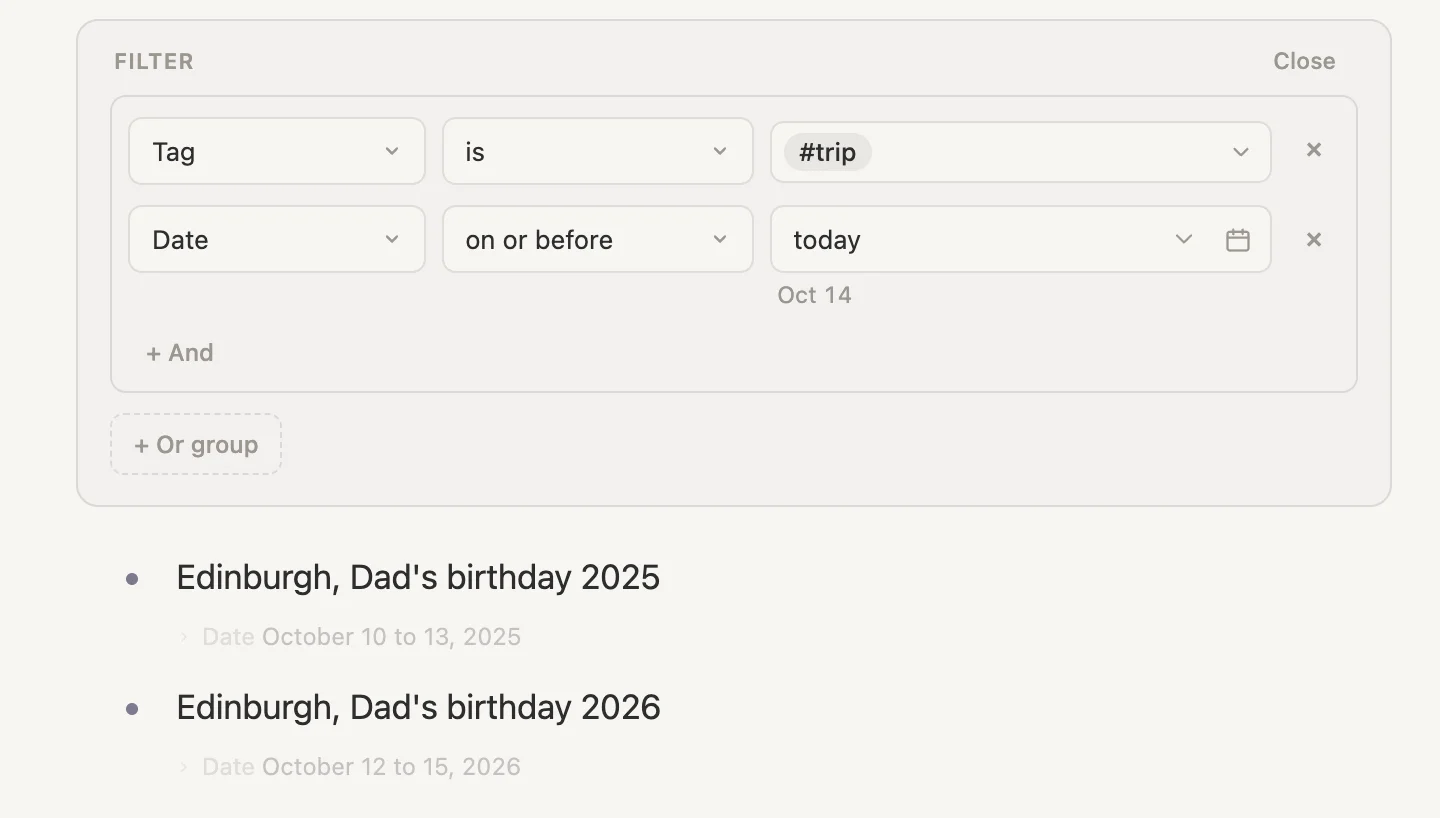
Both birthday trips. on or before means the first way or the second: completely over, or shares a day with today. In other words, it has started, whether it's finished or not.
Which one to use
With today as the comparison date:
- before today finds what's completely over. Done and dusted.
- on or before today finds what has started, finished or not.
- is today finds what's underway right now.
- on or after today finds what isn't over yet, underway or still to come.
- after today finds what's completely still to come.
The one to remember: before and after never let in something that's still going. on or before and on or after do.
For a Date of one day, like a journey, there's nothing to trip over. It can't be half over. on or before today just means before today, or today itself.
"is not", and the trip with no Date
Still in Trying out dates, change on or before to is not.
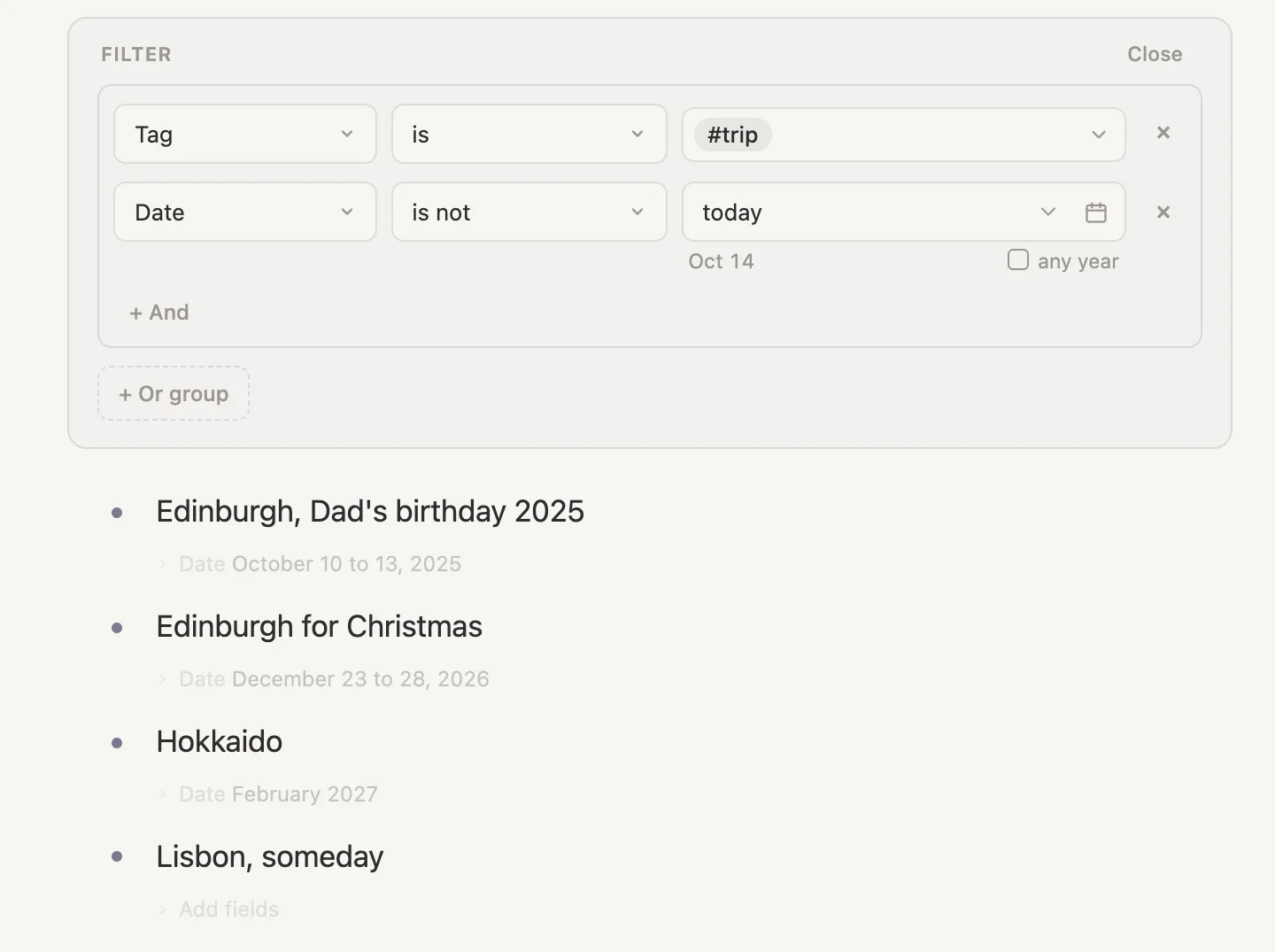
Last year's trip, Christmas, Hokkaido ... and Lisbon. is not means the first way or the third: completely over, or completely still to come. Anything that doesn't share a day with today, which is why this year's birthday trip has gone.
But Lisbon? Lisbon has no Date at all. An empty Date doesn't share a day with today either, so in it comes. Sometimes that's what you want. Often it isn't. To leave out the trips with no Date, add a second rule: + And, Date, and change its comparison to is set. There's no date to type for this one.
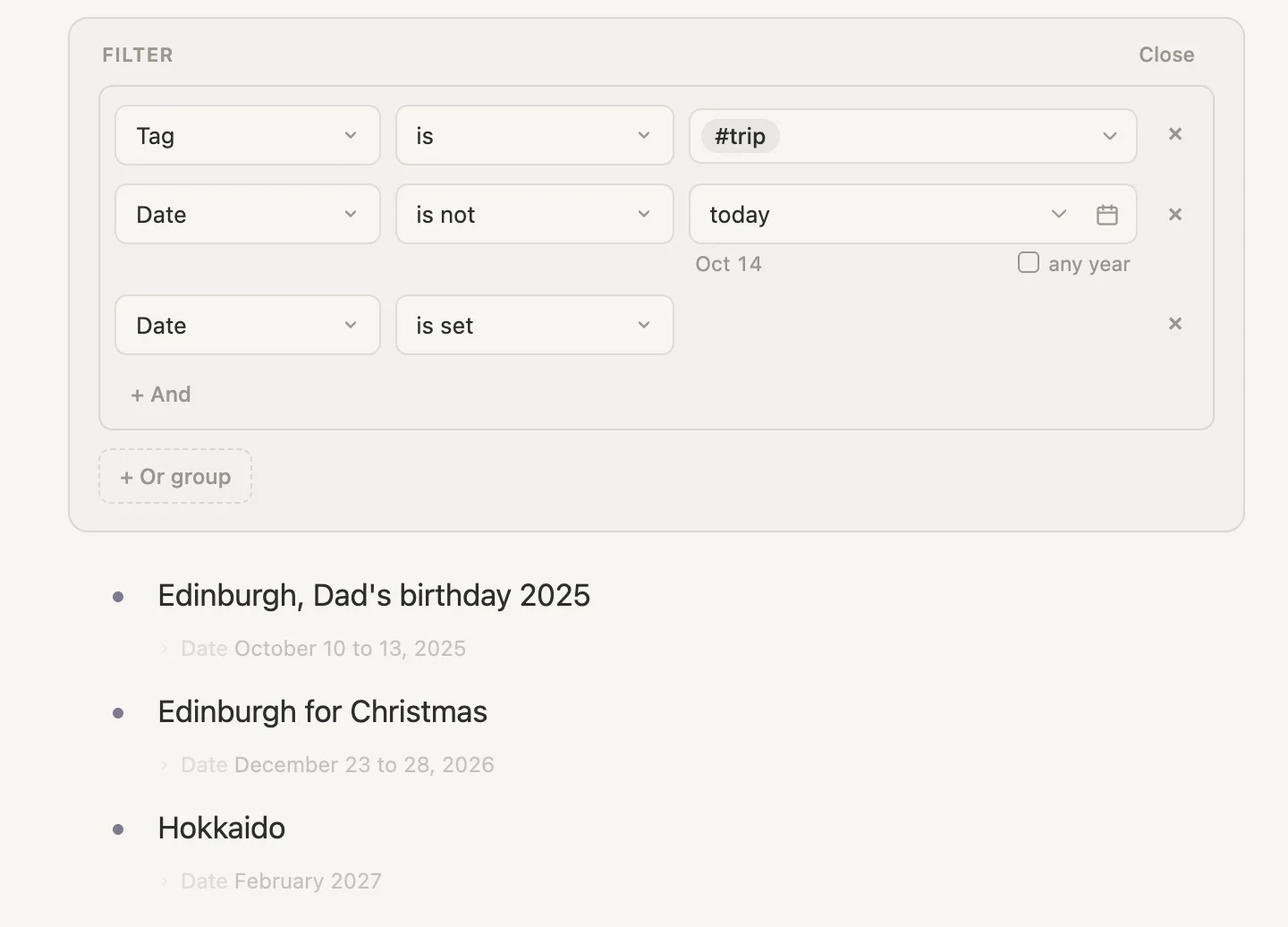
Lisbon's gone. is set means the field has something in it. Its opposite is is empty: change is set to is empty and Lisbon is the only trip left. Handy for finding the someday trips that still need a Date.
When you're done, click the × at the end of the third rule, Date is set, to remove it.
A Date that's just a month
Now for the twist we promised. Hokkaido's Date is just February 2027. We know the month, not the day. So when a month is the note's own Date, the search is careful about what it claims.
Change is not back to is, click the comparison date, type next quarter and press Enter. Next quarter is January to March 2027.
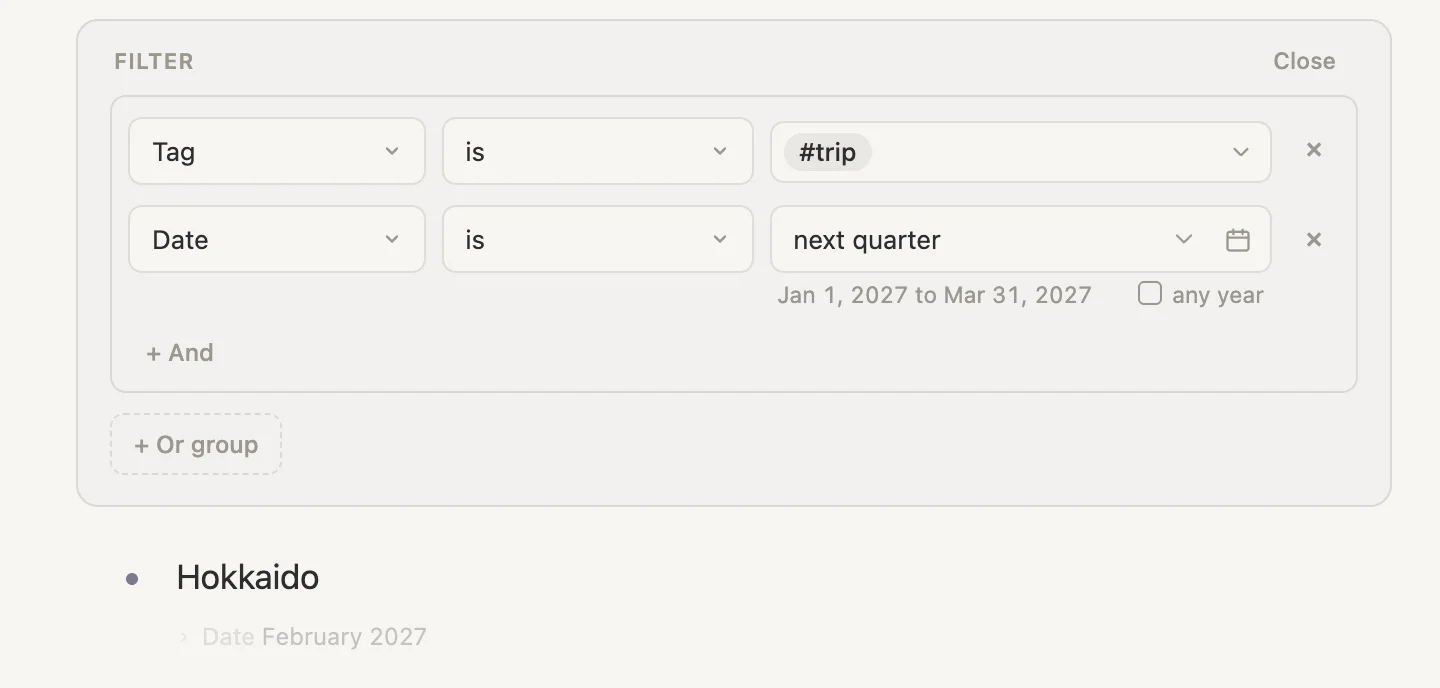
Hokkaido. Whichever day in February we end up going, it's inside January to March, so the trip is safely found.
Now try one day in February. Replace next quarter with 8 February 2027.
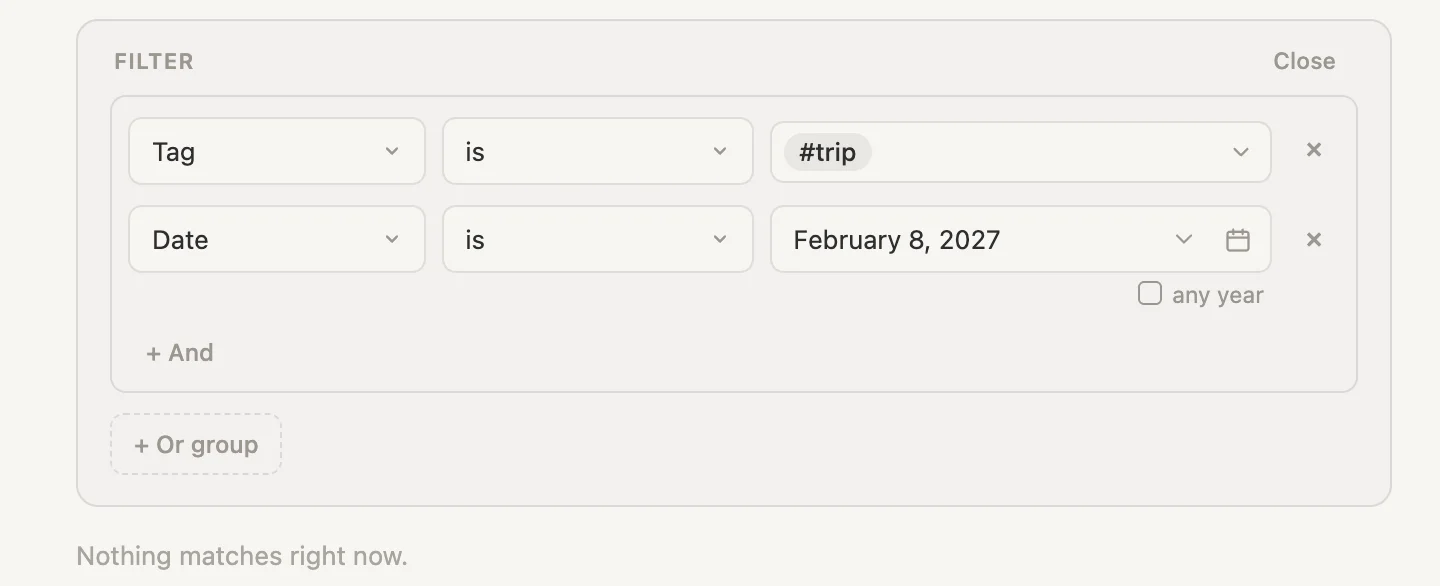
Nothing. We might go on the 8th, we might not. We don't know which day it is, so the search won't say the trip is on the 8th. For is, a month has to fit completely inside the comparison date.
is not is just as careful the other way round. It only finds a month that's completely outside the comparison date. February isn't completely outside 8 February, so is not 8 February 2027 doesn't find Hokkaido either. A month that only partly fits is found by neither.
The comparisons about order work differently. For those, a month counts as every day from its first to its last, 1 to 28 February, just like a range. So with 8 February 2027 as the comparison date:
- on or before finds Hokkaido, because February has started by the 8th.
- on or after finds it as well, because February isn't over by the 8th.
- before and after don't, because on the 8th February is neither completely over nor completely still to come.
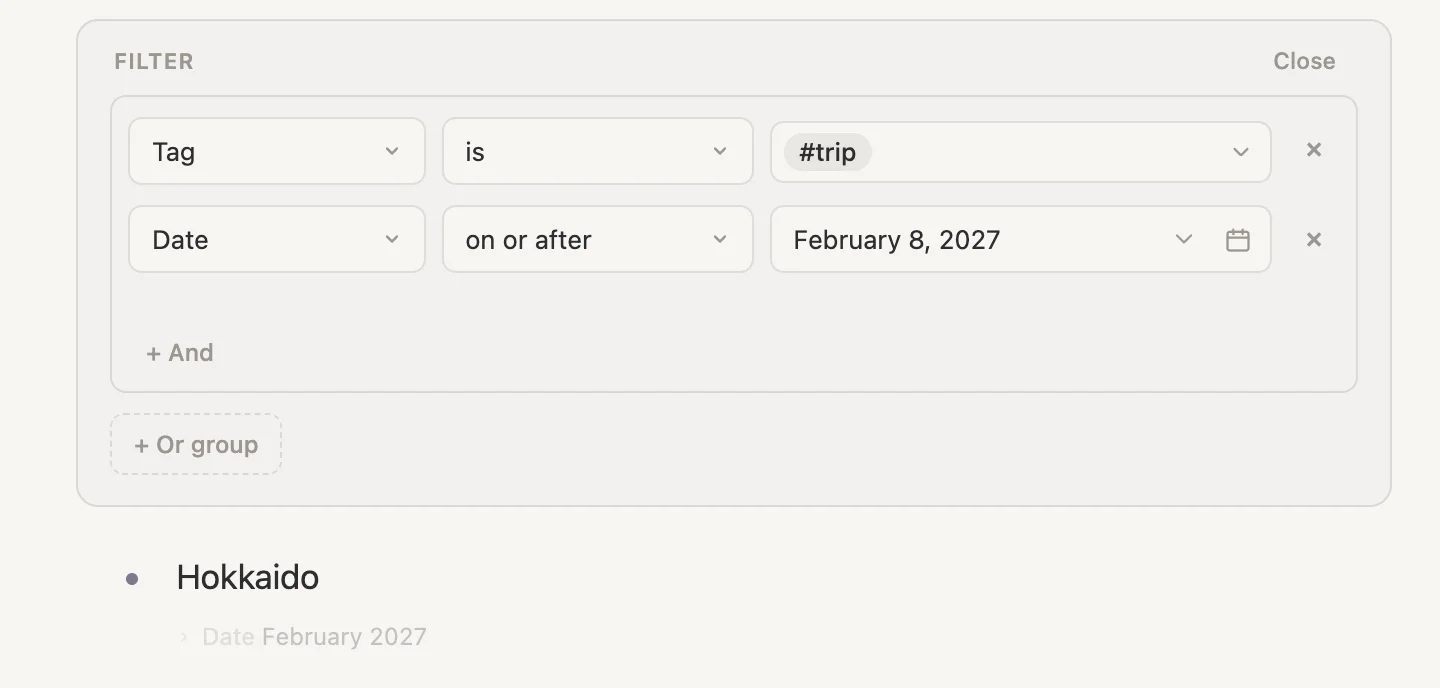
So a month can turn up on both sides of a day inside it. That's not a mistake. We could be going on either side of the 8th. If you want it on one side only, use before or after.
This week in other years
Every so often it's nice to look back. What were we doing this time last year? Or the year before?
One more search on today's page: Live search, Tagged… trip, + And, Date. Leave it as is, click today, type this week and press Enter. Name it This week in other years, open it, sort it by Date, hide Where it lives, and click the pencil.
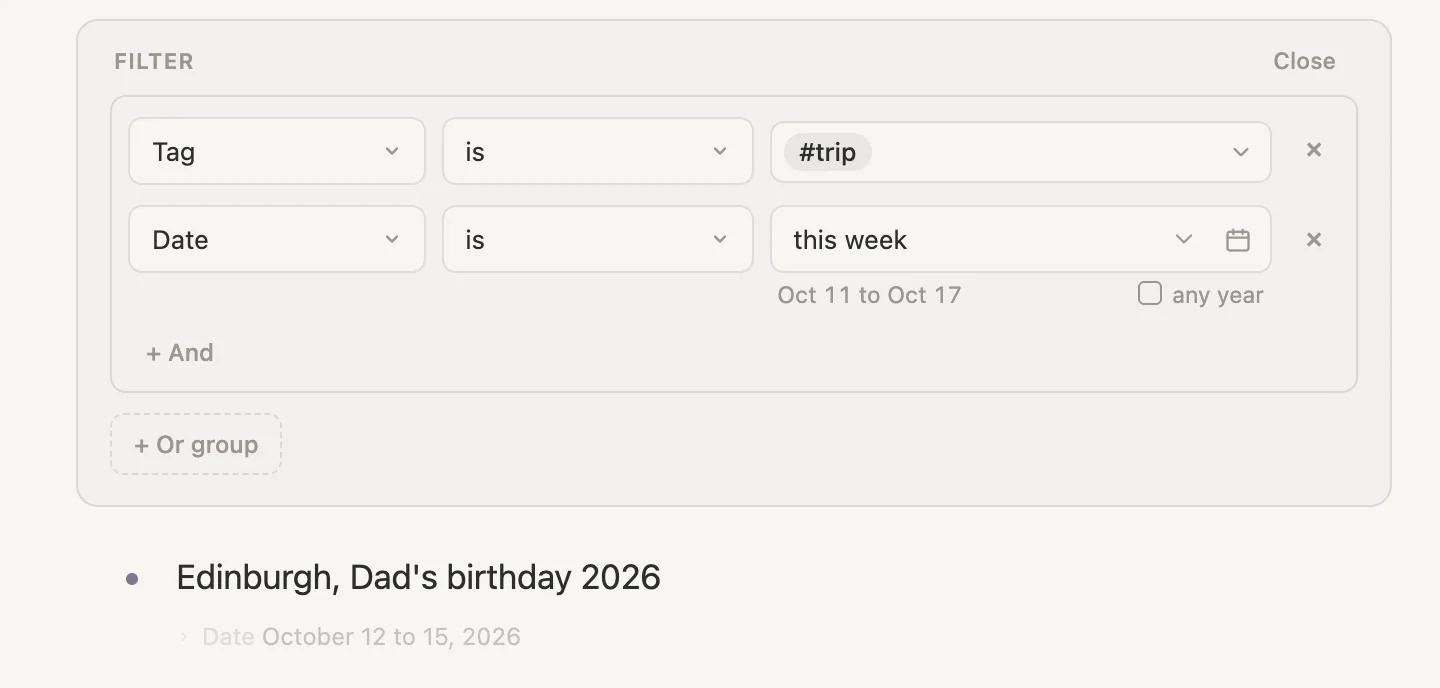
The line under the box says what this week is: Oct 11 to Oct 17. (A week starts on the day chosen in Settings. Ours starts on a Sunday.) Only this year's trip so far. Last year's ran 10 to 13 October 2025, and 2025 isn't this week.
Now tick any year, just beside the comparison date.
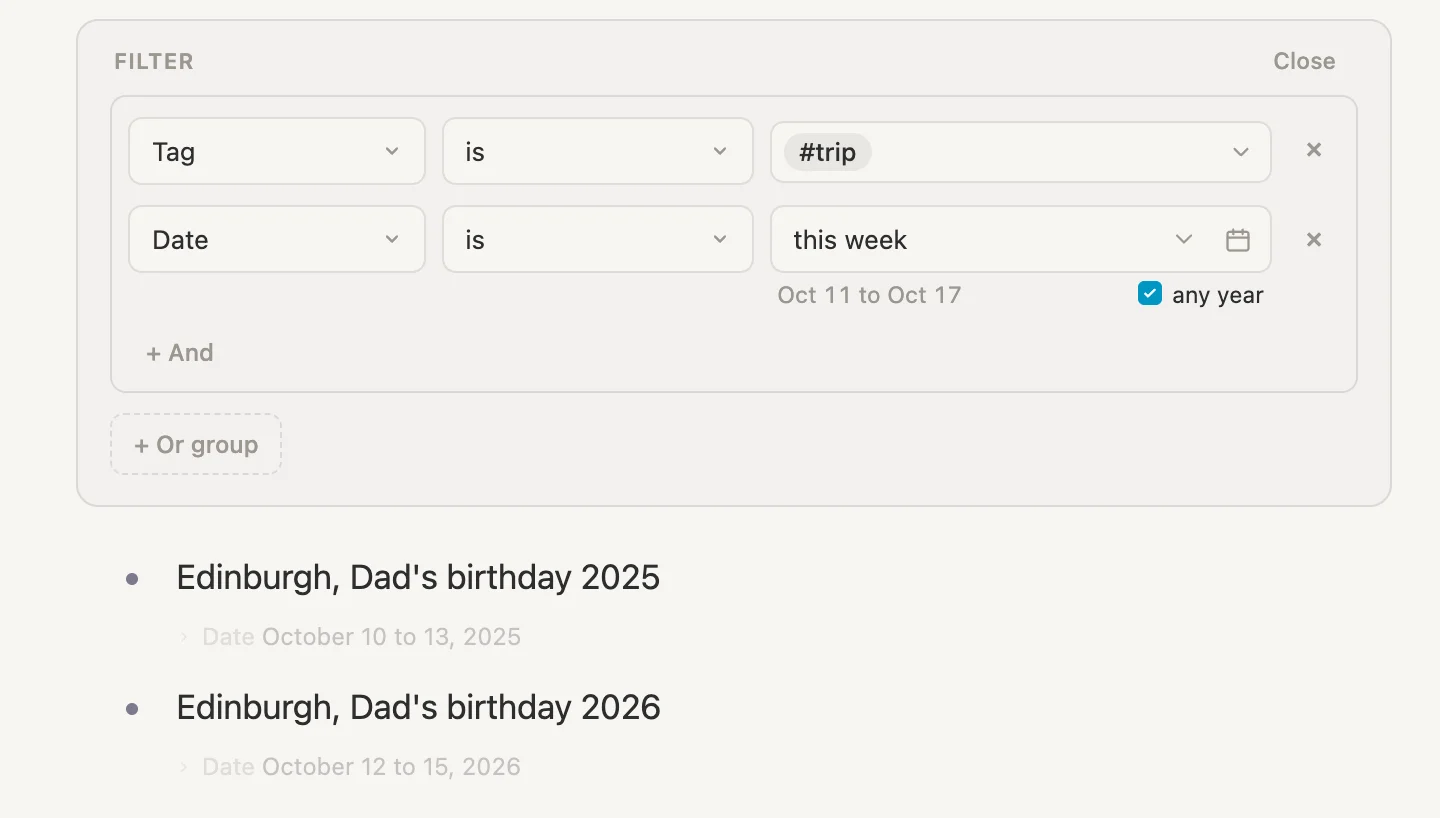
Last year's trip joins it. any year takes the year out of the comparison and looks only at the months and days. Last year's trip ran 10 to 13 October, and the 11th to the 13th fall inside this week's 11 to 17 October. They share days, so in any year, it counts.
Two things worth knowing about the tick:
- With is, it only ever adds. It drops the year and nothing else, so ticking it never finds fewer notes than leaving it off. With is not it works the other way: ticking it never finds more.
- It belongs to is and is not. Change the comparison to before and the tick hides, because "before this week" only makes sense with a year. Change it back to is and the tick comes back, just as you left it.
It's the same tick you'd reach for with birthdays and anniversaries, where the day matters and the year doesn't.
Getting ready to go
Trips come with things to do. A new vault already has a #task tag, and a task has two date fields of its own: When, the day you plan to do it, and Due, the deadline. They follow exactly the same rules as every other date.
On today's page, + add item, type Sort out Dad's photo albums #task, and pick #task from the list. Open it, click its When box, type 12 to 15 October 2026 and press Enter. It's a job we'll chip away at all through the visit, so its When is the whole visit.
Then one more: Book the Christmas trains #task. We know it has to happen in October, before the prices go up, but not on which day. Open it, click its Due box, type October 2026 and press Enter.
Now look at the top of today's page.
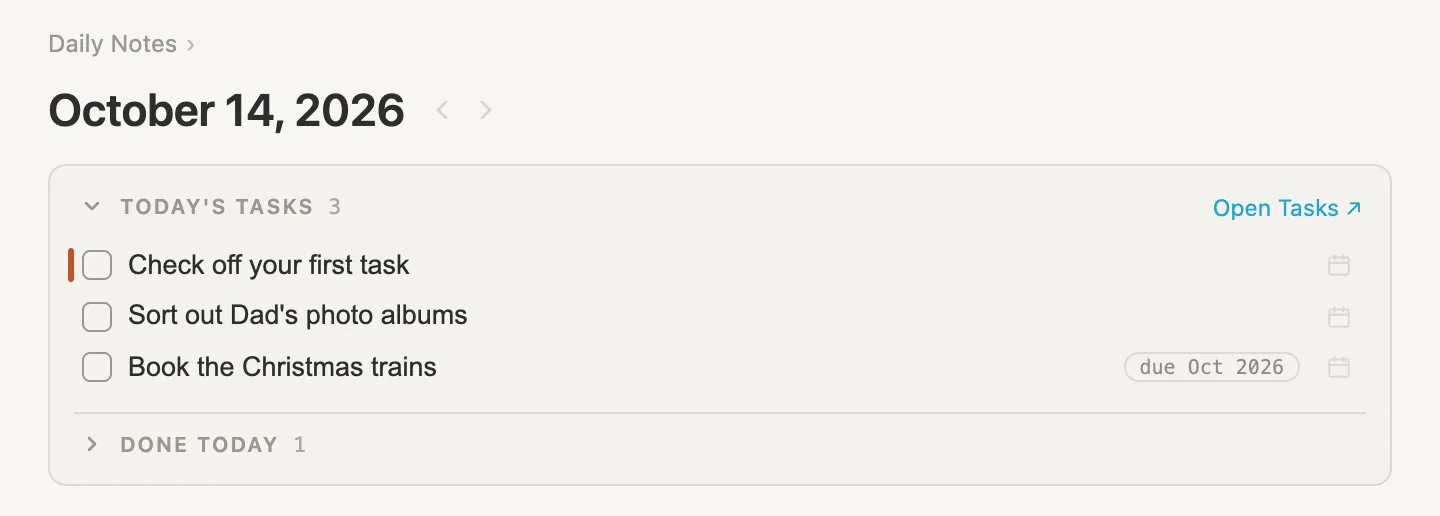
Both are in Today's tasks. The photo albums are there because their When has started by today. The 14th is one of its days, and it will sit in Today's tasks every day of the visit, and after it, until we tick it off. The Christmas trains are there because their Due is October, and October has started. A Due of just a month shows as due Oct 2026.
That's on or before today at work. Today's tasks shows every task whose When or Due has started by today, whether it's one day, a range of days or a whole month.
Overdue is the other side of it. A task only becomes overdue once the whole of its Due is over. On 31 October the Christmas trains are still just due. On 1 November they move up under Overdue, and the chip turns red.
What you can type in a date rule
The comparison date box takes plain words as well as dates. Open Trying out dates, set the comparison back to is, click the box, type something and press Enter. The grey line underneath then says what your words mean today. (It updates when you press Enter, not while you type.)
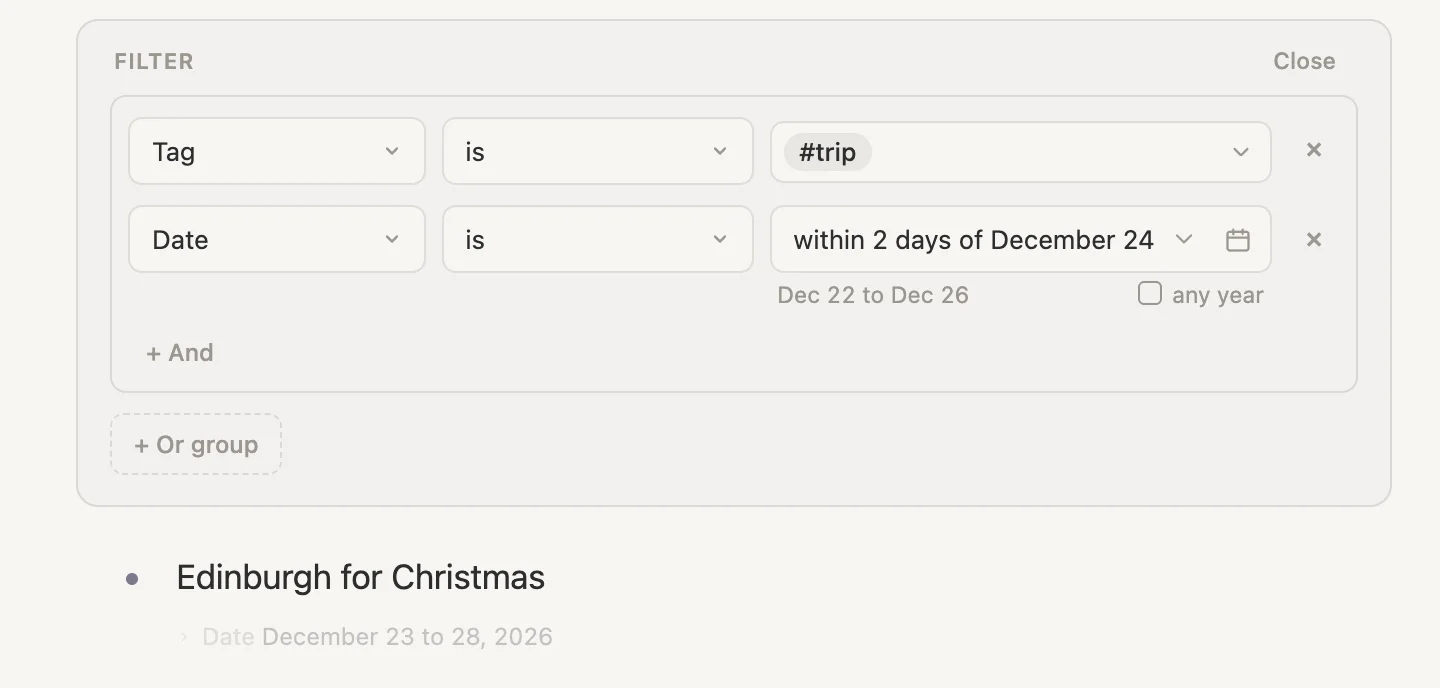
within 2 days of 24 december is read as 22 to 26 December, the day itself and two days either side. The box rewrites it in its own words as within 2 days of December 24, 2026, and Christmas shares days with it, so it's found.
Here's everything you can type, and what each one meant on Wednesday 14 October 2026. Where there's a number, any number works.
Days that move with today:
| Type | On 14 October it means |
|---|---|
today | 14 October |
yesterday, tomorrow | 13 October, 15 October |
3 days ago | 11 October |
2 weeks ago, a week ago | 30 September, 7 October |
in 3 days, in a week | 17 October, 21 October |
5 days from now | 19 October |
Spans that move with today:
| Type | On 14 October it means |
|---|---|
this week, last week, next week | 11 to 17 October, 4 to 10 October, 18 to 24 October |
this month, last month, next month | October, September, November |
this quarter, next quarter | October to December, January to March 2027 |
this year, last year, next year | 2026, 2025, 2027 |
the last 7 days, past 30 days | 8 to 14 October, 15 September to 14 October |
the next 30 days, coming 10 days | 14 October to 12 November, 14 to 23 October |
In "the last" and "the next" so many days, today counts as one of them.
Days and spans that stay put:
| Type | It means |
|---|---|
friday, next monday, last friday | 16 October, 19 October, 9 October |
24 july, july 24, 2026-10-02 | 24 July 2026, 24 July 2026, 2 October 2026 |
october 2026, oct 2026 | all of October 2026 |
february 2027 | all of February 2027 |
1723 | all of 1723 |
friday, next monday and last friday turn into one fixed date when you press Enter. Type friday on the 14th and the box keeps October 16, 2026 from then on.
Around a day:
| Type | On 14 October it means |
|---|---|
within 7 days of today | 7 to 21 October |
within 2 weeks of today | 30 September to 28 October |
within 3 days of 24 july | 21 to 27 July |
within 2 days of 24 december | 22 to 26 December |
From the note the search sits on, so only in a search placed on a note, the way Journeys on this trip sits on every trip:
| Type | It means |
|---|---|
this note's Date | all of the note's own Date. Any date field's name works in place of Date. |
this note's day | the date of the day page the search sits on. On any other note it finds nothing. |
within 2 days of this note's Date | the note's Date, plus two days either side |
within 28 days of this note's day | 28 days either side of that day page's date |
"This note" is always the note the search sits on, never the notes it finds. this note's day only means something on a day page. Our trips were all typed on the 14 October page, but a trip isn't a day page, so on a trip this note's day finds nothing. That's why the trips use this note's Date, which works with any note with a Date field.
within 2 days of this note's Date is handy for journeys that fall just outside a trip. If we'd booked a taxi to the station on the 11th, the day before the birthday trip, the trip's journeys would include it with within 2 days of this note's Date, and leave it out with plain this note's Date. On a search's own page there's no note to fill these in, so the grey line says depends on the note this search sits on.
The box rewrites some of what you type in its own words. 2 weeks ago becomes 14 days ago, in 3 days becomes 3 days from now, coming 10 days becomes the next 10 days, and 24 july becomes July 24, 2026. They mean the same thing.
Two more things:
- The box takes one day, a span from the lists above, or a "within". It won't take a range you make up yourself, like
2 to 4 October. Type one and the box keeps what it had before. - For a window of your own, use two rules. In Trying out dates, which sits on today's page, try Date after
this note's dayand Date on or beforewithin 90 days of this note's day. Together they find the trips still to come that start within 90 days of today. On the 14th, that's Christmas.
The whole picture
Everything in one place. Every Date is a run of days, one day or many, and so is the comparison date. Put them side by side and there are only three ways they can sit:
- the note's Date is completely over before the comparison date starts
- they share at least one day
- the note's Date is completely still to come after the comparison date ends
| Comparison | Lets in | In plain words |
|---|---|---|
| before | the first way | completely over |
| on or before | the first and second ways | has started |
| is | the second way | shares at least one day |
| is not | the first and third ways, and an empty Date | shares no day |
| on or after | the second and third ways | isn't over yet |
| after | the third way | completely still to come |
| is set | any Date at all | has a Date |
| is empty | no Date | has no Date |
It doesn't matter which side is one day and which is many. A journey against a trip, a trip against today, a trip against this week: the same three ways, the same table.
Two exceptions to keep in mind:
- A Date that's just a month, or just a year. For is, the whole month has to fit inside the comparison date. For is not, the whole month has to be outside it. A month that only partly fits is found by neither. For every other comparison, the month counts as every day from its first to its last, like any range.
- any year, beside is and is not, drops the year and compares only the months and days. With is it only ever adds. With is not it only ever takes away.
Wrapping up
Two tags, one shared Date field, four saved searches, one section and two tasks. And a few minutes of setup.
What it gets us: a page per trip that picks out its own journeys from a pile of identical names, a list of every trip that isn't over yet, a look back at this week in other years, and tasks that show up in Today's tasks on every day they're meant for. Not one journey was ever linked to a trip by hand. The Dates did all of it.
The ideas underneath it all:
- Every date is a run of days, one day or many, and so is the comparison date. Side by side they can only sit three ways: completely before, sharing a day, or completely after. Every comparison picks some of those three.
- is means sharing at least one day. before and after mean completely over and completely still to come. on or before and on or after are the ones that let in something that's still going.
- This note's Date lets one search serve every page it sits on. Put it in a section and each trip finds its own journeys.
- A Date that's just a month, or no Date at all, gets careful treatment. A month has to fit completely for is. An empty Date turns up under is not until you add is set.
- any year looks past the year, for this week last year, birthdays and anniversaries.
Nothing here is special to travel. Swap the tags and the same rules find the meetings that fall during a project, the bills due this month, or every birthday this week, any year. The Dates do the matching. The rest is just naming things.