Keeping track of your tools
What we're building
We lose tools all the time. Well, "lose" probably isn't the right word. Misplace. Forget where they are. The drill is definitely in the garage, right? Until we go and look. The carpet steamer somebody carried up to the attic after the last use. And the ladder that went next door in the spring and ... well, it's probably still there.
So let's give every tool a place. Along the way we'll see how a reference field can point at any note type (a room, a person, whatever makes sense), and how the note on the other end fills itself in.
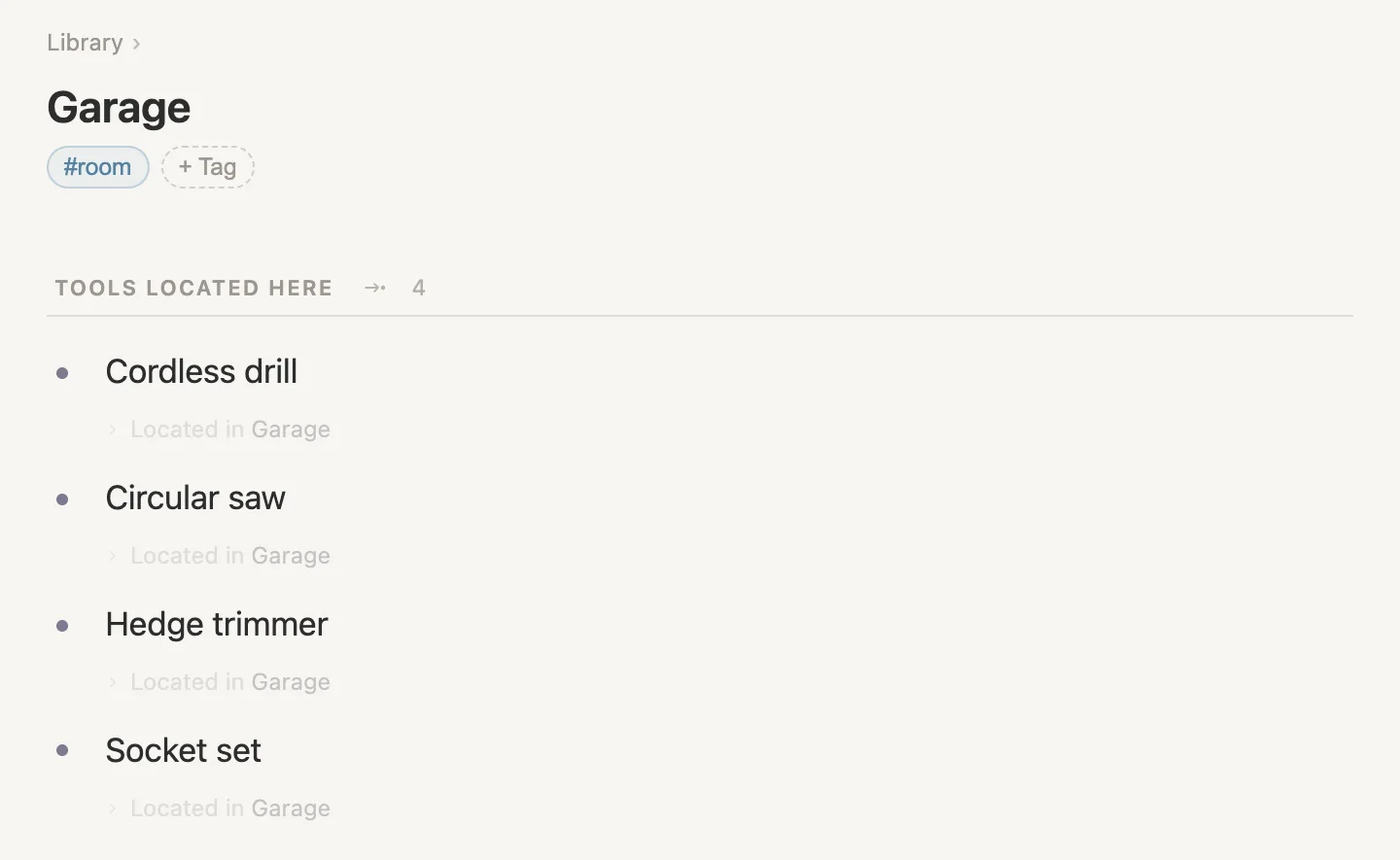
Here's our garage. Four tools, and we never typed that list. Each tool says where it is, and the garage picks it up from there.
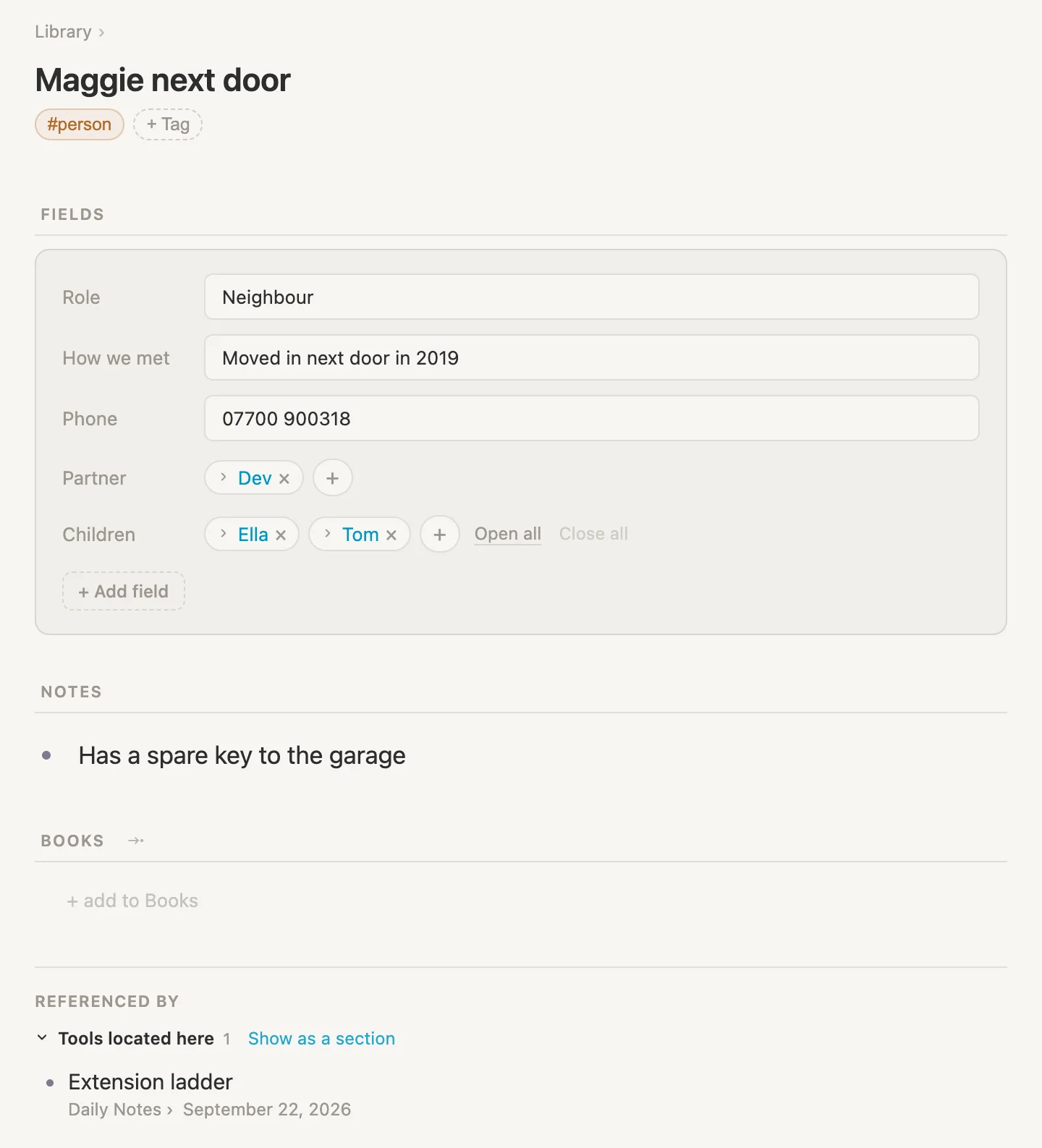
This is Maggie from next door. Her phone number and a couple of details up top, and at the bottom, the ladder.
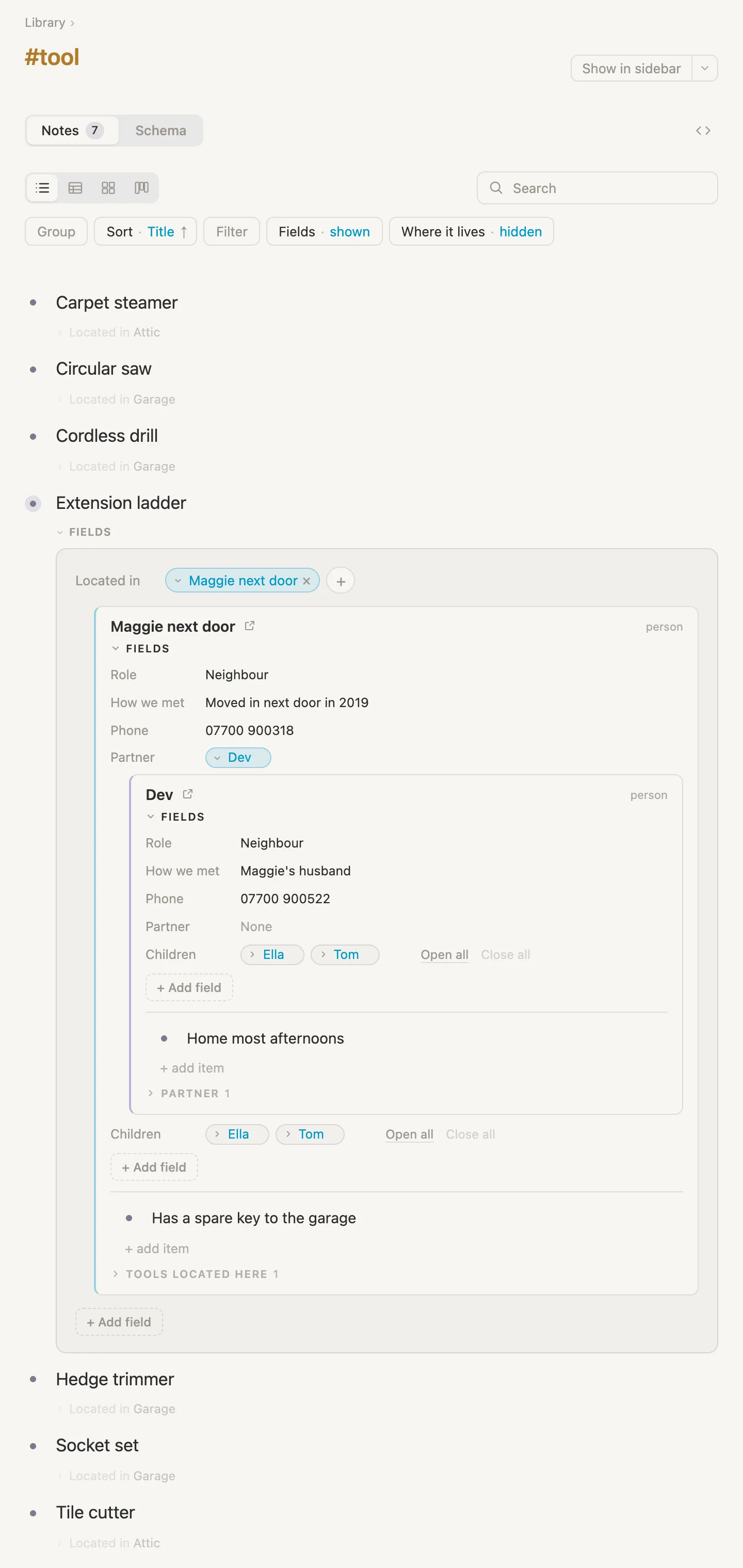
And here's every tool we own, in one list. We opened the ladder right where it sits under #tool, then we opened Maggie inside it to get her phone number. And then we opened Dev, Maggie's husband, because if Maggie's not home, Dev usually is. All without leaving the #tool tag page.
One more thing we'll get to at the end: moving the drill from the attic to the garage by changing a single field, and we'll see both rooms update at the same time.
That's where we're headed. So let's get started.
NB: Cmd throughout is the Mac key. Use Ctrl on Windows and Linux.
Setting up as we go
Just like the trip guide, we won't set anything up in advance. We'll make each tag the moment we first need it, on a note we actually care about.
The first tool
Let's start with the drill. On today's page, click + add item, type Cordless drill #tool, pick Create #tool from the list, then hit Enter.
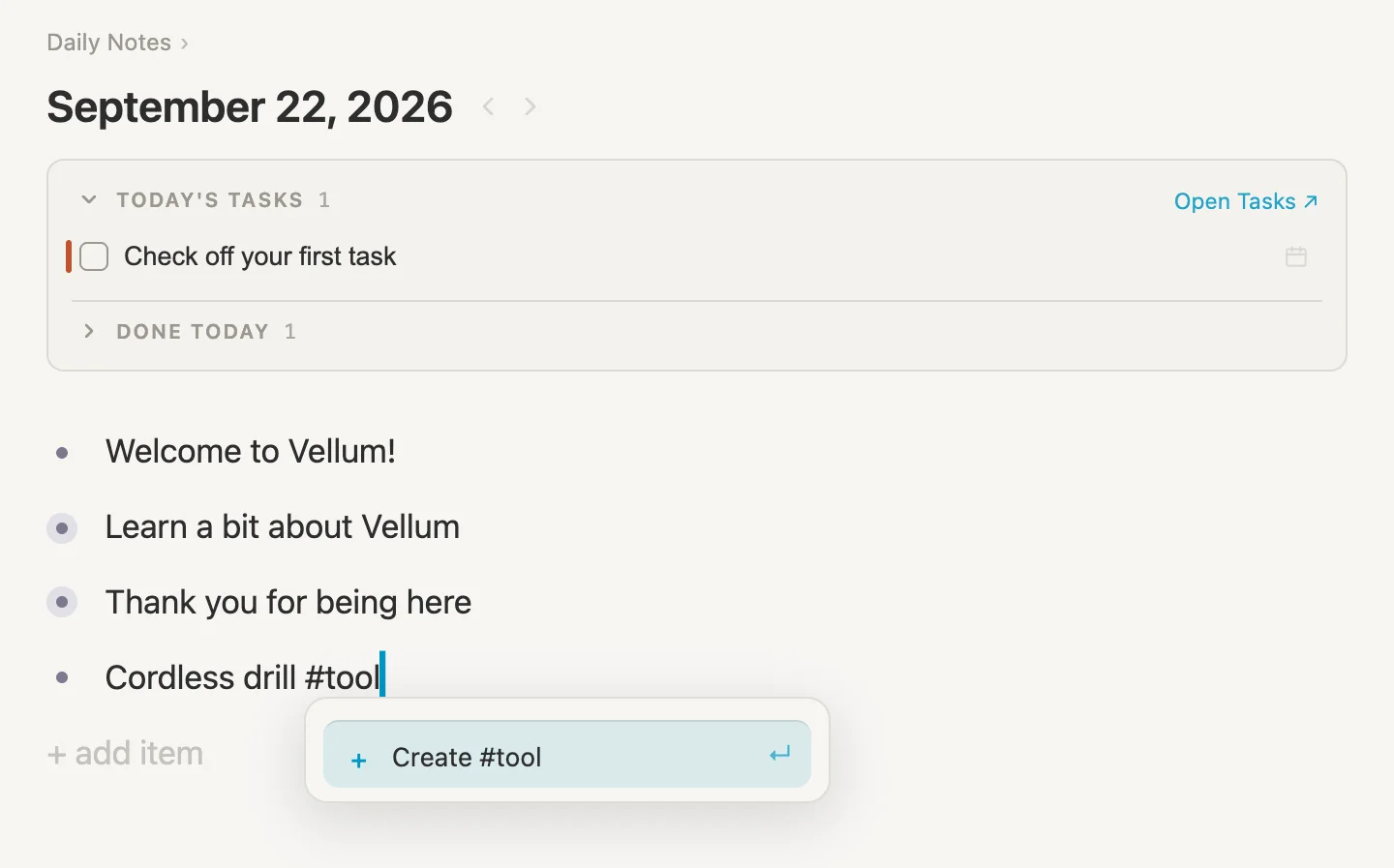
That gives us a note called Cordless drill, and a brand new #tool tag in the Library. (If your vault already has a #tool tag, you won't see the Create option. Just pick the one you have.)
Where does it live?
Every tool needs a place, so let's give #tool a field for it.
Click the #tool pill, then Schema, then + Add field. Type Located in, pick New field "Located in", and in the card that opens change Type from text to reference.
A reference field points at another note. Usually it points at notes wearing one particular tag. In the trip guide, Who's coming pointed at #person, so the tag only ever offered people. But where is a tool? Most of the time it's in a room. Sometimes it's with a person. And we don't really want to decide up front what kind of thing a location is.
So click the box under Type that reads Pick a tag, and choose the very first line, Any note.
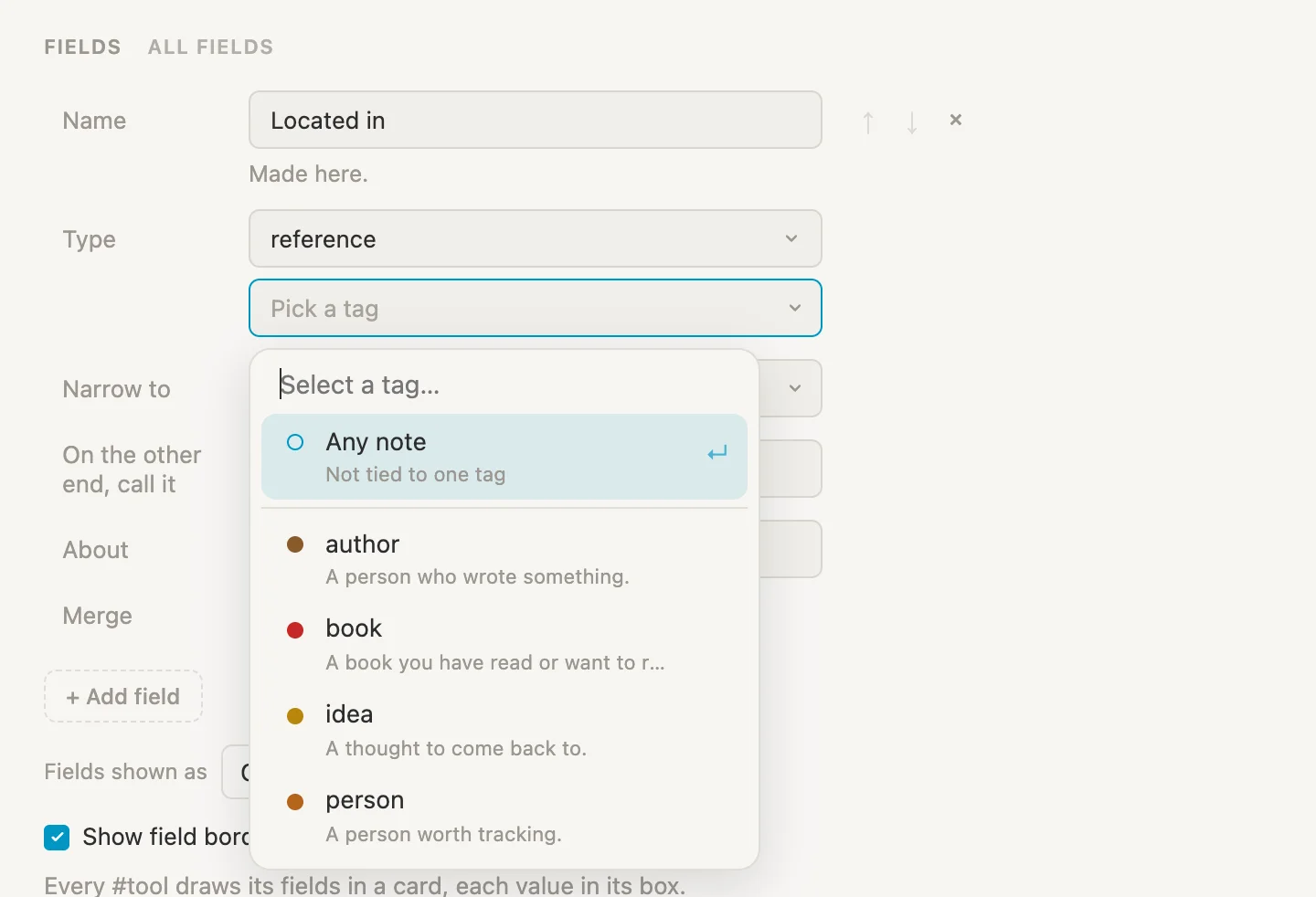
Any note means exactly that. Located in can now point at any note in the vault: a room, a person, the boot of the car, whatever. Notice we didn't have to make a #room tag first, or a #person one. We'll tighten this up a little later so the field offers only sensible places, but for now, anything goes.
The drill goes in the attic
Remember the drill that's "definitely in the garage"? Turns out it's in the attic. Of course it is.
Go back to today's page and click the bullet dot next to Cordless drill to open it on its own page. There's our new field, Located in, reading None. Click it and type Attic.
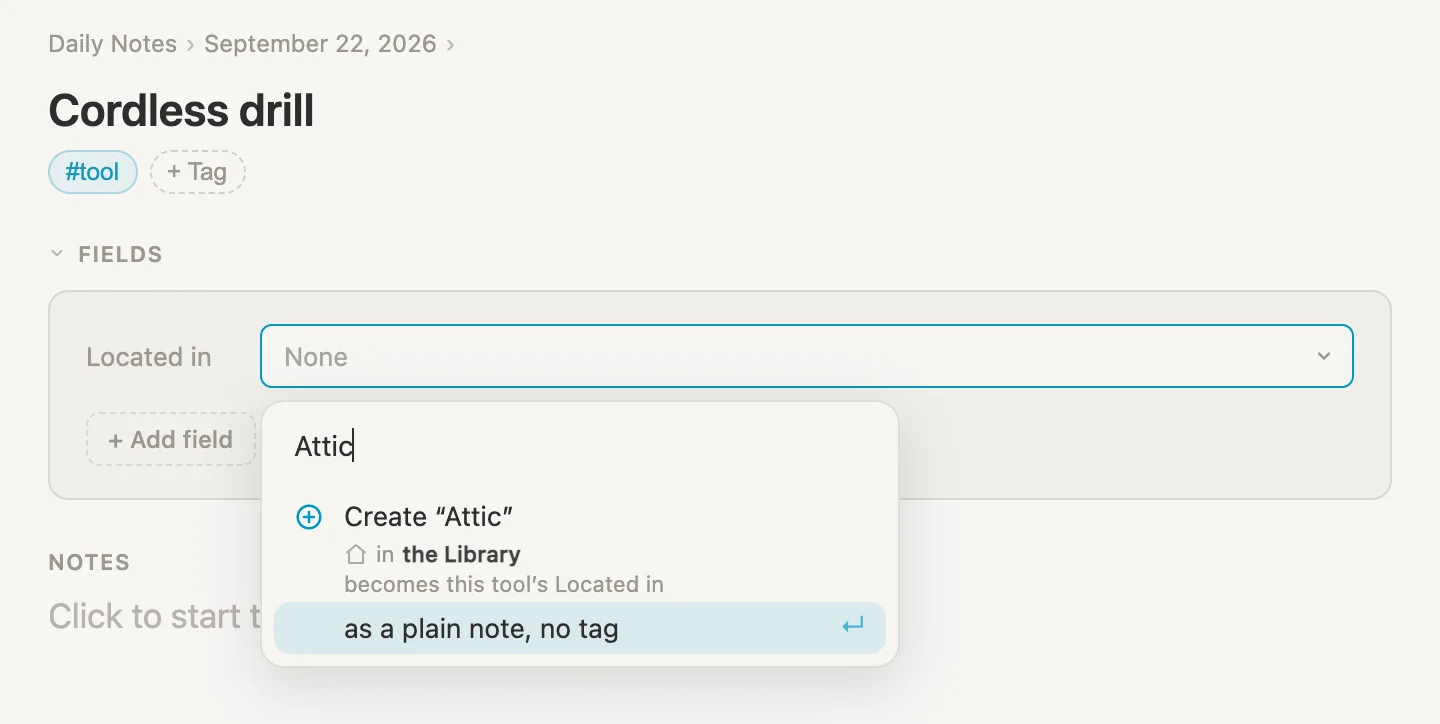
We don't have an Attic note yet, so the picker offers to make one: Create "Attic", in the Library, becomes this tool's Located in. And the line underneath says as a plain note, no tag. That's Any note at work. The attic doesn't have to be anything in particular, it just has to exist. Hit Enter.
The picker stays open, ready for a second place, so press Escape to close it. Located in now reads Attic. Click Attic to go and have a look.
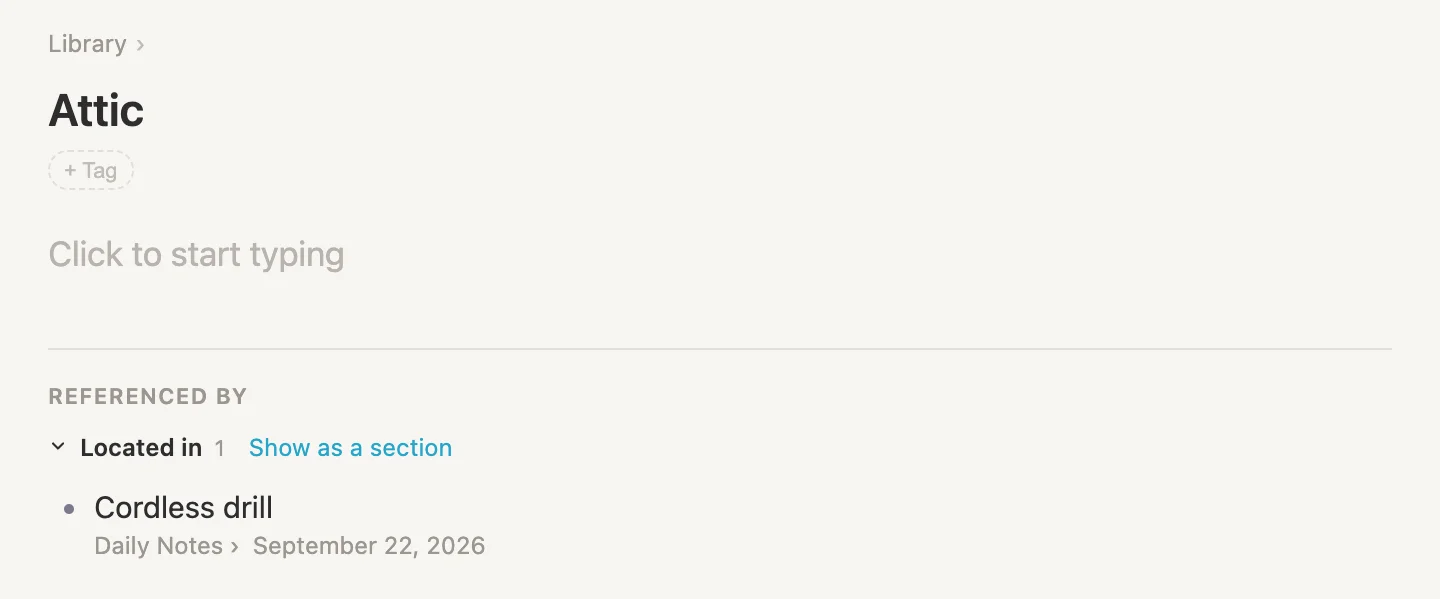
We never typed a thing on the attic page, and yet there's the drill, down at the bottom under Referenced by, in a group called Located in. Any note that points at the attic through a field turns up here on its own. That group name reads a little backwards on the attic's own page, so in just a bit we'll change it to something more sensible, like Tools located here. Hang on to that thought, and to that Show as a section link. We'll come back to both.
Any note is a bit too any
Before we add more tools, let's see what Located in is offering us. Open the drill again, and this time click the small + next to Attic.
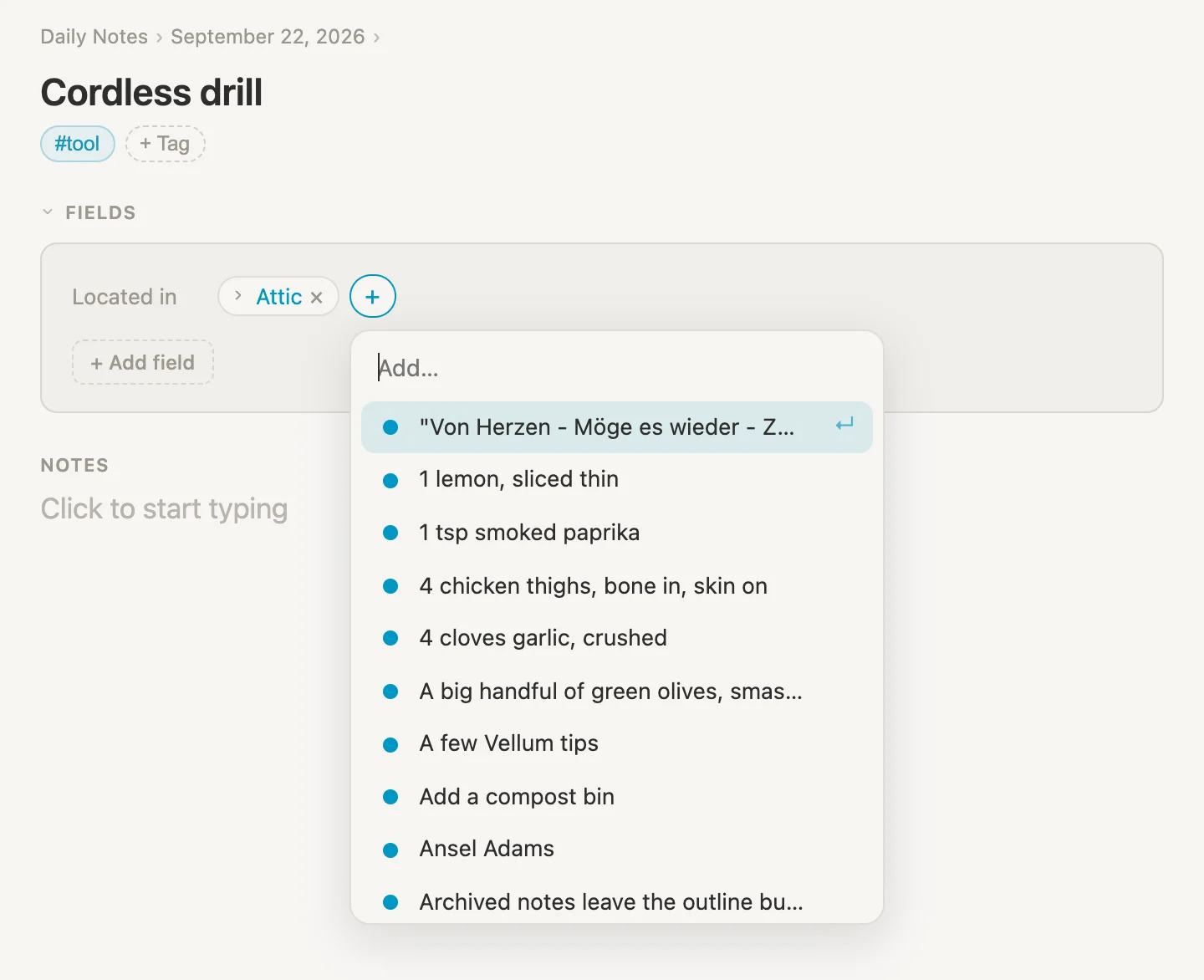
Lemons. Smoked paprika. Chicken thighs. Any note really does mean any note, and a list like that is no use when we're standing in the hall trying to remember where the steamer went. What we want is for the field to offer rooms and people, and nothing else.
That's what Narrow to is for. It takes a saved search and uses its results as the field's shortlist. So we need two things first: a tag on the rooms, and a search that gathers rooms and people.
A tag for the rooms
Press Escape to close the picker, and click Attic to open it. Click + Tag, type room, and pick Create #room.
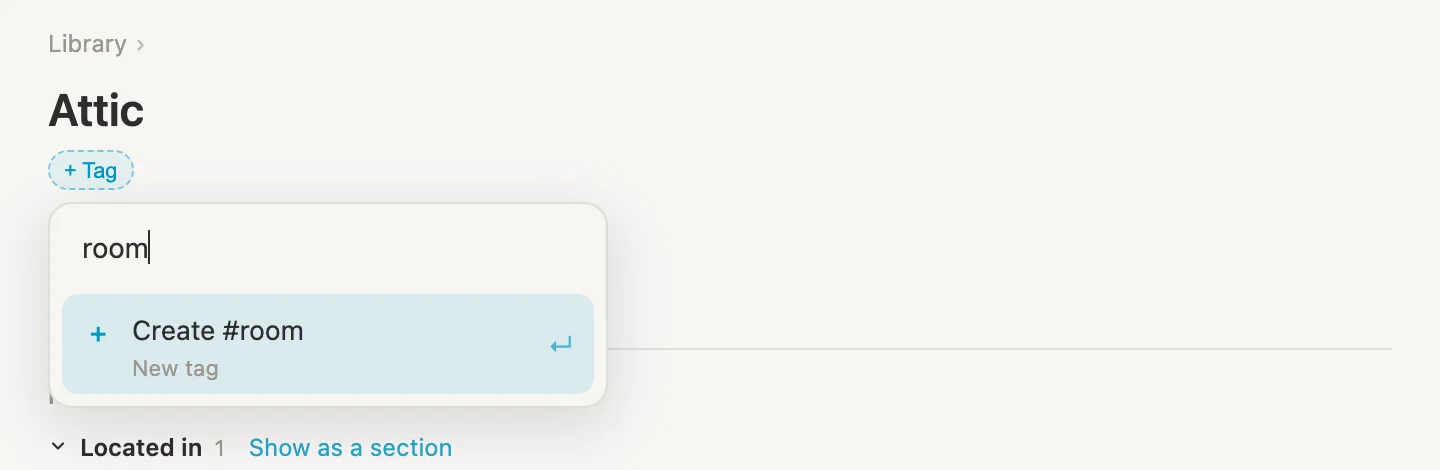
That's our second tag. People we get for free: a new vault already comes with a #person tag, which is the one we'll use for Maggie in a bit.
A search that gathers places
Back on today's page, click + add item, type /search, and pick Live search. Click its name where it says Untitled search and call it Rooms and people.
Now its rules. Click + Add filter, choose Tagged…, and set the tag to room. Then click + Or group, choose Tagged… again, and set that one to person.
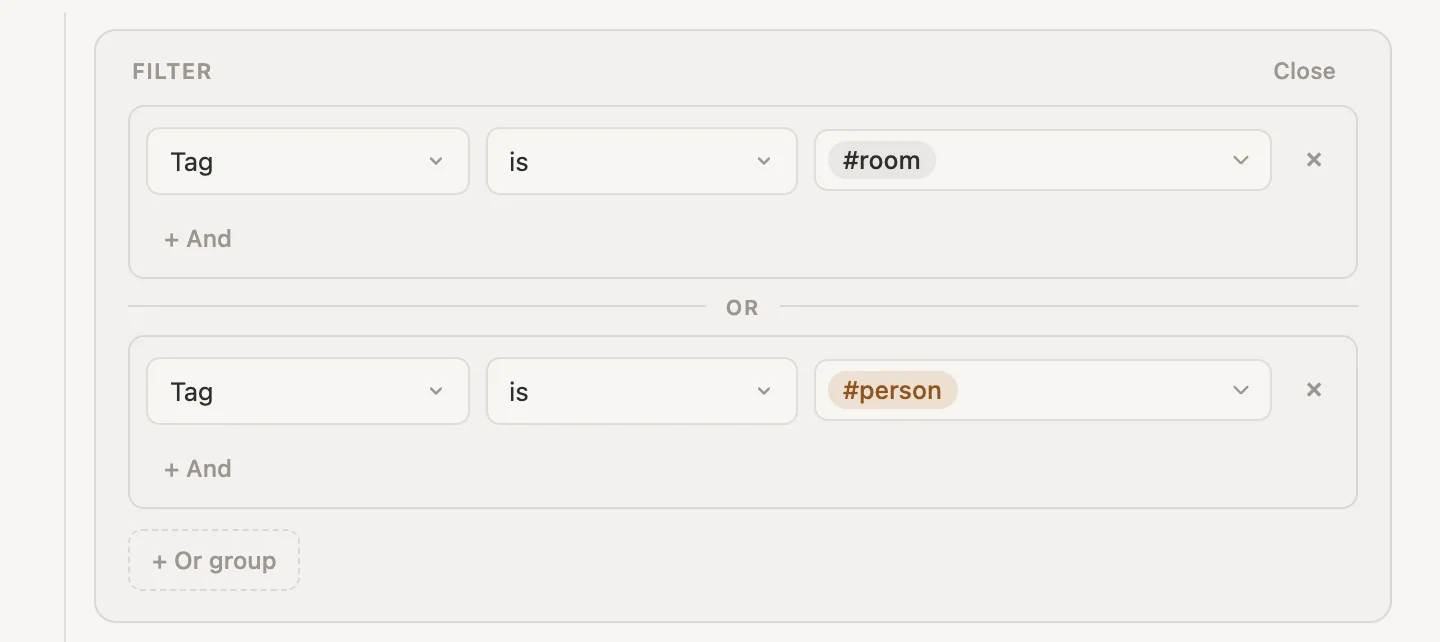
The Or group is the bit that matters. Two rules in the same group mean a note has to satisfy both, and nothing in our vault is a room AND a person at the same time. In their own groups, with OR between them, a note qualifies by being either one.
Narrow to
Now we can point the field at it. Click the #tool pill, then Schema, and in the Located in card find Narrow to, which currently reads all notes. Click it and pick Rooms and people.
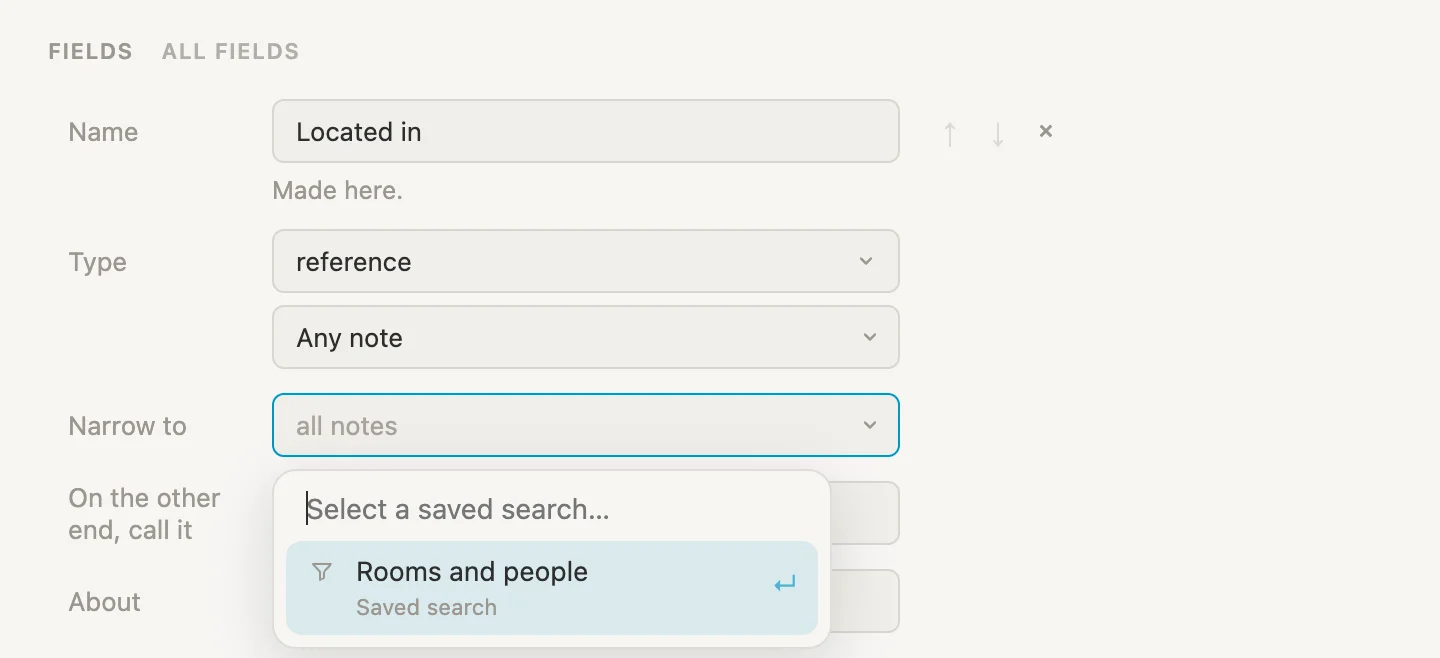
Go back to the drill and click that + again.
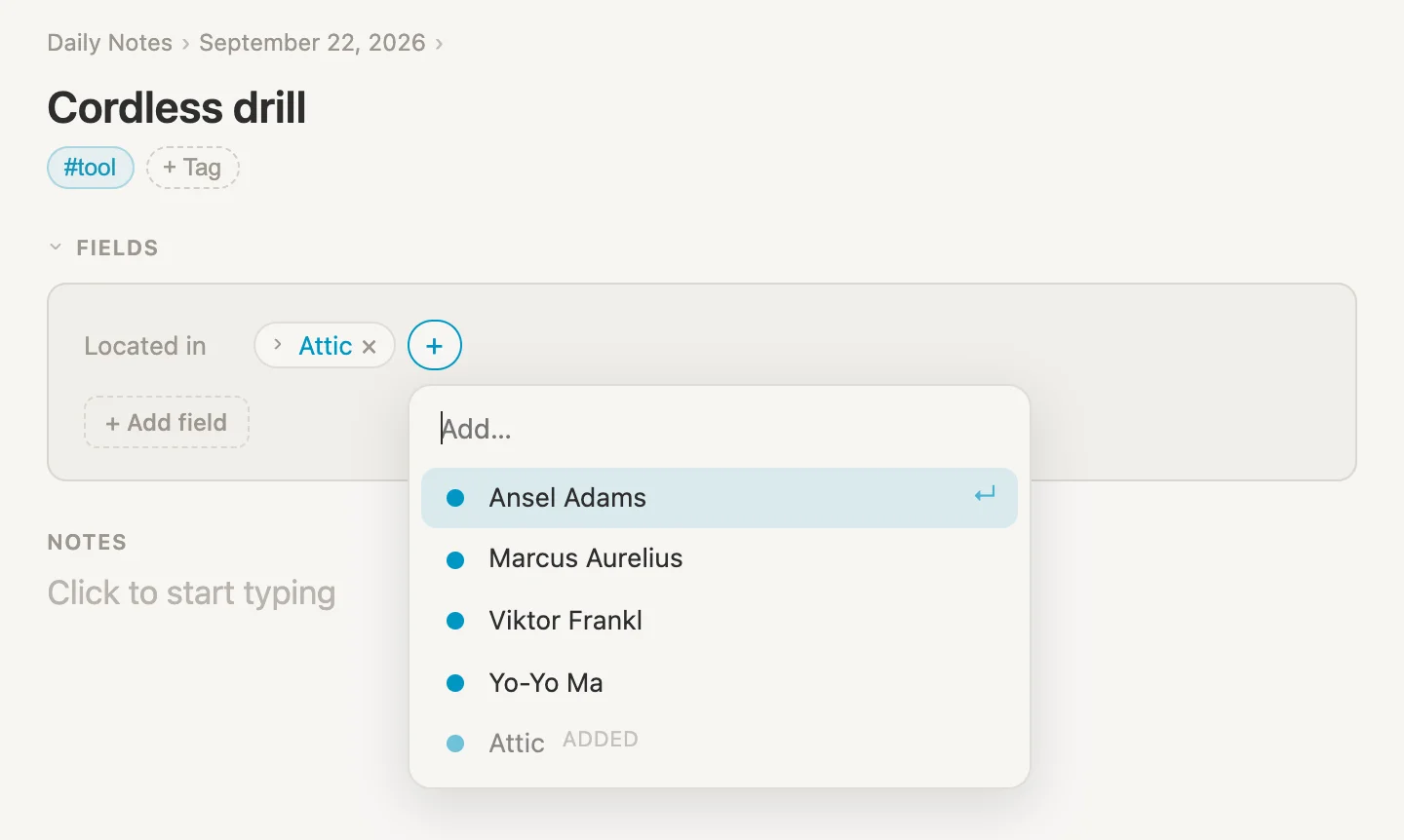
Much better. The attic is there (marked ADDED, since the drill is already in it) along with the people who came with the vault, and not a single chicken thigh.
Worth knowing: Narrow to only changes what the field offers you. Anything already sitting in a field stays exactly as it is, even if it wouldn't make the shortlist today.
The rest of the tools
One tool doesn't prove much, so let's fill in the rest. Every one of them is the same two moves: write it on today's page with #tool on the end, then open it and set Located in.
Start with the saw. On today's page, + add item, type Circular saw #tool, Enter. Click its bullet dot to open it, click Located in and type Garage. There's no Garage note yet, but look at what the picker offers now.
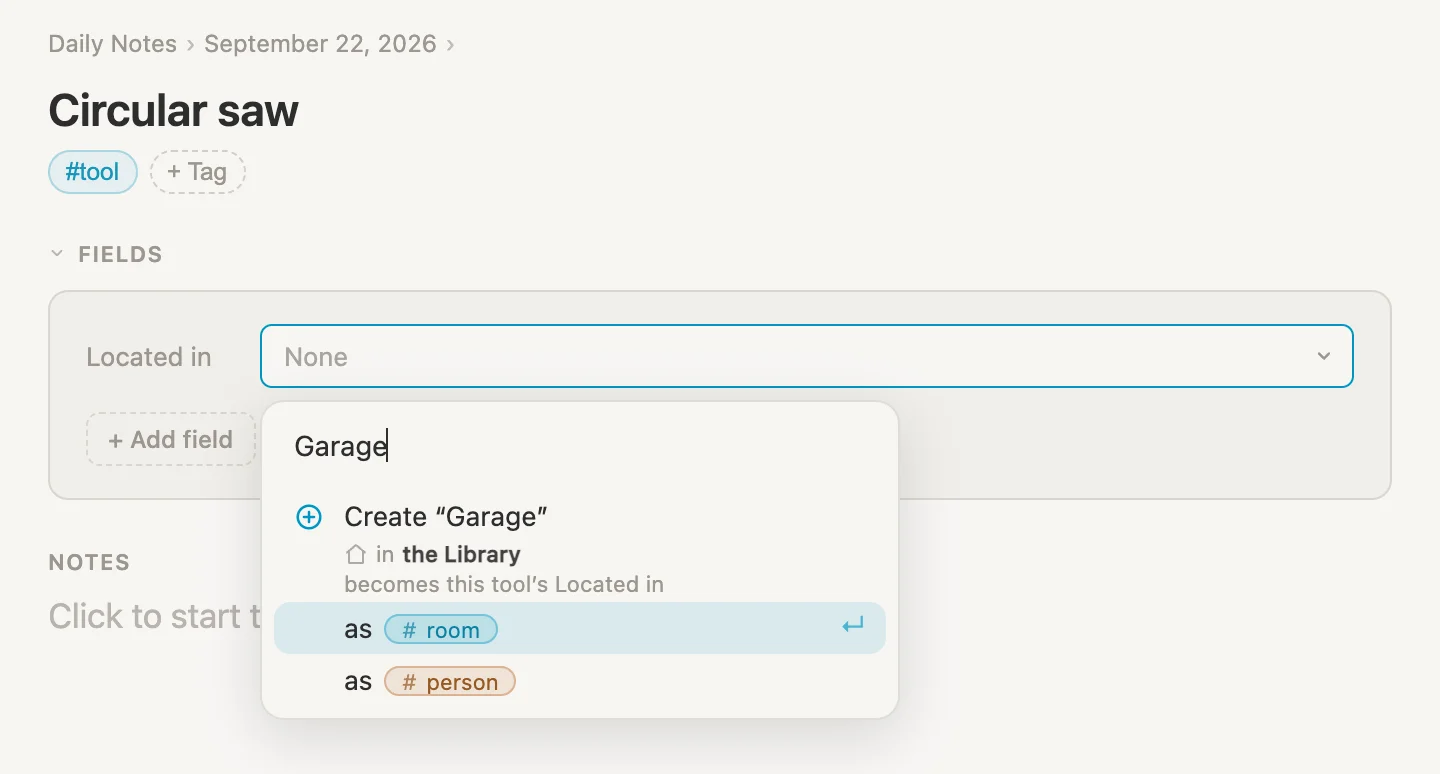
Two create lines instead of one: as #room and as #person. That's our narrowing at work. The field knows it only wants rooms and people, so those are the tags it offers to make the new note with. Select as #room, and the Garage exists.
Now the rest of them, same two moves each:
| Note to type | Located in | The place's tag |
|---|---|---|
Hedge trimmer #tool | Garage | #room |
Socket set #tool | Garage | #room |
Tile cutter #tool | Attic | #room |
Carpet steamer #tool | Attic | #room |
Extension ladder #tool | Maggie next door | #person |
The ladder is the odd one out. Maggie is not a room, she's the neighbour who borrowed it, so when her name comes up select the as #person line.
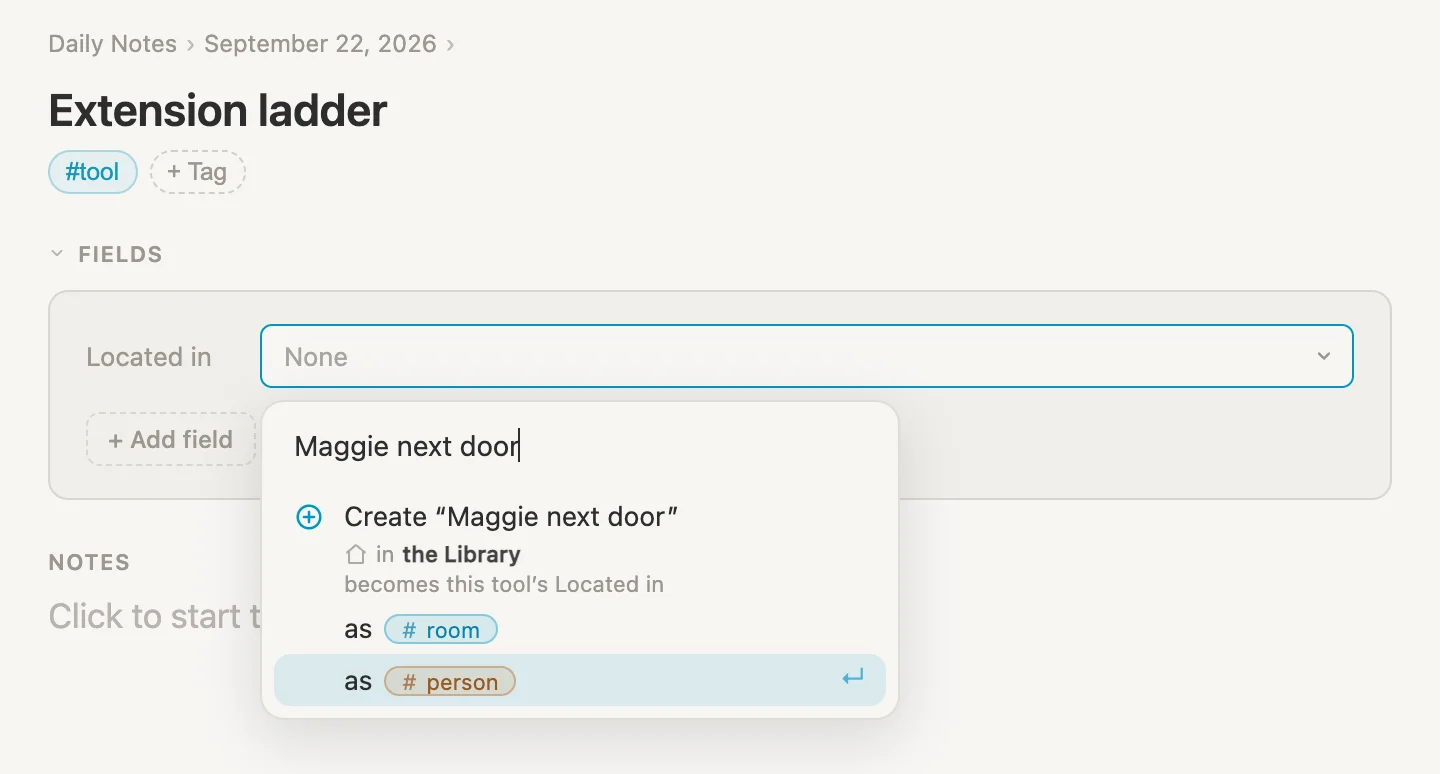
And that is the whole job done. Click the #tool pill on any tool to see the lot.
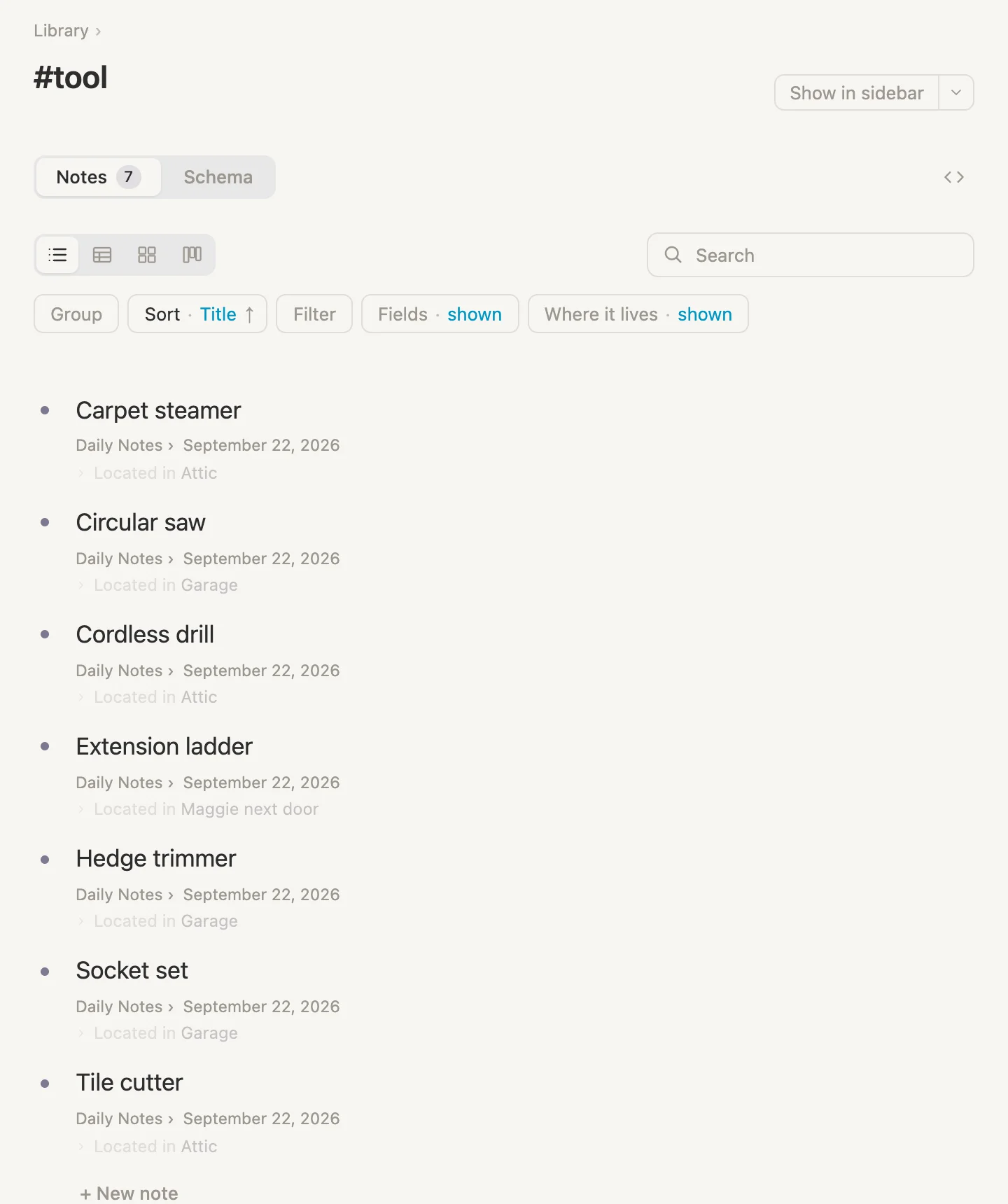
Seven tools, three places, one field. Two of those places are rooms and one is a person, and the field was happy with all three. We never had to decide up front what kind of thing a location is.
Naming the other end
Remember how the attic said Located in down at the bottom? Open the Garage now (click Garage on any of the three tools that live there) and it's the same story: three tools, under a heading that reads Located in.
That's true from the tool's side. The saw is located IN the garage. But we're standing in the garage now, looking at what's in it, and from here "Located in" reads backwards.
This is what On the other end, call it is for. A reference field has two ends. The tool's end says Located in. The other end, the note being pointed at, can call it something else entirely.
Click the #tool pill, then Schema. In the Located in card, just under Narrow to, there's a box labelled On the other end, call it. Type Tools located here and click away.
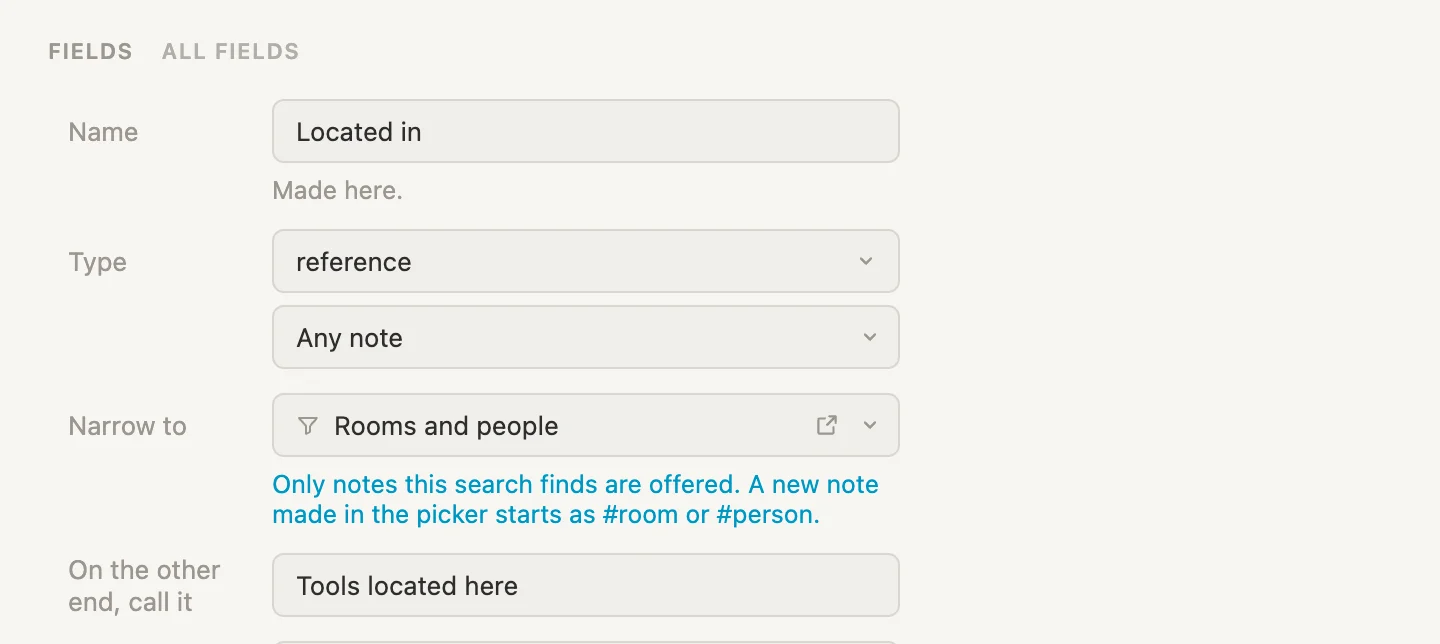
(While you're here, notice the blue line under Narrow to. That's the app spelling out what our narrowing does: Only notes this search finds are offered. A new note made in the picker starts as #room or #person.)
Now back to the garage.
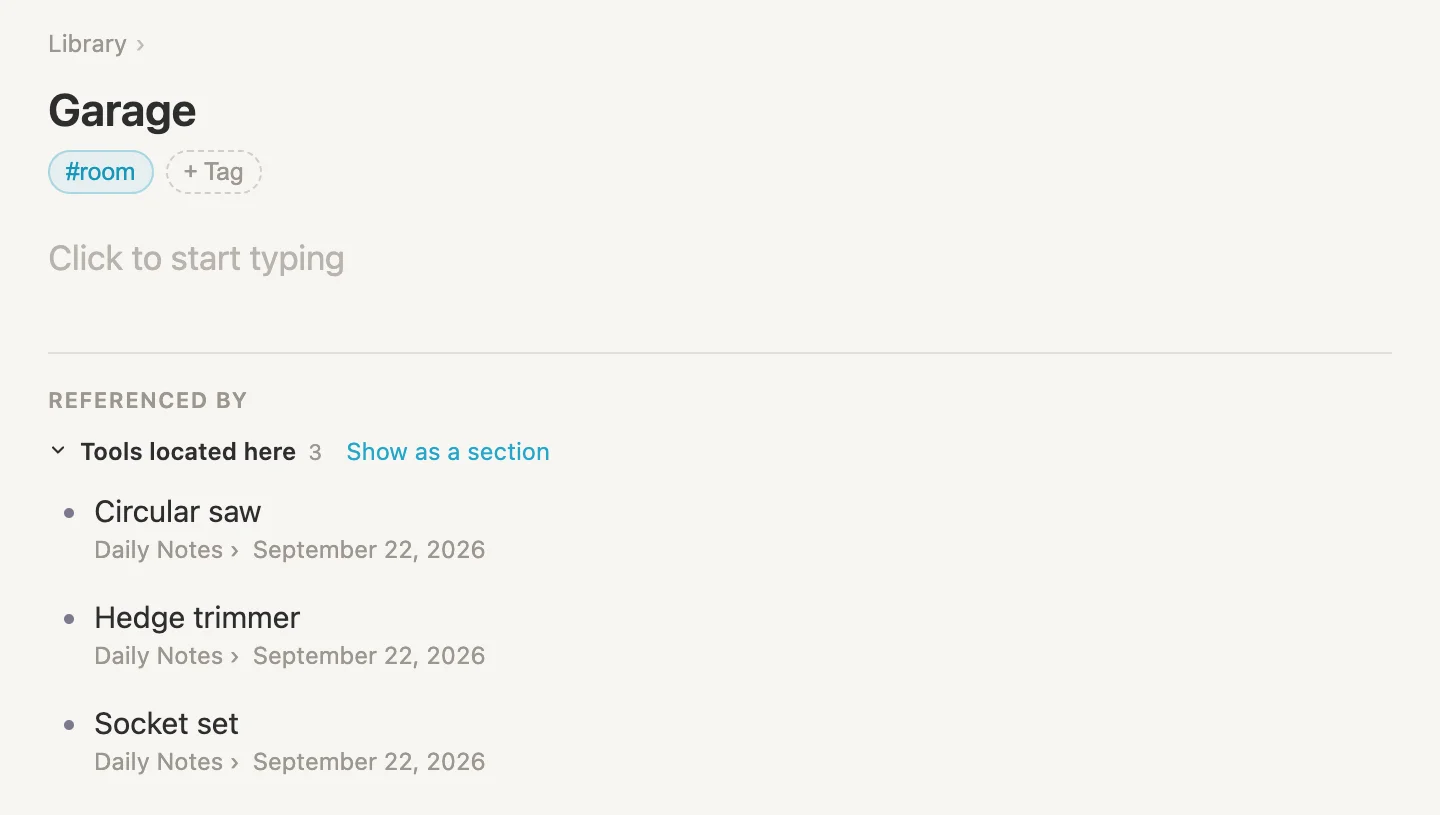
Same three tools, but now the heading makes sense: Tools located here. And it's not only the garage. The attic says it too, and so does Maggie's page, where the ladder sits under the same heading. One name, typed once on the field, and every note on the other end picks it up.
Show as a section
The list at the bottom of the garage is handy, but it's tucked away under Referenced by, below everything else on the page. For a room, the tools are the whole point. So let's move them up where they belong.
On the garage page, click Show as a section, right next to Tools located here. It asks where.
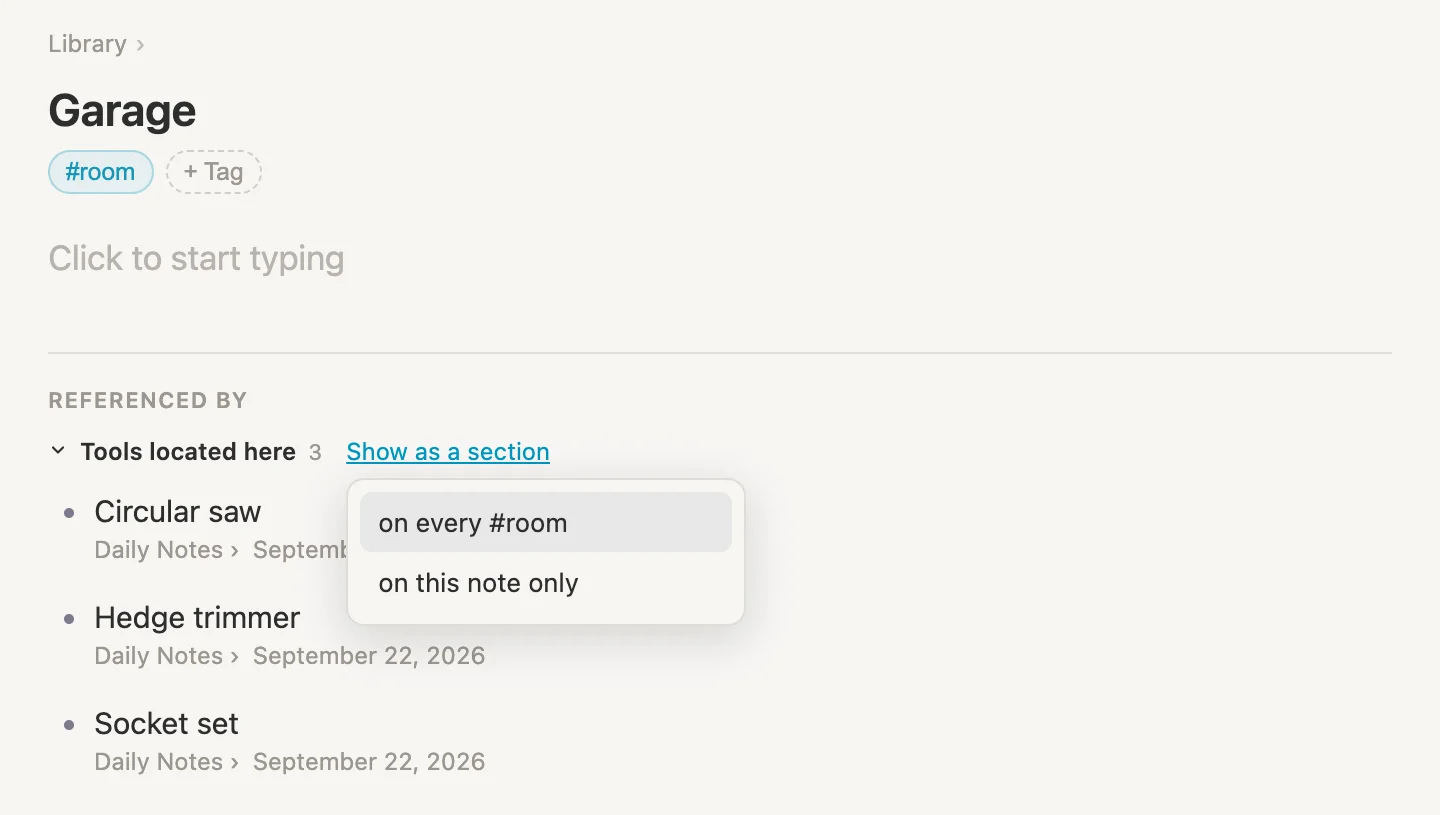
on this note only would give the garage a section and leave the attic alone. We want every room to have one, so pick on every #room.
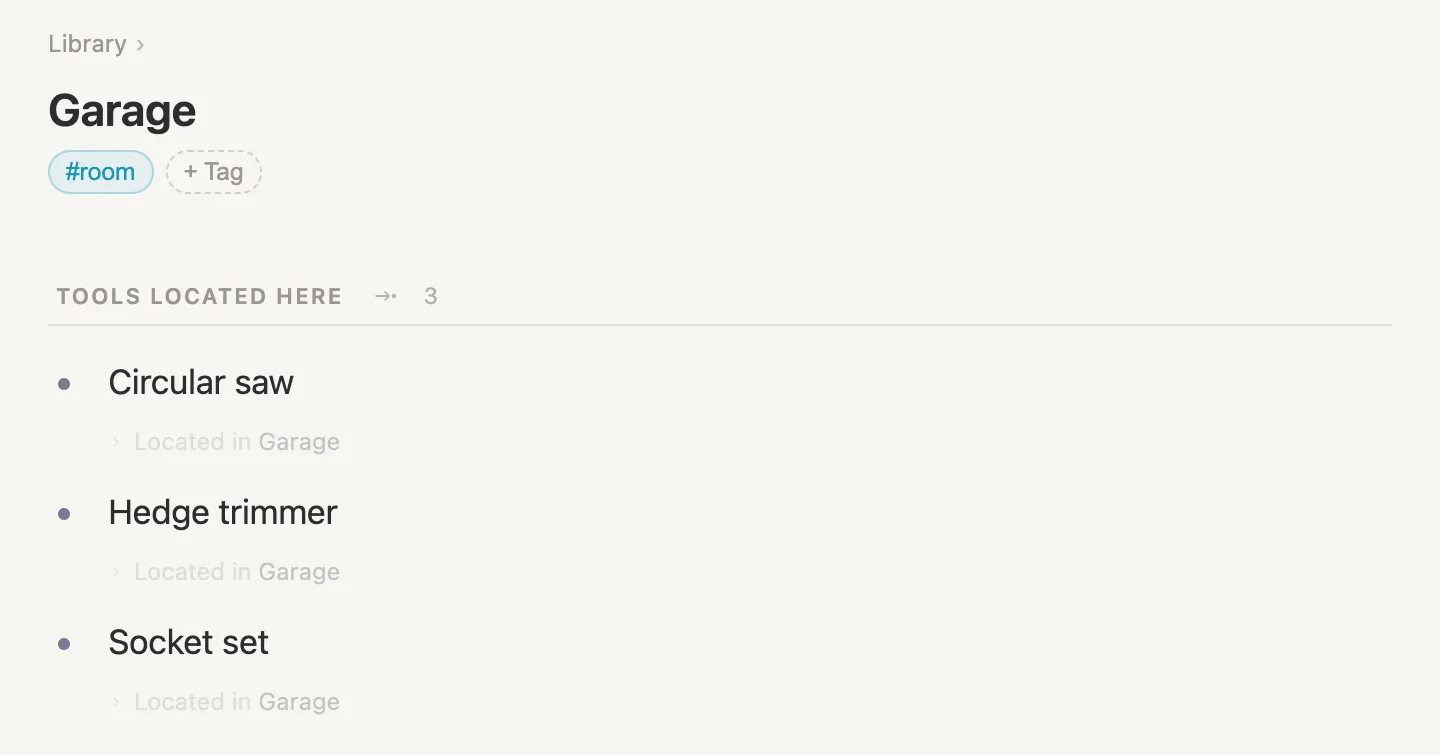
There it is. A proper section called TOOLS LOCATED HERE at the top of the page, with a count beside it, and the list at the bottom is gone, since the section now shows the same thing.
And because we said every #room, the attic got one too, without us going anywhere near it.
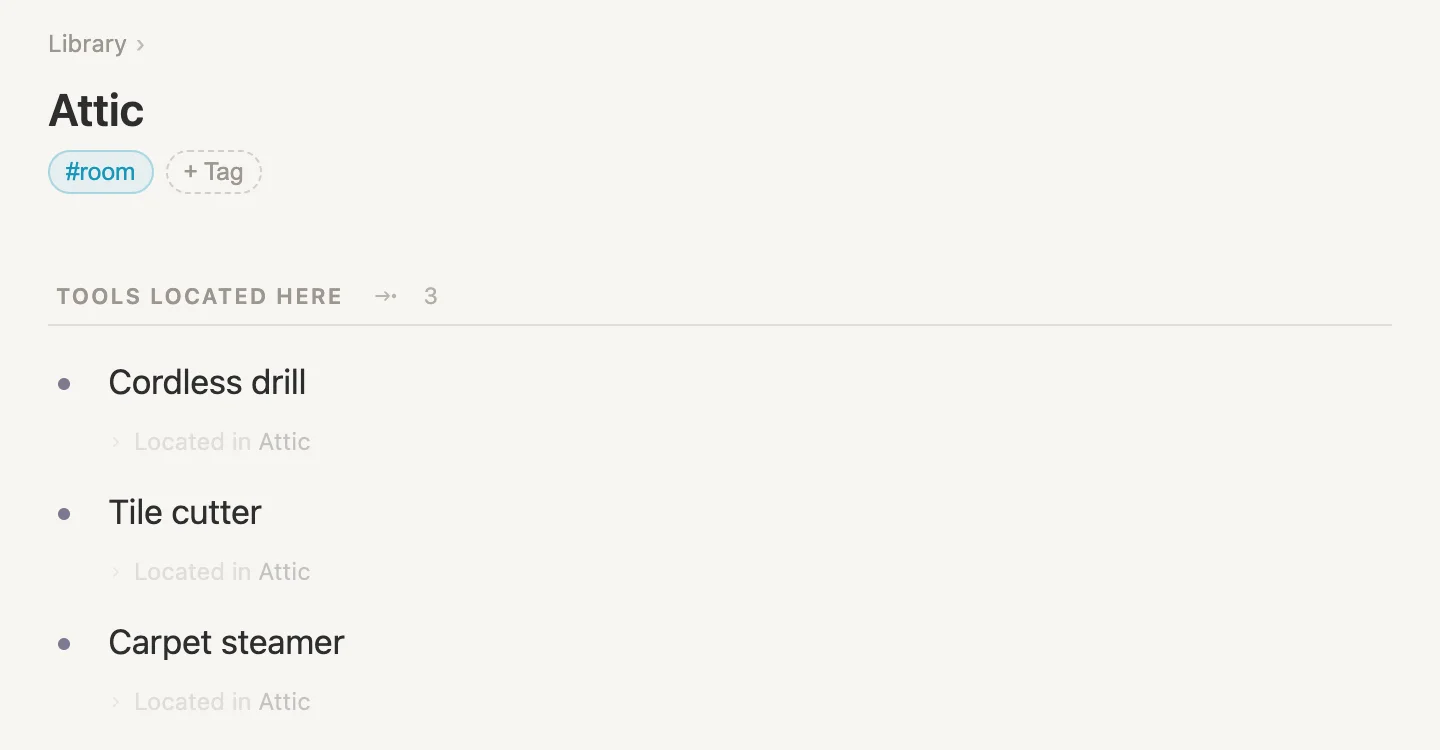
The drill, the tile cutter and the carpet steamer. (Yes, the drill is still in the attic. We'll sort that out at the end.) Any room we add from now on, the shed, the loft, the cupboard under the stairs, gets this section the moment it wears #room.
If you're curious where it's kept, it lives on the #room tag. Click the pill, then Schema, and it's listed under Sections as Tools located here, showing every note whose Located in points here. That's exactly what you'd have built by hand with + Add section. Show as a section just saves you the trip.
Maggie next door
We already have a note for Maggie. The picker made it when we put the ladder at her place. But it's pretty bare, so let's fix that. Open the ladder and click its Maggie next door pill.
She has two fields already, Role and How we met. They come with the #person tag in a new vault. Let's add three more, so a person carries what we'd actually want to know before we go knocking.
Click the #person pill, then Schema, and click + Add field three times:
Phone, left as textPartner, Type reference, pointing at#personChildren, Type reference, pointing at#person
Partner and Children point at #person on purpose. Unlike Located in, there's no reason for them to point at any note. A partner is a person.
Now back to Maggie. Fill in Role Neighbour, How we met Moved in next door in 2019, and Phone 07700 900318. For Partner, type Dev. He doesn't exist yet, so the picker offers to make him.
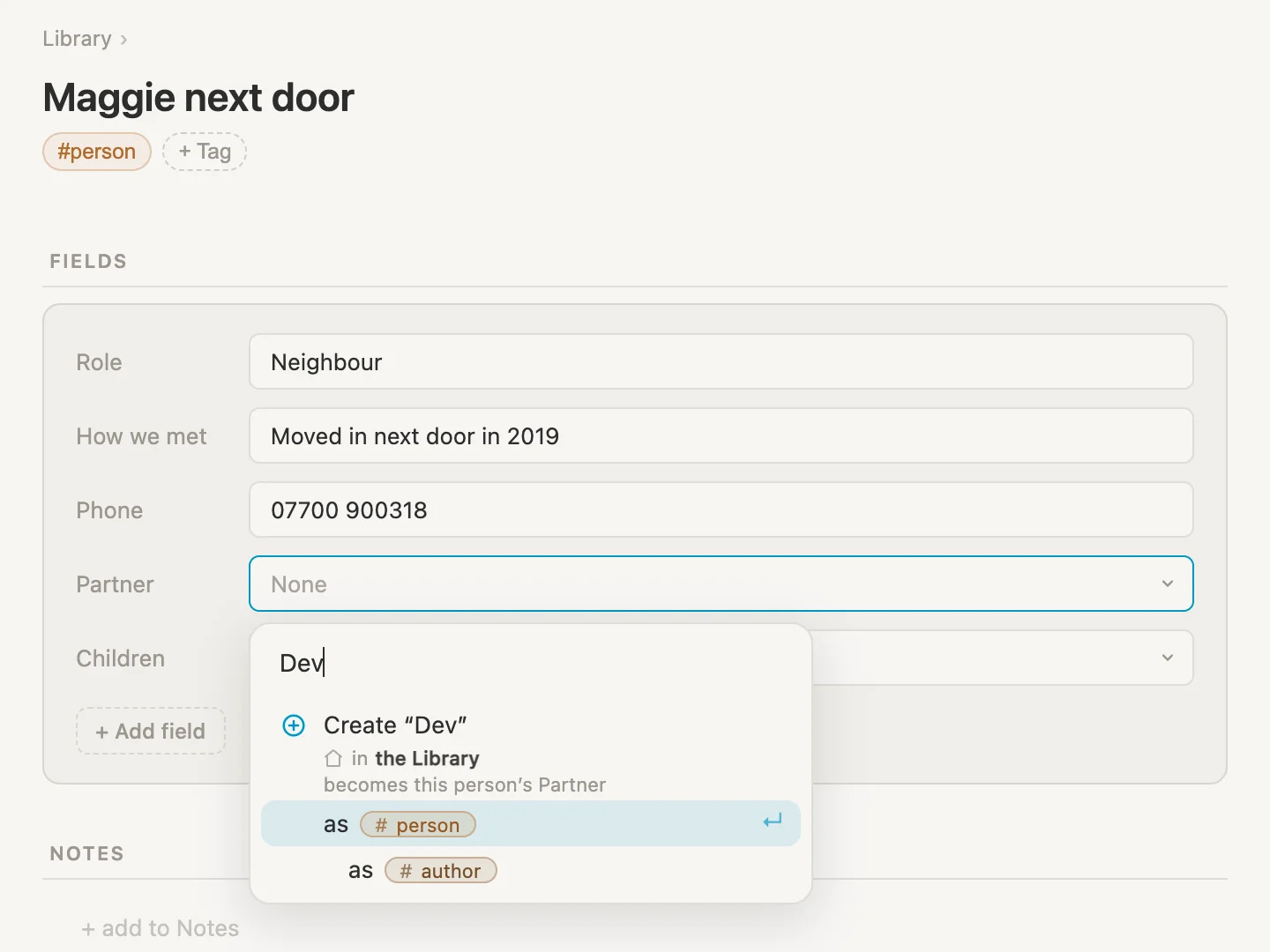
Select as #person. (The #author line tucked under it is there because a new vault's #author tag is a subtag of #person. An author counts as a person too. Just not the one we want today.)
Then Children: type Ella, Enter, then Tom, Enter, then Escape. And under NOTES, click + add to Notes and type Has a spare key to the garage.
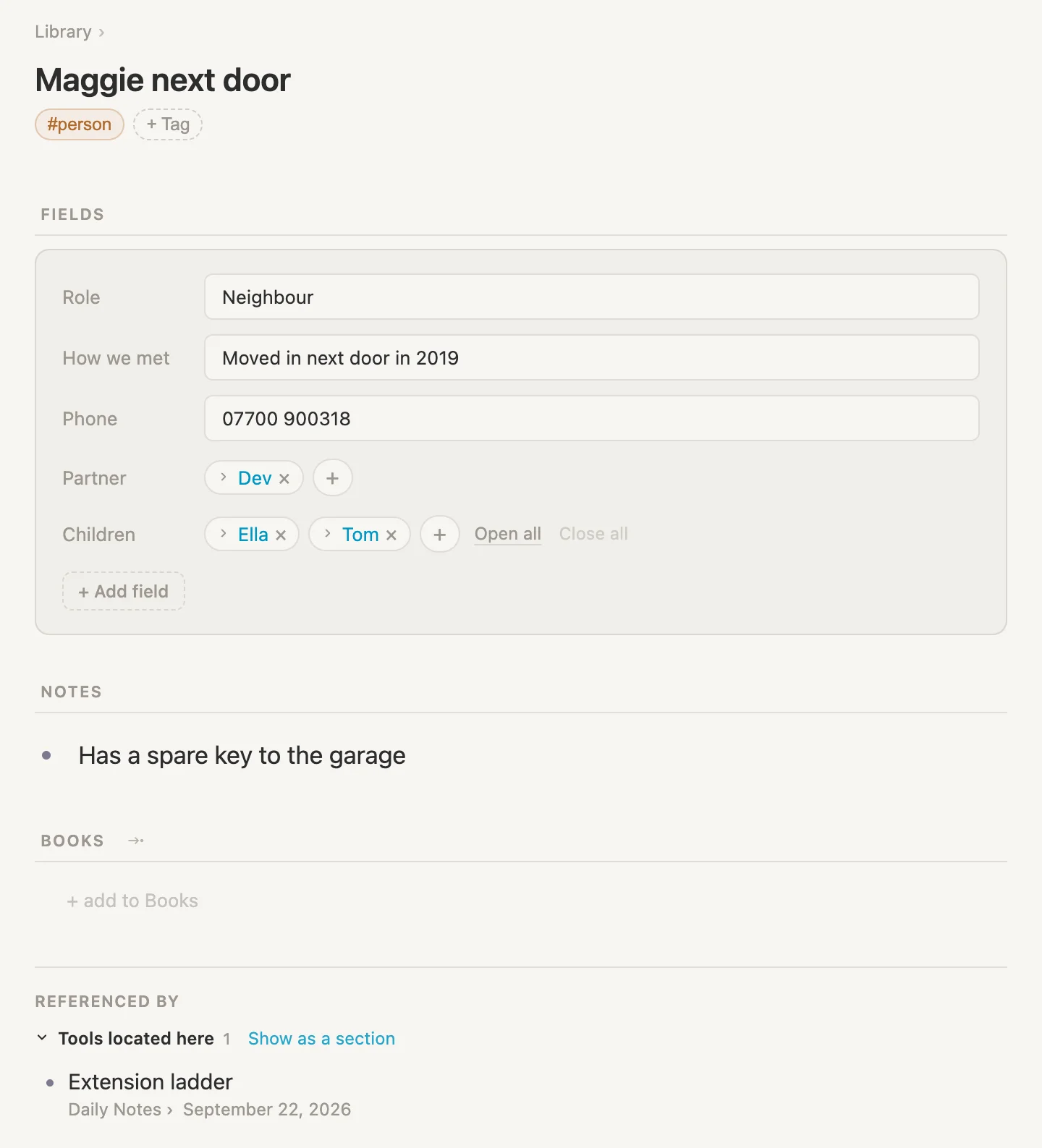
And there at the bottom is the ladder, under Tools located here. We never typed it on Maggie's page. It's there because the ladder points at her. So ... that's where the ladder went 😁
Last, click Dev and give him the same treatment: Role Neighbour, How we met Maggie's husband, Phone 07700 900522, Children Ella and Tom (they exist now, so just pick them), and a note, Home most afternoons. We'll need that in a minute.
A closer look, without leaving the page
Back to the list of every tool. Click any #tool pill.
First, a little tidying. Under each tool there's a grey line saying which day it was typed. Handy sometimes, but not today. Click Where it lives, pick Hidden, then click Save so the list stays that way.
Now, where's the ladder? Just under its name there's a small grey arrow, with the ladder's field and its value beside it in faint grey. Click that little arrow and the ladder's fields open right there, under its row.
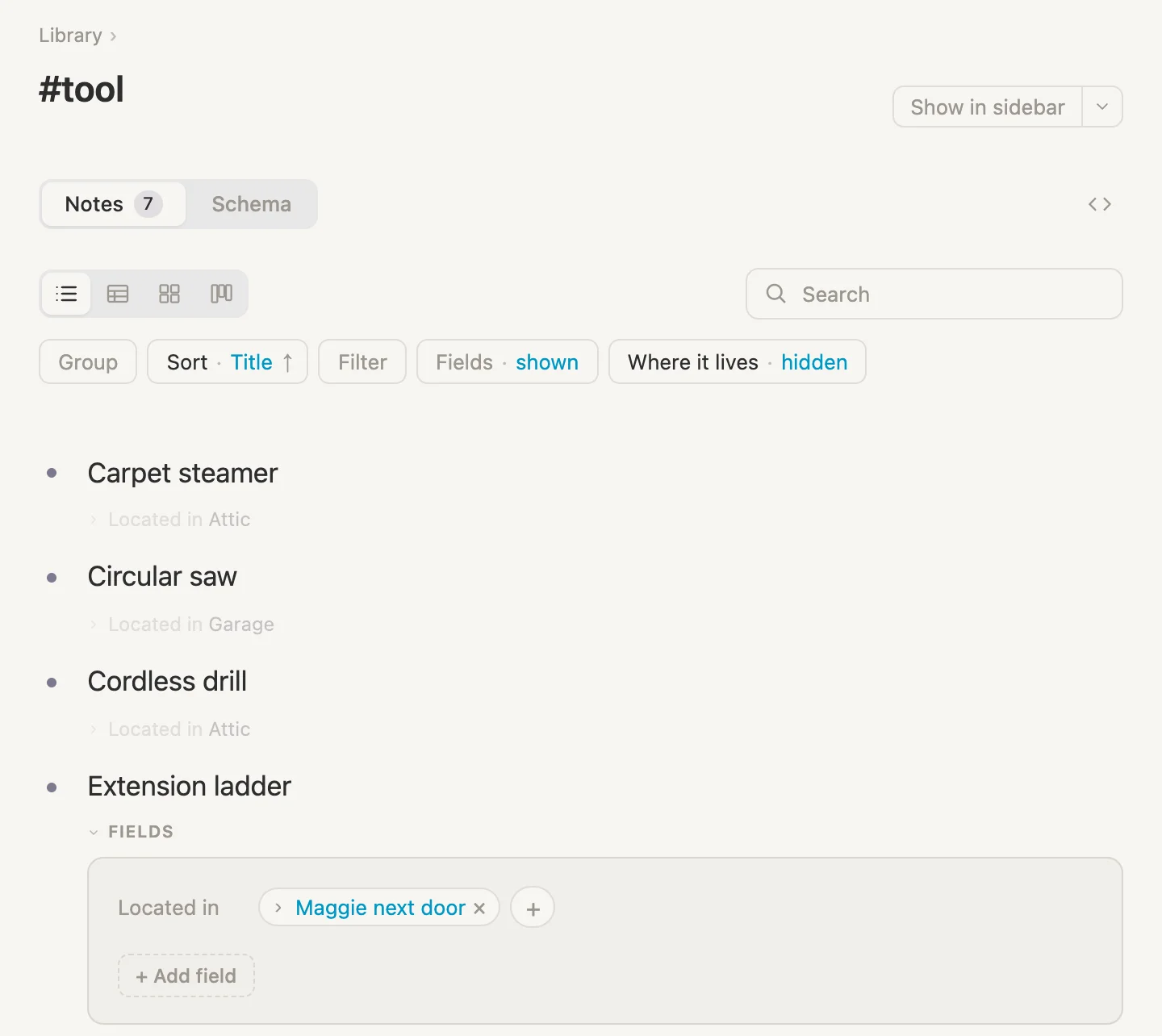
Located in shows Maggie as a pill. See the small arrow at the start of it? Click that. (Clicking her name takes you to her page. The arrow opens her right here.)
Maggie opens inside the ladder: her fields, her note about the spare key, everything. Her phone number is right there. And if she's out, Dev usually isn't, so click the arrow on the Dev pill in her Partner field, and he opens inside her.
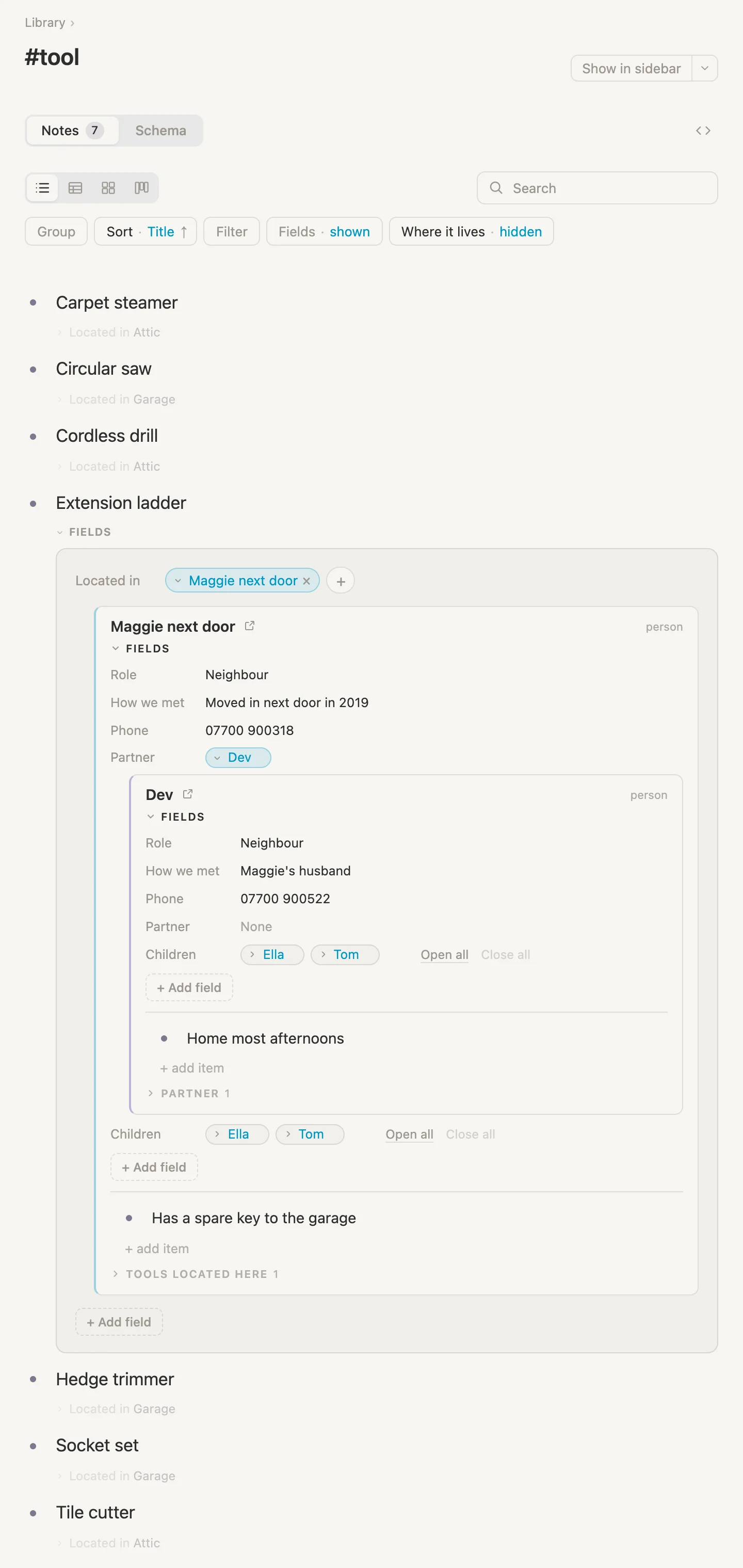
Three notes deep, and we never left the tool list. And these are the real notes, not copies. Type a line under Maggie here and it's on her page too. Whatever you leave open stays open the next time you come back, and the same arrow closes it again.
Moving the drill
Right. The drill. It's been sitting in the attic this whole time, and we said at the very start it's "definitely in the garage". Let's make that true, and keep an eye on both rooms while we do it.
Open the drill first (click its bullet dot on today's page). Then let's put both rooms in the sidebar. Press Cmd-P to search, type Attic, and instead of Enter, press Shift-Enter. The hint is right there along the bottom of the search box: sidebar.
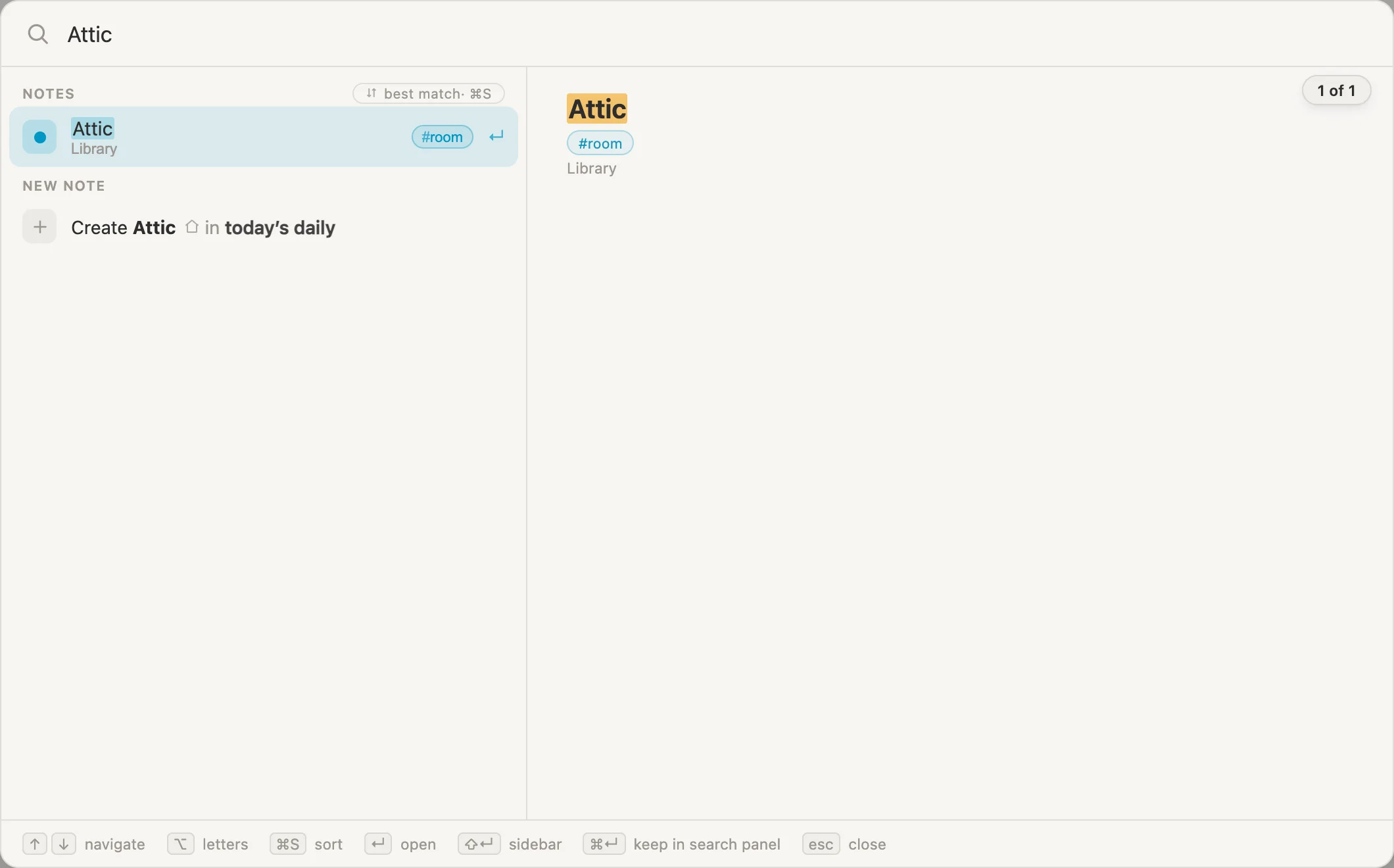
The attic opens as a card in the sidebar. Do the same for the garage: Cmd-P, Garage, Shift-Enter.
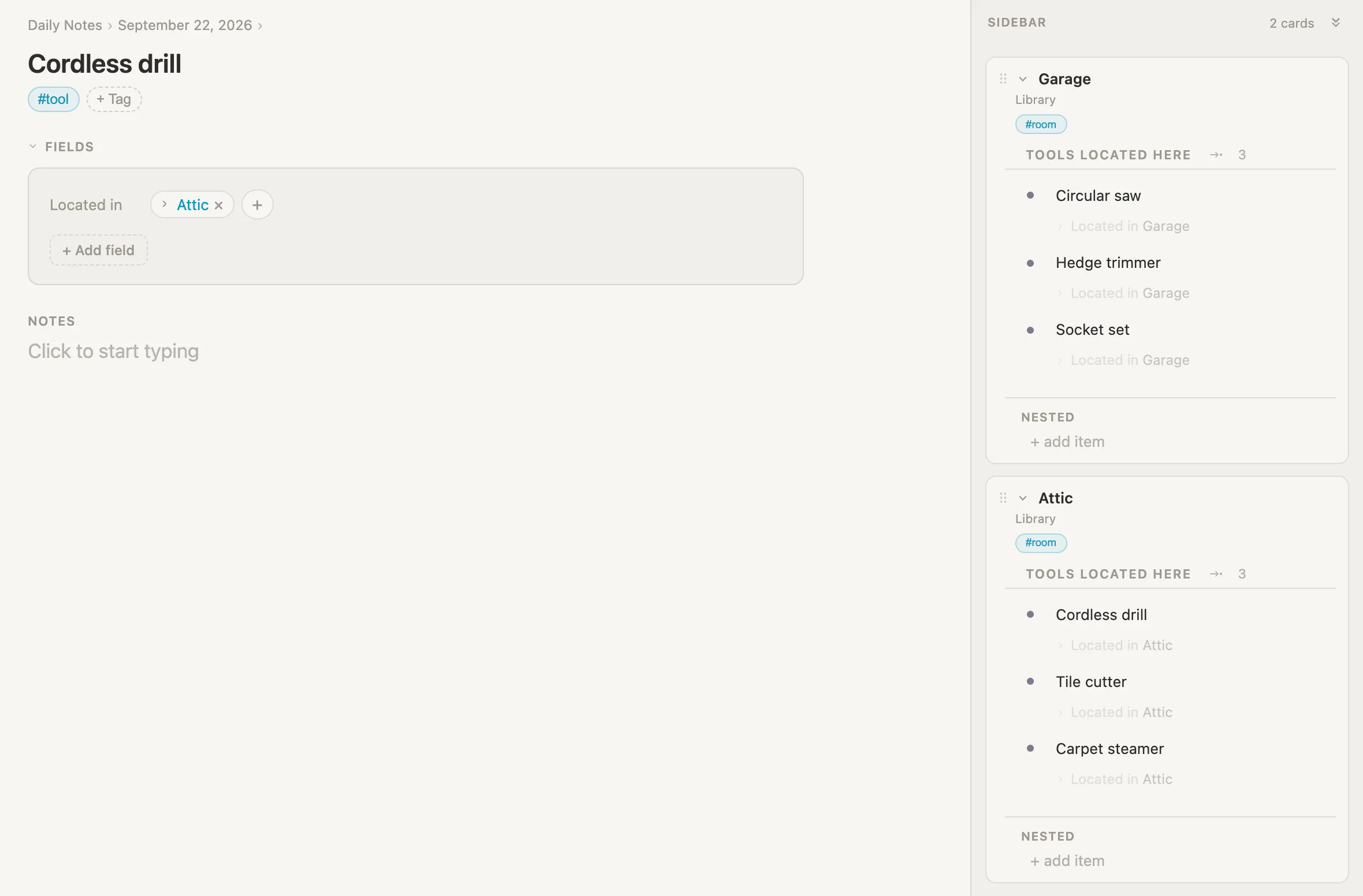
Garage: three tools. Attic: three tools, the drill among them.
Now the move. On the drill, click the little × on the Attic pill to take it out. Located in now reads None, so click it, type Garage, hit Enter, then Escape.
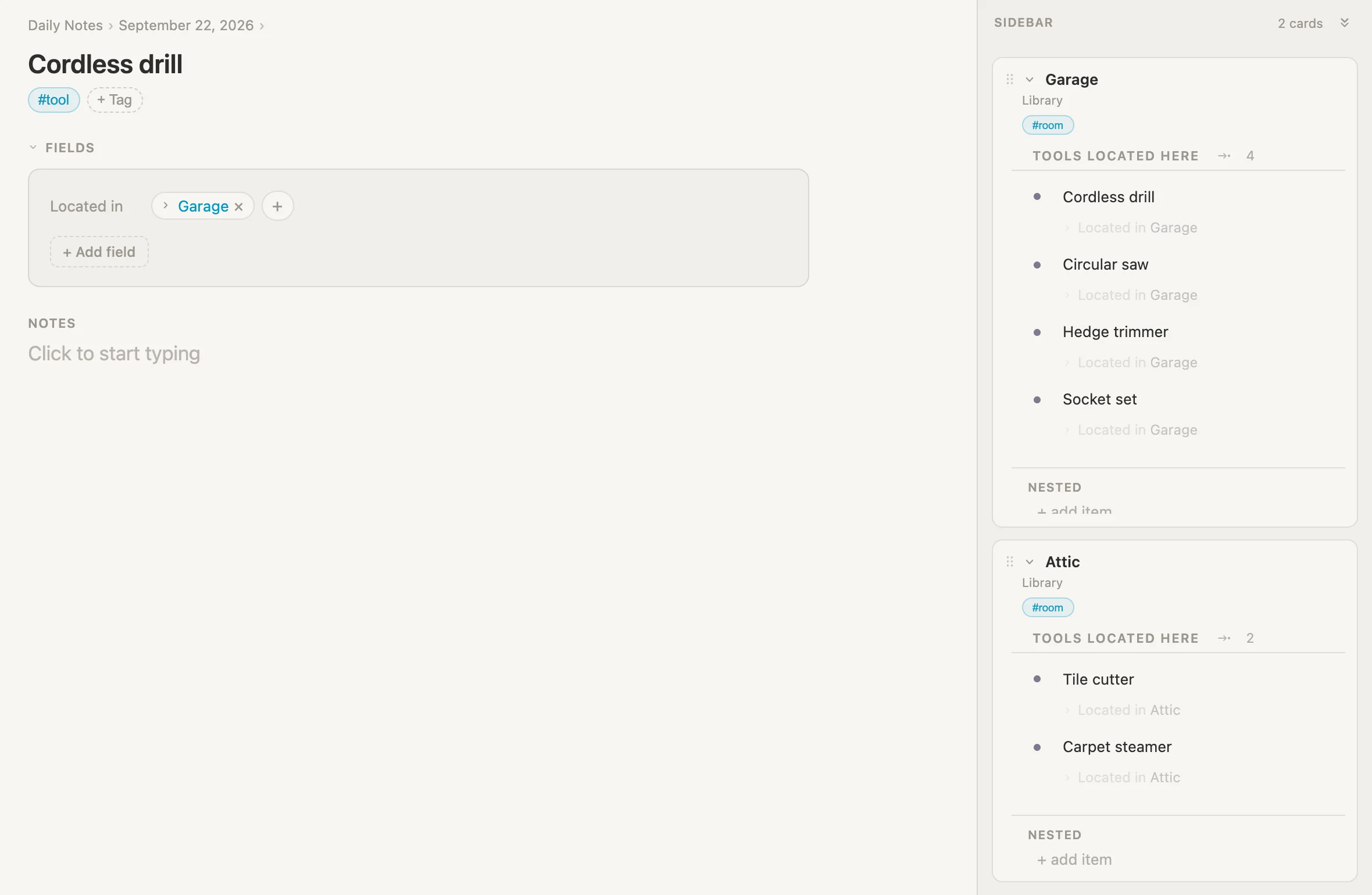
Look at the sidebar. The garage went from 3 to 4, with the drill at the top of its list. The attic went from 3 to 2. We changed one field, on the drill, and never touched either room. That's the whole idea in one move: the tool says where it is, and every place just reads it.
(If the garage card's last line looks a little clipped, that's on purpose. A sidebar card stops growing at a set height and scrolls from there.)
Wrapping up
Two new tags, four new fields, one saved search, one section. And a few minutes of setup.
What it gets us: a page per room that lists what's in it, a page per neighbour that shows what they've borrowed, and a list of every tool where we can open any one of them, and whoever has it, without leaving the page. And when something moves, we change one field and every page catches up.
The five ideas underneath it all:
- Any note lets a reference field point at anything: a room, a person, the boot of the car. We don't have to decide up front what kind of thing it points at.
- Narrow to gives that field a shortlist. A saved search decides what it offers, and a new note made from the picker starts out with the right tag.
- On the other end, call it names the field from the other side. The tool says Located in. The garage says Tools located here.
- Show as a section takes a list from Referenced by and turns it into a real section, on one note or on every note with that tag.
- The arrow on a pill opens that note right where you are, fields, notes and all. And you can keep going: a note inside a note inside a note.
Nothing here is special to tools. Swap the tags and the same ideas keep track of who has your books, which box in the loft holds the winter coats, or where each of the kids' school things ended up. The notes point, the pages gather. The rest is just naming things.