Note hierarchy and Note links
A project's tasks never really stay put. Some we type straight into the project. Some we jot in the daily note because that's what's convenient in the moment. And some ... well, some we write down on Wednesday, mean to move later, and then it's Friday.
Vellum has two search rules for gathering them all back up:
- Note hierarchy finds everything nested under a note, however deep.
- Note links finds every note that mentions another with a
[[link]].
On their own they're handy. Put together, and with a rule or two more, they answer useful questions. What's still open on the bathroom project? What do I need to sort out with Marco the plumber? By the end of this little walkthrough, every project lists its own open tasks, wherever we happened to write them.
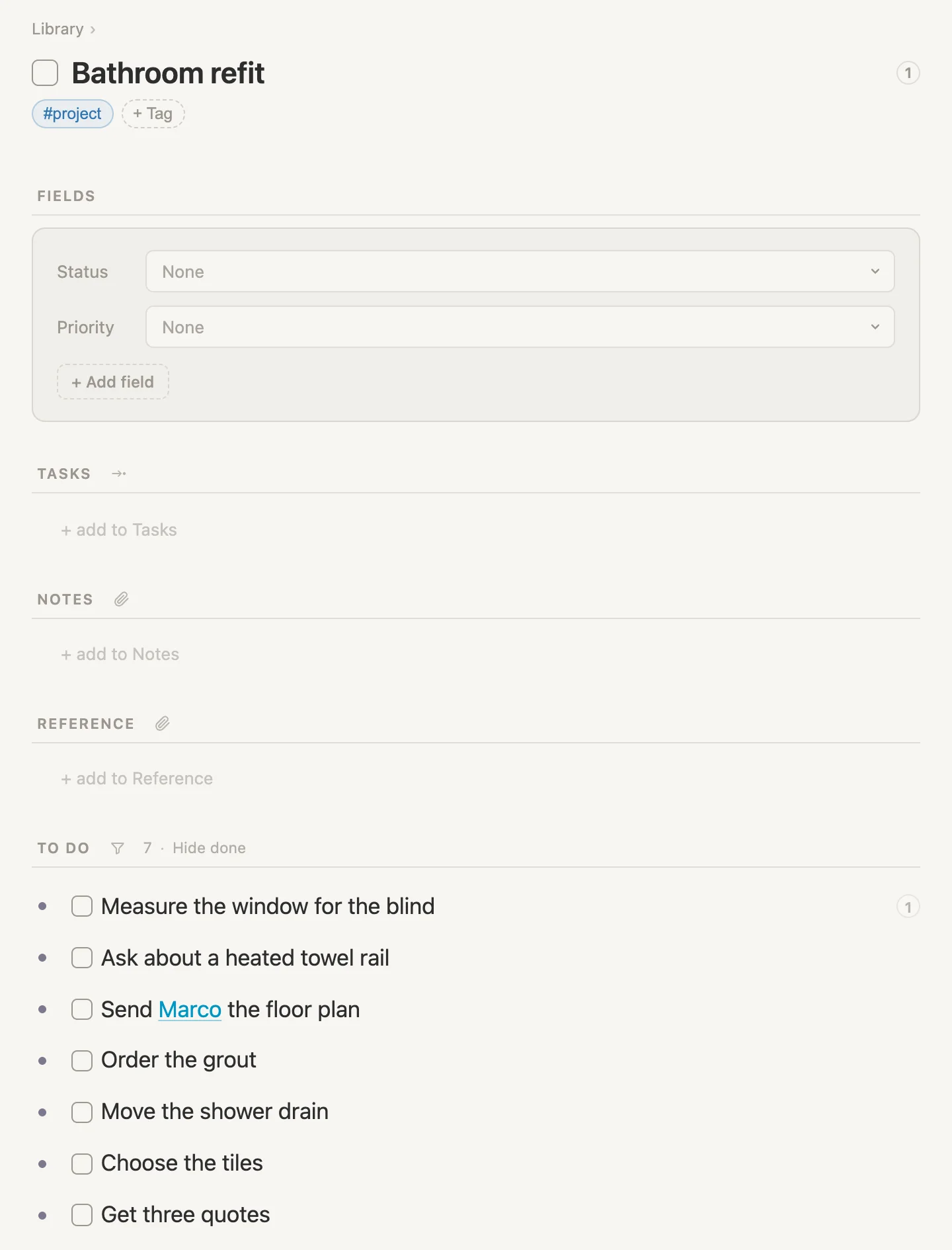
Here's the week we'll use. On Monday we set up a bathroom refit. On Tuesday Marco rings. On Wednesday we jot down two more things. And on Thursday we ask our questions. Every picture on this page was taken that week, so "today" is Thursday, October 8.
If you're following along in one sitting, unless otherwise noted, put everything on today's page. It all works the same.
NB: Cmd throughout is the Mac key. Use Ctrl on Windows and Linux.
Monday: the project
Click Library in the rail on the left, then + New Library note, and type Bathroom refit as its name. Click Click to start typing and type this outline, using Tab to step a line in and Shift-Tab to step it back out:
- Planning
- Get three quotes
- Choose the tiles
- Plumbing
- Move the shower drain
- Tiling
- Order the grout
Planning, Plumbing and Tiling are headings. The other four are tasks, so click at the end of each one and type Cmd-Enter to give it a checkbox.
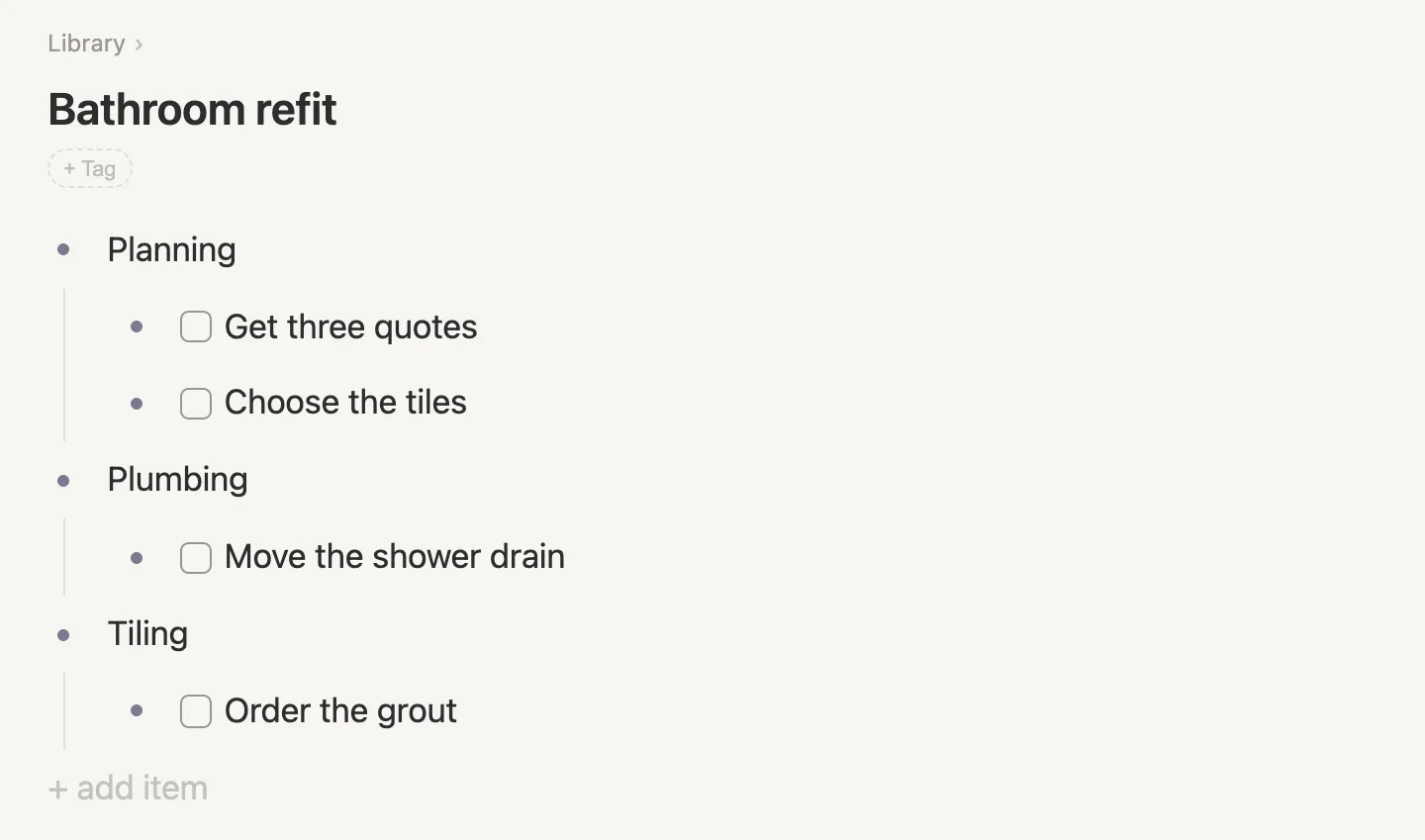
A tidy little project. It won't stay that way.
Tuesday: a phone call
Marco (the plumber) rings about the job. We're on today's daily note, so that's where we capture the call notes.
The line we're after reads Phone call with Marco about Bathroom refit, with Marco and Bathroom refit as links. Click Click to start typing (or + add item if the page already has something on it) and type Phone call with [[Marco. Marco doesn't have a note yet, so the list offers Create “Marco”. Take it. Then type a space and about [[Bathroom, and pick Bathroom refit.
Hit Enter, then Tab, and write what came out of the call underneath, one line each:
He can start on the 19thSend [[Marco, pick Marco, then a space andthe floor plan. TypeCmd-Enterfor a checkboxAsk about a heated towel rail. HitEnterafter a task and the next line starts with a checkbox of its own, so this one already has one.
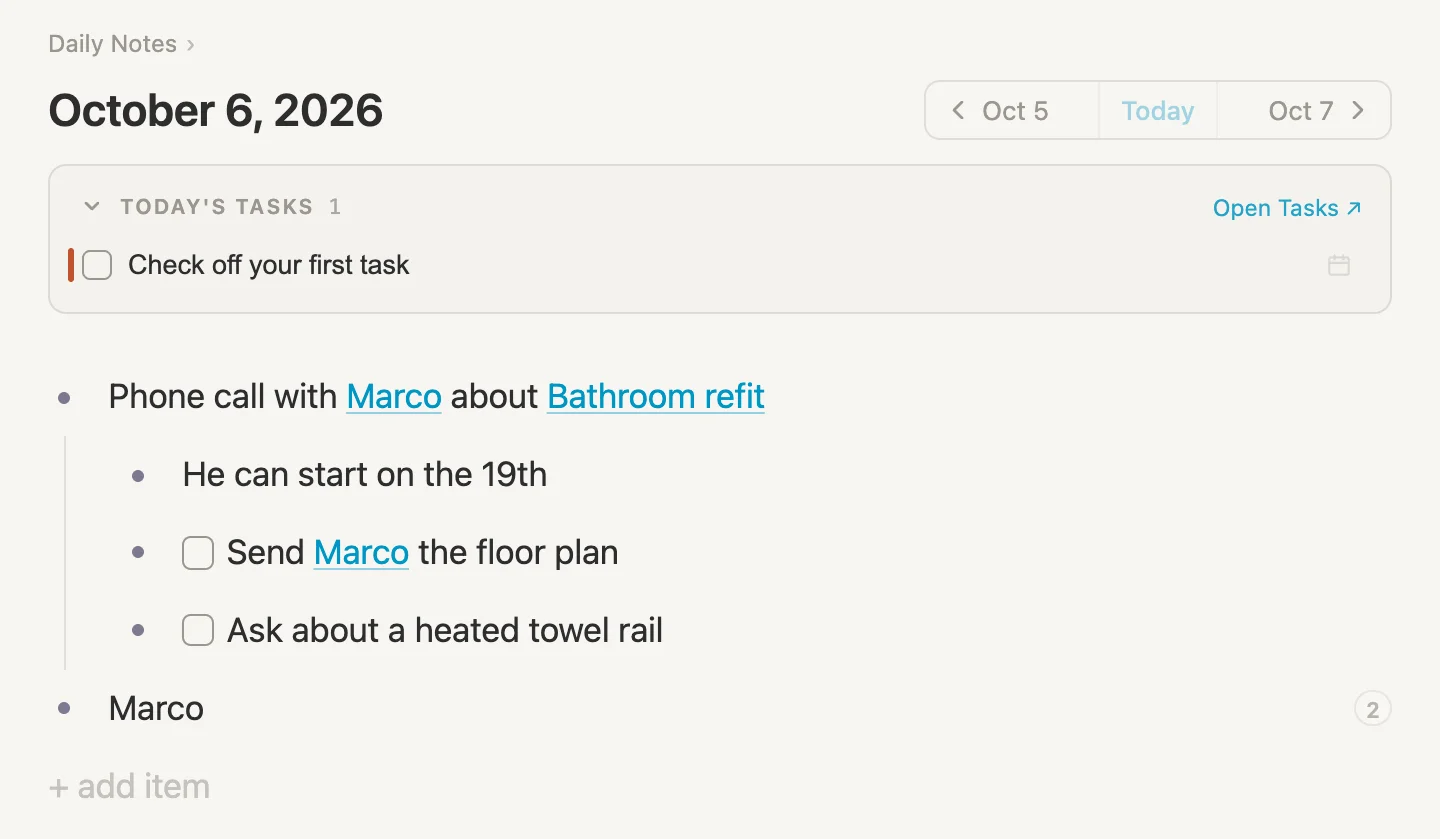
Marco now has a note of his own. It sits at the end of the day's page, because that's where Create “Marco” puts it. You can move that line containing just "Marco" to the Library if you don't want it in your daily note. With cursor on the "Marco" line, type Cmd-K, then type Move and choose Move to the Library.
Wednesday: two more things, and a mirror
Two more tasks go on Wednesday's daily note. Click Click to start typing (or + add item if the page already has something on it) and type Measure the window for the blind and then Cmd-Enter. Then hit Enter, type Ask [[Marco, pick Marco, then a space and to look at the hall radiator.
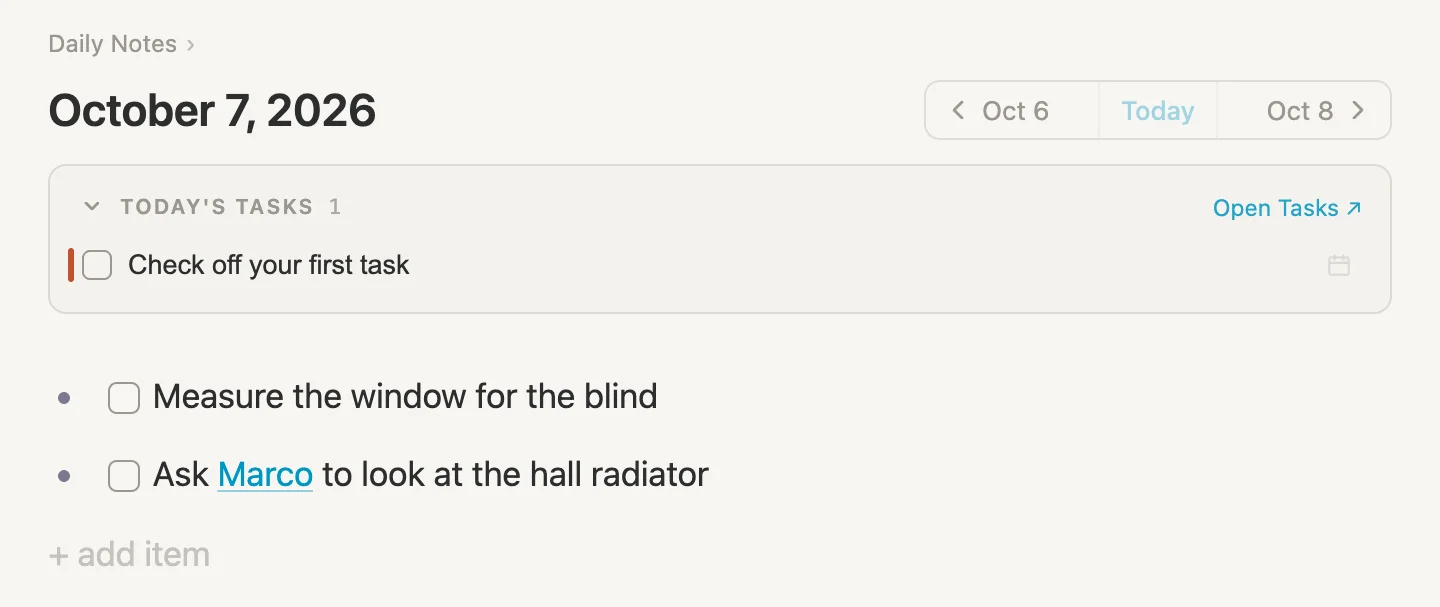
The radiator has nothing to do with the bathroom. Marco just happens to be the person who'll look at it.
The window does belong to the bathroom, and we'd like to see it there. So let's mirror it into the project. A mirror shows the same note in a second place. It's not a copy, it's the same task, showing in two places.
Type Cmd-P, type Bathroom and pick Bathroom refit to open it. Click at the end of Choose the tiles and hit Enter for a new line. Then Cmd-K, choose Reference another note…, type Measure and pick Measure the window for the blind.
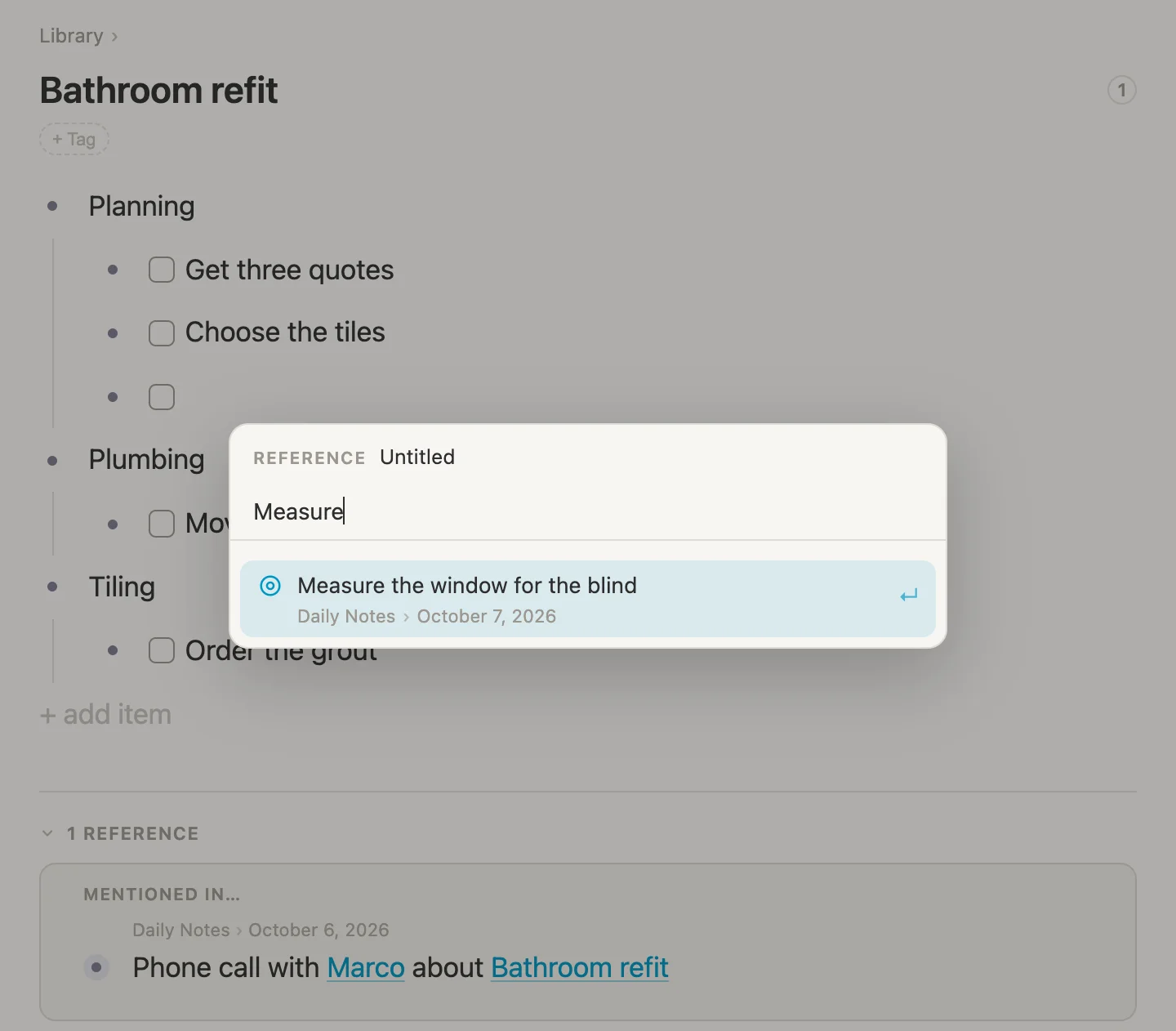
The message at the bottom of the window says Referenced “Measure the window for the blind”.
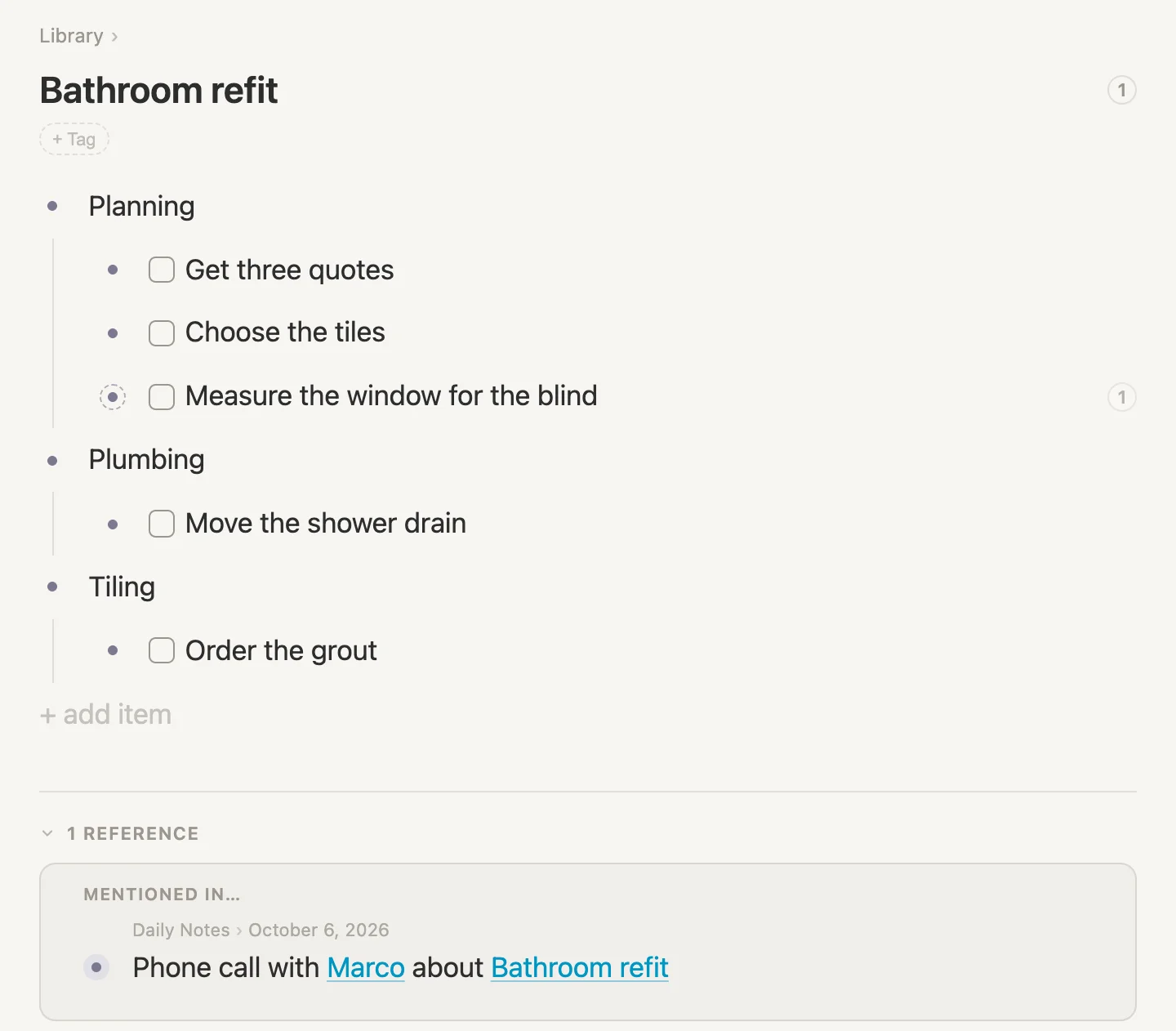
The dashed ring around its bullet is how a mirror looks. The task itself still lives on Wednesday's page. And at the bottom, under 1 REFERENCE, is Tuesday's phone call, because its words link here. Hold that thought.
Thursday: Note hierarchy
Time for our questions. The first one: what's still open on the bathroom?
On today's page, click Click to start typing (or + add item if the page already has something on it), type /search and hit Enter to accept Live search. A filter panel opens straight away. Click Close for now, click Untitled search and type Bathroom refit open tasks. Then click the bullet dot beside it to open it on its own page.
Click Pick what this gathers and choose Under a note…. The rule reads Note hierarchy is under. Click Choose…, type Bath and pick Bathroom refit.
I've also sorted the list by name, to keep it tidy: click Sort, pick Title, then click the arrow on the Sort button so it points up.
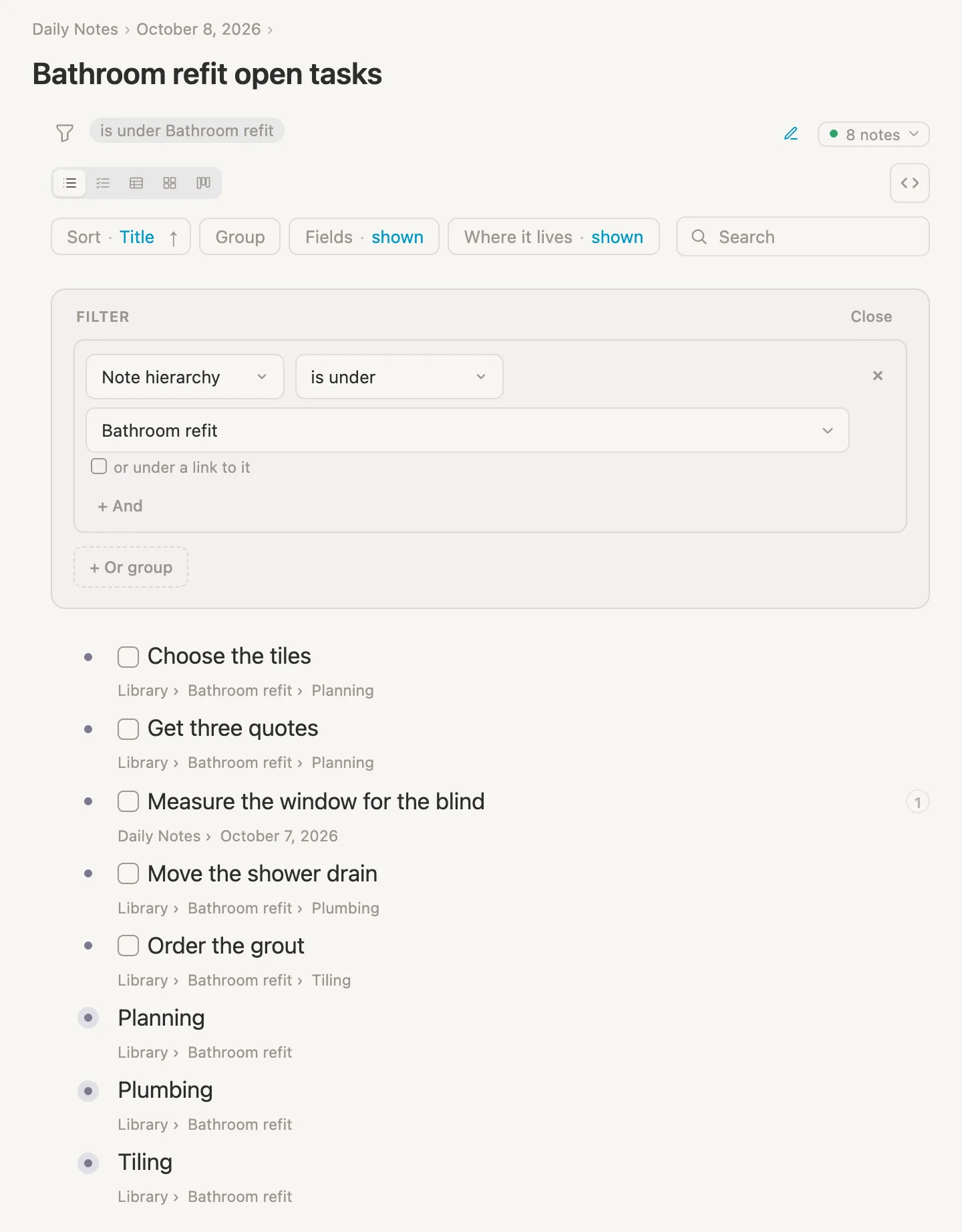
Eight notes: everything nested under Bathroom refit, however deep. The three headings are in there, since they're nested under it as well.
And look at Measure the window for the blind. The grey line under it says where it really lives, Daily Notes › October 7, 2026, but our mirror puts it under the project, so it counts. Note hierarchy finds what we'd see if we unfolded the project all the way down, mirrors included.
Each part of that grey line is a link, so clicking October 7, 2026 takes you straight to Wednesday's note.
We obviously don't want the headings in that list. Click + And and choose Done / not done. The new rule reads Done not done yet, which is just what we want.
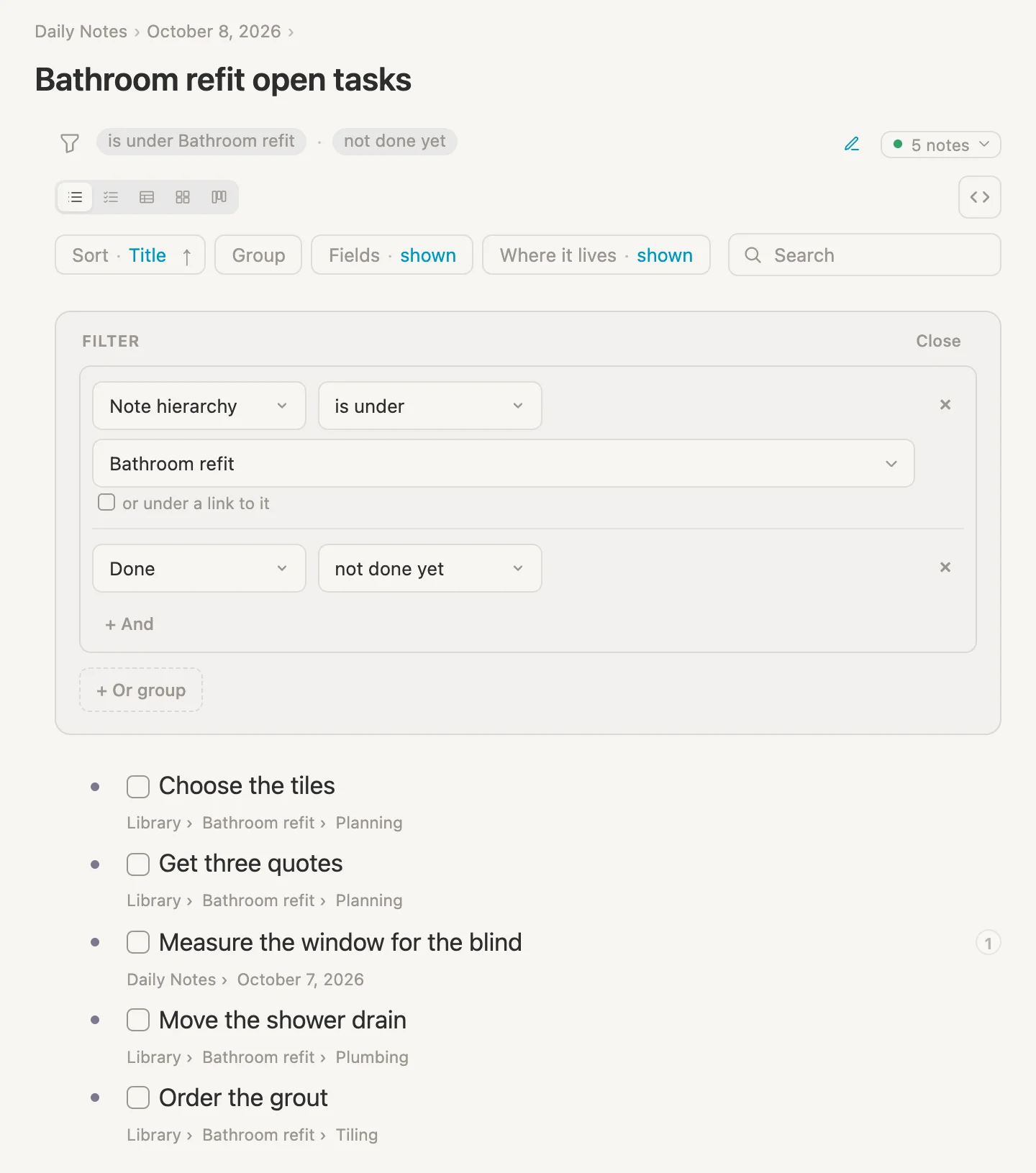
Five open tasks. Headings gone.
The other two choices
Click is under and there are two more choices in its menu:
- is directly under only goes one level down. Here that's Planning, Plumbing and Tiling, and nothing nested below them.
- is not under is the opposite of is under: every note that isn't nested under Bathroom refit.
Try them with just the first rule. With the Done rule on, is directly under finds nothing here, because the headings have no checkbox.
What Note hierarchy leaves out
Tuesday's call. Send Marco the floor plan and the towel rail are all about the bathroom, but they're nested under a line on Tuesday's page, not under the project. Note hierarchy goes by where a note sits, and those two sit on Tuesday.
The same goes for a note sent to a project with Add to…. It shows on the project's page, in the section you sent it to, but it isn't in the project's outline, so Note hierarchy doesn't count it. That one looks after itself: open the project and it's right there in that section. Where a note lives covers Add to properly.
Let's fix the first one now.
Or under a link to it
The phone call is one tick away. Under Bathroom refit in the rule there's a box, or under a link to it. Point at it and the app says what it does: Also find lines and notes that link to the note picked above in their title, and everything nested under them.
Tick it.
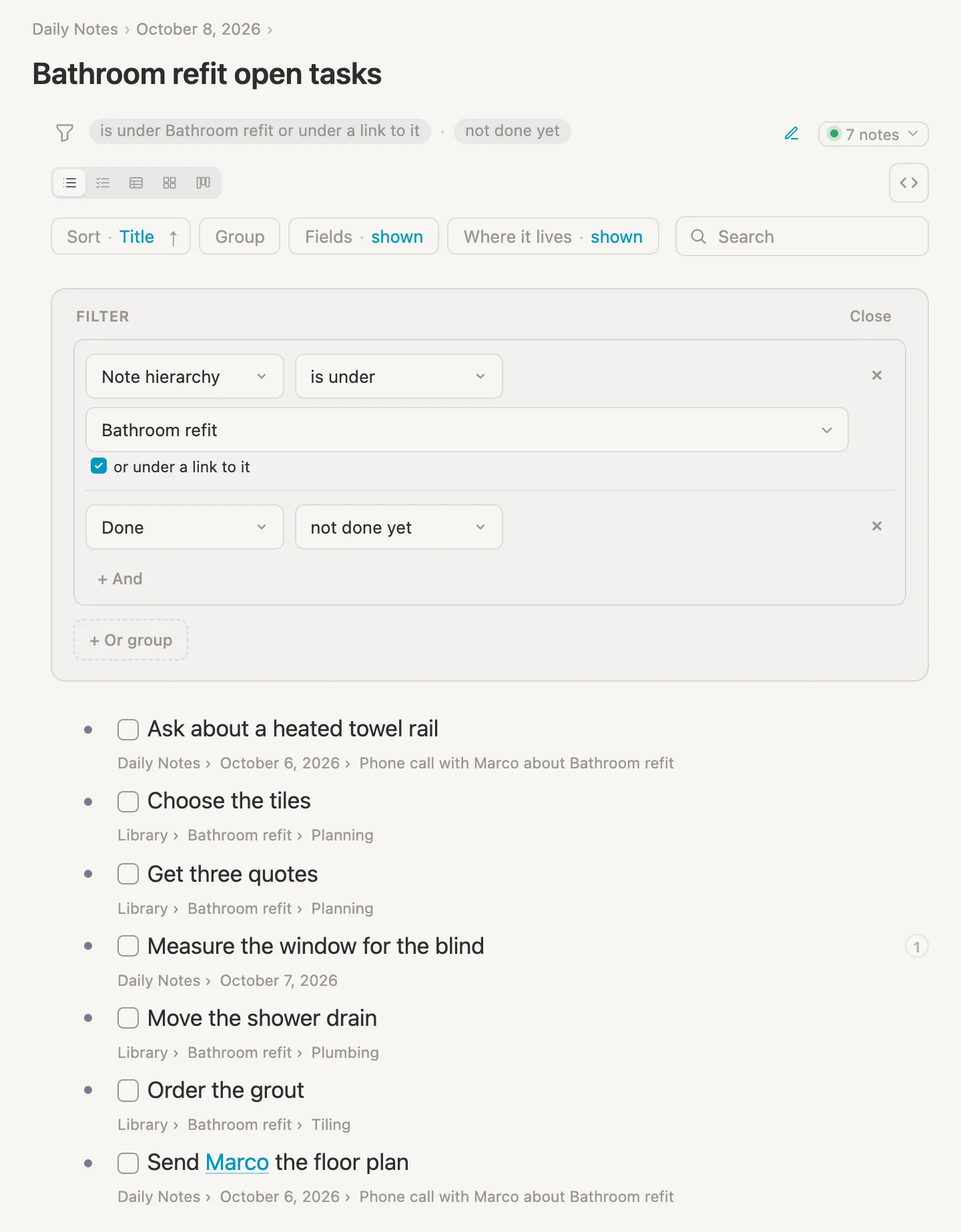
Seven. The phone call line links to Bathroom refit, so what's nested under it comes along: Send Marco the floor plan and Ask about a heated towel rail. Their grey lines show the way in, Daily Notes › October 6, 2026 › Phone call with Marco about Bathroom refit. The call line itself has no checkbox, so our Done rule leaves it out.
This is the habit the tick makes easy. In the daily note, start a line with a link to the project and write the tasks under it. They count as the project's from the moment you type them, and nothing ever needs moving.
Note links
Note hierarchy goes by where a note sits. Note links goes by what a note's words link to. Let's try it on Marco.
Make a second search on today's page the same way, named Notes that mention Marco, and open it. Click Pick what this gathers and choose Links to a note…. The rule reads Note links links to. Click Choose…, type Marco and pick Marco. (I sorted this one by Title as well.)
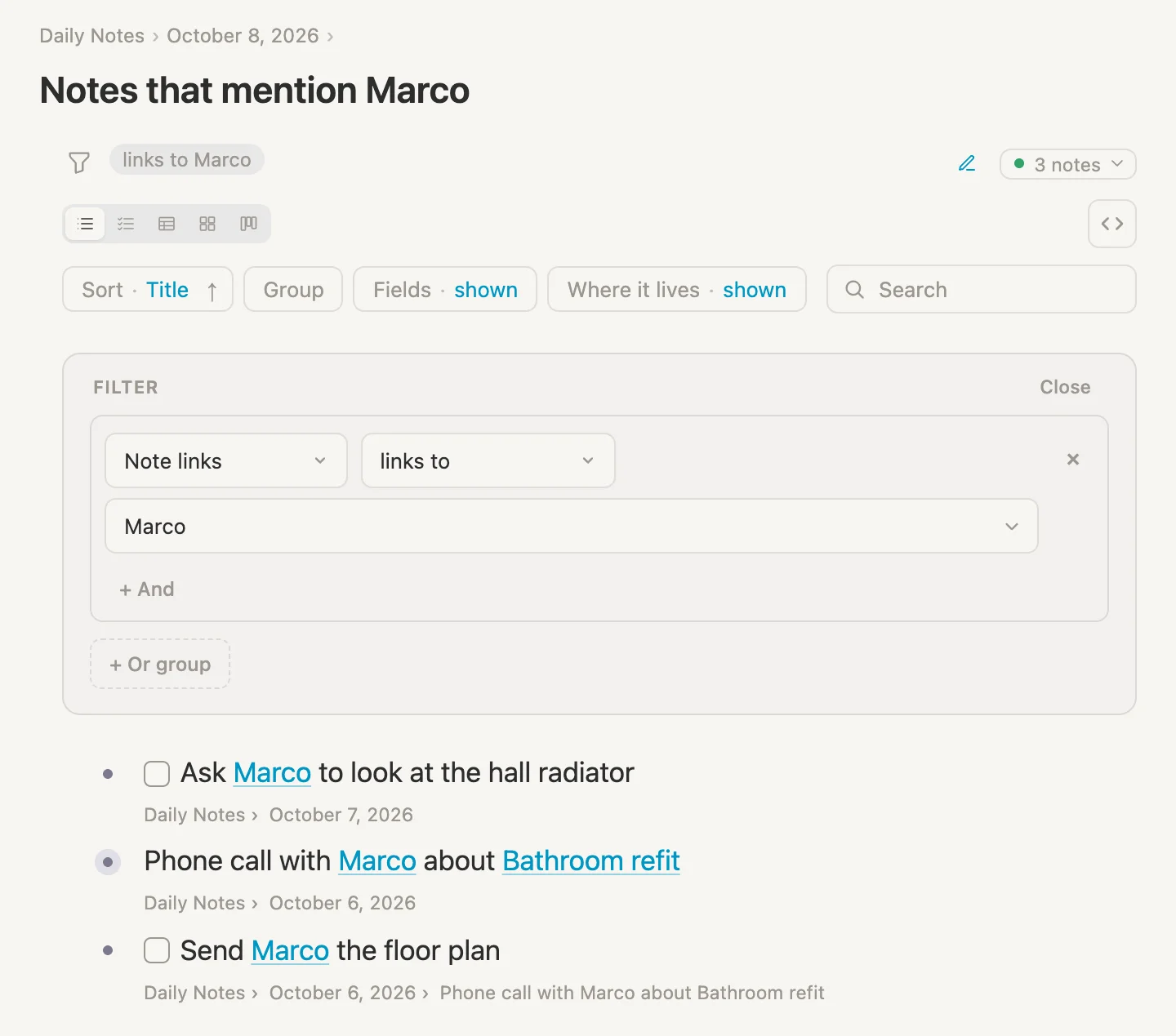
Three notes: the phone call, the floor plan and the hall radiator. Every note whose words link to Marco, wherever it is.
Now press Cmd-P, type Marco, pick Marco from the list, and look at the bottom of his page.
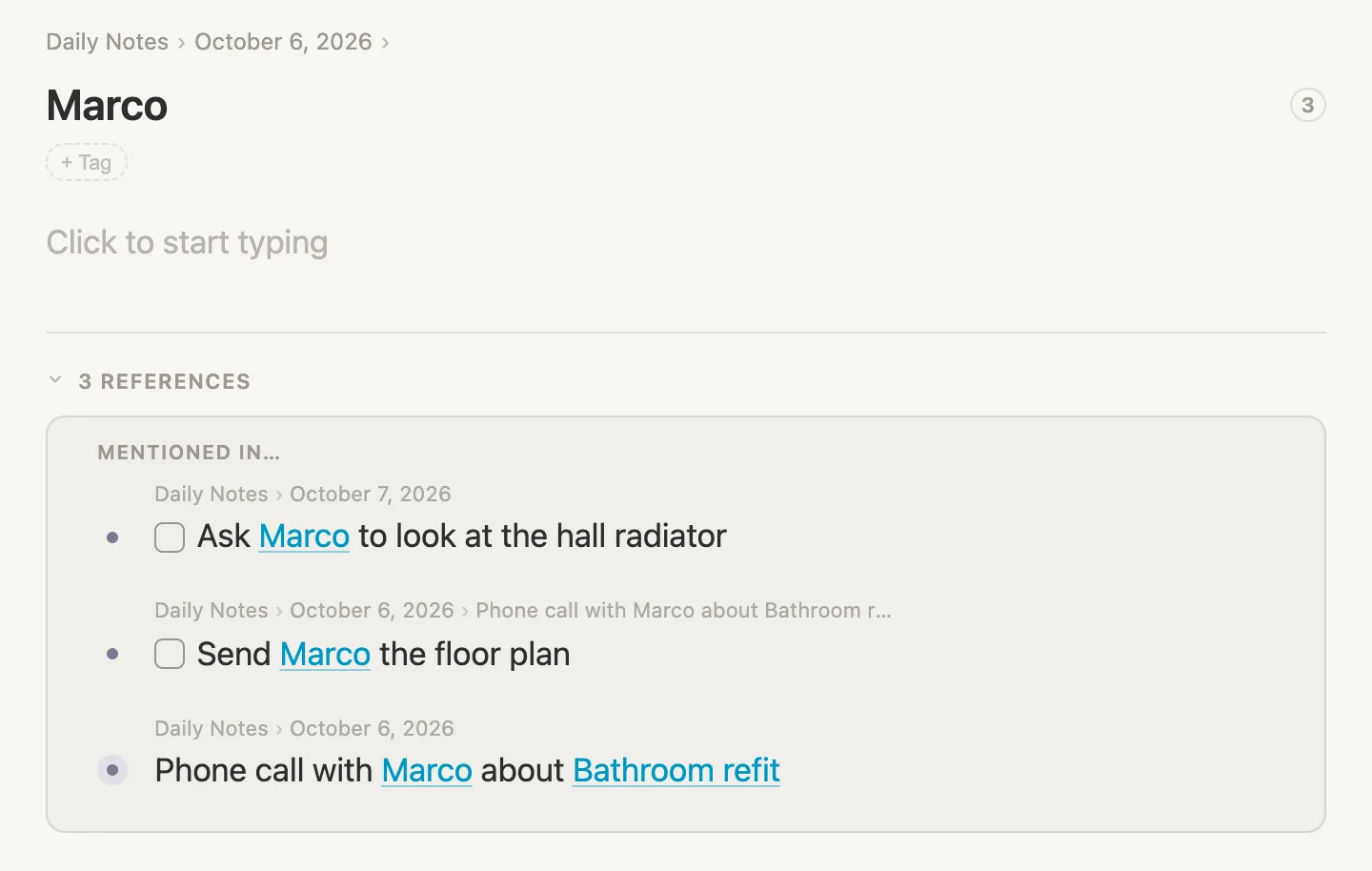
If you moved Marco to the Library, the line above his name says Library instead.
3 REFERENCES, and under MENTIONED IN… are the same three. That's no accident. Note links finds exactly the notes listed there.
So why bother with a search? Because a search can do what the References list can't. It takes more rules, it sorts and groups, and it can sit on another page or show up as a section on every note that wears a tag. That's where we're headed next.
Putting rules together
Rules joined with + And must all be true, so each one narrows the list a little more.
What's still open with Marco
Open Notes that mention Marco again (Cmd-P finds it). Click the pencil at the right of its rules, then + And, and choose Done / not done.
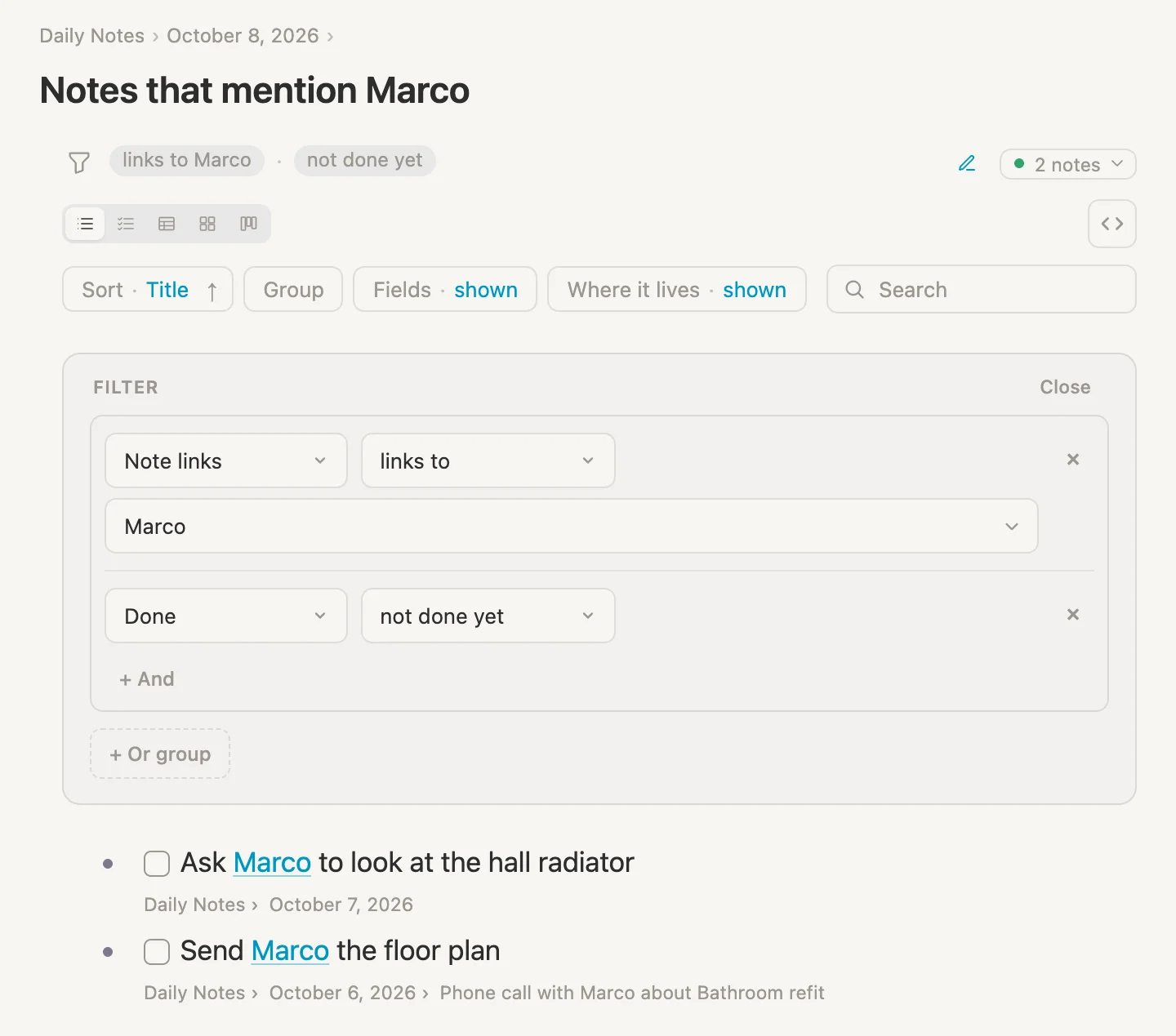
Two tasks: the floor plan and the hall radiator. That's the list to have open the next time Marco rings.
Just the bathroom
One more + And, this time Under a note…. Click Choose…, type Bath, pick Bathroom refit and tick or under a link to it.
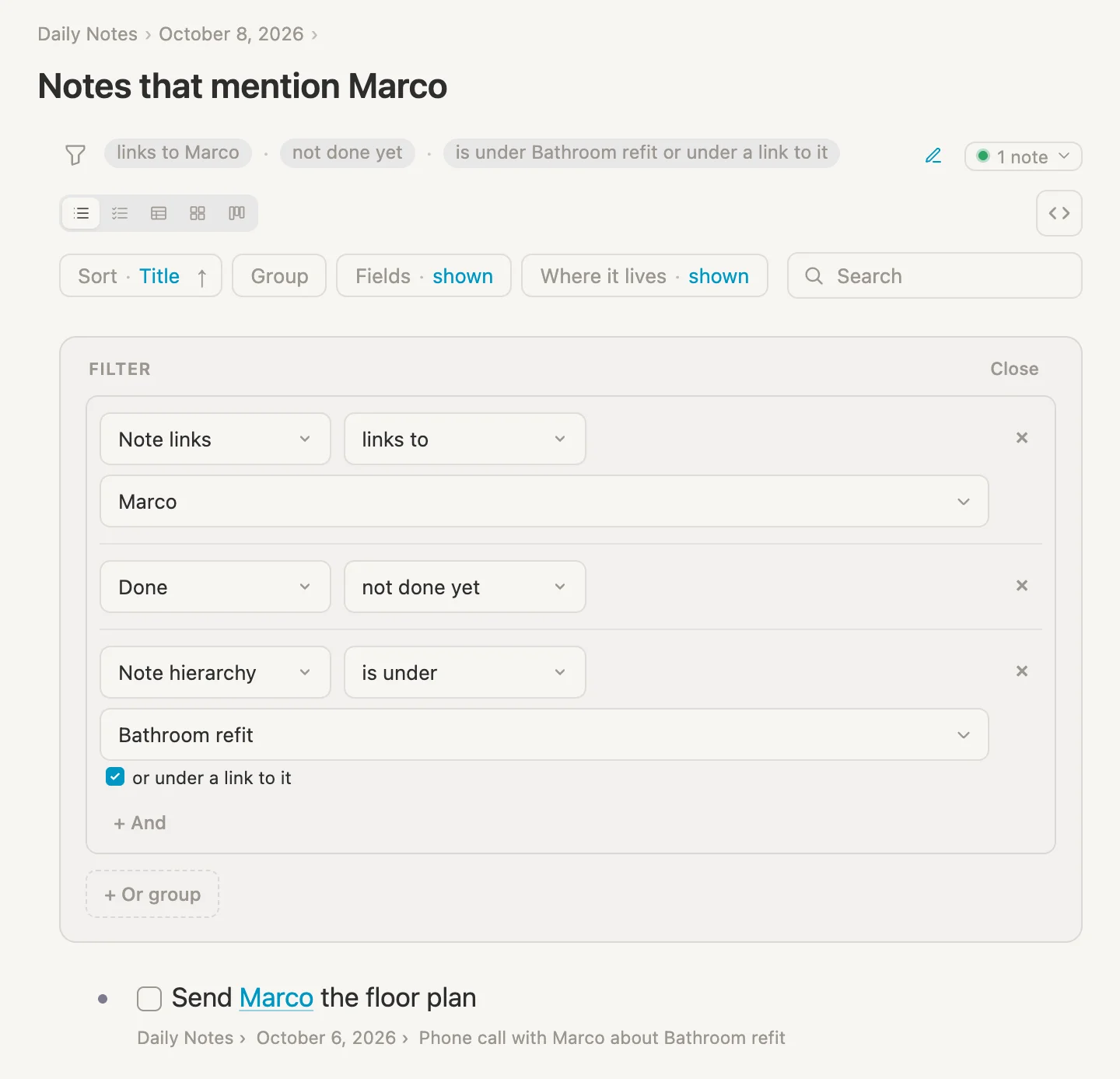
One task. It mentions Marco, it isn't done yet, and it belongs to the bathroom. The radiator has gone, because it isn't under the project or under a line that links to it.
Every project, its own list
A search per project would get old fast. One search can do it for every project at once, with a choice called This note.
Make Bathroom refit a project
Open Bathroom refit (Cmd-P, type Bathroom, pick Bathroom refit), click + Tag, type proj and pick project.
The page grows a few things: a checkbox beside the name, a FIELDS card with Status and Priority, and TASKS, NOTES and REFERENCE sections, with our outline now further down under NESTED. That's the setup the #project tag comes with in every new vault.
A search for whichever project it's on
Back on today's page, make a third search named Open tasks in this project and open it.
Click Pick what this gathers, choose Under a note…, click Choose… and pick This note, right at the top of the list. Tick or under a link to it. Then + And and Done / not done, as before.
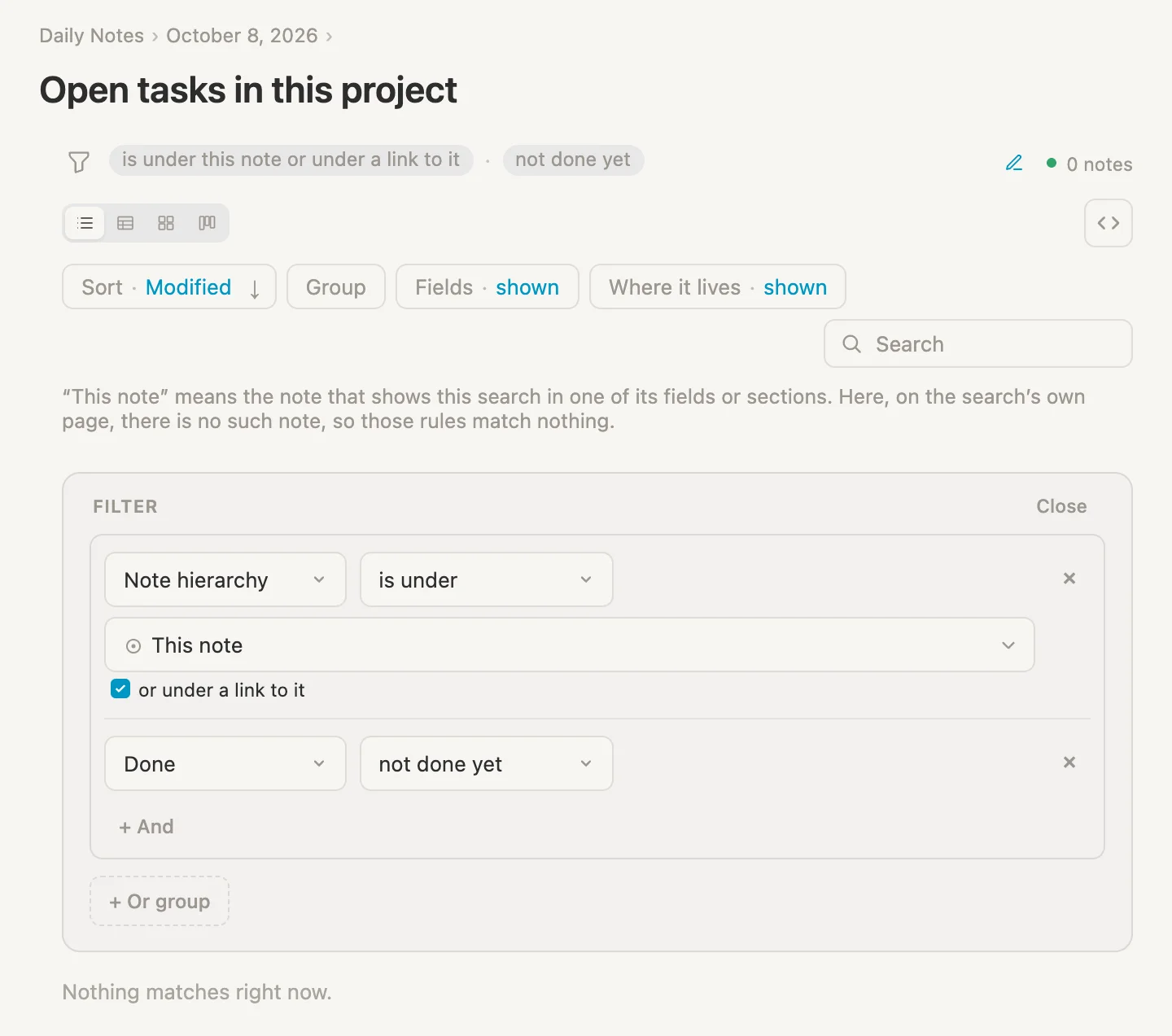
It finds nothing, and the page says why: “This note” means the note that shows this search in one of its fields or sections. Here, on the search’s own page, there is no such note, so those rules match nothing.
That's expected. This search isn't meant to be read here. It's meant to sit on each project's page and work out "this note" for itself.
Click in its name, type Cmd-K and choose Move to the Library, so it doesn't get lost in today's note.
Today's note still shows the other two searches and their results. If you'd rather it didn't, move them to the Library the same way. Cmd-P still finds them.
A section on #project
Open Bathroom refit again, click the #project pill, then Schema. Scroll down to SECTIONS and click + Add section. Choose Every note a saved search finds…, type Open and pick Open tasks in this project (the second one in the list).
The new section takes the search's name, already highlighted, so just type To do and press Enter.
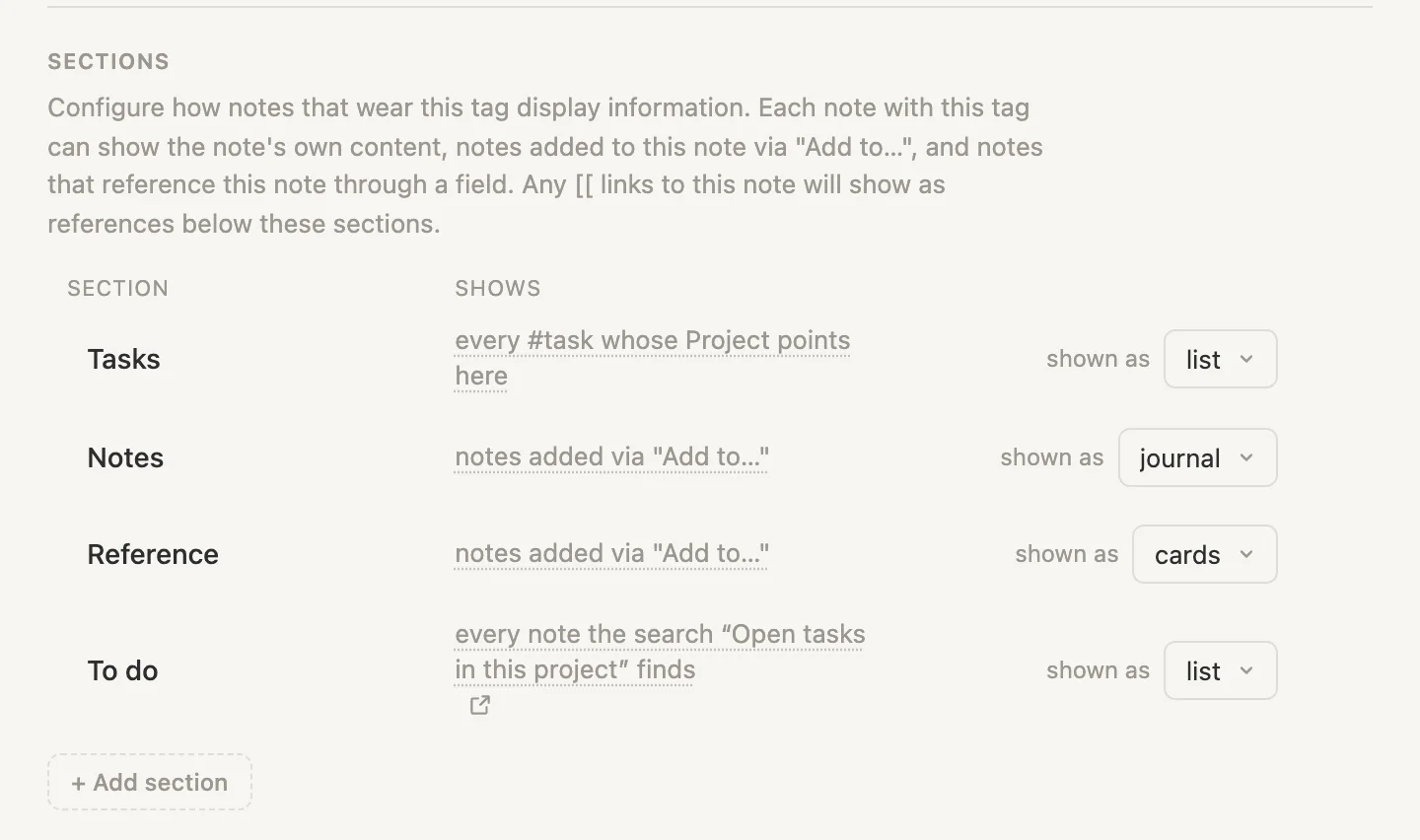
The Tasks section was there already. It gathers #task notes whose Project field points at the project. Our To do is for everything else: plain checkboxes nested under the project, or under a line that links to it.
Now open Bathroom refit.
Seven open tasks under TO DO. Four we typed into the project, one mirrored in from Wednesday, and two from Tuesday's phone call. And the window? Measured or not, it's on the list.
Tick a task off right here and it leaves the list straight away, and the count drops to 6. It's the same task, so it's ticked where it lives as well. You can click a task's words and edit it right here in the same way.
And every other project
The point of a tag is that it works for every note wearing it. Let's check.
Click Library in the rail, then + New Library note, and type Garden shed. Click + Tag, type proj and pick project. Scroll down to NESTED, click + add item and type Paint the shed, Enter, Fix the door hinge. No Cmd-Enter needed this time: a line typed under a project starts with a checkbox of its own.
Then on today's page, click + add item and type [[Garden, pick Garden shed, then a space and timber arrives on Saturday. Hit Enter and Tab, type Clear a space by the gate and press Cmd-Enter.
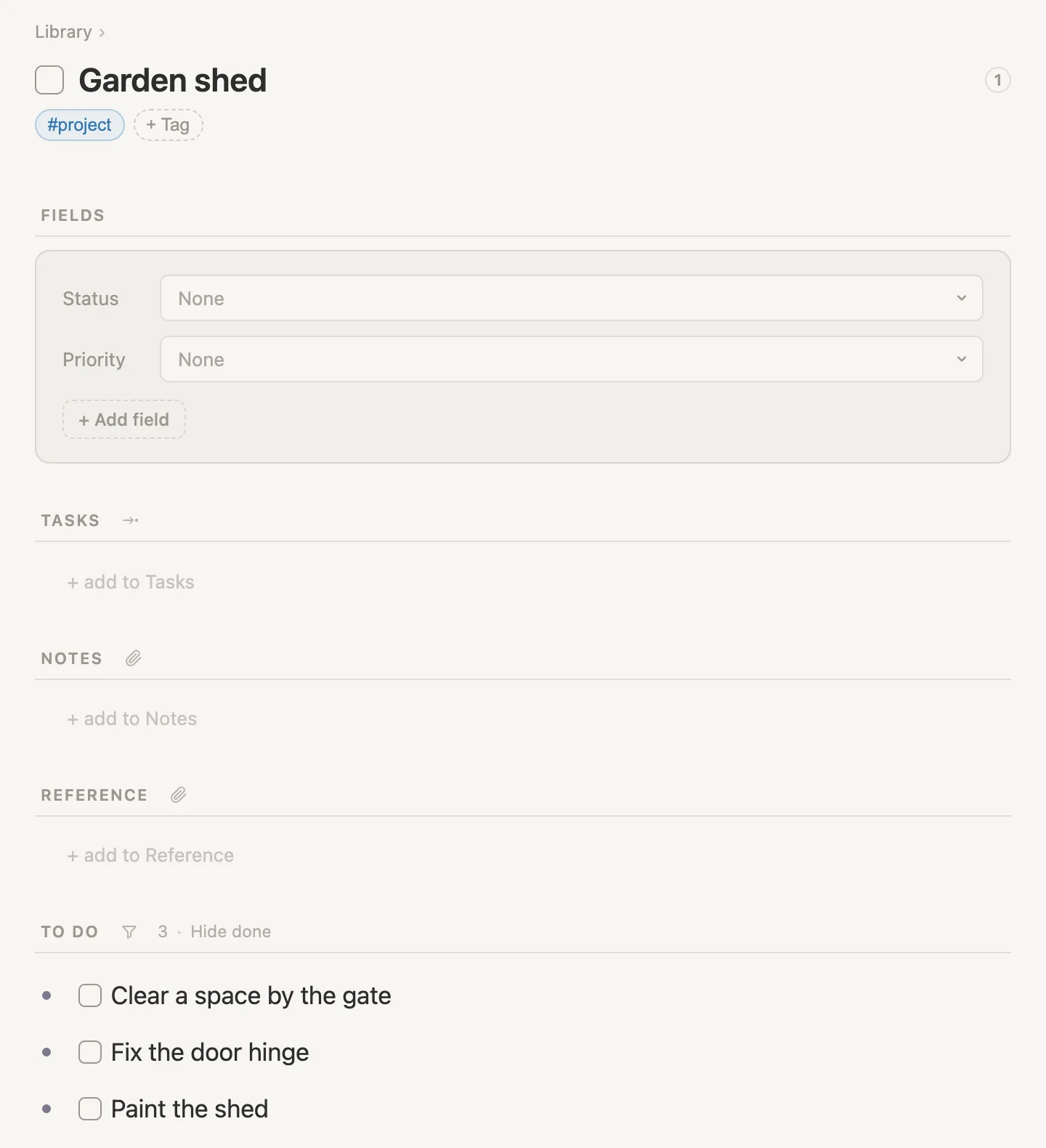
Three, one of them straight from today's page. We set nothing up for Garden shed. It wears #project, so it has a To do, and the search inside it works out "this note" all by itself.
Wrapping up
Two rules, one tick, and one saved search doing the work of a section. Plus a week of a bathroom.
What it gets us: a list of what's open on any project, wherever we wrote it, a list for whoever we need to talk to, and every project page keeping its own to-do list without being asked.
The ideas underneath it all:
- Note hierarchy goes by where a note sits: everything nested under a note, however deep, mirrors included. is directly under stops one level down.
- or under a link to it adds lines whose words link to the note, and everything nested under them. Start a daily line with a link to the project and write the tasks under it.
- Note links goes by what a note's words link to. It finds exactly what the note's References list shows under MENTIONED IN…, but as a search, so it can take more rules and live anywhere.
- + And narrows. Mentions Marco, not done yet, part of the bathroom: one task.
- This note turns one saved search into a list on every page that shows it. Make it a section on a tag, and every note wearing the tag gets its own.
Nothing here is special to bathrooms or even tasks. Swap the project for a client, a course or a book you're writing, and Marco for anyone you keep a note on. Write things down wherever you happen to be, and let the pages do the gathering. As for the window ... it's on the list now. Someone should probably go and measure it 😁