Getting Started: Your first day
What we're building
Imagine it's your first day at a new job. New desk, new laptop, new people, and about forty names you'll have forgotten by lunch. It also happens to be your first day with Vellum. So let's spend the day together and see what it can do.
Of course, there's one more thing on our minds. Coffee. Somebody here must know where the good coffee is. Right? We'll write that question down first thing this morning, and we'll see how long it takes to get an answer.
By five o'clock we'll have a handful of pages like these, and most of what's on them will have put itself there.
So let's see what we'll be building:
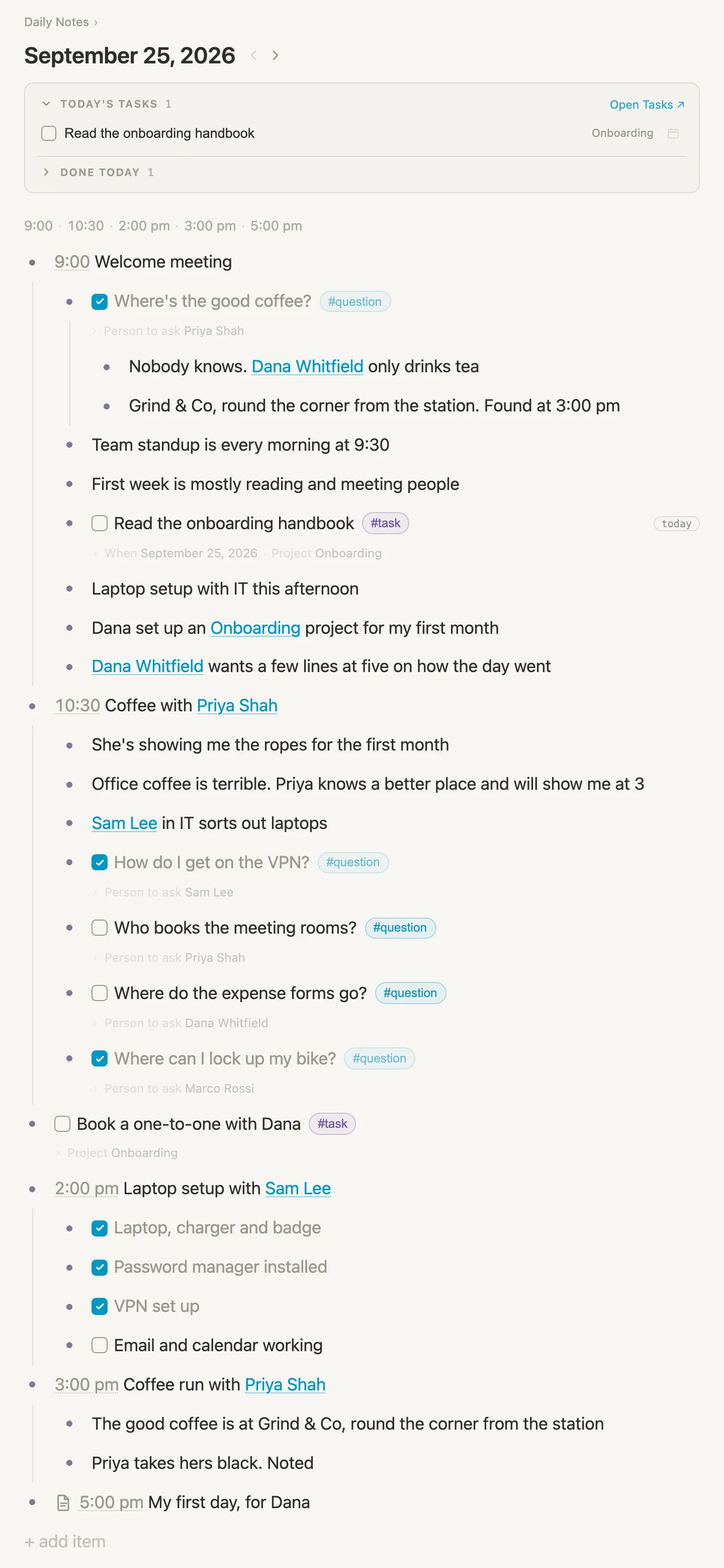
Today's page, at the end of the day. Four meetings and a write-up, the notes we took in each, and the questions that came up along the way. We typed all of it as we went, one line at a time.
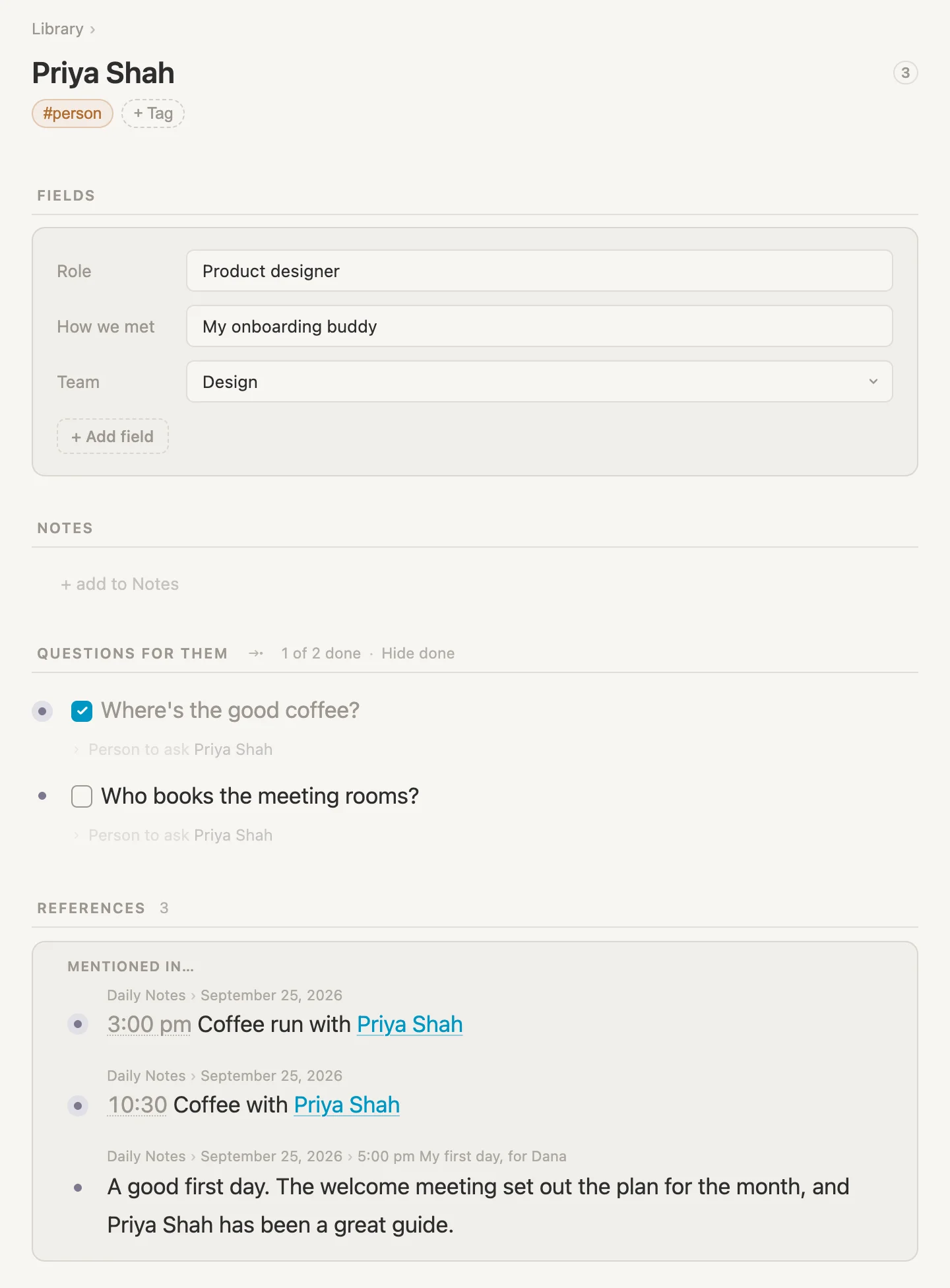
This is Priya, who's showing us the ropes. Her team and her role at the top, the questions we're saving for her, and every place we mentioned her during the day. We never went to her page to write any of that down. (And don't worry, we'll explain what "her page" means in just a moment.)
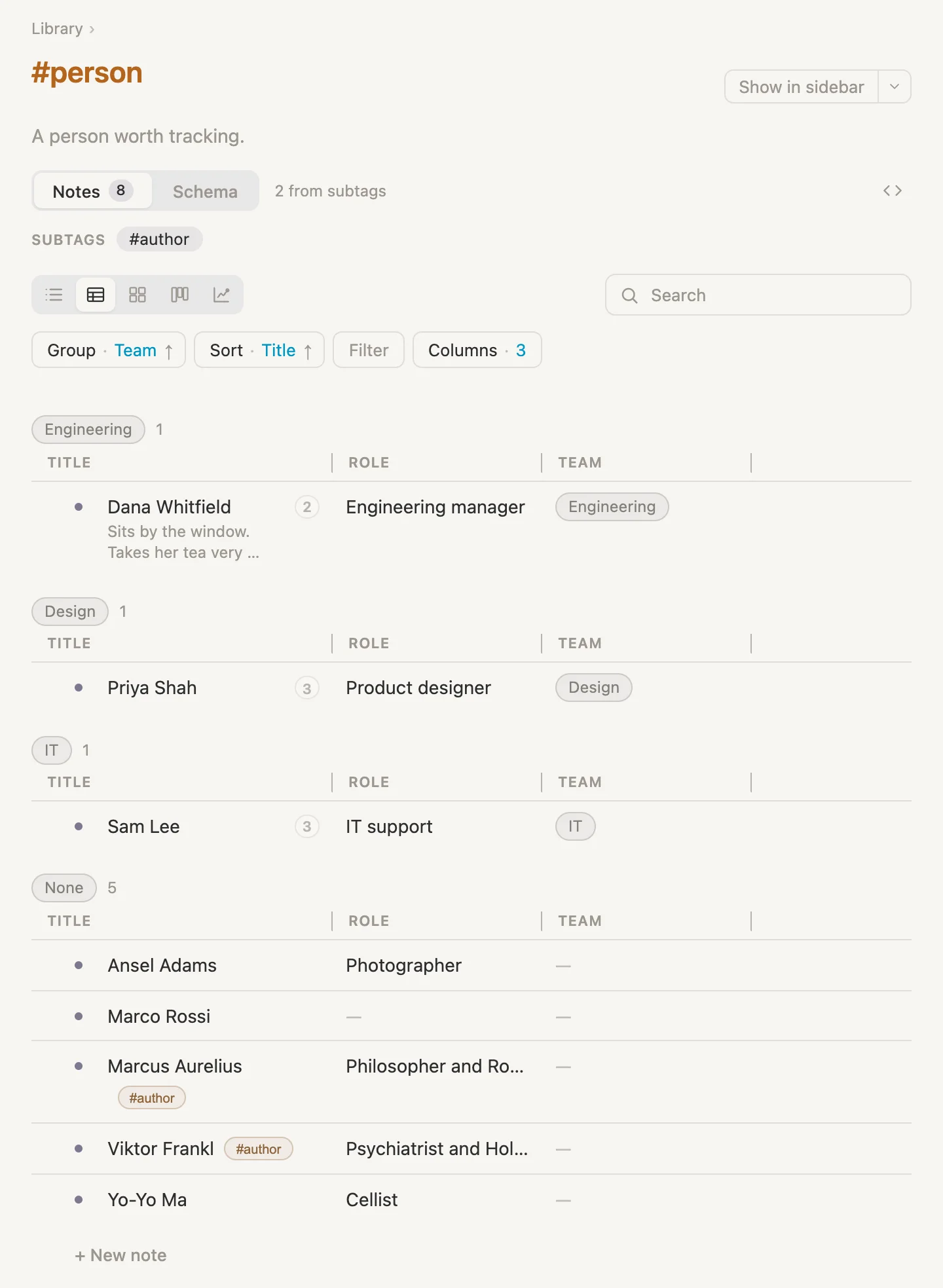
Everyone we met today, in one table, grouped by team (along with a few people the vault came with).
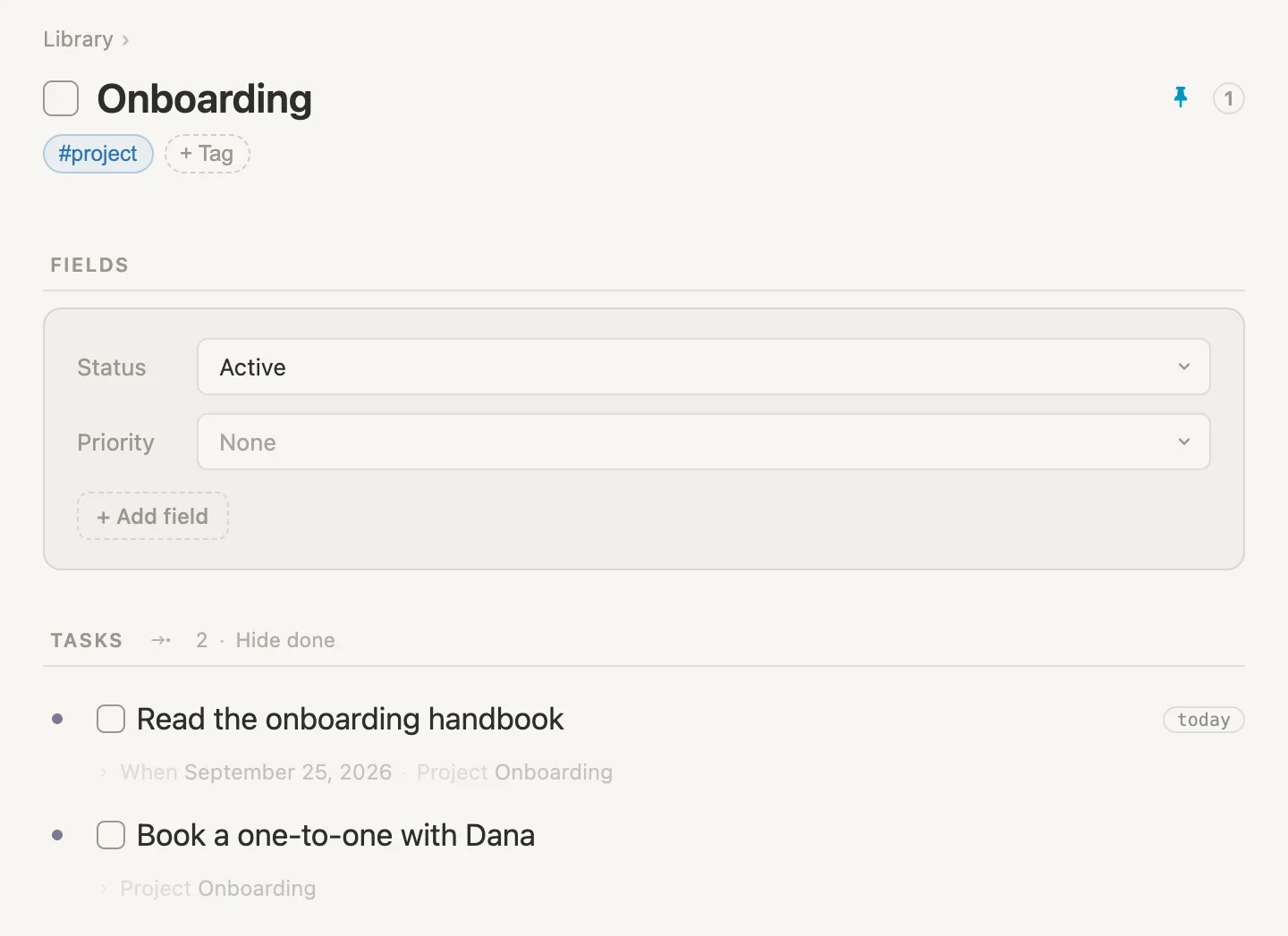
Our onboarding, as a project, with the tasks that belong to it gathered underneath.
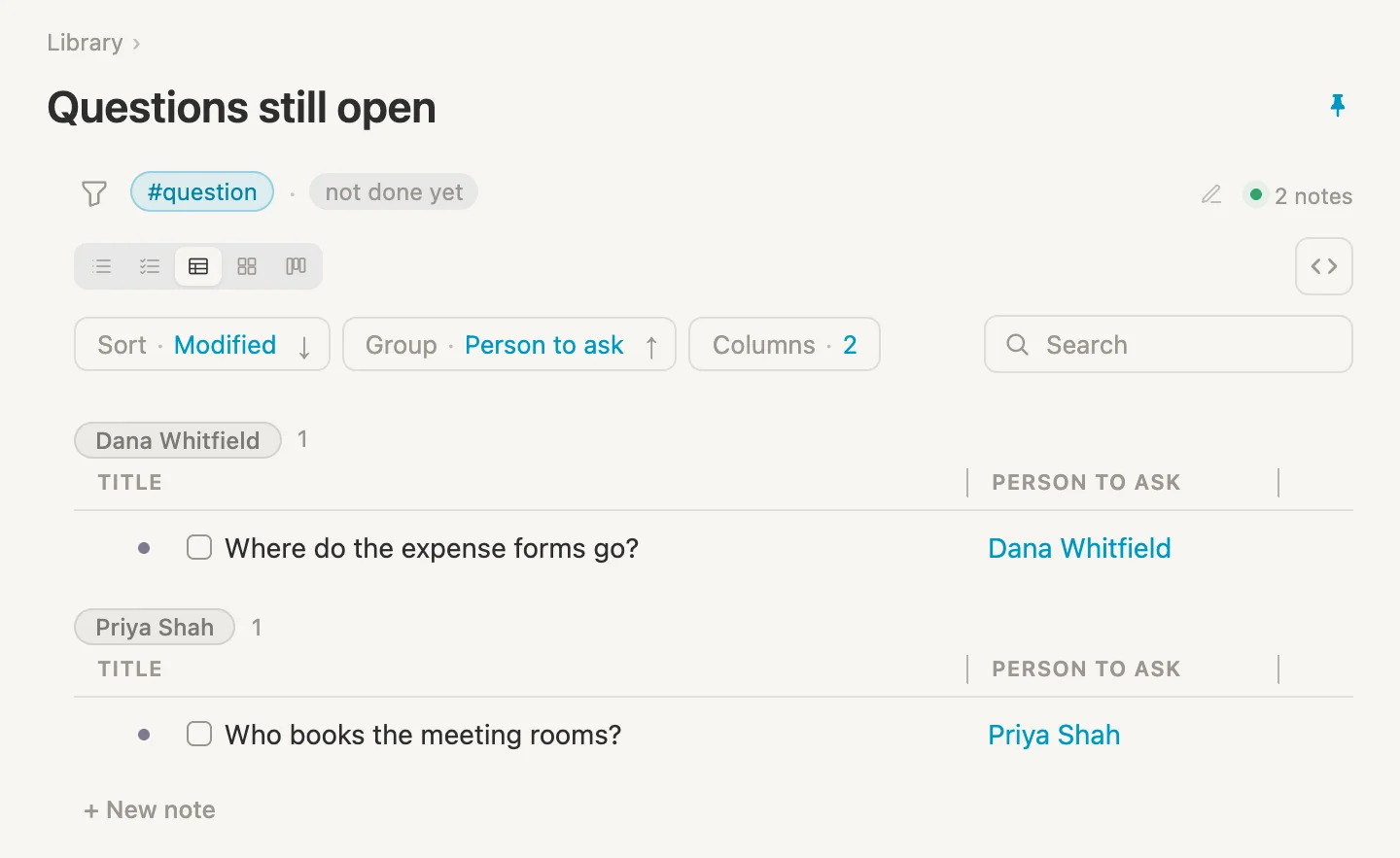
Every question we haven't had answered yet, wherever we wrote it, grouped by who to ask. Tick one off and it leaves the list.
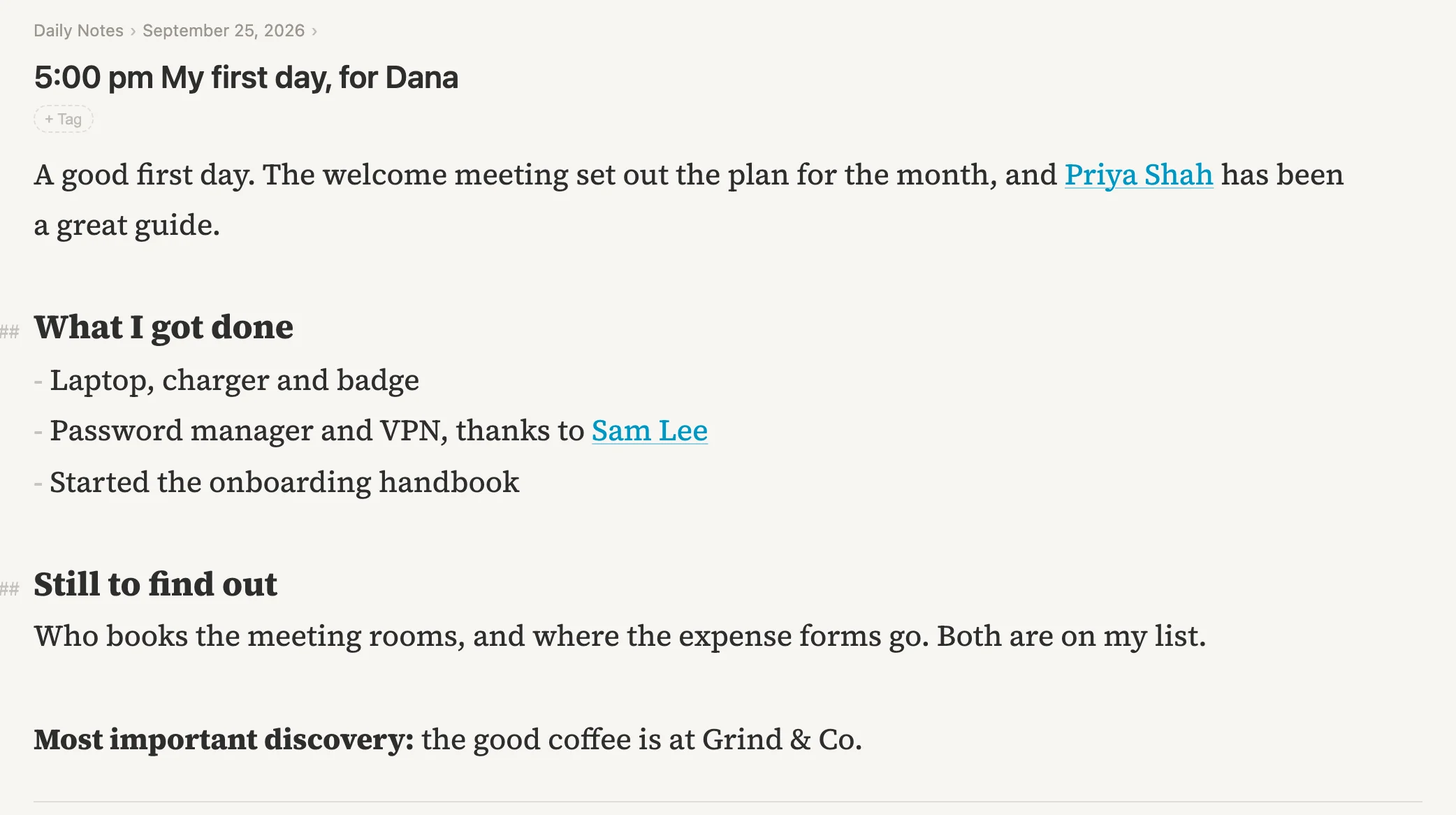
And at five o'clock our manager wants a few lines on how the day went. That becomes a proper piece of writing, with links to the people in it.
Vellum gives us three ways to capture information, and we'll use all three today. Bullets, one short line per thought, tucked under each other, which is how most of the day gets written. Documents, plain flowing writing for when a thought needs paragraphs. And tags, which say what kind of thing a note is, and can carry details like someone's team or phone number. There's no separate kind of "page" to make first. Any note can be opened as a page of its own.
That's where we're headed. So let's get started.
NB: Cmd throughout is the Mac key. Use Ctrl on Windows and Linux.
Setting up as we go
We won't set anything up in advance. Everything gets made the moment the day needs it, on a note we actually want.
A first look around
Open Vellum, and the first thing we see is today's page.
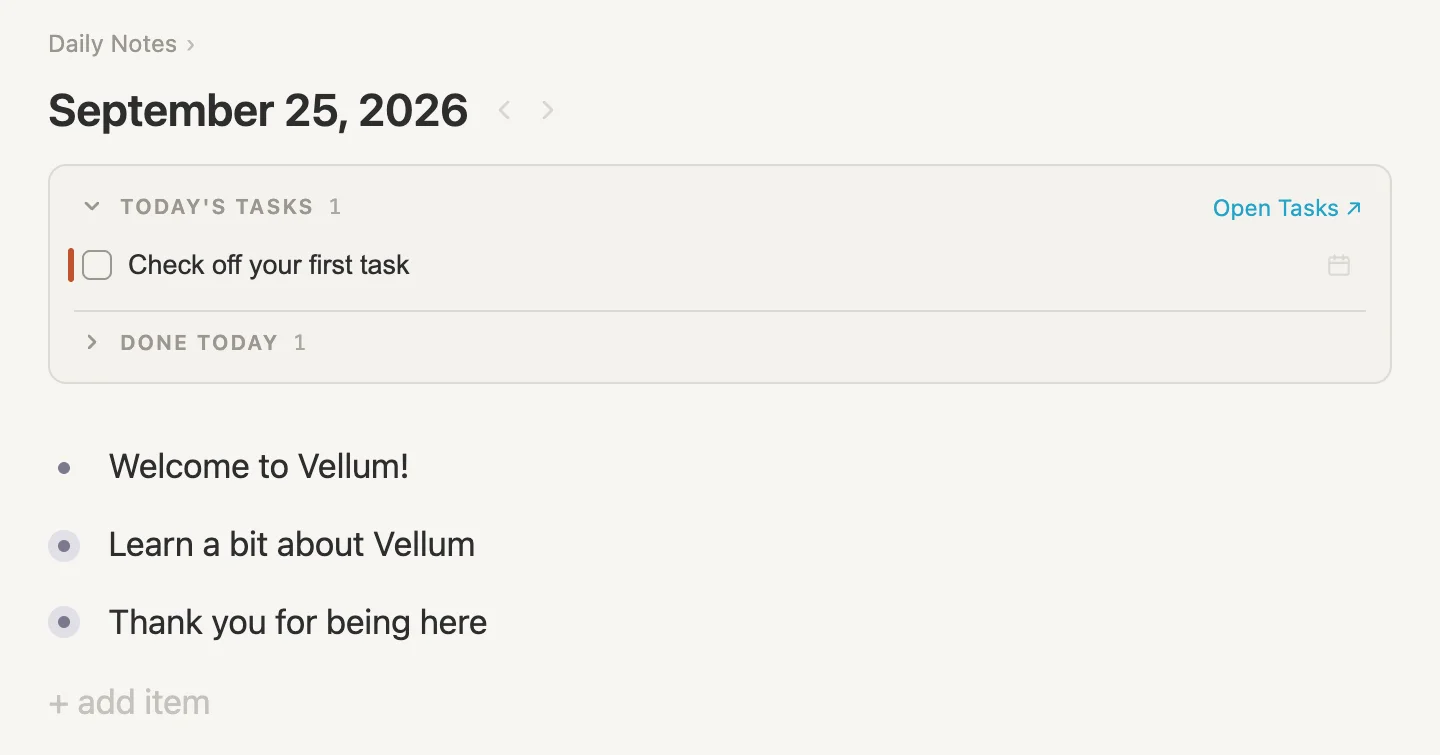
The heading is today's date. Every day gets a page of its own, and they all live together under Daily Notes, the small word just above the date. The two little arrows beside the date step to the day page before this one and the day page after it. In a brand-new vault there aren't any other days yet, so both arrows are greyed out and do nothing. They "wake up" as soon as there's another day to step to.
Under the date there's a box called TODAY'S TASKS. We'll come back to it in a minute.
And under that, three lines Vellum wrote for us. Each of those lines is a note. The dot in front of a note is its bullet. A note can hold other notes tucked underneath it, and two of these do: see the faint ring around the bullets of Learn a bit about Vellum and Thank you for being here? That ring means there's more folded away inside.
The rail and the sidebar
Two panels fold away at the sides of the window, and we'll use both all day. So let's get the names straight now, because you'll hear them a lot, in this guide and in our Vellum Discord server.
Click the icon at the very top left of the window (or press Cmd-\). A panel slides out on the left. That's the navigation rail. It's how we get around: Today, Daily Notes and the Library at the top, then Tasks and Projects, and further down anything pinned. You'll also hear people call it the left panel, or the rail. Same thing.
Now hold Shift and click the bullet in front of Learn a bit about Vellum. It opens on the right, under the word SIDEBAR. That's the sidebar, a place to keep a note open beside whatever page we're on. The icon near the top right of the window opens and closes it (so does Cmd-Shift-\).
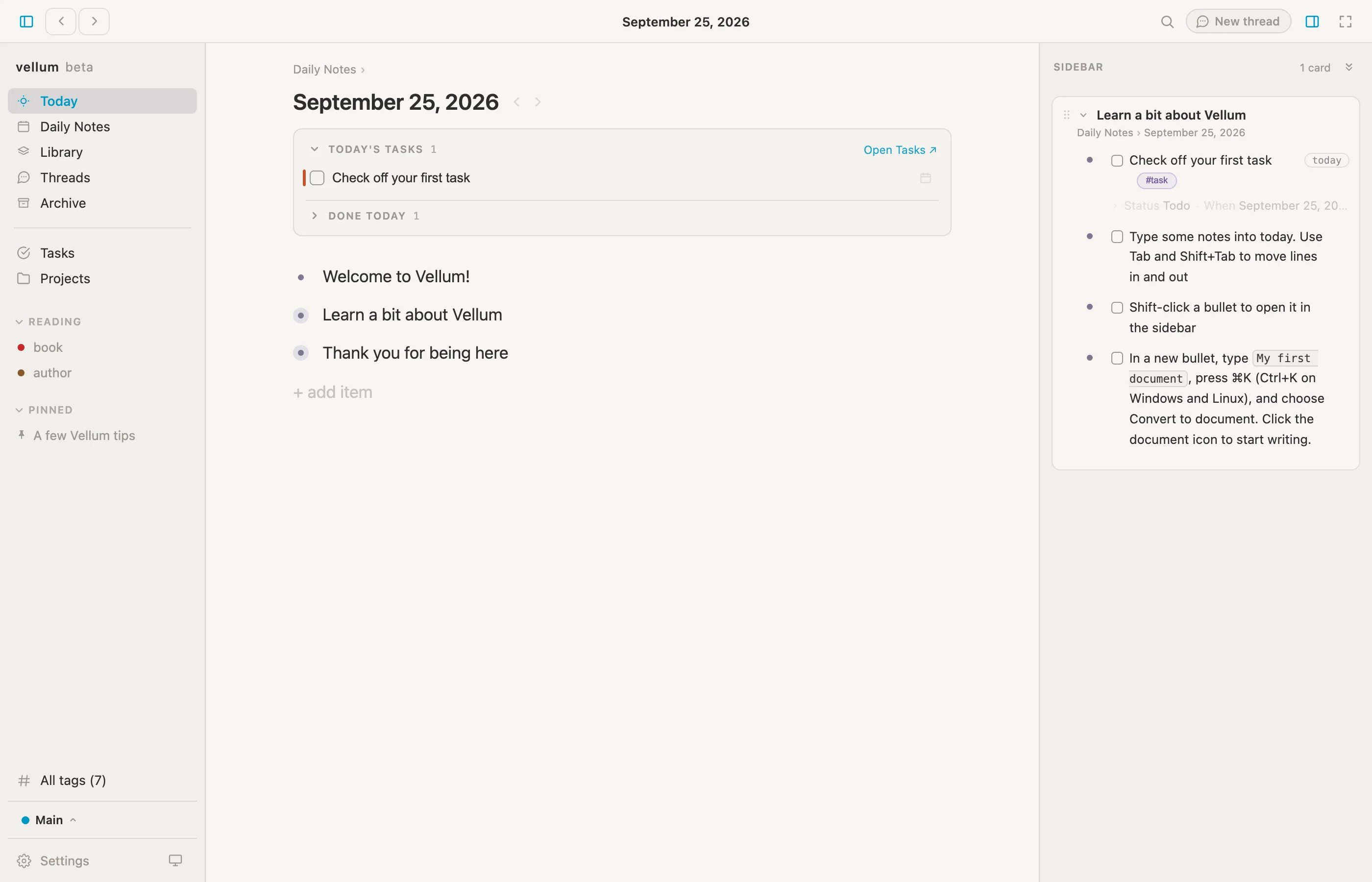
Rail on the left, sidebar on the right. That's all the naming we need.
Have a read of the tour in the sidebar if you like. Then click the two icons again to put both panels away. We'll bring them back when we need them.
Your first task
Back to that box at the top of the page, TODAY'S TASKS. This is where everything we've planned for today turns up, wherever we happened to write it down. A new vault puts one task in it for us: Check off your first task.
So ... let's do exactly that. Click the little square in front of it.
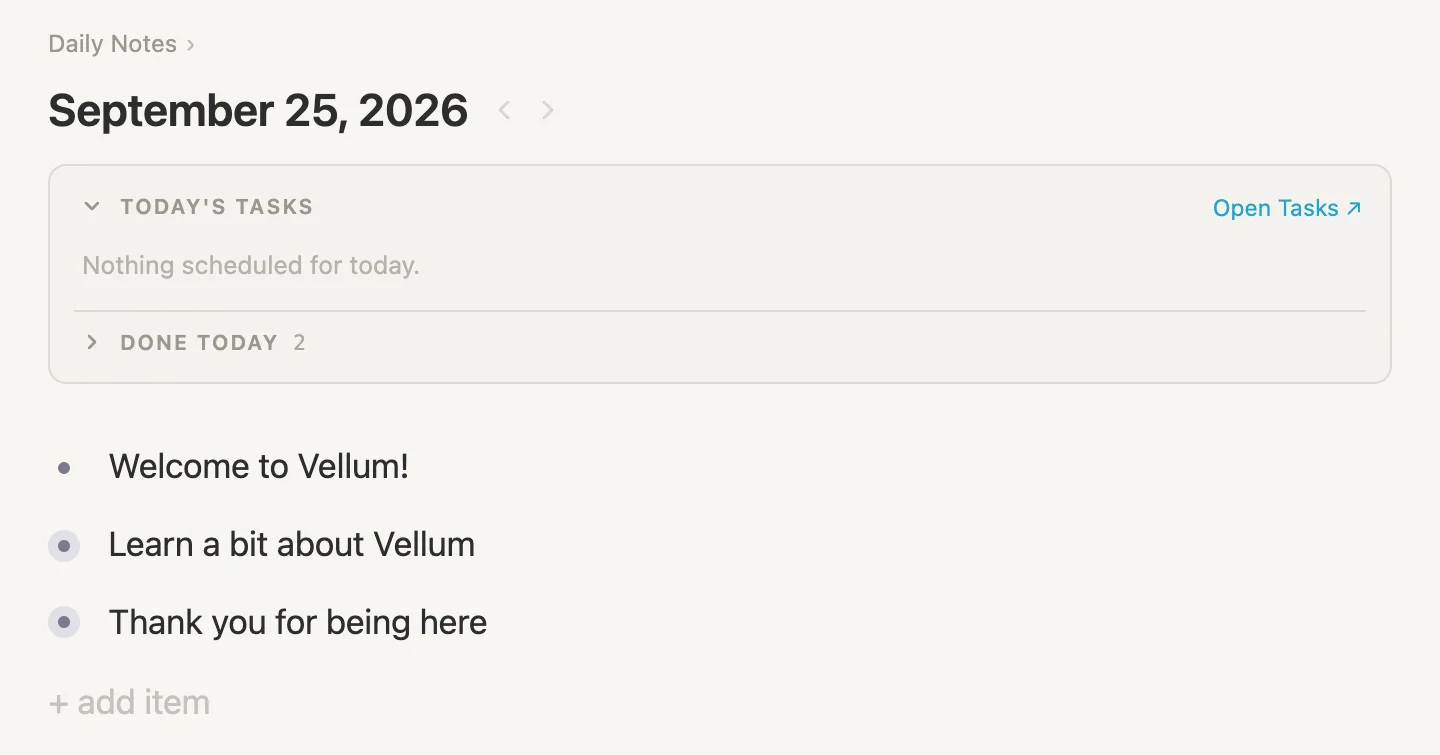
The task leaves the list, the box says Nothing scheduled for today, and the count beside DONE TODAY goes up by one. (If it already said 1 before you ticked anything, that's one of the sample tasks a new vault comes with, already done.)
Keep an eye on this box. Every morning starts here, and before lunch we'll give it a real task of our own.
Making room
Those three lines were Vellum saying hello. Nice of it, but this is OUR day, and we'd like the page to ourselves. So let's clear them away. It's also a good excuse to learn how to select things, which we'll be doing all the time.
A box around them. Put the mouse in the empty space just to the left of the first bullet, a little above it. Press, and drag down and to the right, across the three lines. A faint box follows the mouse, and every line it touches lights up.
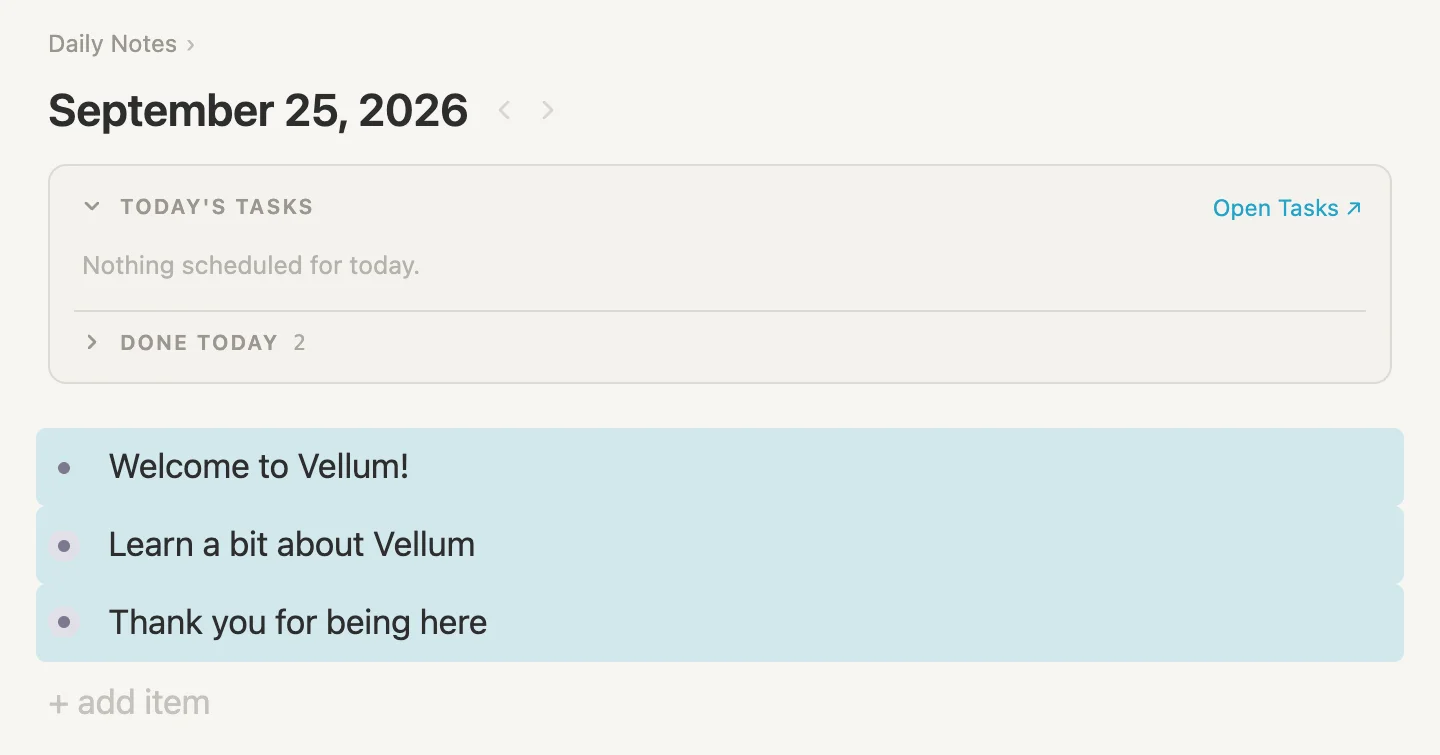
Now press Delete (or Backspace, whichever your keyboard has). Vellum checks with us first.
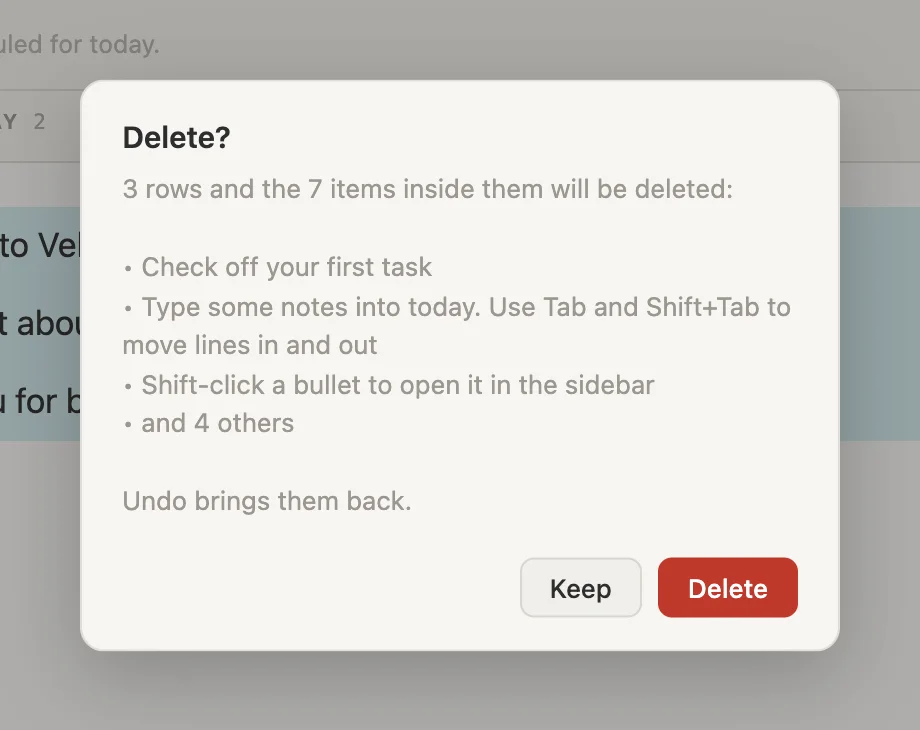
It tells us exactly what's about to go: the three lines, and the seven notes folded away inside them. That's the welcome tour, and the first task we just ticked. Click Delete.
The lines are gone, and in their place the page says Click to start typing. The count beside DONE TODAY drops back by one as well, because the task we ticked lived inside Learn a bit about Vellum and went with it. The one still there is that sample task from earlier, which lives in the Library. NB: we'll talk about the Library a bit later.
Changed your mind? Press Cmd-Z. Everything comes back, exactly as it was. Cmd-Z takes back the last change to our notes, and pressing it again keeps going further back, so it's worth getting used to early. (Cmd-Shift-Z puts a change back again.)
The keyboard way. Now let's clear them for good, this time from the keyboard. Click at the end of Welcome to Vellum! so the cursor sits there, and press Cmd-A. The words on that line are selected, the same as in any text box. Press Cmd-A again, and the whole line lights up, as a line this time rather than as words.
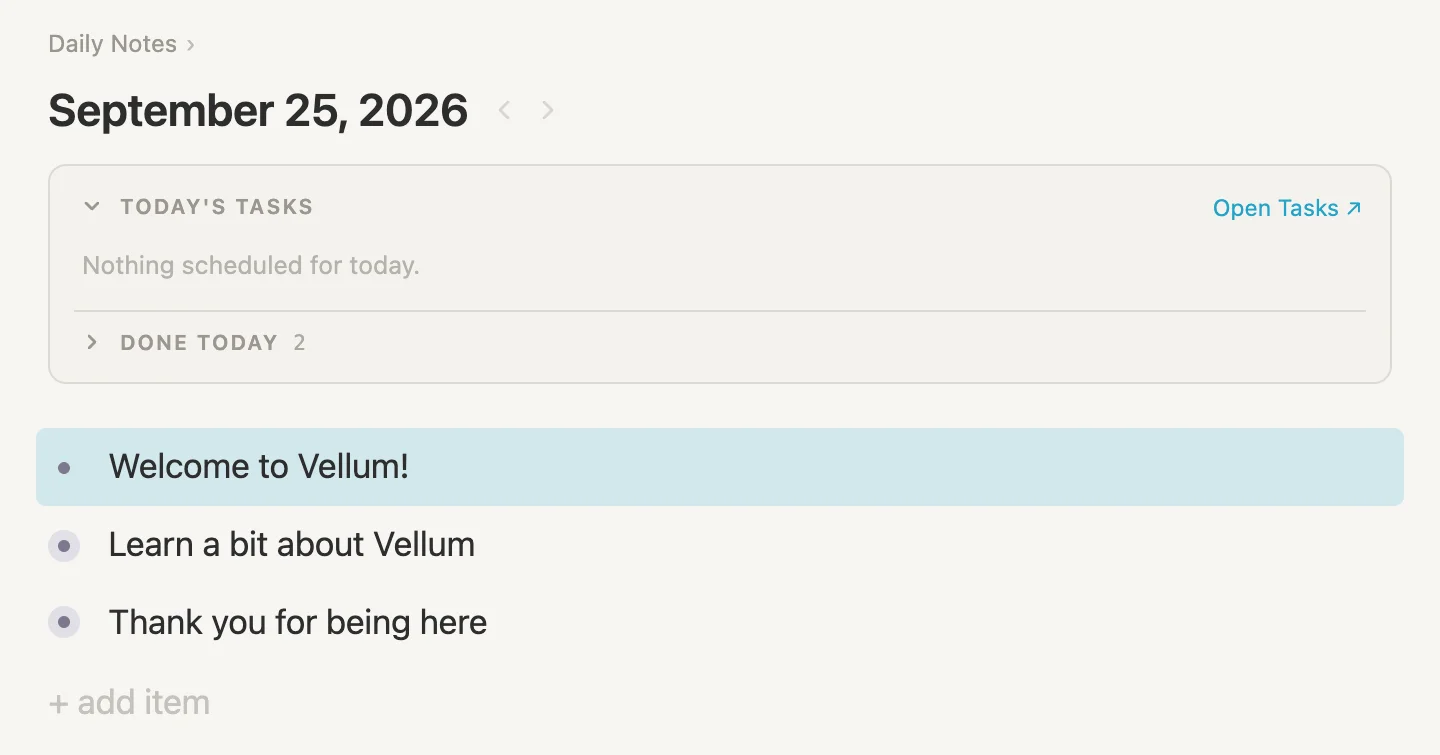
Press Cmd-A a third time and the selection grows to every line on the page. Each press reaches a little further out.
There's one more way, for when the mouse is already in hand. Press inside the words of one line and drag down into the next. As soon as the mouse crosses into another line, Vellum stops selecting words and selects whole lines instead.
However we got there, press Delete, click Delete in the box, and today's page is all ours.
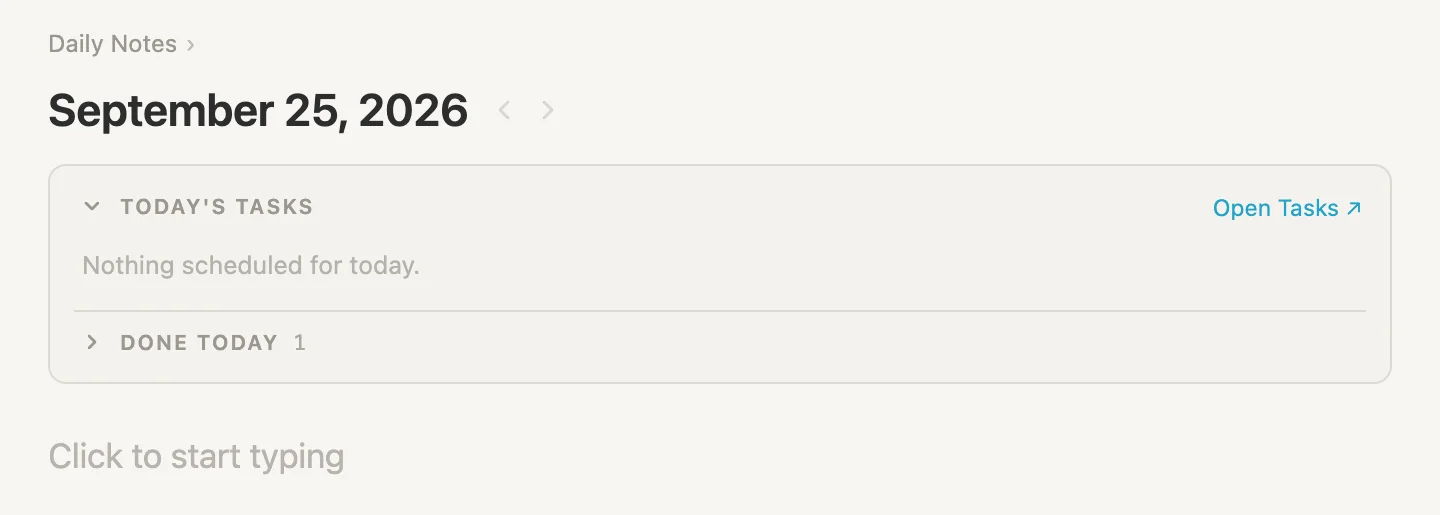
A clean page. Time to go to our first meeting.
9:00, the welcome meeting
Click where it says Click to start typing, type 9:00 Welcome meeting, and press Enter.
Enter makes a new line below, a brand-new note. But the notes we're about to take are ABOUT the meeting, so let's tuck them underneath it. Press Tab, and the new line steps in, under the meeting. Now type these, pressing Enter after each one:
Team standup is every morning at 9:30First week is mostly reading and meeting peopleLaptop setup with IT this afternoon
Then the one that really matters. Type Where's the good coffee? and press Cmd-Enter. A small square appears in front of it, a checkbox. A checkbox turns a line into something we can tick off, and this question gets ticked the moment somebody answers it.
Press Enter for the next line. Notice the new line comes with a checkbox of its own. Vellum guesses we're writing a list of things to tick. Not this time. Cmd-Enter goes round in a circle: the first press puts a box on, the second ticks it, the third takes it off. So press it twice, and the box goes.
Now press Tab again, and the line steps in a second level, under the coffee question. Type Nobody knows. Dana only drinks tea. (Tea?! We'll try not to hold it against her.)
Press Enter, then Shift-Tab. The line steps back out a level, in line with the other notes. Type Dana wants a few lines at five on how the day went. Then click an empty part of the page to stop typing.
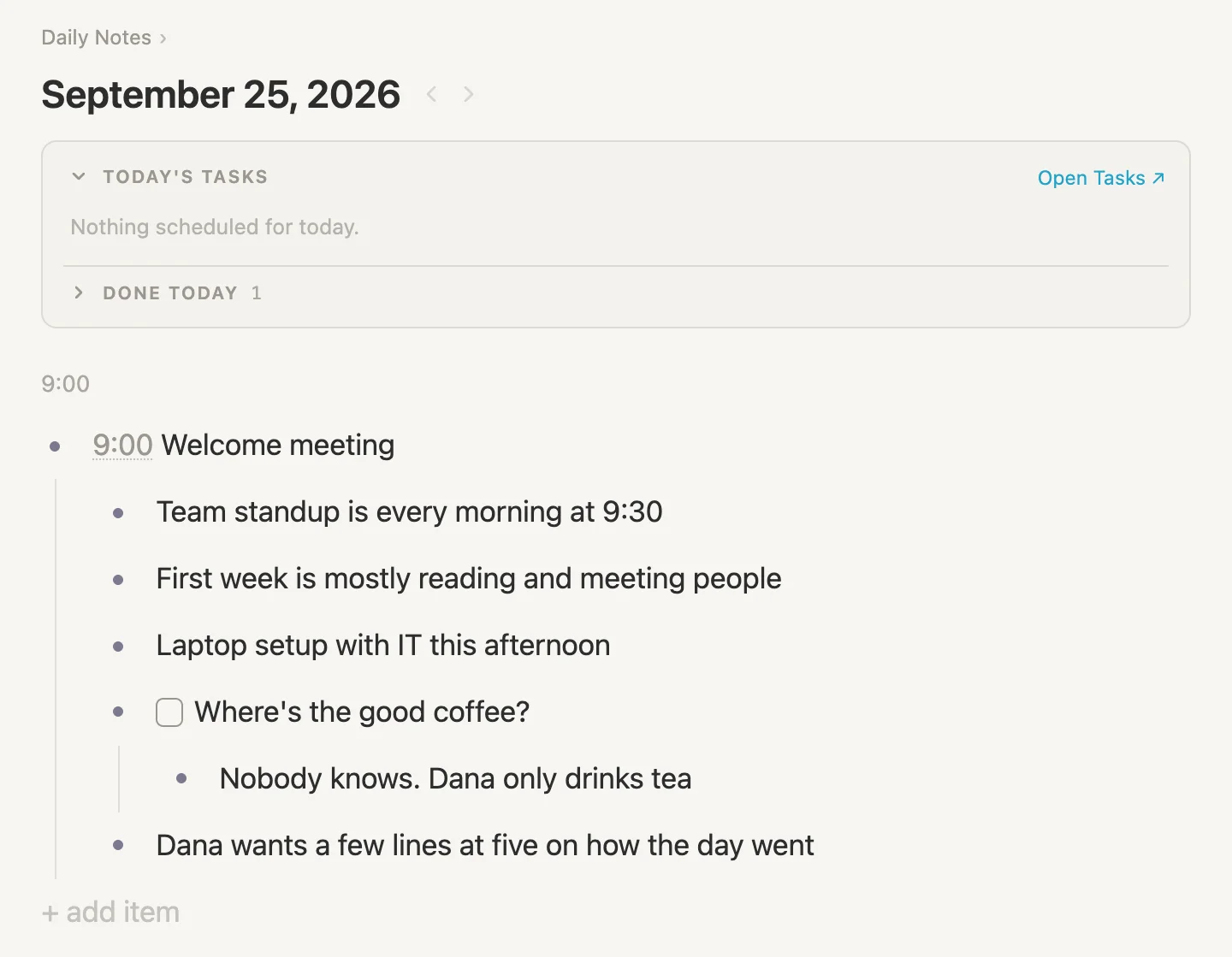
That's an outline: notes tucked under notes, as deep as we like. Tab tucks a line in, Shift-Tab brings it back out, and the thin line down the left shows what belongs to what.
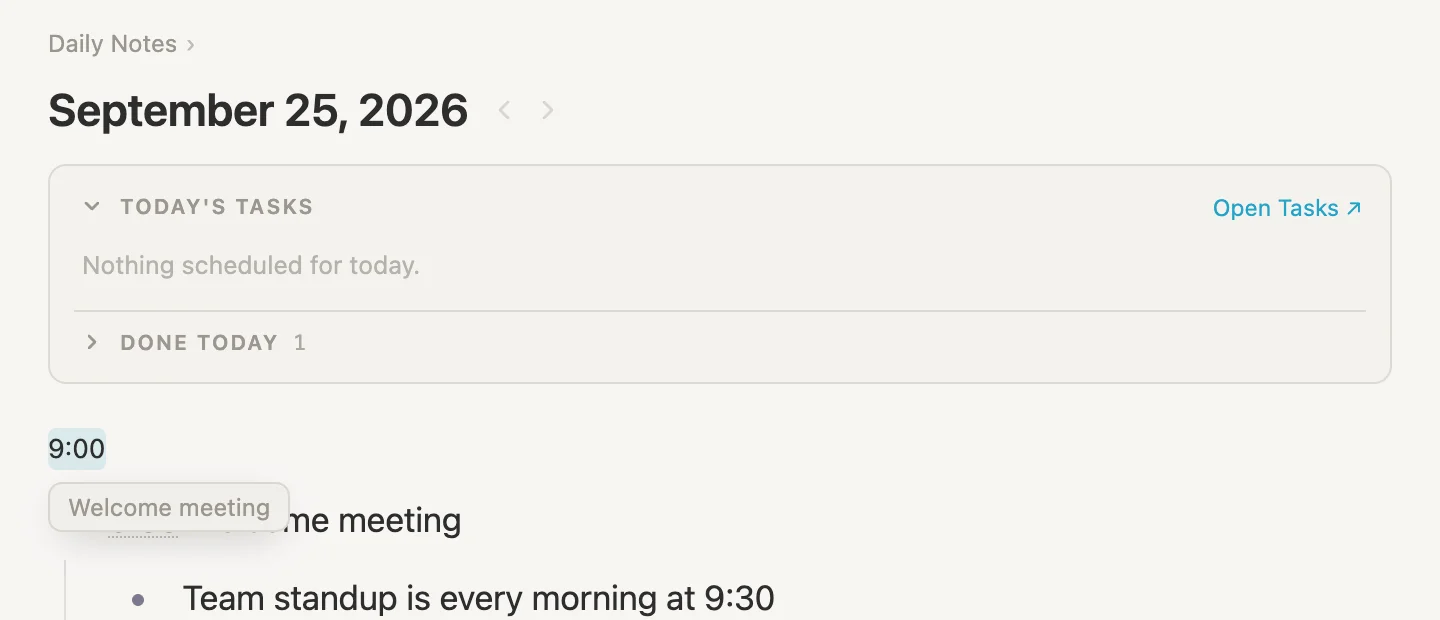
A time at the start. Look just above the meeting. A small 9:00 has appeared. Starting a line with a time makes it one of the day's moments, and Vellum lists them above the day's notes. Hover over the time to see which line it belongs to, and click it to jump straight there. With one meeting that's not much to look at. By five o'clock it'll read like a timetable of our day.
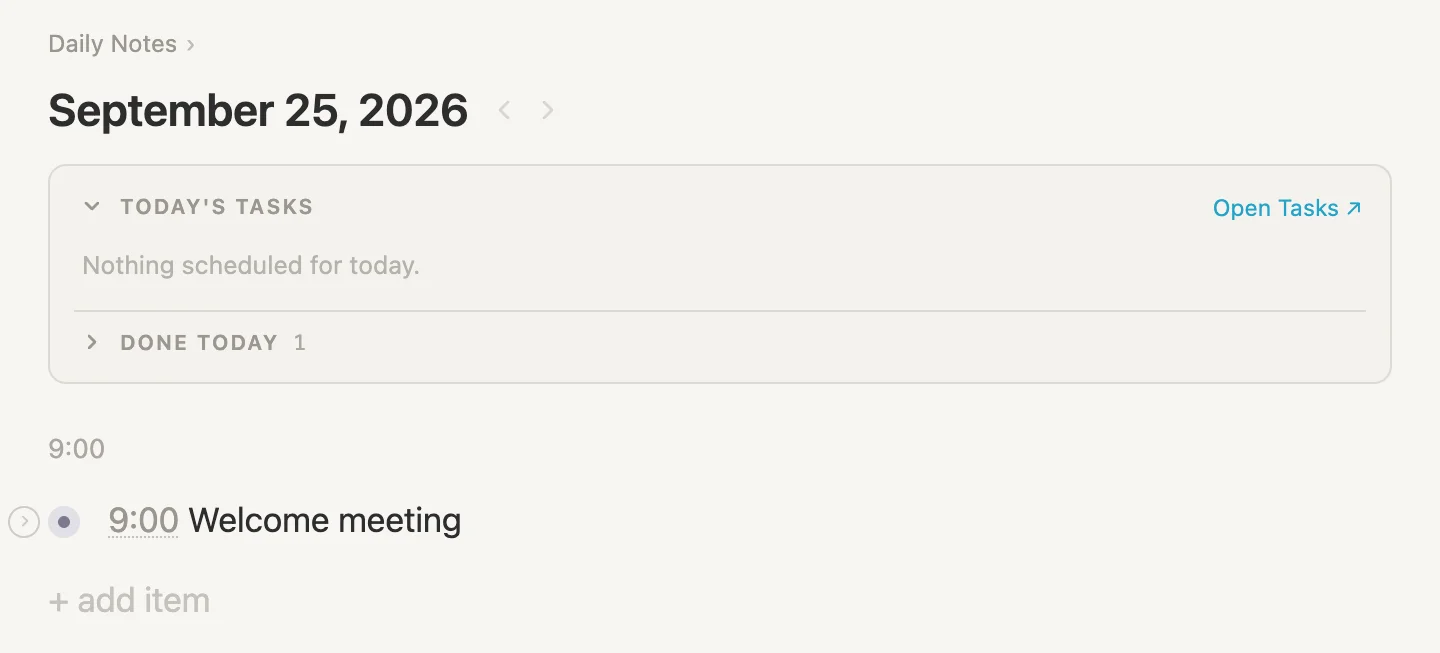
Folding away. When a note has others tucked under it, we can fold them out of sight. Move the mouse over 9:00 Welcome meeting, and a small arrow shows up to the left of its bullet. Click it. The notes fold away, and the bullet gets the same faint ring we saw on the welcome lines, the one that says there's more inside. Click the arrow again to open it back up. From the keyboard, Cmd-Up folds the line the cursor is in, and Cmd-Down opens it.
Moving things around. Let's be honest, the coffee question is the most important thing on this page. So let's move it to the top. Press on its bullet, the dot in front of it, and drag it up above Team standup is every morning at 9:30. A line shows where it'll land. Let go.
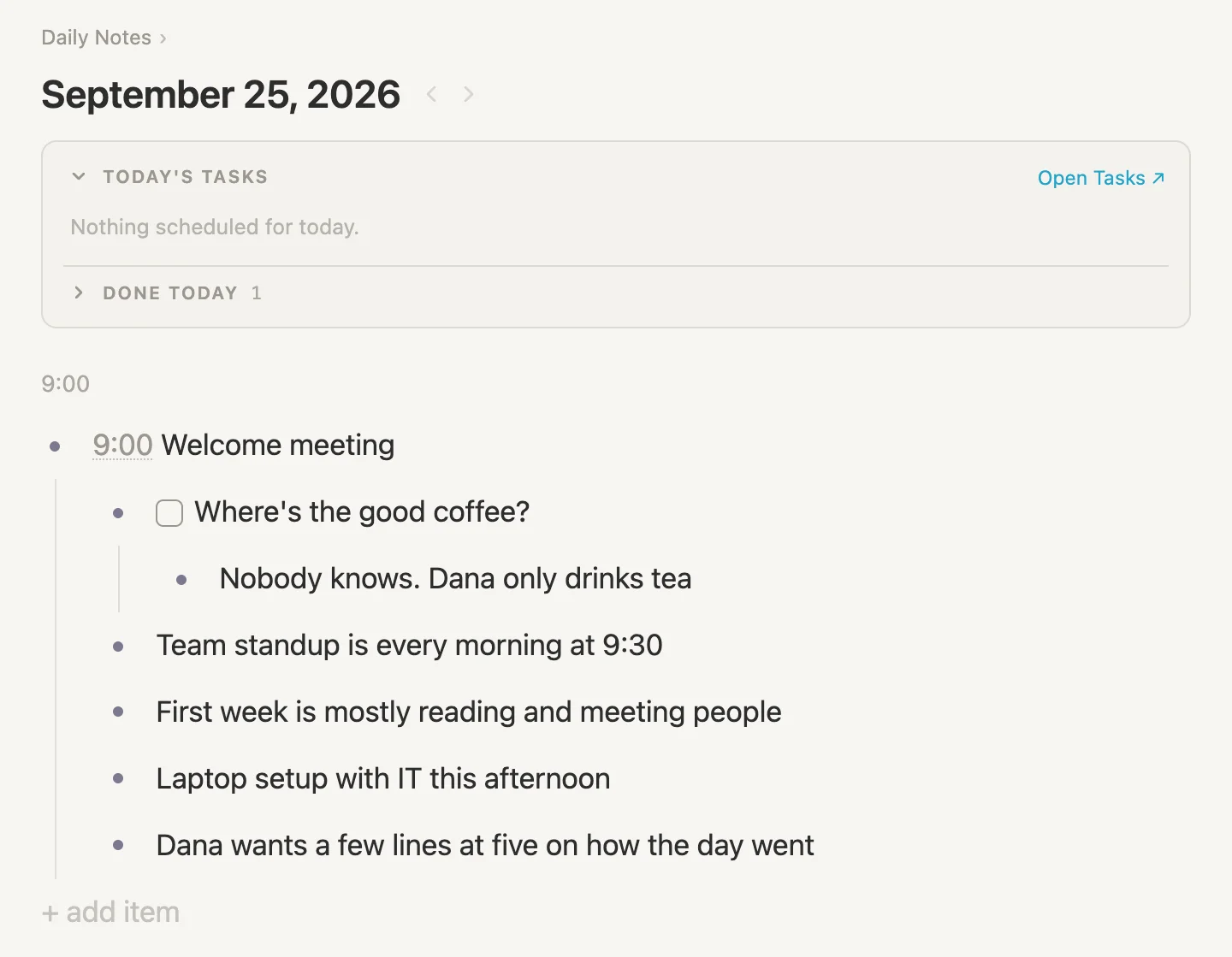
The tea line came along with it. Whatever is tucked under a note moves with the note. From the keyboard, Cmd-Shift-Up and Cmd-Shift-Down move the line the cursor is in.
Priorities sorted.
Dana, our first tag
Dana deserves more than a passing mention. She's somebody we'll be dealing with every day, so let's give her a note of her own.
Click at the end of Dana wants a few lines at five on how the day went and press Enter. Type Dana Whitfield #pers. The moment we type the #, a list opens.
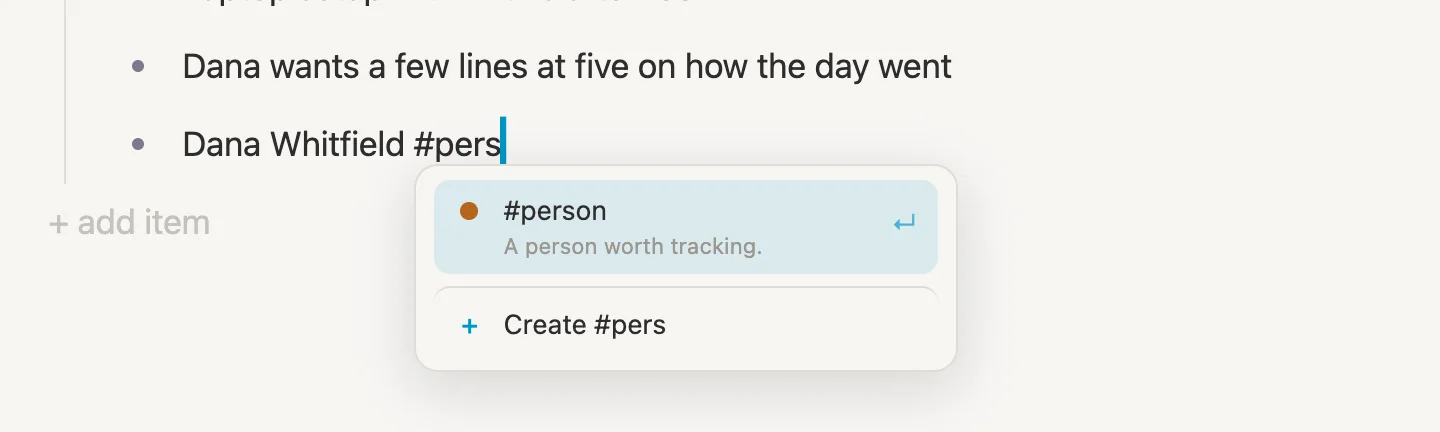
That # is how we tag a note. A tag says what kind of thing a note is: a person, a project, a book, whatever we like. A new vault already comes with a few tags, and #person is right there at the top, with its description, A person worth tracking. Press Enter to take it. (The line underneath would make a brand-new tag called #pers instead. We'll make a tag of our own soon enough.)
Dana's name now wears a small #person label. We call that a pill.
One more thing while we're on her line. Press Shift-Enter. Instead of a new note, we get a second, quieter line under her name, for a few words about her. Type Sits by the window. Takes her tea very seriously, then click an empty part of the page.
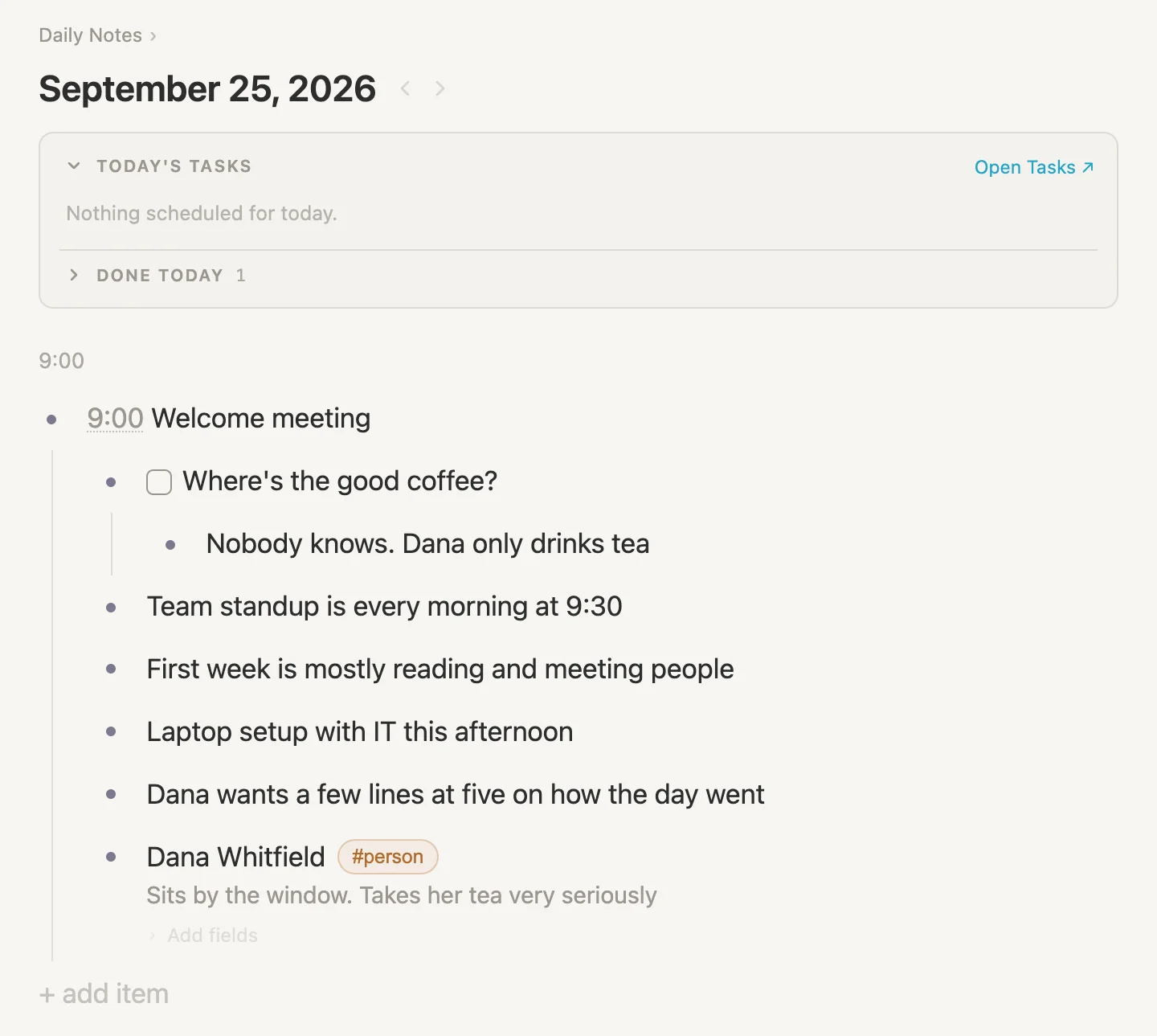
(We'll chat about the faint Add fields under her in just a moment.)
Her page
Remember the dot in front of every note? Click the one in front of Dana Whitfield.
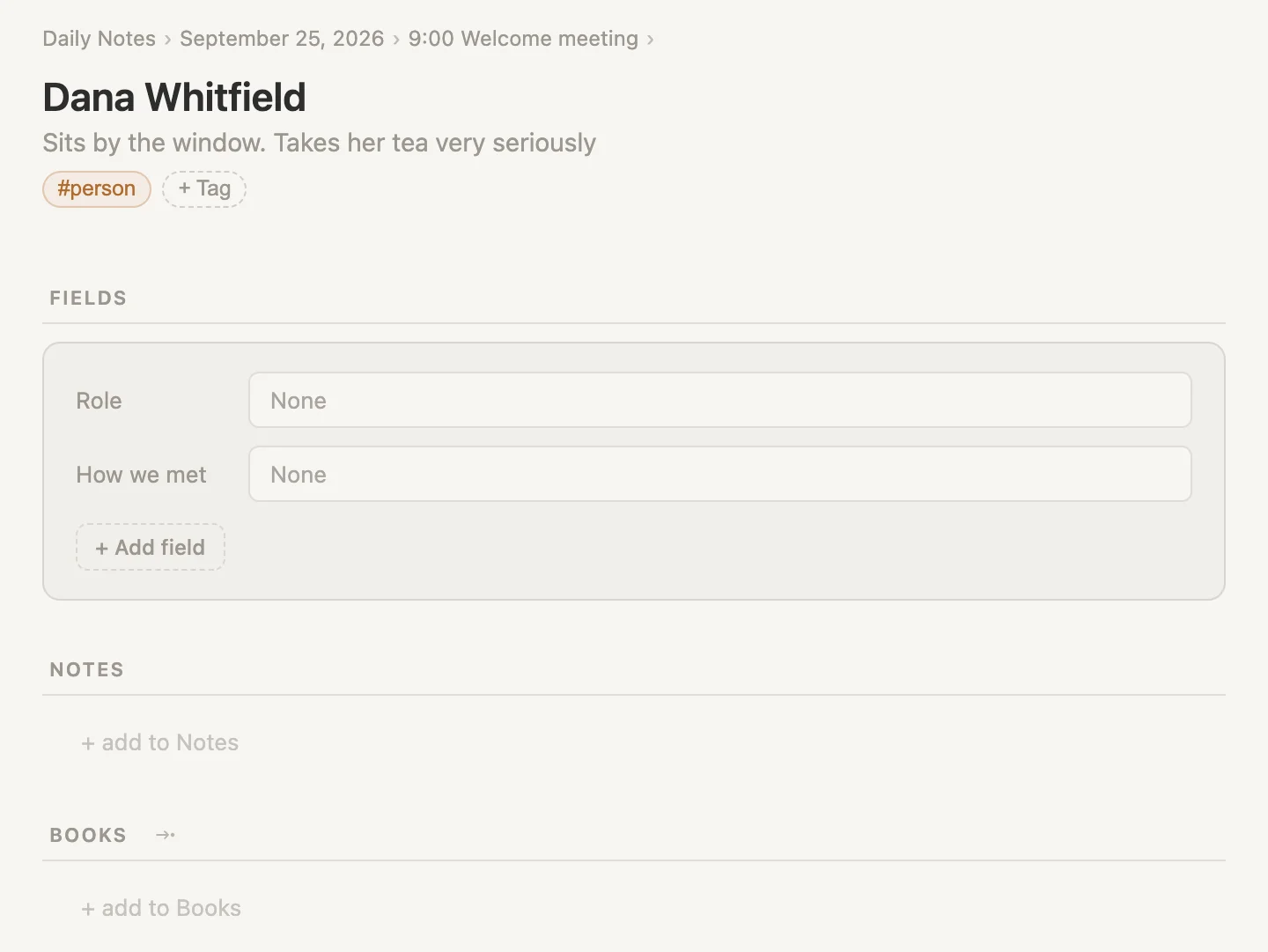
This is Dana's page. Any note can be opened like this, as a page of its own, and a note that wears a tag gets a proper layout: the tag's pill under the name (with + Tag beside it to add another), a FIELDS box for details about her, a NOTES section for anything we write on her page, and a BOOKS section, which we'll deal with in a moment.
Look at the very top of the page as well. That line of small words is the breadcrumb (or just crumb): Daily Notes › today's date › 9:00 Welcome meeting. It says where this note lives, inside the welcome meeting on today's page. Click any part of the breadcrumb to go there.
A shelf we don't need
Your vault may have given every person a BOOKS section, for the books they wrote. That's handy for Marcus Aurelius. Less so for our manager. (If your Dana has no Books section, skip ahead to the next part.)
Sections like this can be moved, hidden or removed. Move the mouse to the right-hand end of the BOOKS heading line, and a few small controls appear.

- The ↑ and ↓ arrows move the section up or down the page.
- Hide tucks it away, on this page only.
- The slider icon at the very end opens the section's sort, group and filter options, the same ones we'll meet on tag pages later on.
Click Hide. Books disappears, and a HIDDEN line turns up at the bottom of the page with Books in it. Click that, and it comes straight back.
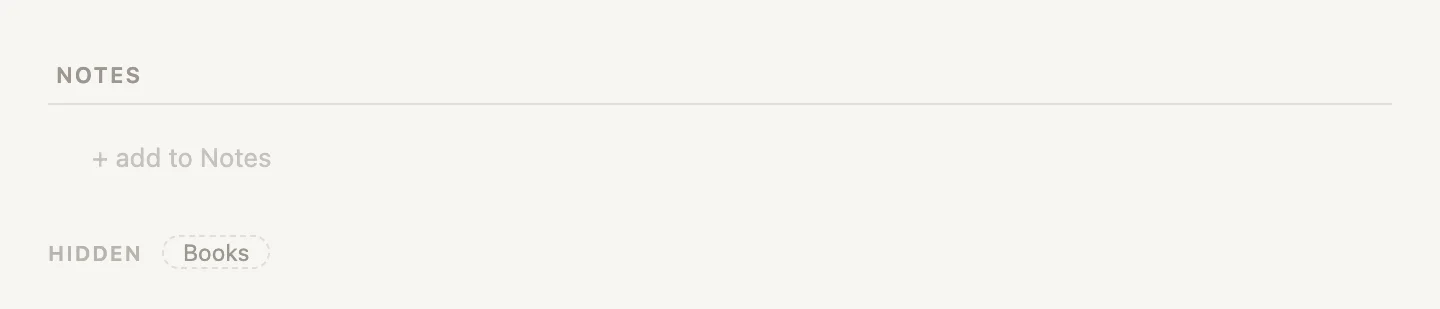
But Hide only tidies this one page. Every other person would still get the shelf. To take it off everyone at once, we change the tag itself, because the tag decides what every person's page looks like. Click the #person pill.
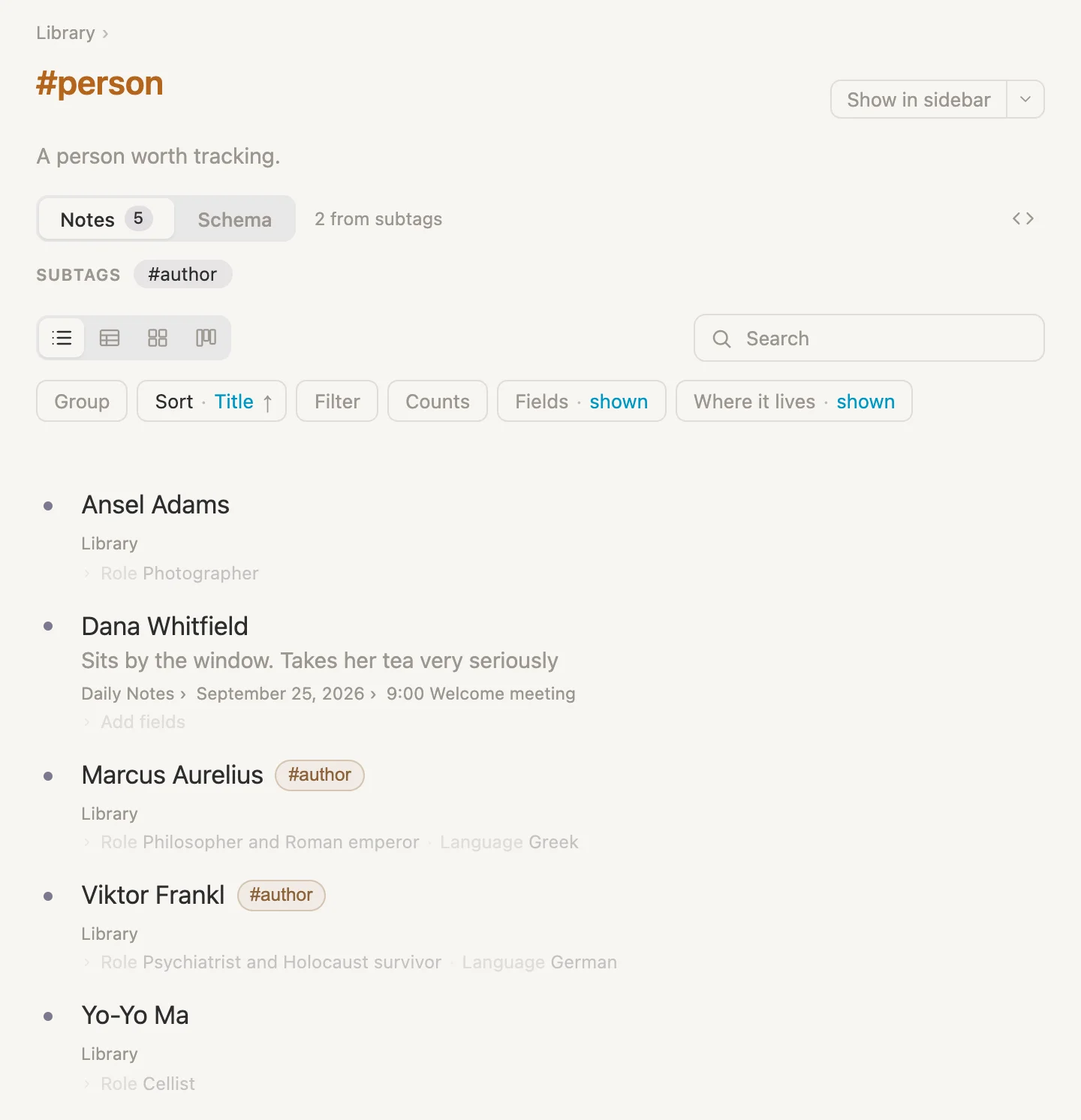
This is the tag's own page. Under Notes it lists every note wearing the tag: Dana, and the four people a new vault comes with. (Marcus Aurelius and Viktor Frankl wear #author, which counts as a kind of person. That's what 2 from subtags is telling us.)
Now click Schema, the tab beside Notes. Schema is where a tag's setup lives: its fields, its sections, and a few more things we'll meet later. Scroll down to SECTIONS.
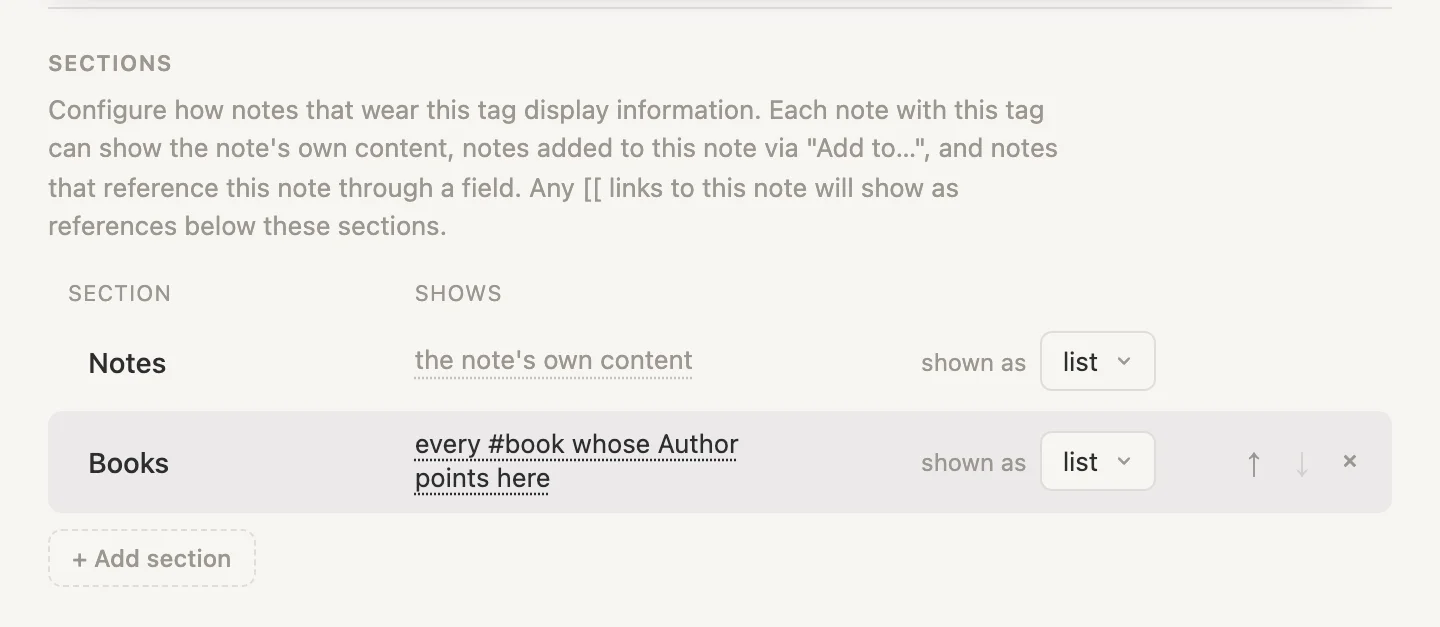
Two sections: Notes, and Books, which shows every #book whose Author points here. Move the mouse over the Books row and click the × at its end. Vellum asks first.
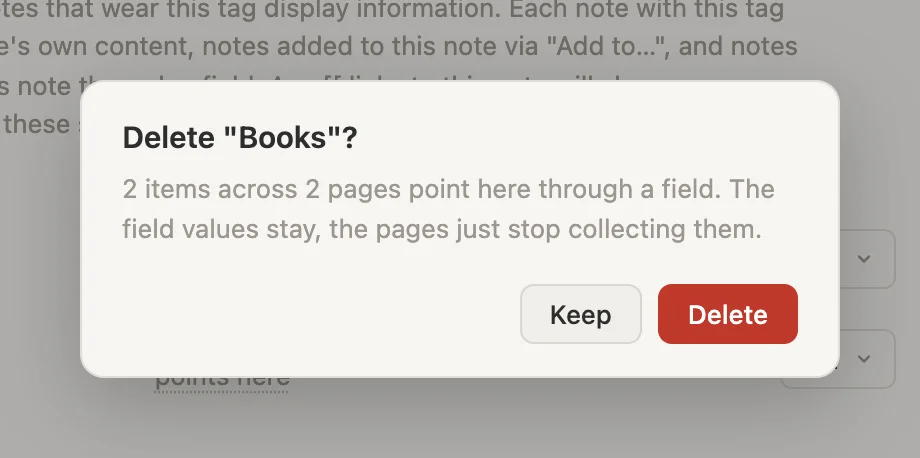
The books themselves aren't touched. Meditations still says Marcus Aurelius wrote it. The person pages just stop collecting books. Click Delete.
Now click the back arrow at the top left of the window. It takes us back to Dana's page, and the shelf is gone. It's gone from every person's page, Marcus Aurelius included.
To get back to today, click the date in the crumb. Or, from anywhere in Vellum, press Cmd-D, which always takes us to today's page.
Links that work both ways
Now that Dana has a note of her own, the lines that mention her can point straight at it.
Look at Dana wants a few lines at five on how the day went. Double-click the word Dana so it's selected, and type [[ (two square brackets). The word is wrapped in brackets and a list opens, already searching for "Dana".
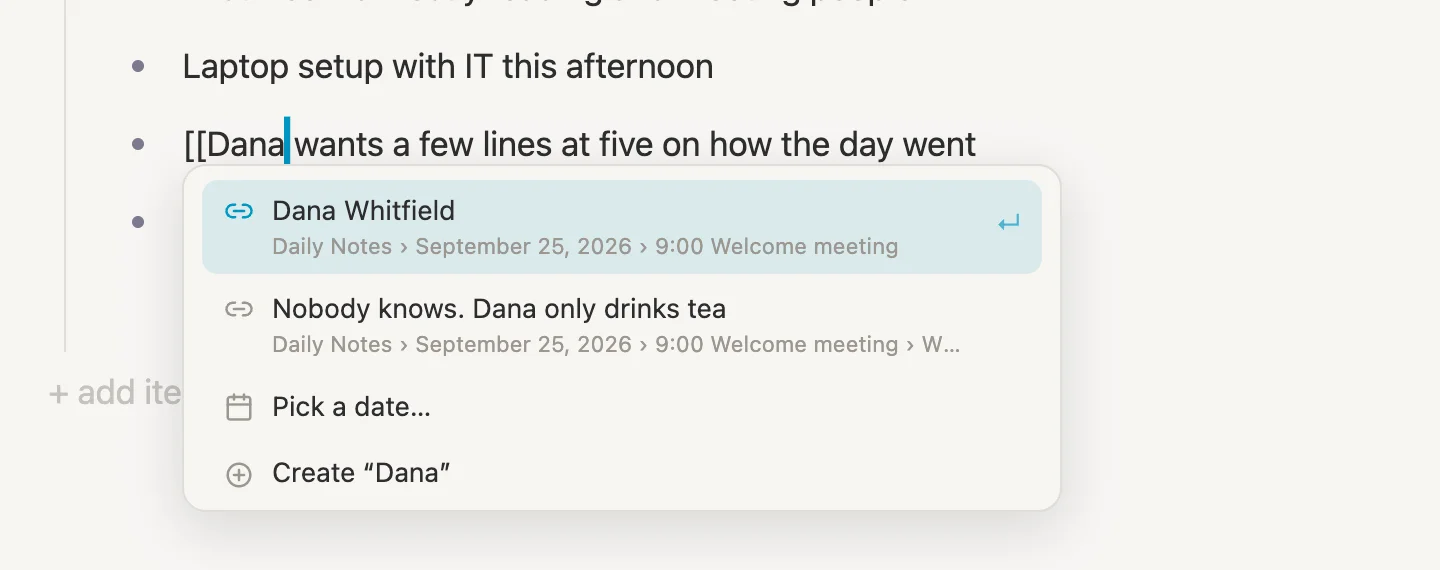
Dana Whitfield is at the top. Press Enter. The word becomes a link, and it now reads Dana Whitfield, in blue. A link always shows the name of the note it points at, as that note spells it. If Dana's name ever changes, every link to her changes with it.
Click the link. It opens Dana's page, and something new has appeared at the bottom.
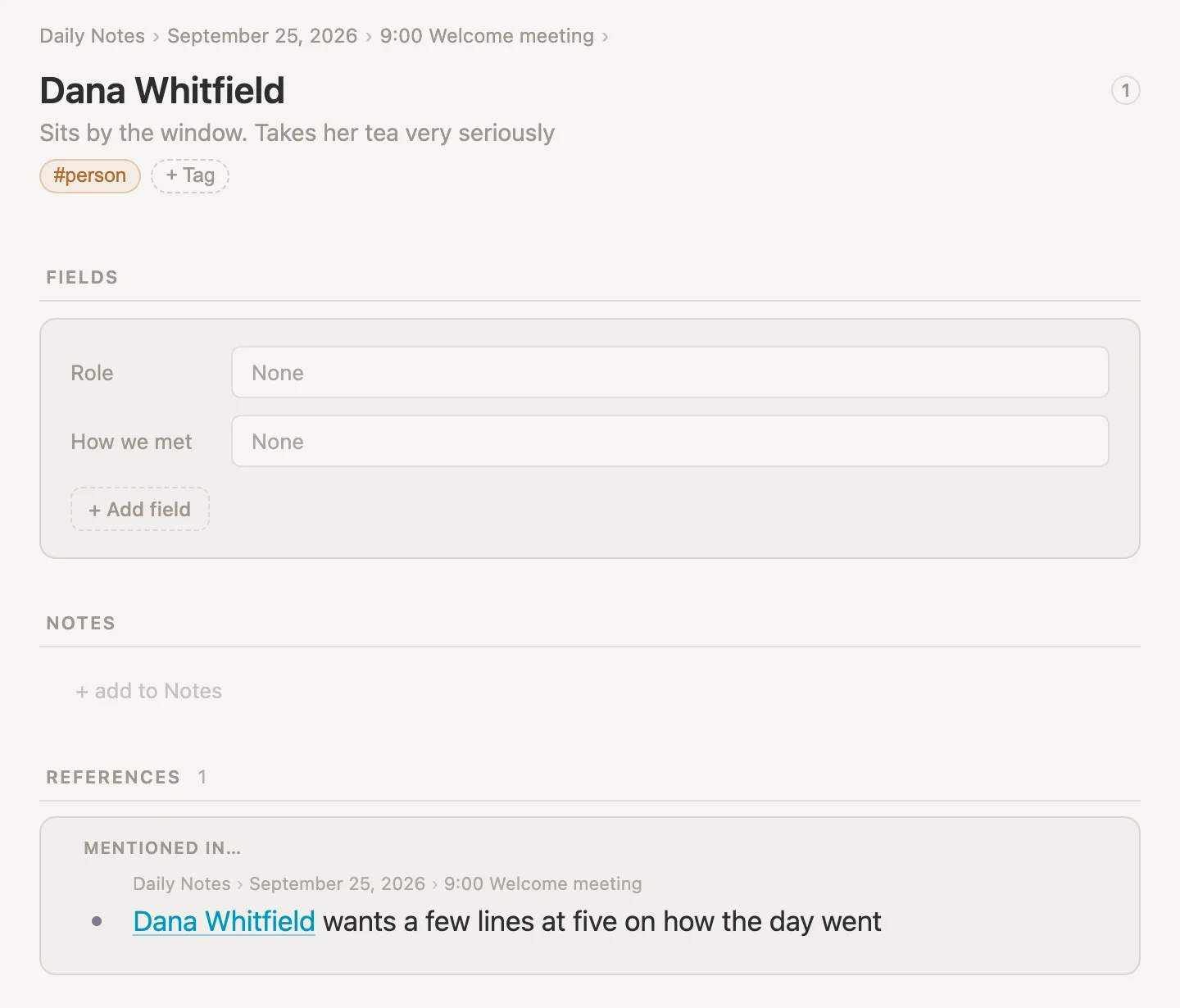
A REFERENCES section, and in it, MENTIONED IN…, the line we just wrote on today's page. We never came to Dana's page to put that there. Linking to a note is enough for that note to know about it.
A term you might hear is "bidirectional linking" ... meaning a link that works in two directions. That's what we just made. The link in "Dana Whitfield wants a few lines ..." points to Dana's page, AND the References section at the bottom of Dana's page points back to every note that mentions her.
And look beside her name at the top, on the right. A small circled 1. That's her reference count, how many places link to her.
Press Cmd-D to go back to today, and let's link her once more. In Nobody knows. Dana only drinks tea, double-click Dana, type [[, and press Enter to take Dana Whitfield again.
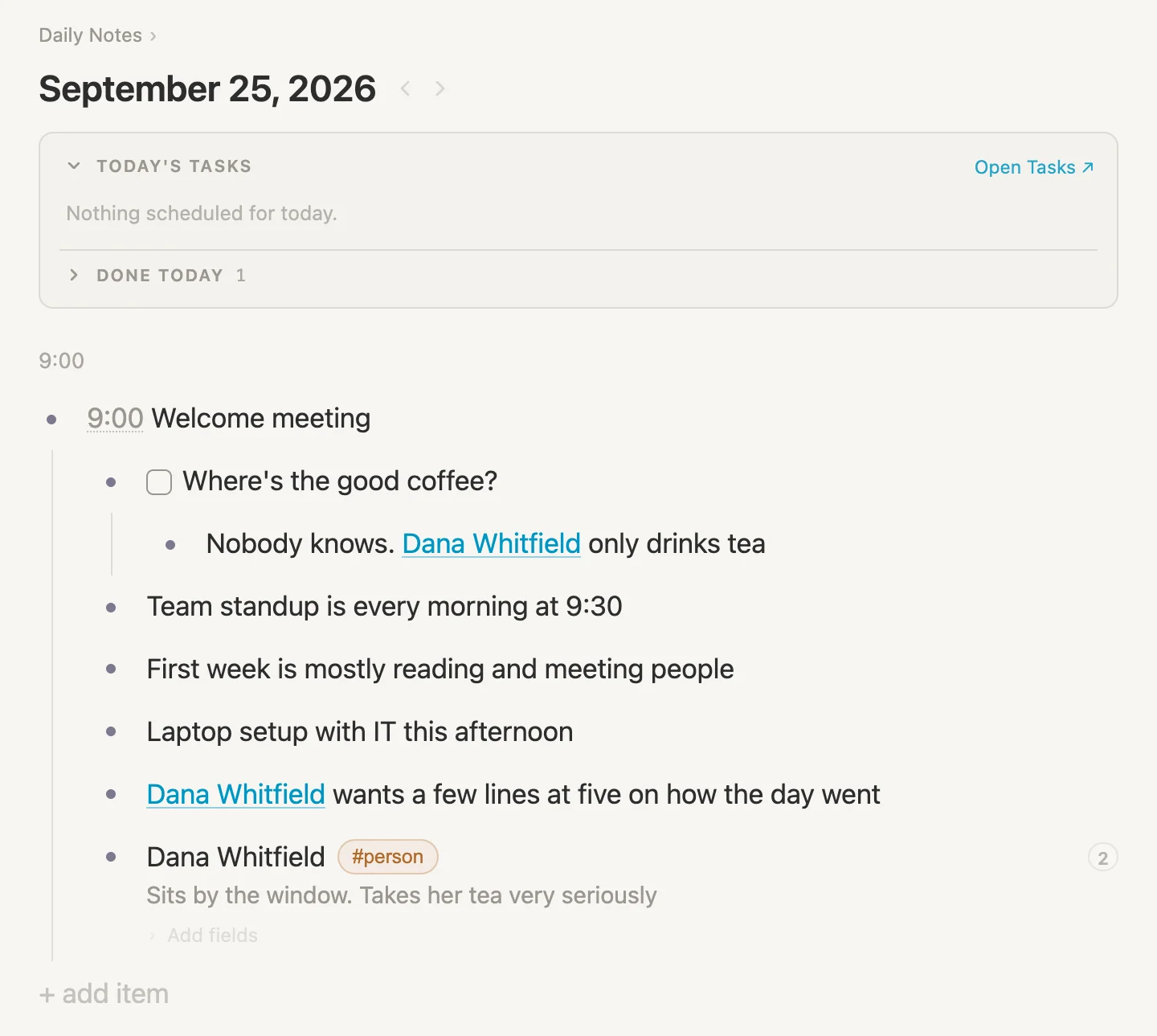
Now look at the end of Dana's own line, down at the bottom of the meeting. The count there says 2. It counts as we go.
That circle is also a button. Click it.
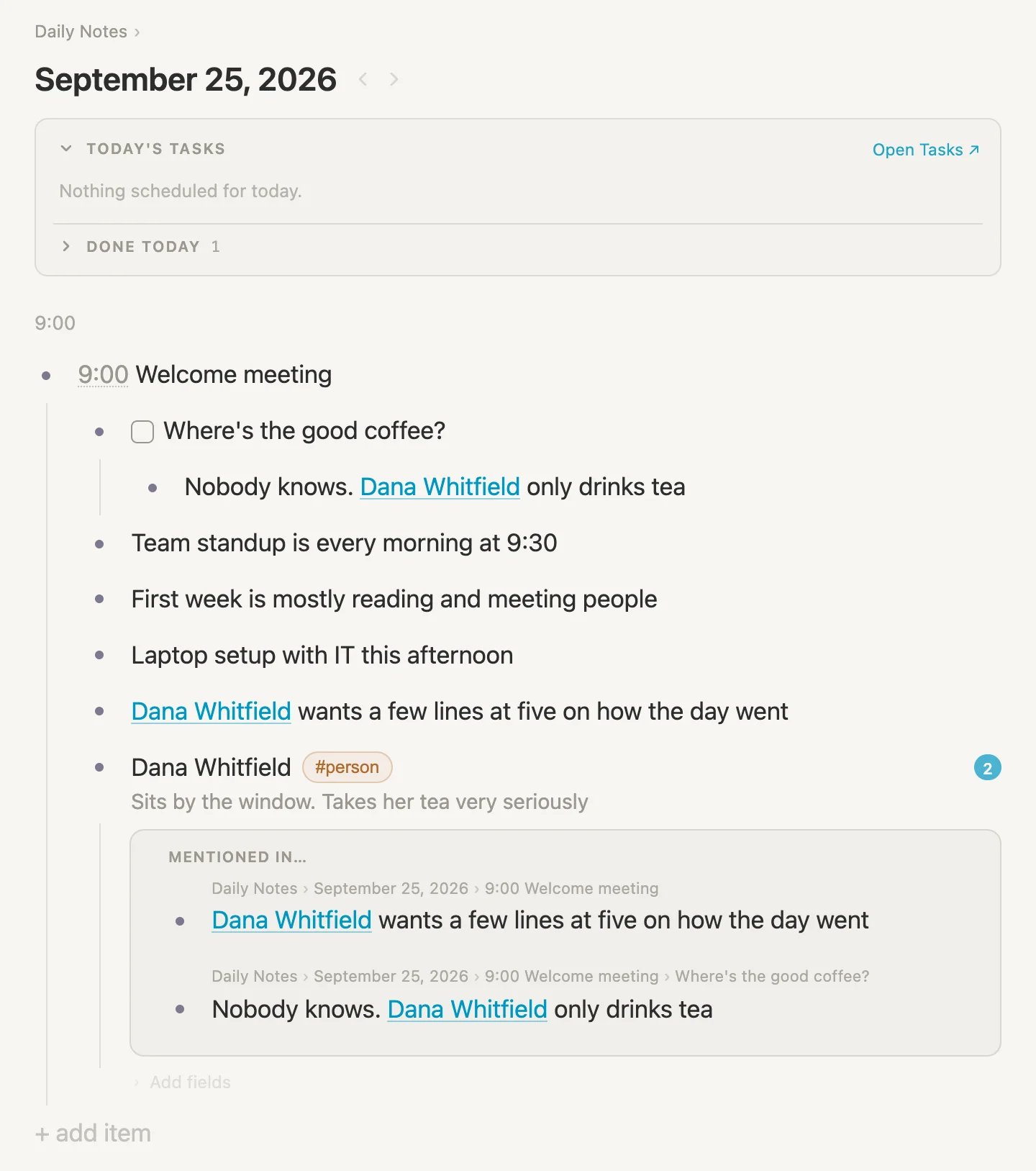
Both mentions open right there, under her line, without leaving the page. Handy when we want to know where somebody came up today. Click the circle again to close it.
A tag of our own
#person came with the vault. But nothing in a new vault fits "a question I need answered", and today is going to be full of those. So let's make a tag of our own.
Click at the end of Where's the good coffee? and type #question (with a space before the hashtag). There's no #question tag yet, so this time the list offers just one thing, Create #question.
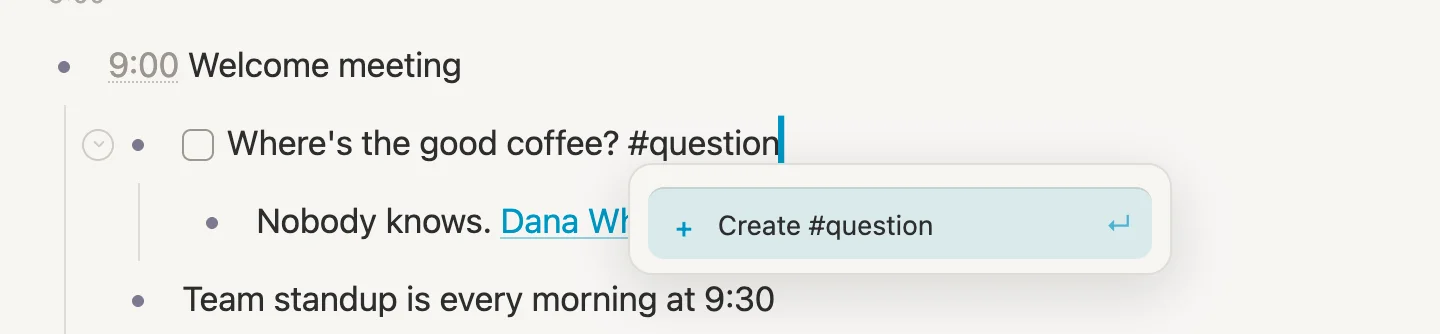
Press Enter. And ... that's it. No setup screen, no form to fill in. A tag comes into being the first time we use it. The coffee question now wears a #question pill, and from here on #question sits in the list like any other tag.
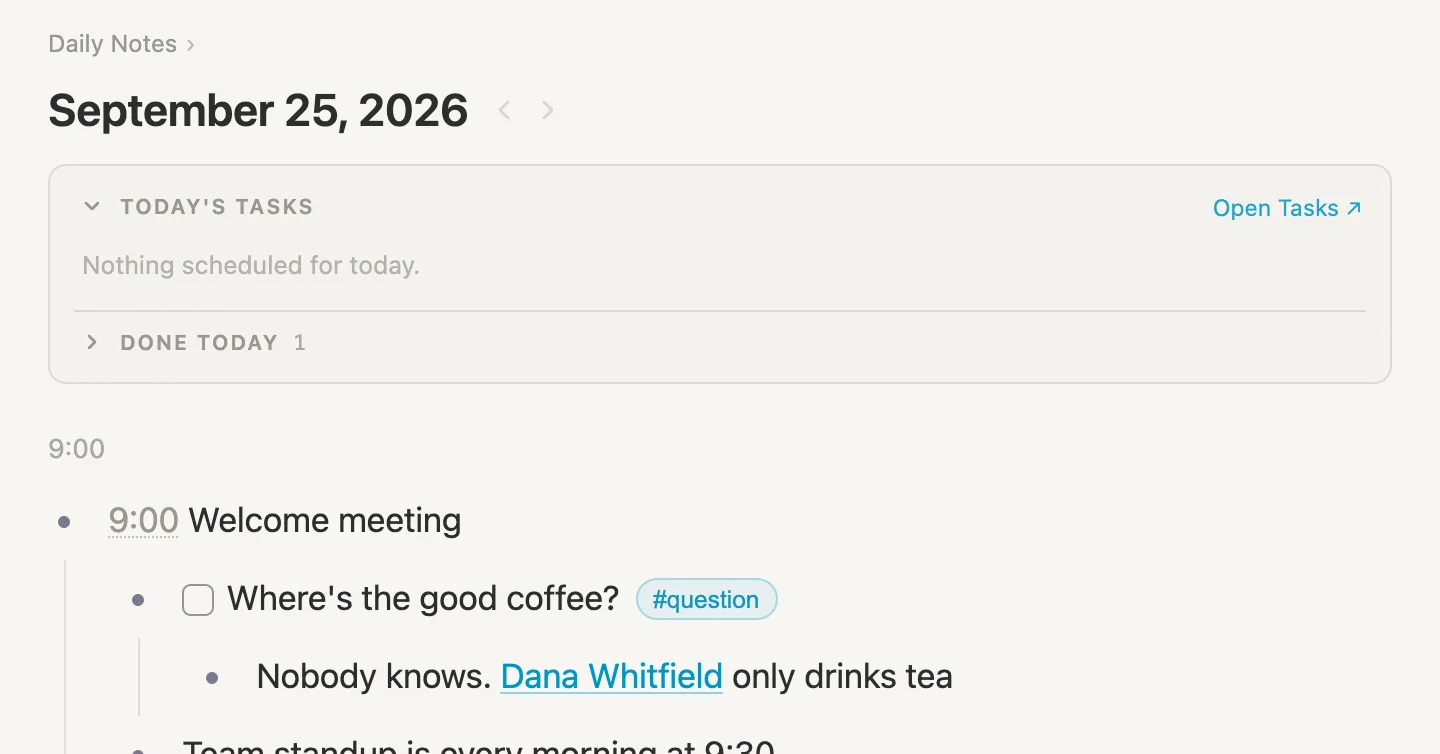
More questions will turn up as the day goes on. Later we'll gather every one that's still open into a single list, wherever we happened to write it.
A first real task
Dana gave us some homework. Click at the end of First week is mostly reading and meeting people, press Enter, and type Read the onboarding handbook #tas. #task comes with a new vault, and there it is at the top of the list, Something to do. Press Enter to take it.
A #task gets a checkbox of its own straight away. But look up at the TODAY'S TASKS box. It still says Nothing scheduled for today. Writing a task on today's page doesn't mean we plan to do it today. We might read the handbook tomorrow, or next week. So we tell Vellum when.
In the TODAY'S TASKS box, click + Add to today.
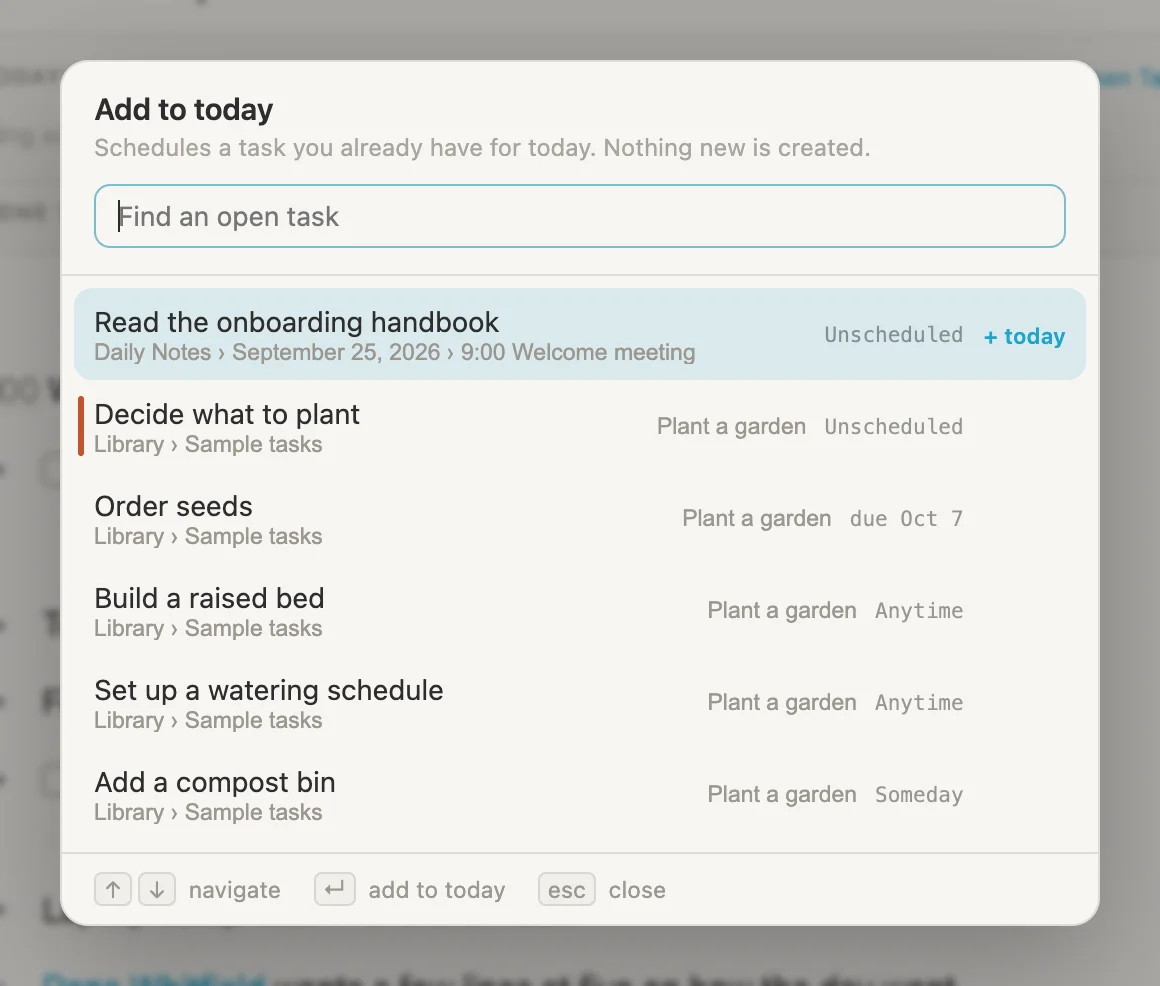
This list shows the tasks we already have. Pick one, and it goes on today. Nothing new gets made. Our handbook is at the top, marked Unscheduled. (Under it are the sample tasks a new vault comes with, for a garden we'll probably never plant.) Press Enter to add our onboarding task, then Escape to close the list.
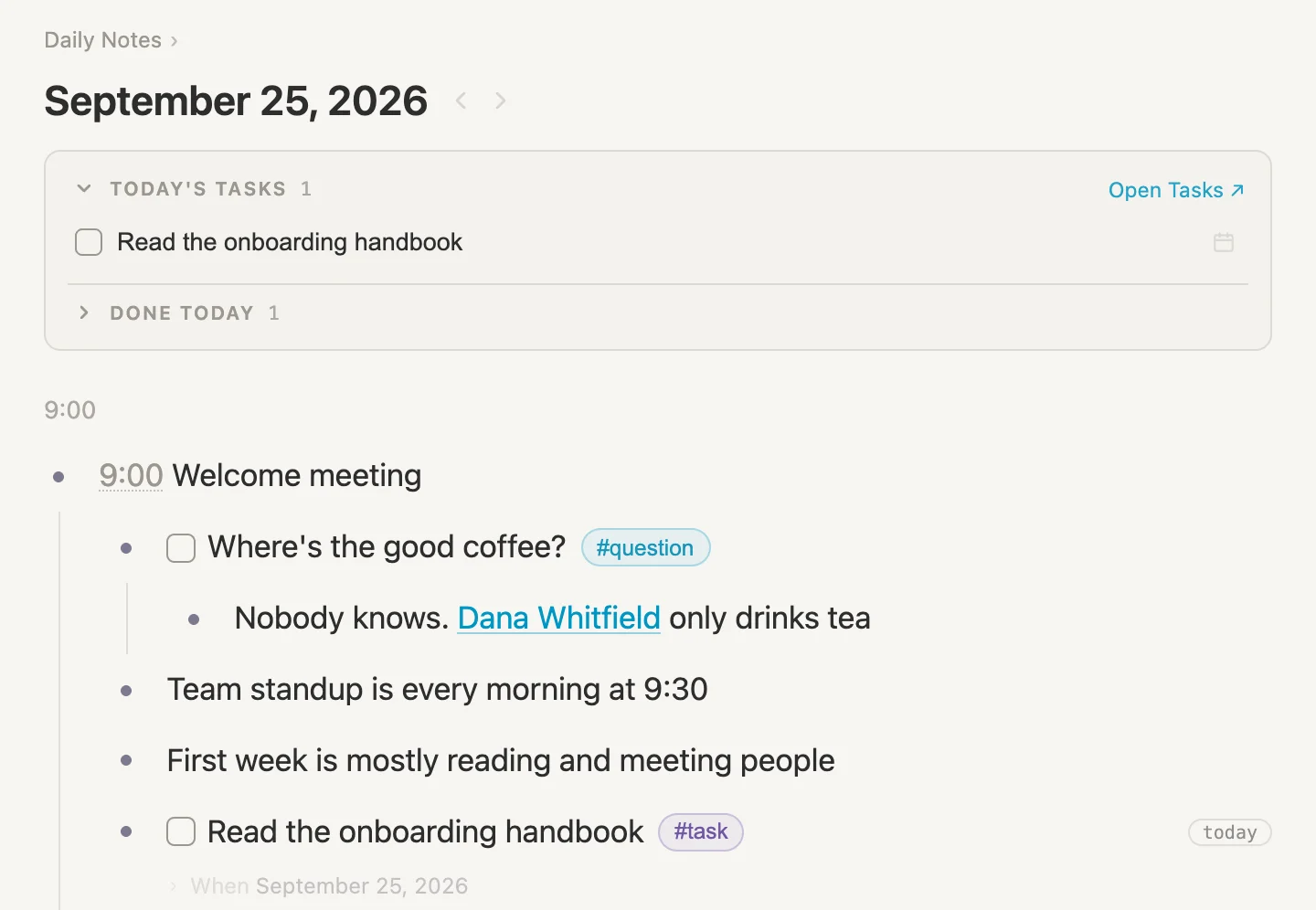
There it is, in the box. And down in the meeting, the handbook's line now has a small today at its end, with When and today's date underneath. It's the same task in both places, not a copy. Tick it in the box or in the meeting, and it's ticked in both.
We won't tick it just yet. It's a long handbook. And if it isn't done by tonight, it'll be waiting in the box tomorrow morning.
Fields
Remember the faint line that turned up under the handbook, When and today's date? That's a field: a named detail on a note, with something filled in. When is a field for, well, when we want to work on the task, and we set it without even noticing, when we added the handbook to today. Fields are sometimes referred to as properties.
Tags often come with fields. #task brought When (and a few more fields we'll meet later on). #person brought two of its own (Role and How we met), and Dana's fields are still empty. Let's fill them in.
Dana's details
Open Dana's page by clicking her bullet on today's page. Under FIELDS there's Role and How we met, both reading None. Click the box beside Role, type Engineering manager, and press Enter. Then click the box beside How we met, type She ran the welcome meeting, and press Enter.
Every person gets these two fields, because they belong to (are properties of) the #person tag. Marcus Aurelius has these fields, Yo-Yo Ma has them, and so will everyone we meet today.
A field of our own
There's one more thing we'll want to know about everybody at work: which team they're on. #person has no field for that. So let's add one.
Under Dana's fields, click + Add field and type Team.
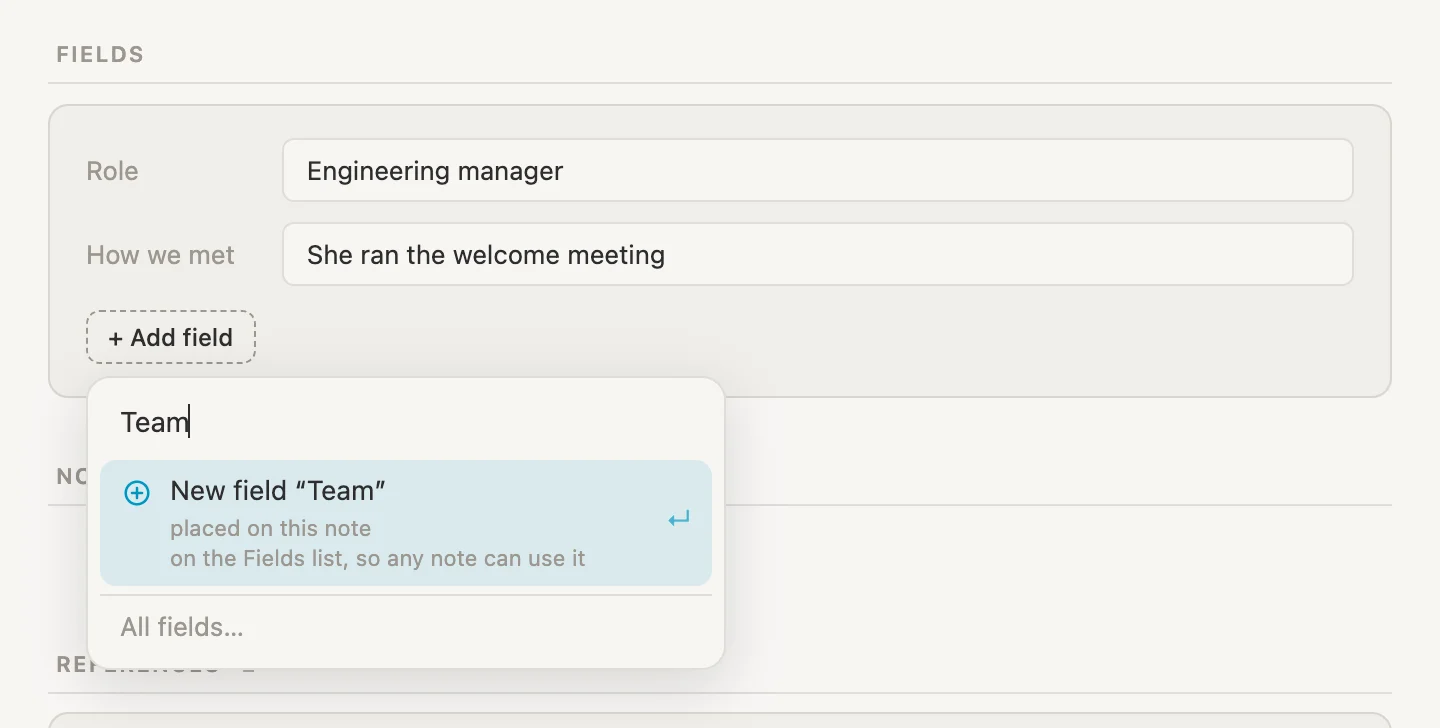
The box searches every field the vault already has, in case one of them would do. There's no Team yet, so the top line offers New field "Team". Press Enter.
A small card opens for setting the field up. Look at Belongs to. It says The Fields list, which would put Team on Dana alone. We want it on everybody, so click that box and choose #person, Every note wearing it gets the field.
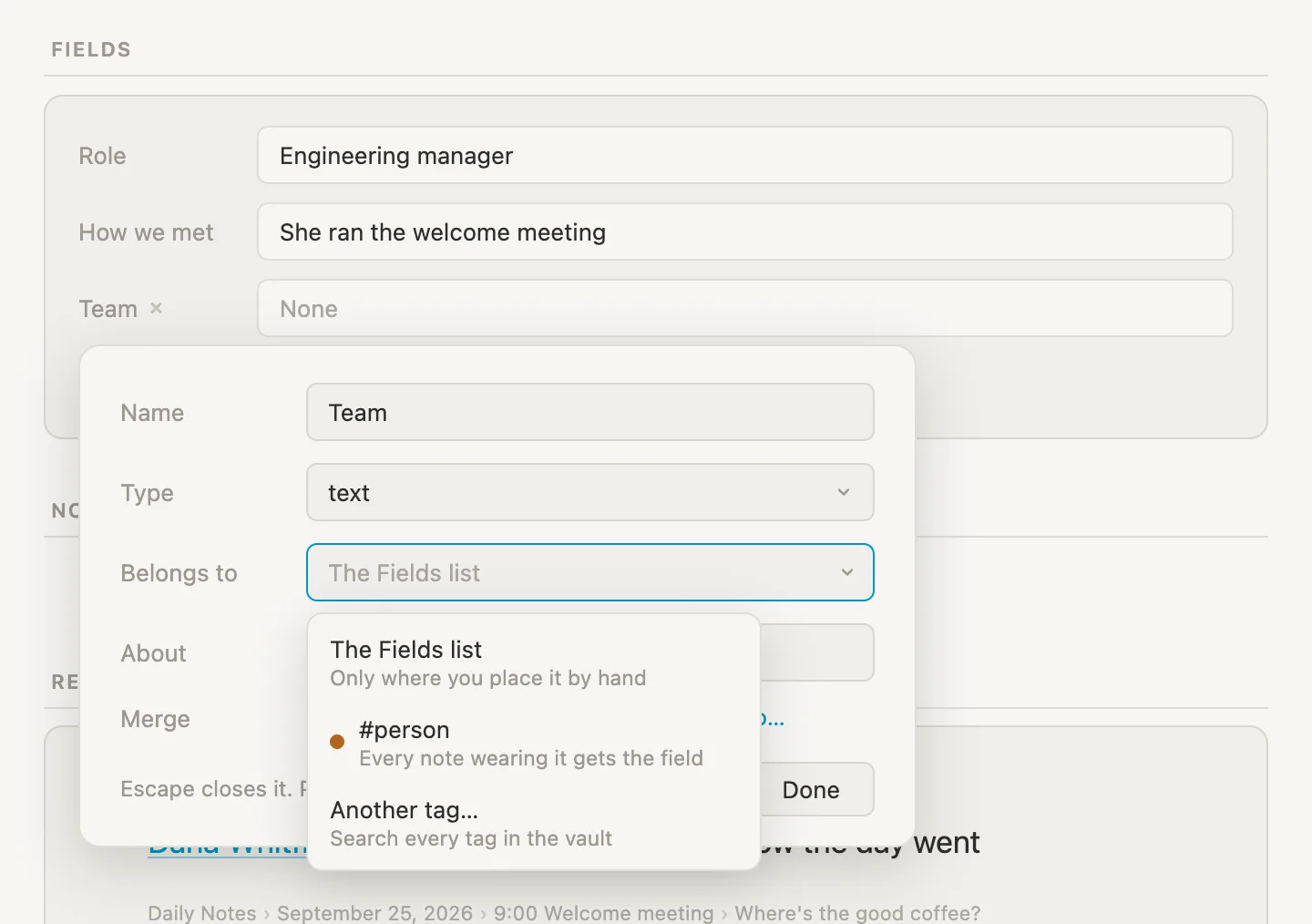
The card says it plainly: Team joins #person. Every note wearing the tag gets it, and it shows on the tag's own page.
So a field can sit on a single note on its own, or belong to a tag, so that every note wearing the tag gets it. Most of the time, the tag is what we want.
Next, Type. It says text, which means we'd type the team's name by hand every time. Click it to see what else a field can be.
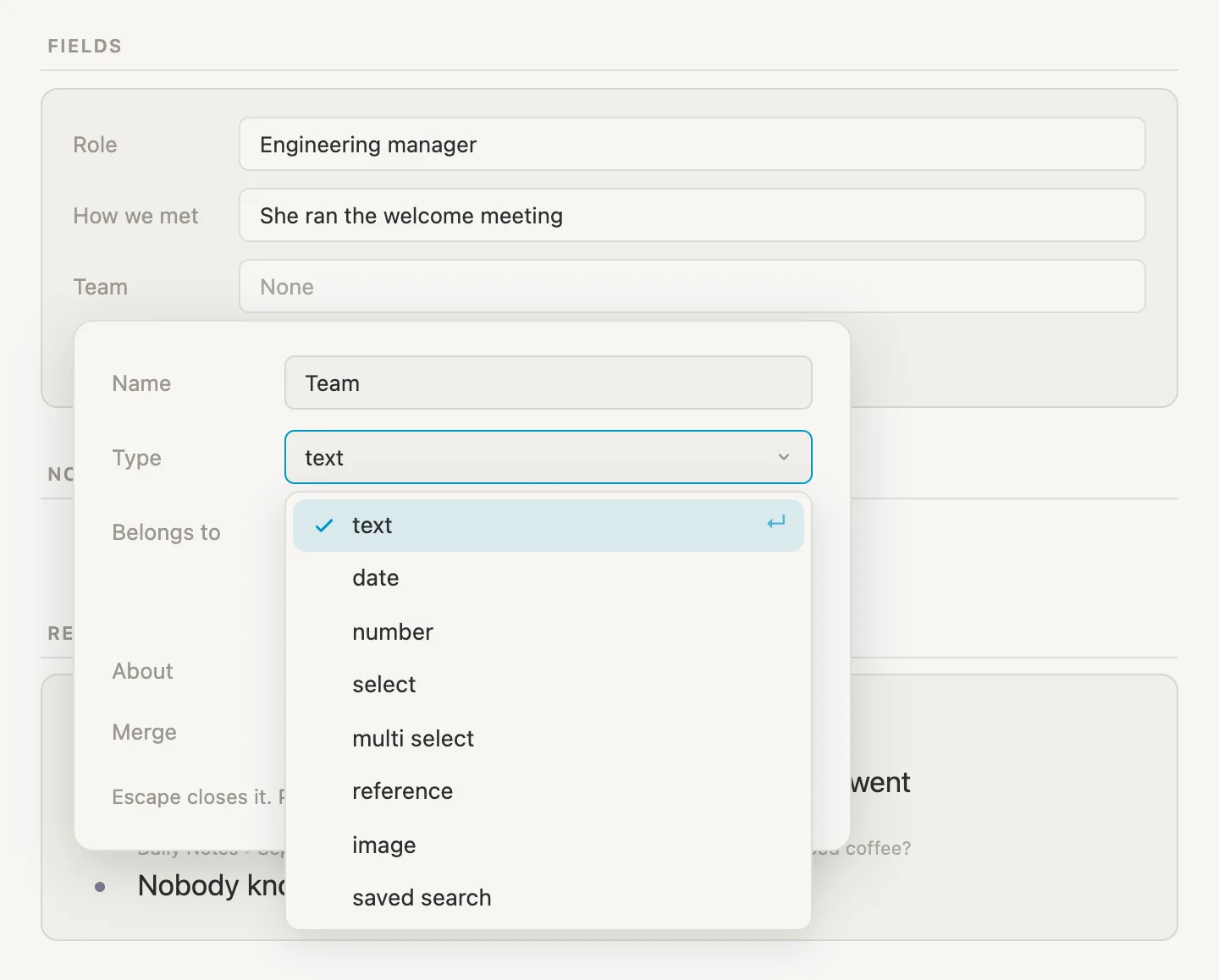
- text is any words. Role is text.
- date is a day, picked from a calendar. The handbook's When is a date.
- number is for things we count or add up, like a price or a page count or a rating.
- select is one choice from a short list we make up.
- multi select is the same, with more than one choice allowed.
- reference points at another note. We'll meet this one properly a little later.
- image holds a picture.
- saved search is one for another day.
A team is one of a handful, so pick select. An Options box appears. Type Engineering, Design, Sales, then click an empty part of the card, and the three turn into chips.
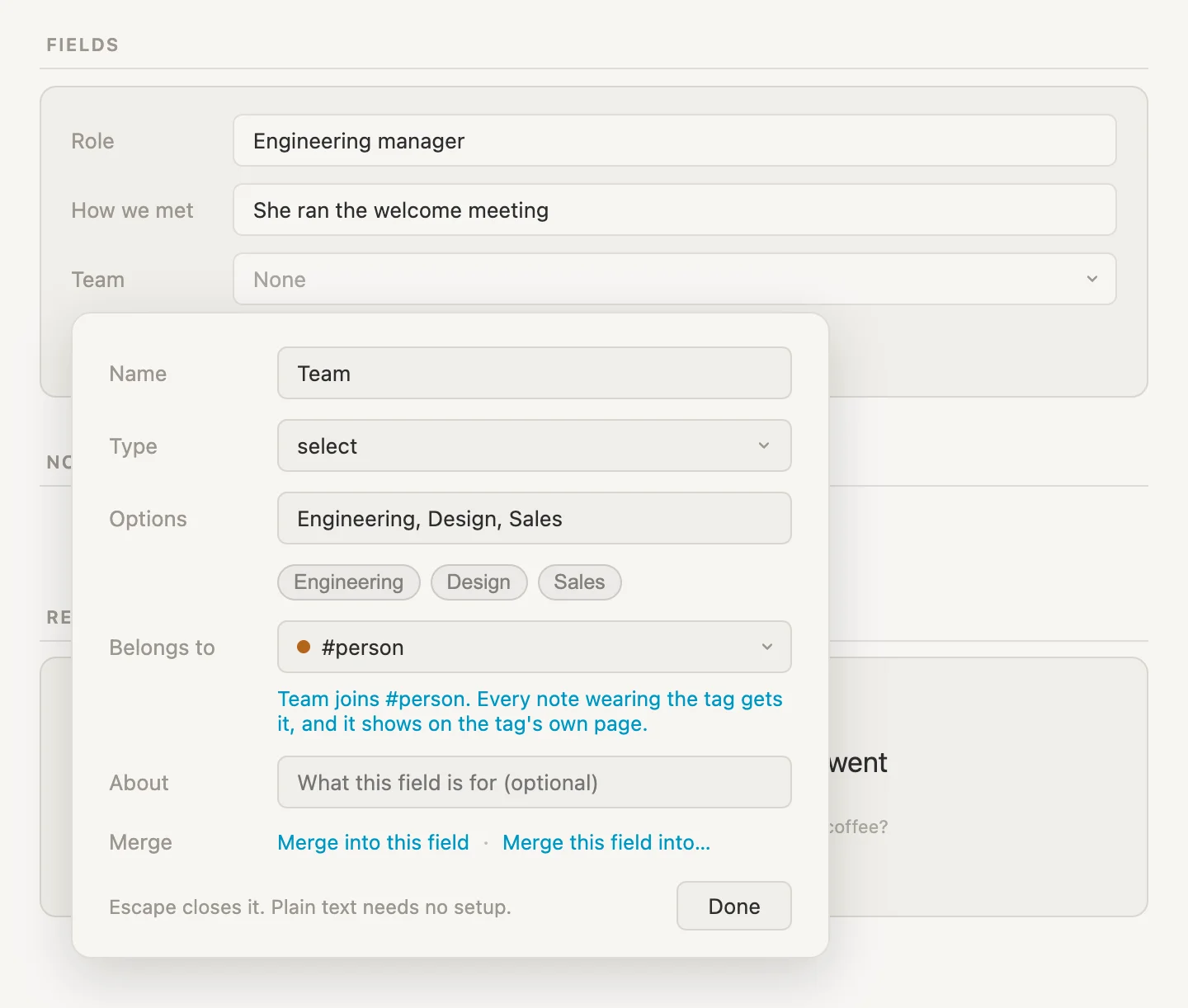
Click Done. Dana now has a third field, Team, reading None. Click it and select Engineering.
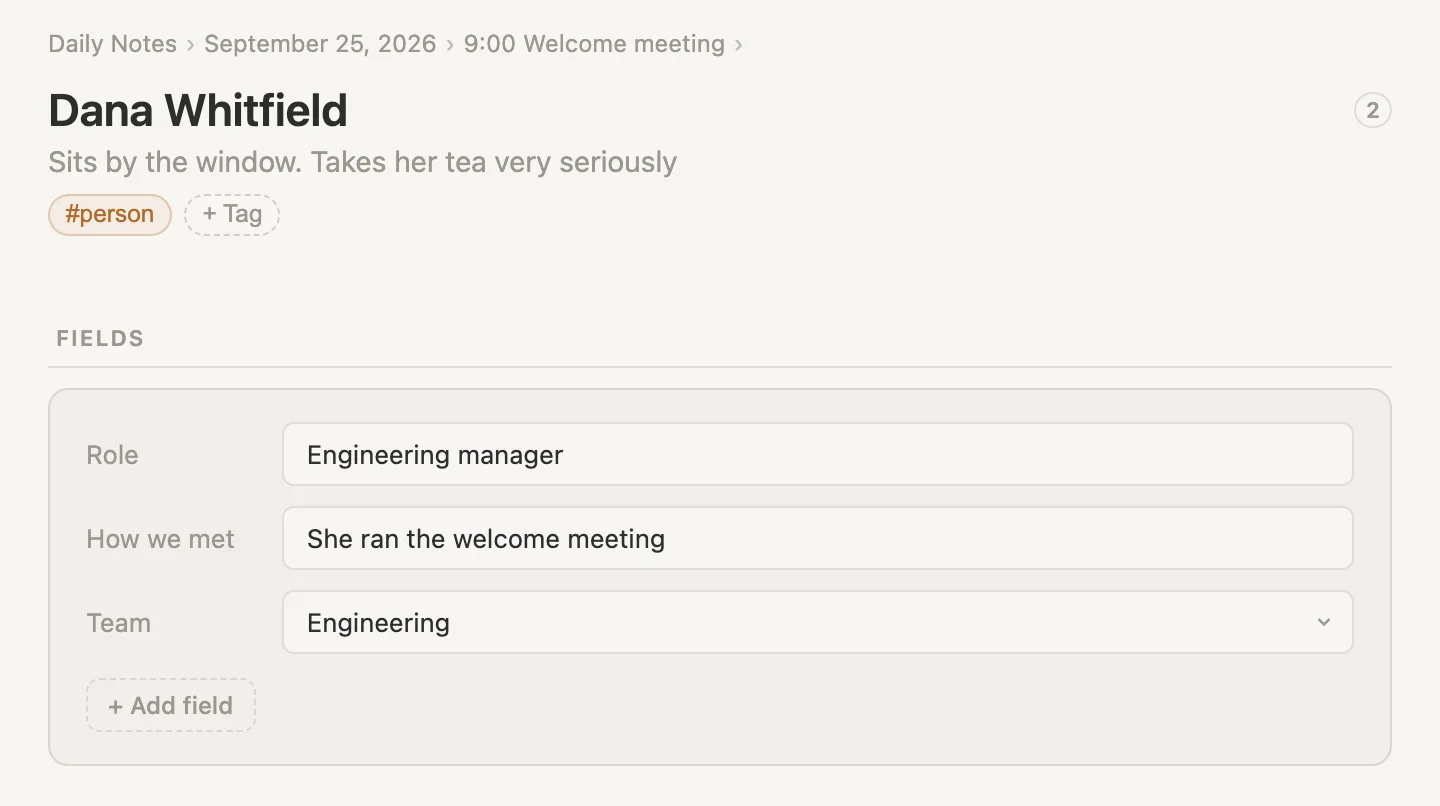
Fields go where the note goes
Press Cmd-D to go back to today, and look under Dana's line.
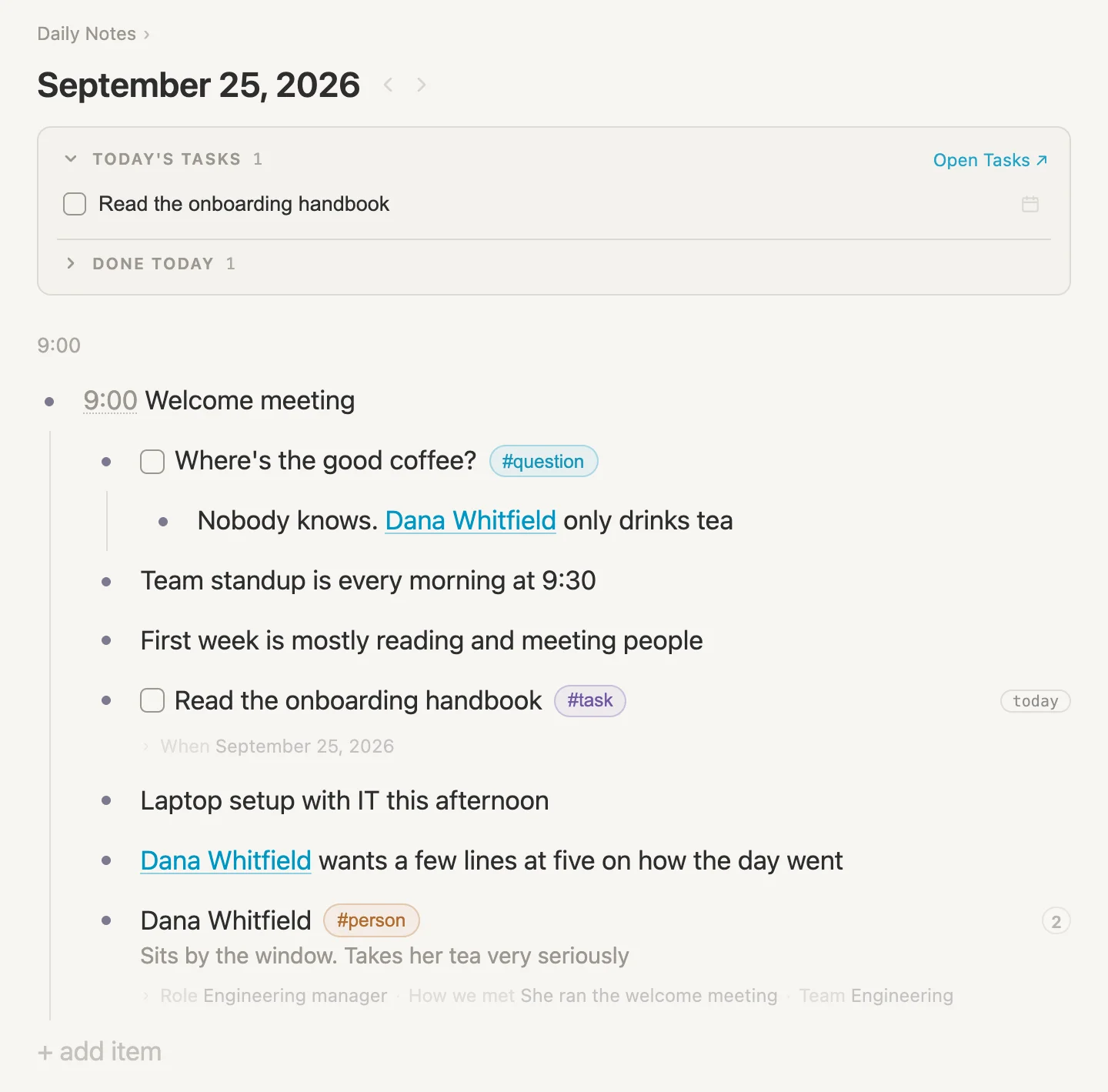
Her details are here as well, in a faint line under her name: Role Engineering manager, How we met She ran the welcome meeting, Team Engineering. We filled them in on her page, and they show up here on today's page without us doing a thing.
10:30, coffee with Priya
Time for coffee with Priya, who's showing us the ropes.
This is a new meeting, not part of the welcome meeting, so it shouldn't be tucked under it. Click + add item at the very bottom of the page. That starts a new line at the top level, in line with the welcome meeting.
Type 10:30 Coffee with [[Priya Shah #person. Priya doesn't have a note yet, and look at what the list offers.
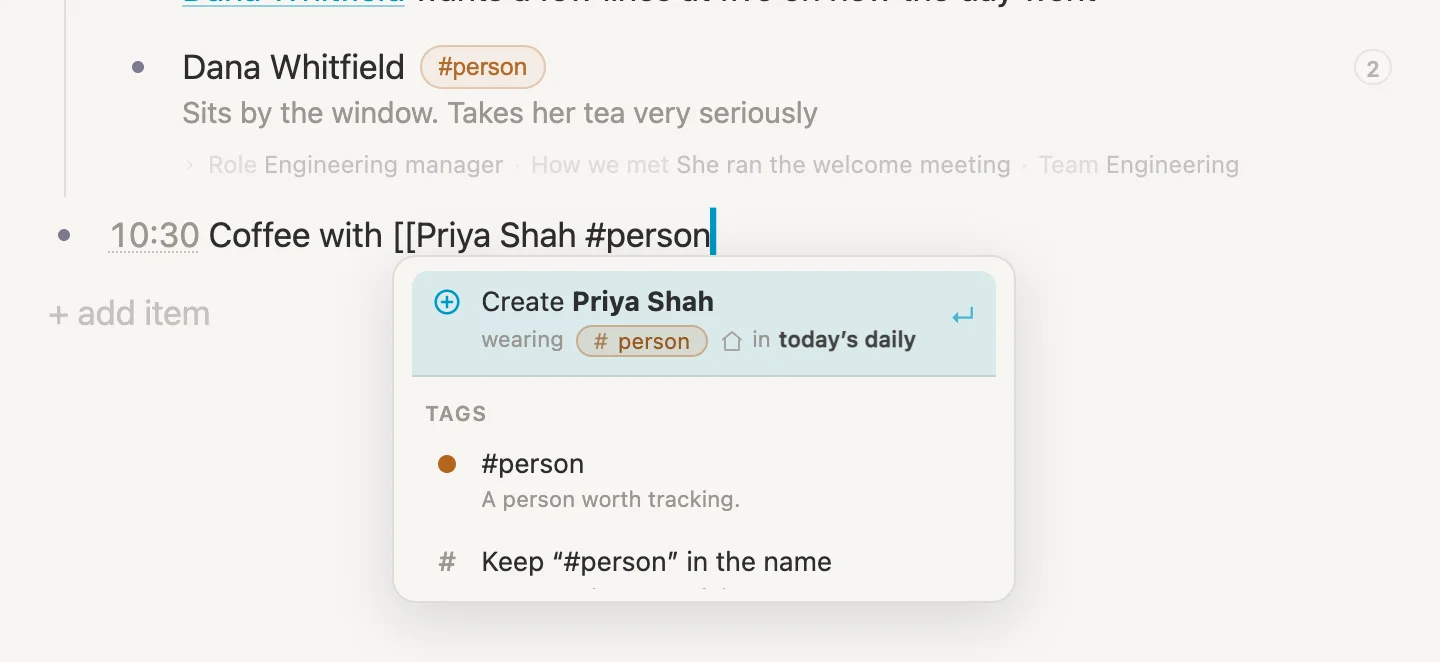
Create Priya Shah, wearing #person, in today's daily. One press makes her a note, gives her the #person tag, and links her from this line. Press Enter.
Now press Enter again and Tab to tuck in under the new meeting, and type these, pressing Enter after each:
She's showing me the ropes for the first monthOffice coffee is terrible. Priya knows a better place and will show me at 3
(At last. A lead.)
One more. Priya mentioned who sorts out laptops. Type [[Sam Lee #person, press Enter to take Create Sam Lee, and carry on typing in IT sorts out laptops.
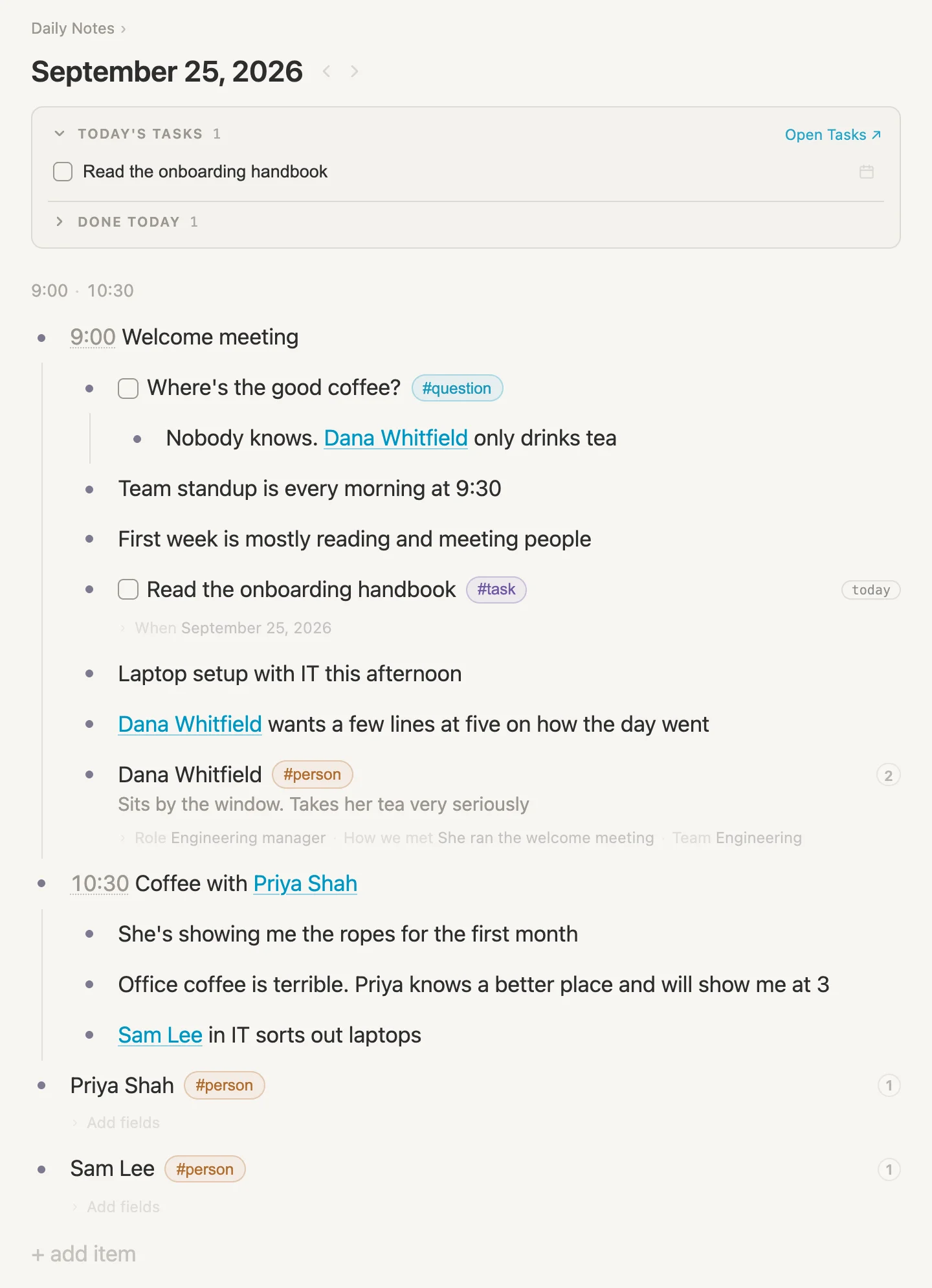
A few things to notice. The line of times at the top now reads 9:00 · 10:30. Priya and Sam each have a note of their own, down at the bottom of today's page, because that's where in today's daily puts them. And each of them already has a count of 1, for the line that mentions them.
Opening a link right where it is
We could click Priya's name to go to her page and fill in her fields. But we're in the middle of the day's notes, and we don't really want to leave. So hold Cmd and click Priya Shah in the meeting line.
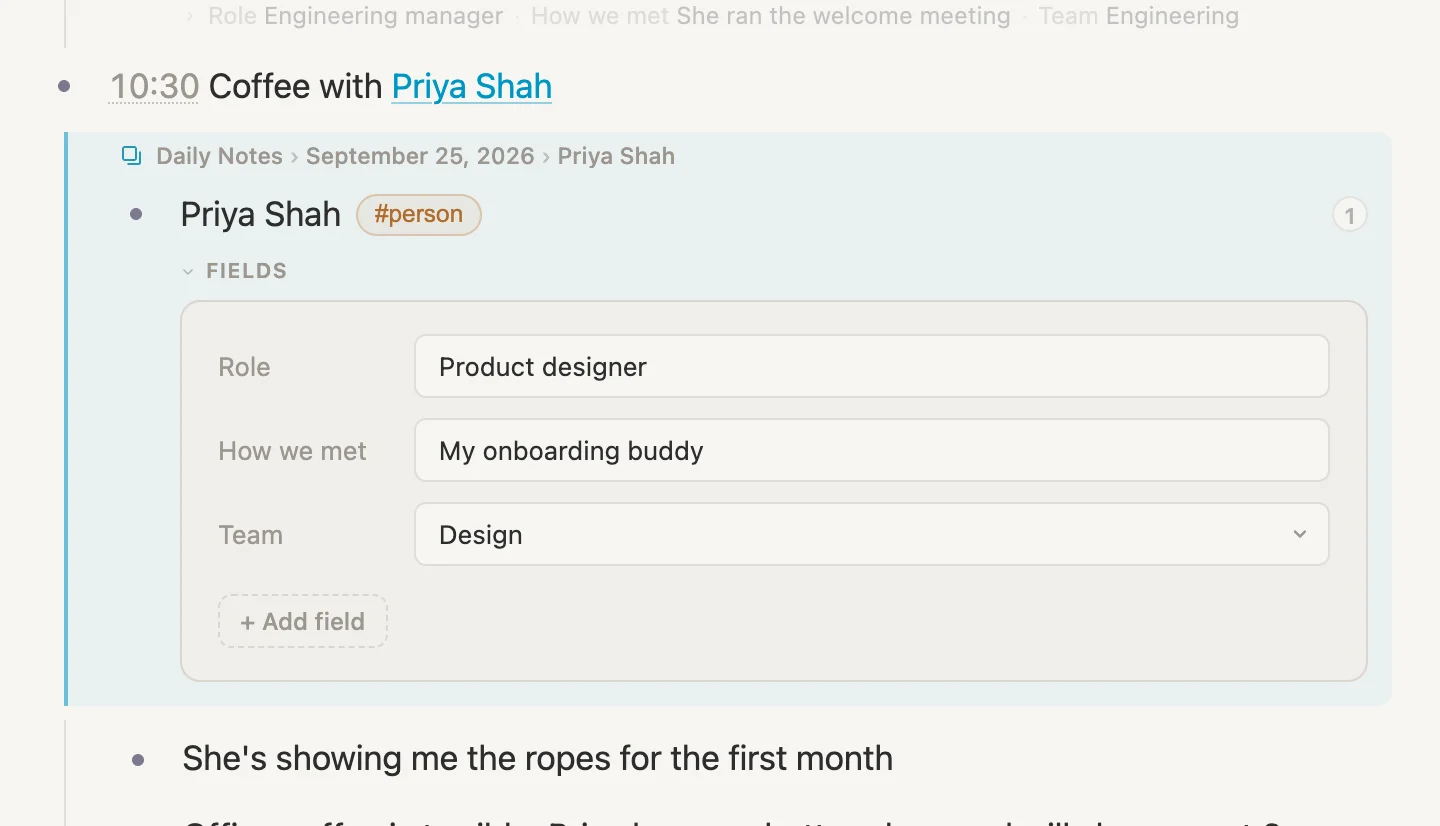
Priya opens right there, under the line, in a box of her own, with her pill and her fields. This is the real Priya, not a copy. Fill her in: Role Product designer, How we met My onboarding buddy, and for Team pick Design. Then Cmd-click her name again to close the box.
Her details now show under her own line at the bottom of the page as well.
So now we know two ways to open a link: click it to go to that note's page, or Cmd-click it to open the note right where it is.
Today and the Library
Look at the bottom of today's page. Priya and Sam are sitting there, below the meetings, as notes of their own. Dana is tucked inside the welcome meeting. That's where we made them, and it works. But it's a little odd, isn't it? Priya isn't something that happened today. She'll still be around next week, and next month.
That's the difference between the two places a note can live in Vellum.
- Daily Notes is for what happens on a day: meetings, thoughts, whatever we jotted down as it came. Each day's page fills up as the day goes on, and tomorrow gets a fresh one.
- The Library is for things that aren't tied to a day: people, projects, a recipe, a reading list. The things that outlast the day.
Nothing breaks if a person lives on a day. A link finds its note wherever that note lives. But people outlast the day, so let's keep them in the Library.
Click in Priya's own line, down at the bottom of the page with the #person pill beside it (not the blue link in the meeting), and press Cmd-K. That opens a menu of everything we can do with the line the cursor is in. Type libr to narrow it down.
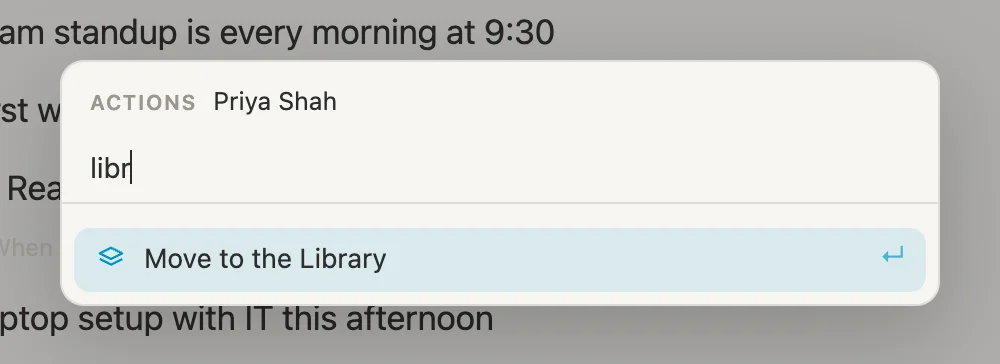
Press Enter to take Move to the Library, and Vellum confirms it: Moved "Priya Shah" to the Library. Do the same for Sam Lee, and for Dana Whitfield at the bottom of the welcome meeting.
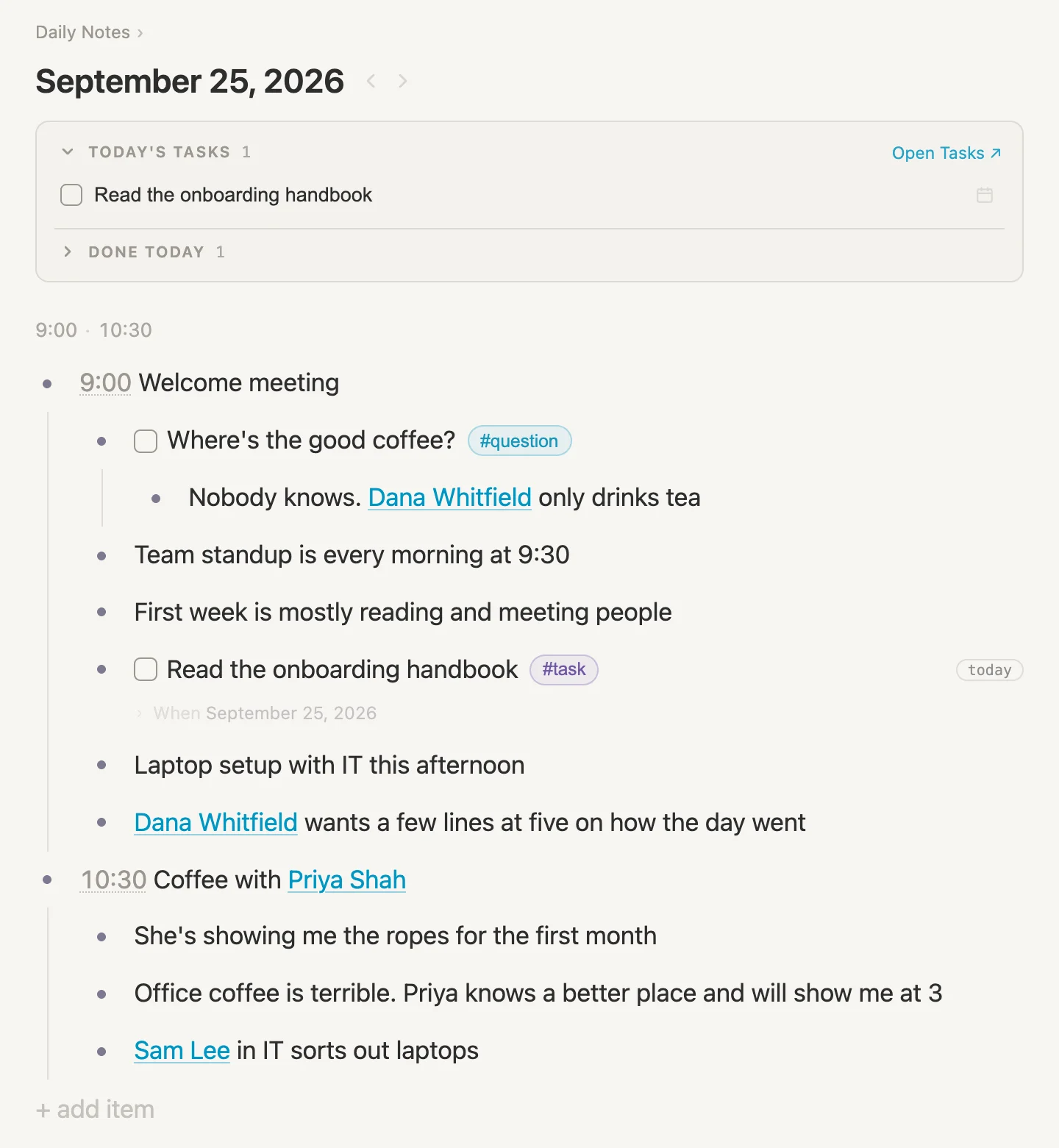
They've left today's page, but nothing that mentions them has changed. Every link still works, and every count still counts.
Reference fields
Questions are piling up, and so are the people who might answer them. Let's connect the two: for each question, who's the person to ask?
The tool for that is a reference field: a field where, instead of typing words, we pick another note. We'll give every question a field called Person to ask, and in it we'll pick the person. That links the question to the person.
It's the same kind of link we made to Dana by typing [[, just kept in a field instead of in a line of text. So it works both ways, the way Dana's did: the person's page will know which questions are waiting for them.
A Person to ask field on #question
Click the #question pill on the coffee question, then Schema. #question has no fields yet: No fields yet. This behaves as a plain tag until you add one. Click + Add field, type Person to ask, and press Enter to take New field "Person to ask". We're on the tag's own setup this time, so the field goes straight onto #question, for every note wearing that tag.
In the card that opens, change Type from text to reference. A second box appears under it, reading Pick a tag. Click it, type person, and press Enter.
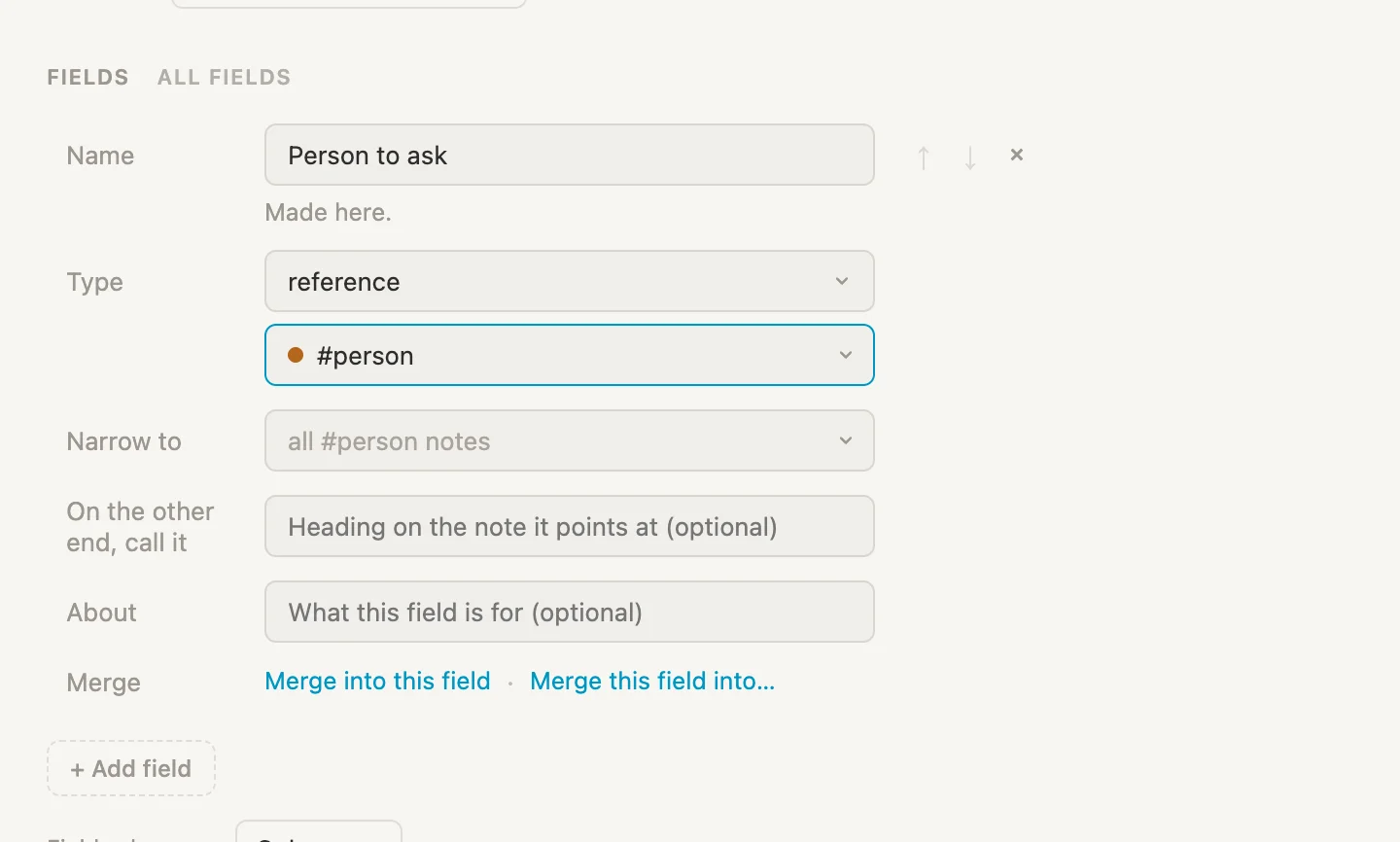
Person to ask now points at people, and only people.
Who to ask
Press Cmd-D for today's page. Under the coffee question there's now a faint Add fields. Click it, and a small FIELDS box opens, with Person to ask reading None. Click None and type Pri.
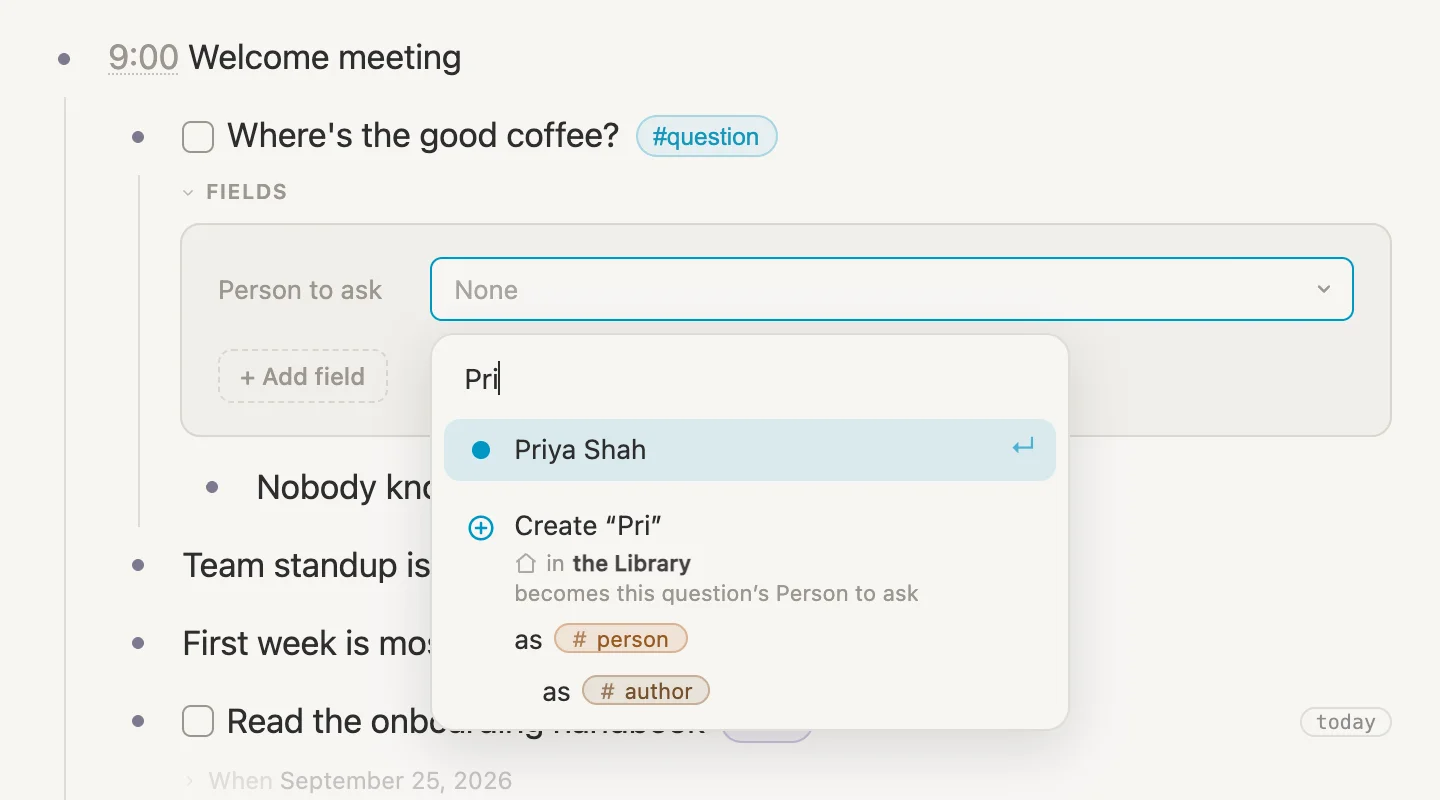
The list only offers people. Press Enter to take Priya Shah, then Escape. Click the word FIELDS to fold the box away, and the question now says Person to ask Priya Shah underneath.
More questions
Coffee with Priya raised a few more questions. Click at the end of Sam Lee in IT sorts out laptops, press Enter, and type the four below, pressing Enter after each. Every one ends with #question, so take the tag from the list as you go. The first one gets its checkbox with Cmd-Enter. After that, each new line brings a checkbox along with it, just like this morning.
| Question to type | Person to ask |
|---|---|
How do I get on the VPN? #question | Sam Lee |
Who books the meeting rooms? #question | Priya Shah |
Where do the expense forms go? #question | Dana Whitfield |
Where can I lock up my bike? #question | Marco Rossi (new) |
Then fill in Person to ask on each one, the same way as before: Add fields, None, type the name, Enter, Escape.
Marco runs the front desk, and doesn't have a note yet. Type Marco Rossi and the list offers to make one.
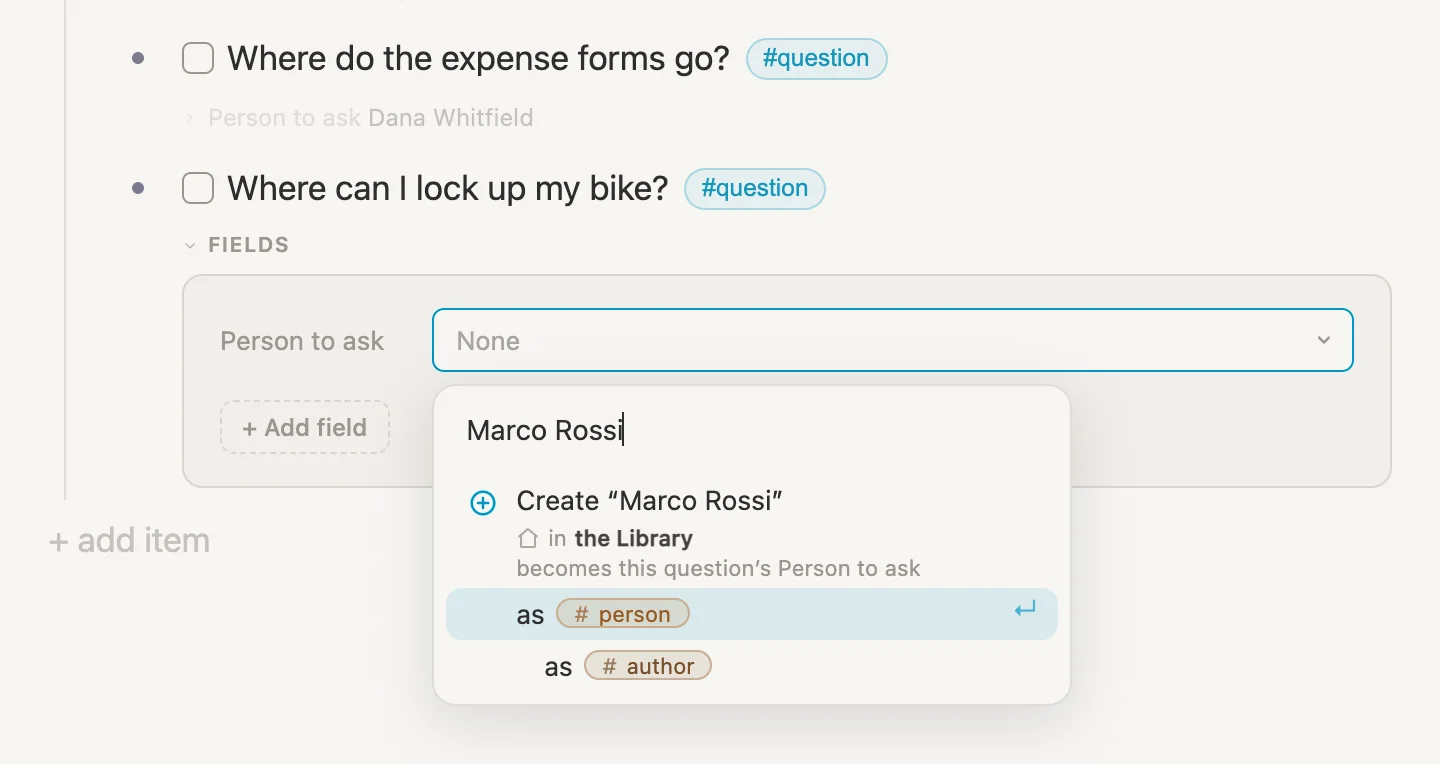
Create "Marco Rossi", in the Library, becomes this question's Person to ask, as #person. Press Enter. Notice where this new person goes: straight into the Library, where people live.
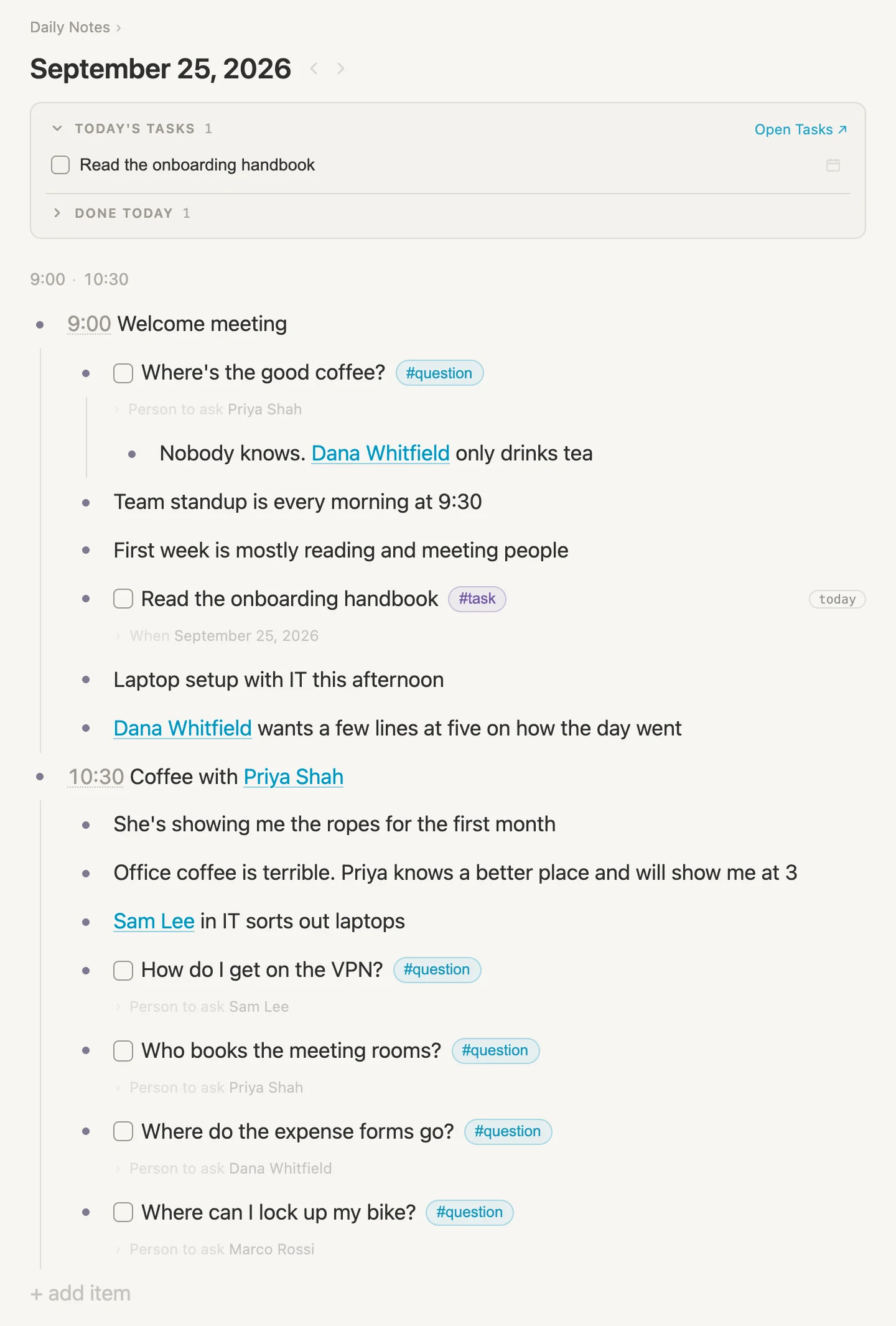
Five questions, each one knowing who to ask.
The other end
Now click Priya Shah in the 10:30 meeting line to open her page, and scroll to the bottom.
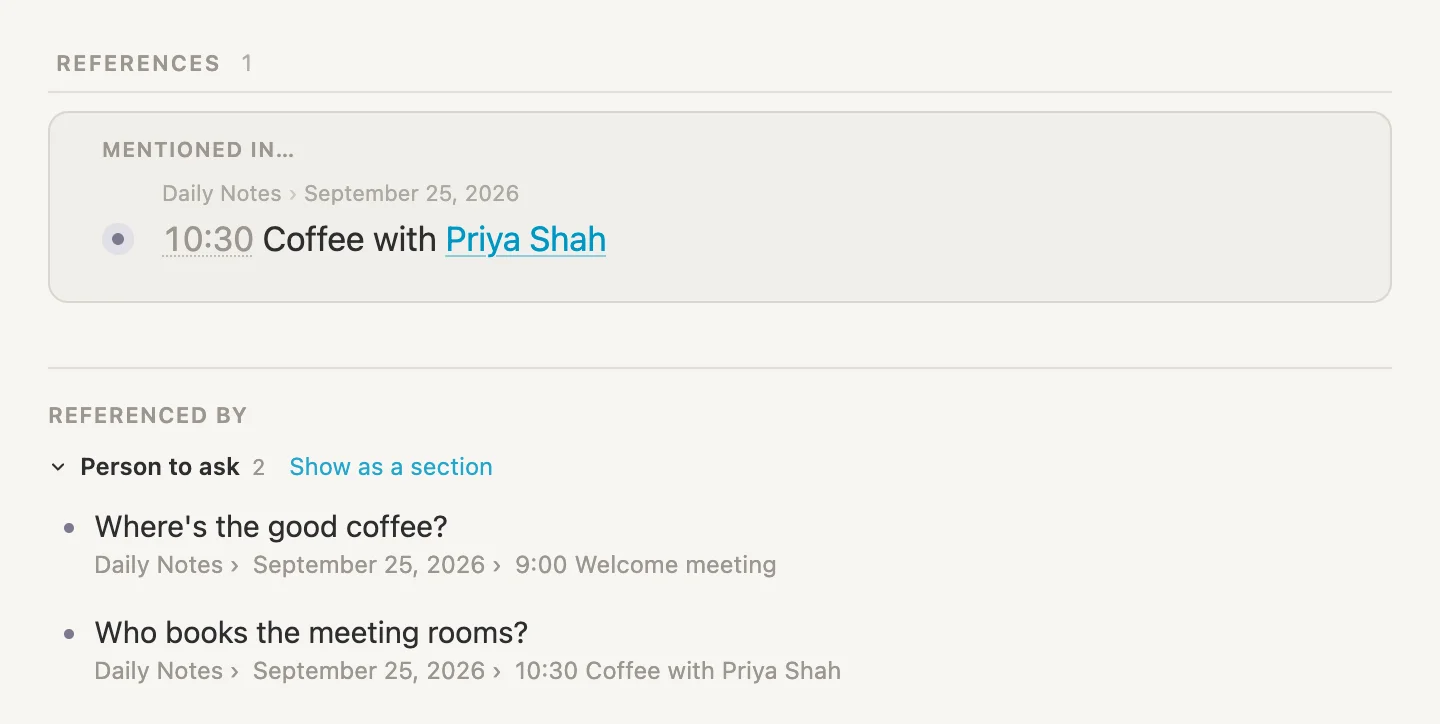
Two parts down here. REFERENCES is the one we met on Dana's page: lines that link to Priya with [[, which here is the coffee meeting. REFERENCED BY is new. It lists the notes that point at Priya through a field, in a group named after the field, Person to ask, with the two questions we saved for her. (Her circled count still says 1. The count is for [[ links, not fields.)
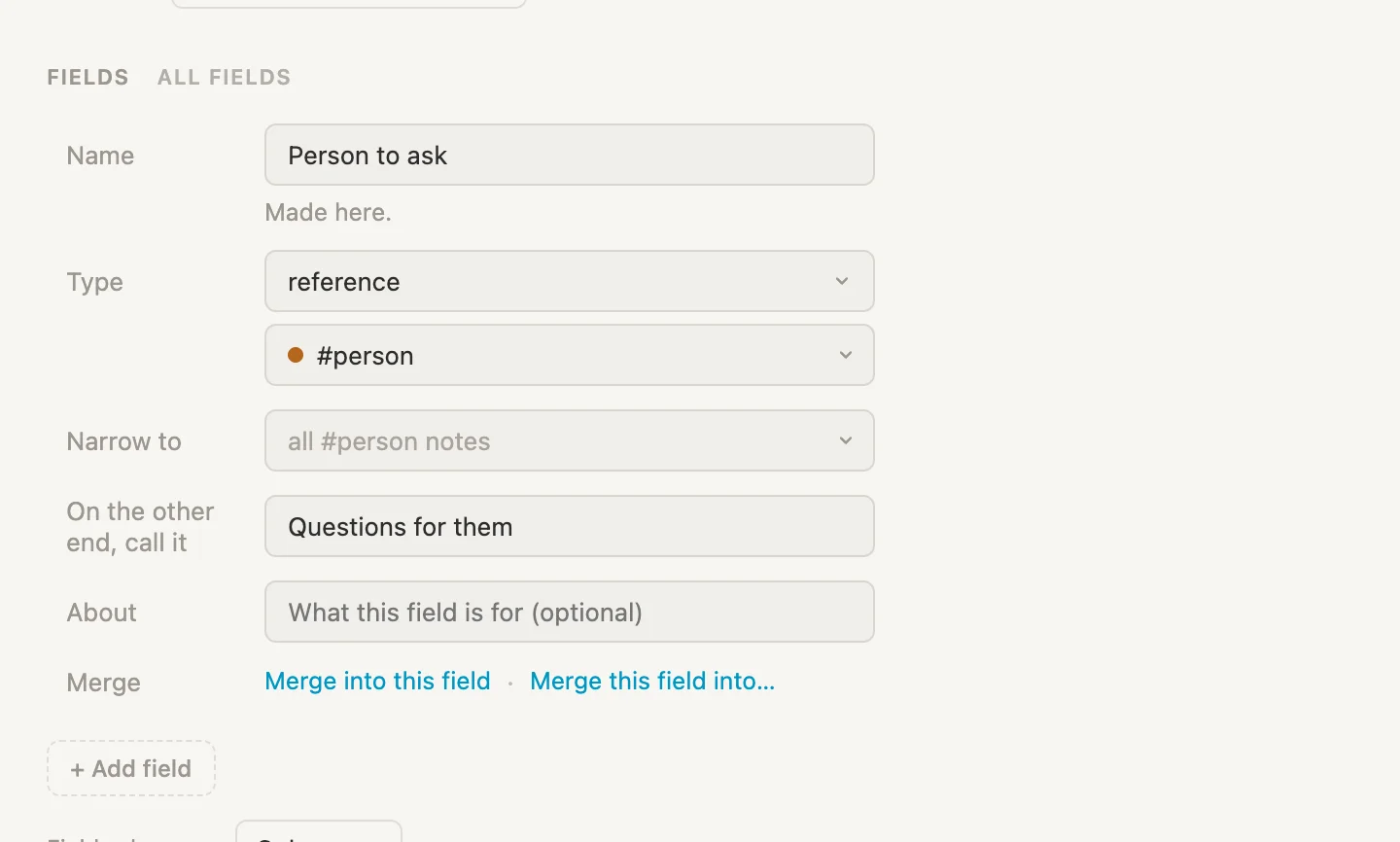
"Person to ask" reads a little oddly from Priya's side, though. It describes Priya herself, not the list under it. What's listed here are questions for her. A reference field can go by a different name on the other end. Press Cmd-D, click the #question pill on any question, then Schema. In the Person to ask card, find On the other end, call it, type Questions for them, and click somewhere else on the page.
Back on Priya's page, the group now reads Questions for them.
Show as a section
The list at the bottom is handy, but it's tucked away under everything else. Click Show as a section, beside Questions for them. It asks where.
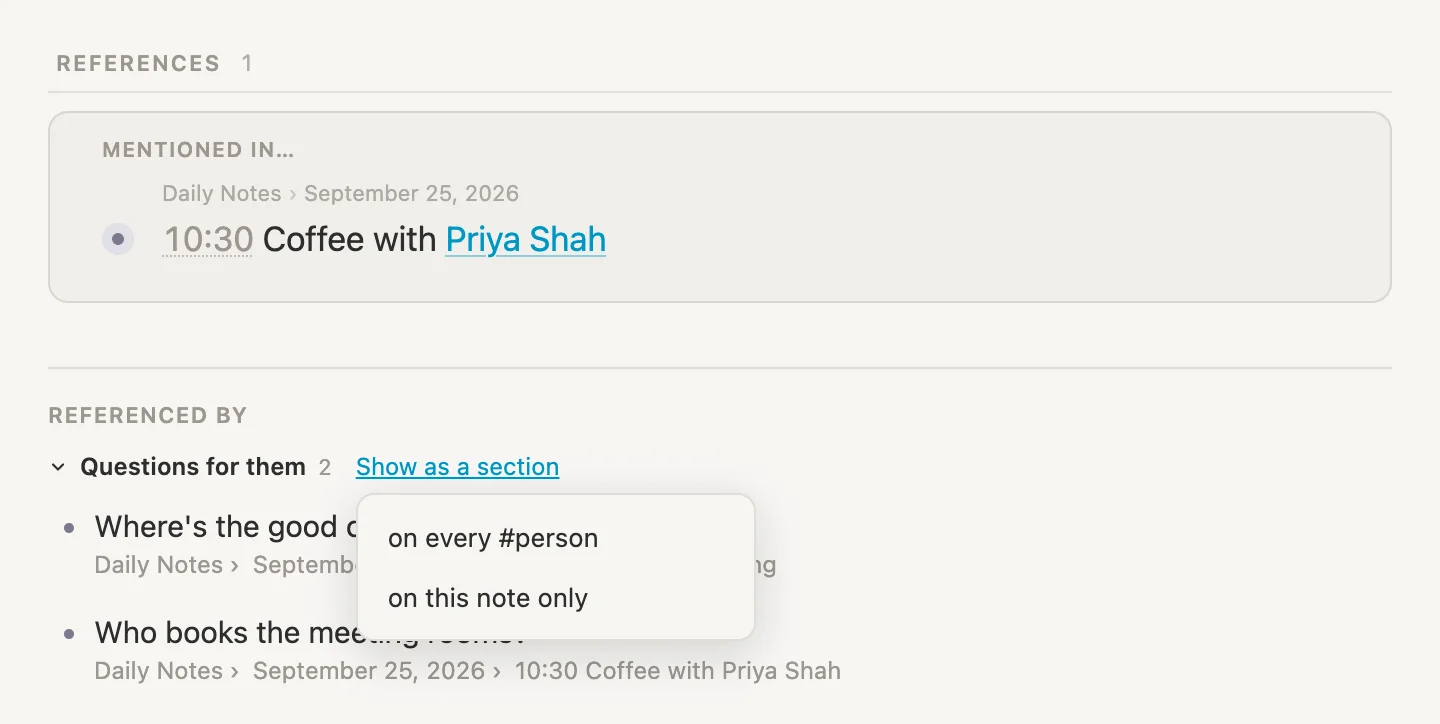
Pick on every #person, so everyone gets one, not just Priya.
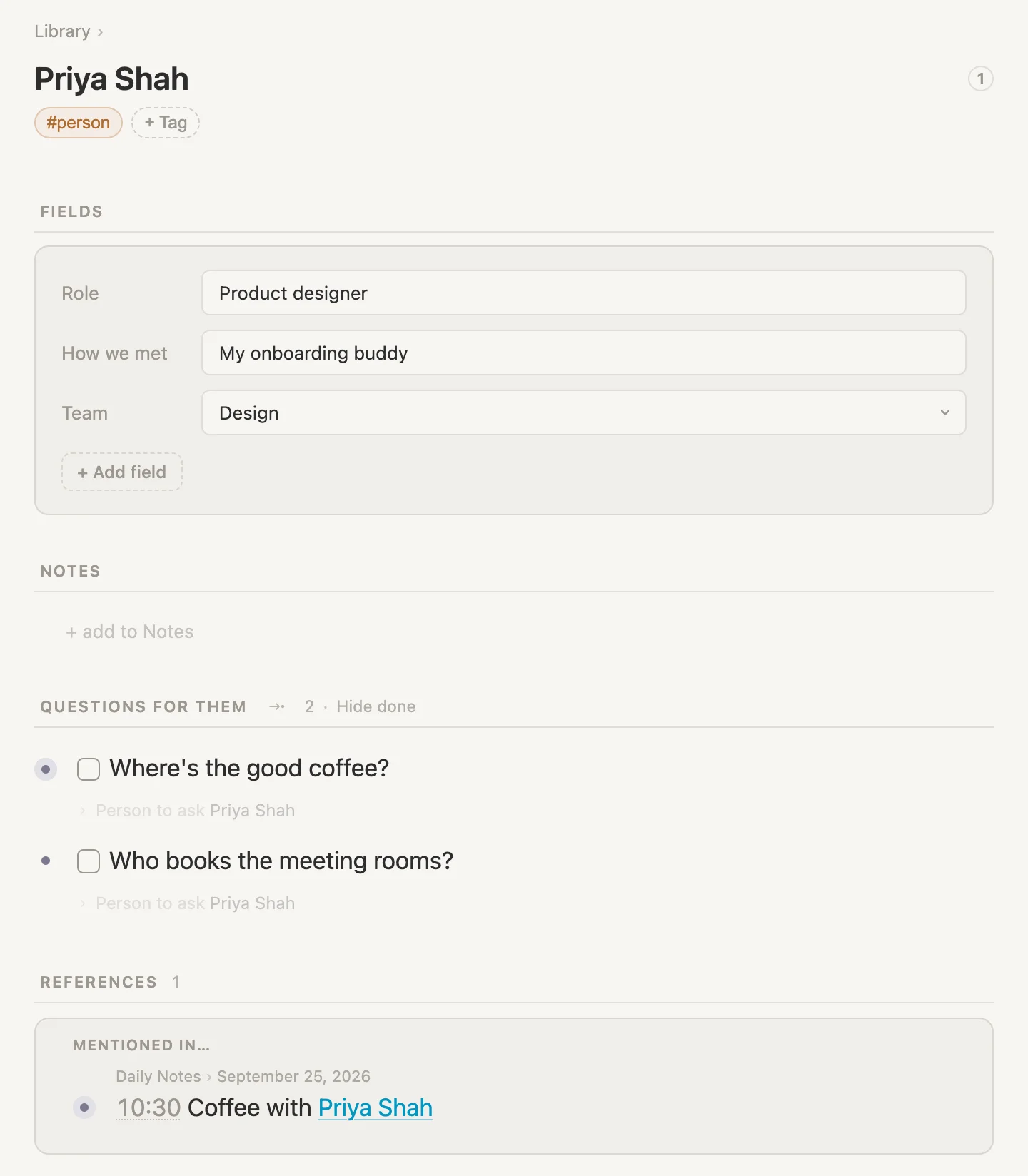
Priya's page now has a QUESTIONS FOR THEM section, right under her notes. And because we chose every #person, Sam's page lists the VPN question and Dana's lists the expense forms. The next time we set Person to ask on a question, it turns up on that person's page without us going anywhere near it.
Tasks and Projects
Remember the handbook? It isn't a one-off. Dana mentioned this morning that our whole first month is a project, with a list of things to get through. So let's make the project, and put the handbook in it.
Click at the end of Laptop setup with IT this afternoon and press Enter. Type Dana set up an [[Onboarding #project. The list offers Create Onboarding, wearing #project, in today's daily. Press Enter to take it, and finish the line with project for my first month.
#project came with the vault, just like #task. And like Priya, the new Onboarding note lands at the bottom of today's page. A project outlasts the day as well, so give it the same treatment: click in its own line at the bottom of the page, the one with the #project pill, press Cmd-K, type libr, and press Enter.
A task that belongs to a project
Now let's tie the handbook to the project. Under Read the onboarding handbook there's that faint line with its When. Click it, and the task's fields open.
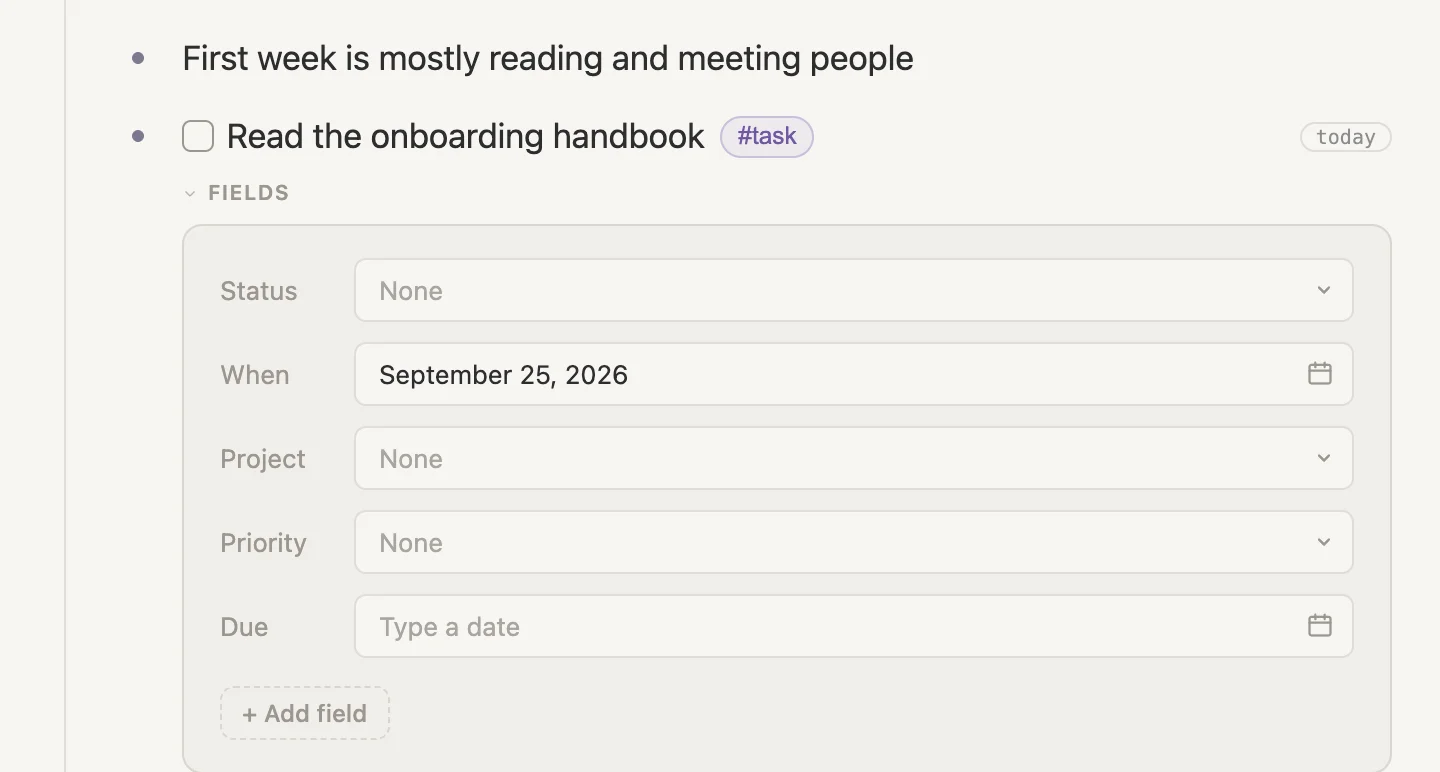
Every #task comes with these five: Status, When, Project, Priority and Due. We set When this morning without even knowing it. Project is a reference field, just like Person to ask, only this one points at projects. Click its None, type Onb, press Enter to take Onboarding, then Escape. Click FIELDS to fold the box away.
The project's page
Click Onboarding in the line we just wrote.
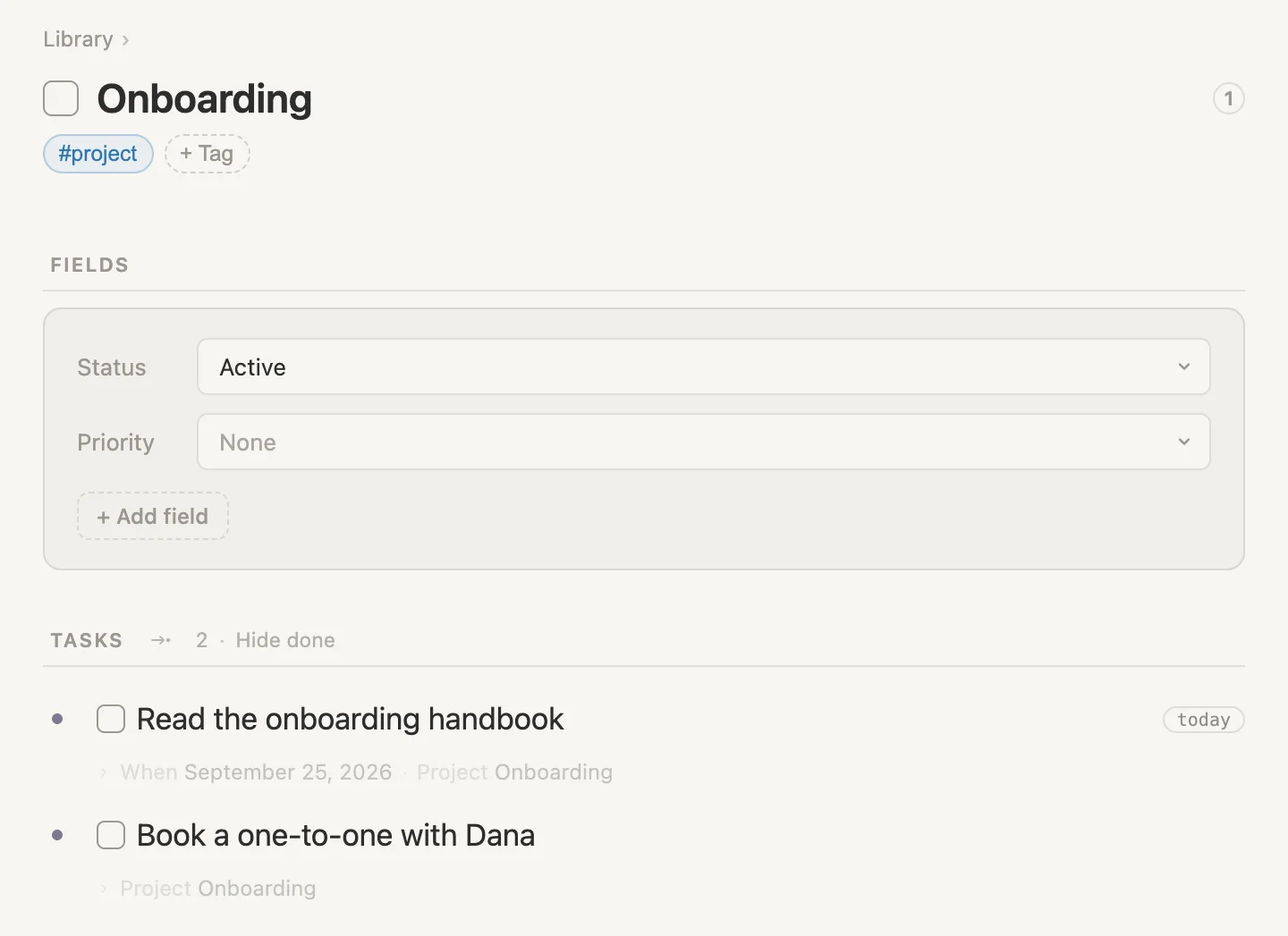
A project page, ready-made. Beside Status, click None and pick Active. And underneath, a TASKS section with the handbook already in it. We never put it there. The handbook's Project field points at Onboarding, and the project gathers every task that does.
Tasks can start here as well. Click + add to Tasks, type Book a one-to-one with Dana, and press Escape. It's a #task straight away, its Project already says Onboarding, and Vellum puts it on today's page, at the bottom.
Tasks and Projects in the rail
Open the rail and click Projects.
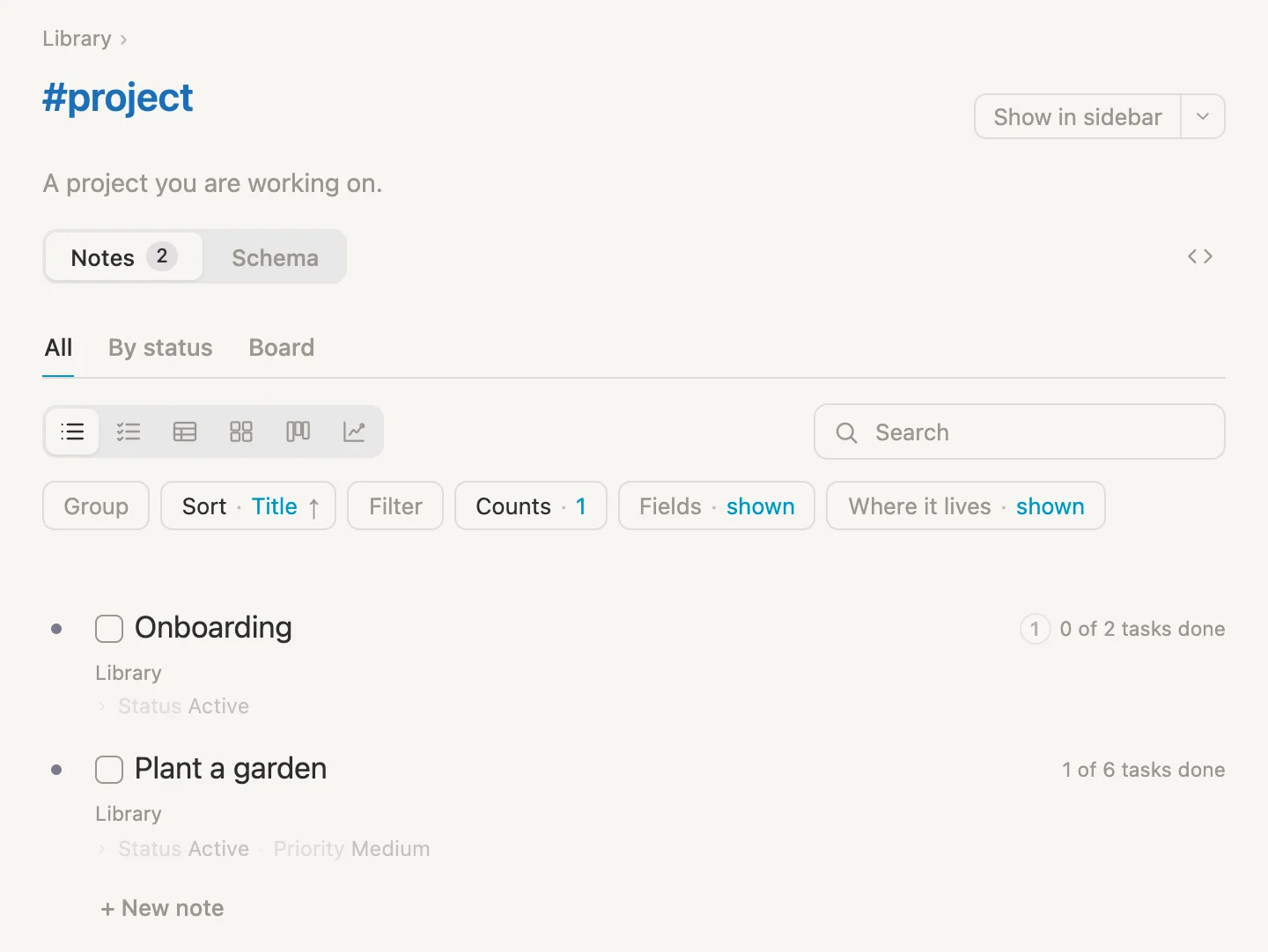
Every project, and how far along it is: Onboarding, 0 of 2 tasks done, and the sample project a new vault comes with, Plant a garden. The tabs along the top, All, By status and Board, show the same projects in different ways.
Now click Tasks in the rail.
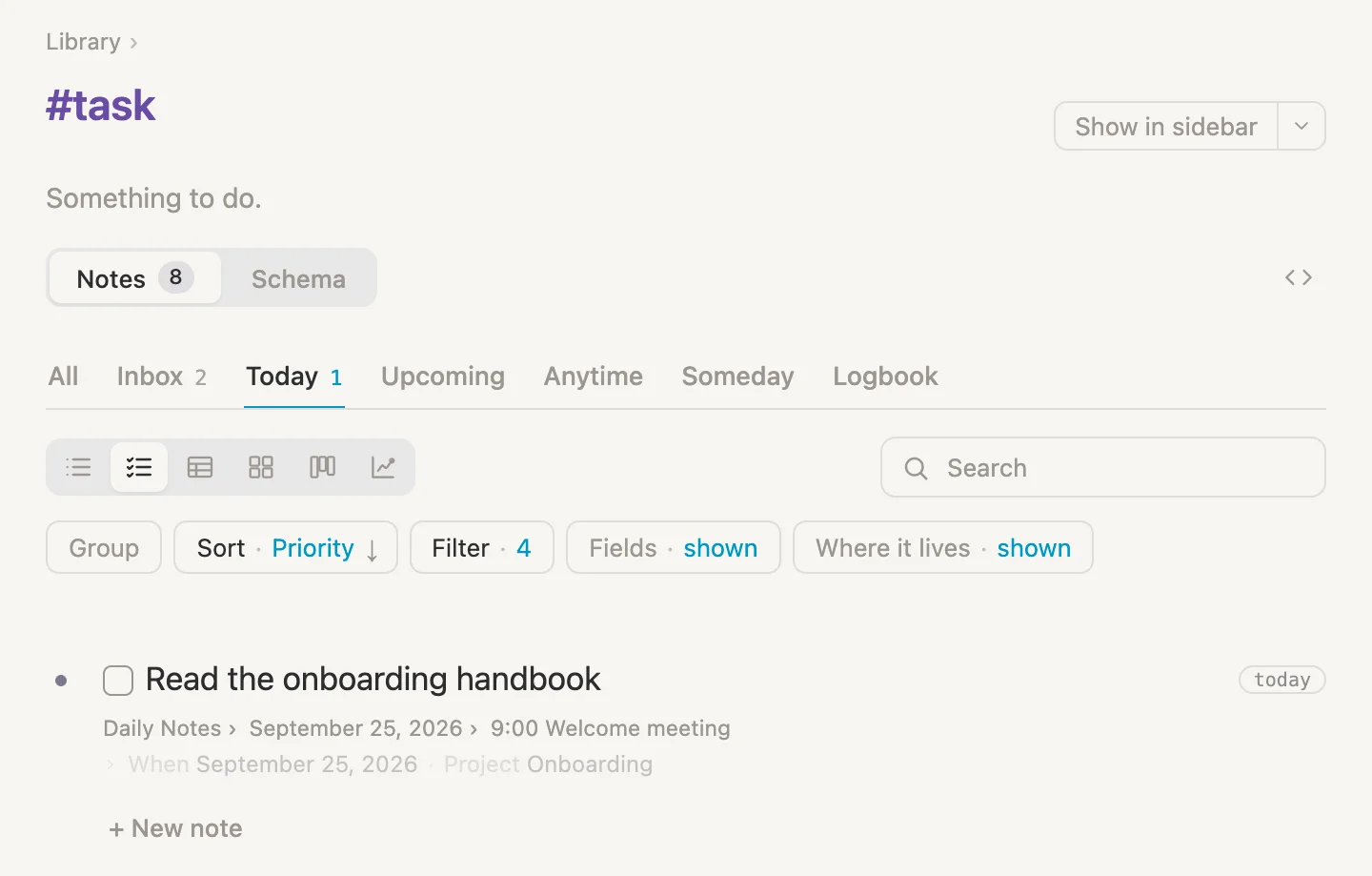
It opens on Today, the same list as the box at the top of today's page. The other tabs sort every task in the vault by when we mean to do it:
- Inbox holds tasks with no date at all, waiting for us to decide.
- Today is what's planned for today.
- Upcoming is anything with a date ahead, whether that's when we plan to do it or when it's due.
- Anytime and Someday are for tasks whose When says just that, anytime or someday.
- Logbook is everything we've finished.
- All is the lot.
Click Inbox.
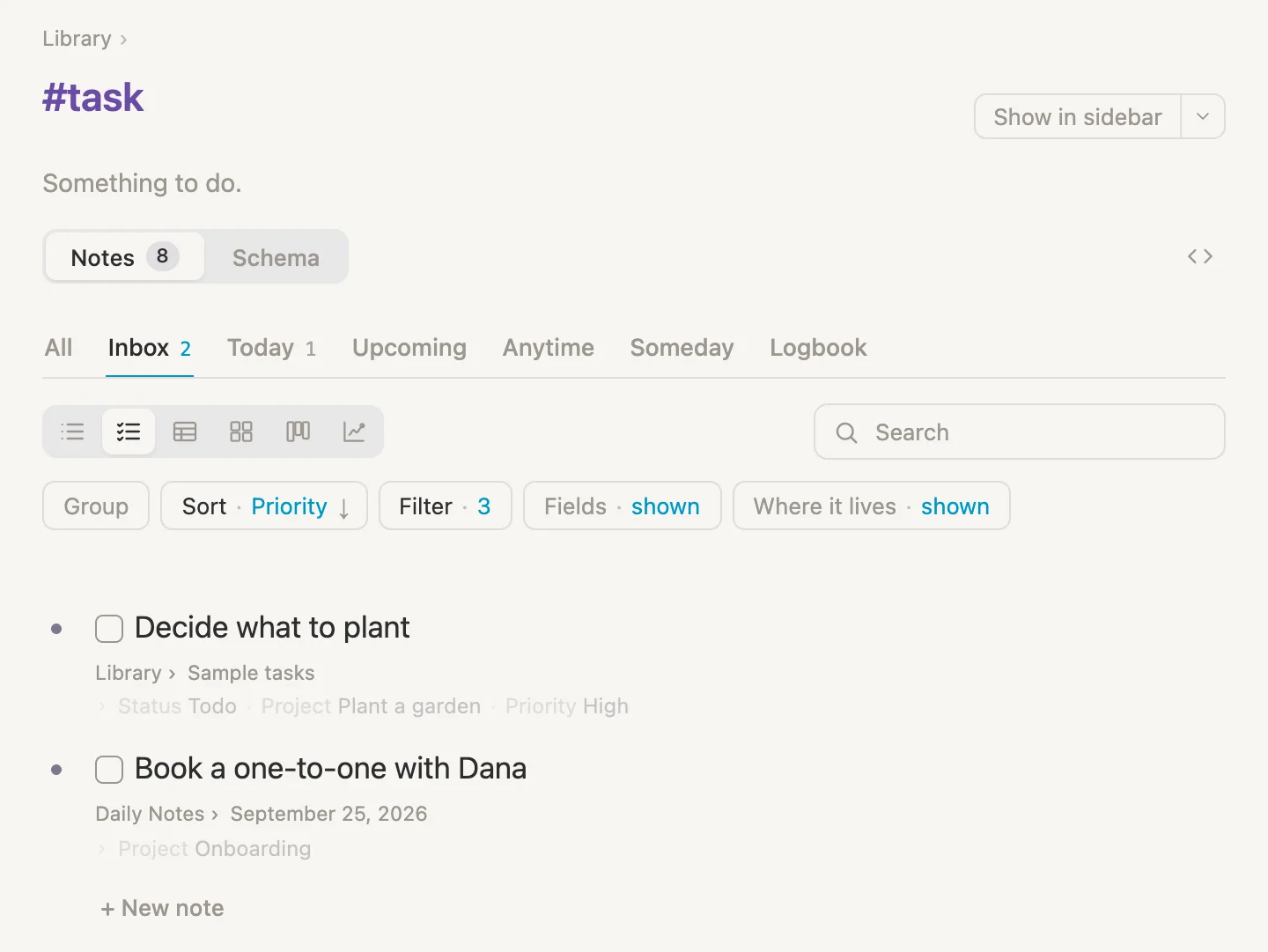
There's our one-to-one with Dana, no date yet, next to one of the garden samples. Close the rail again.
There's plenty more to tasks than this, but it's enough for a first day: the box on today's page for what's planned, the Inbox for what isn't, and a project to gather them.
2:00 pm, laptop setup with Sam
After lunch, it's time to get our laptop sorted, with Sam.
Click + add item at the bottom of today's page and type 2:00 pm Laptop setup with [[Sam. Sam already has a note, so Sam Lee is at the top of the list. Press Enter to take it.
A word about that pm. On its own, Vellum reads 2:00 the way a 24-hour clock does, as two in the morning. So for the afternoon, add the pm (or type 14:00). Then the line of times above the notes puts it in the right place: 9:00 · 10:30 · 2:00 pm.
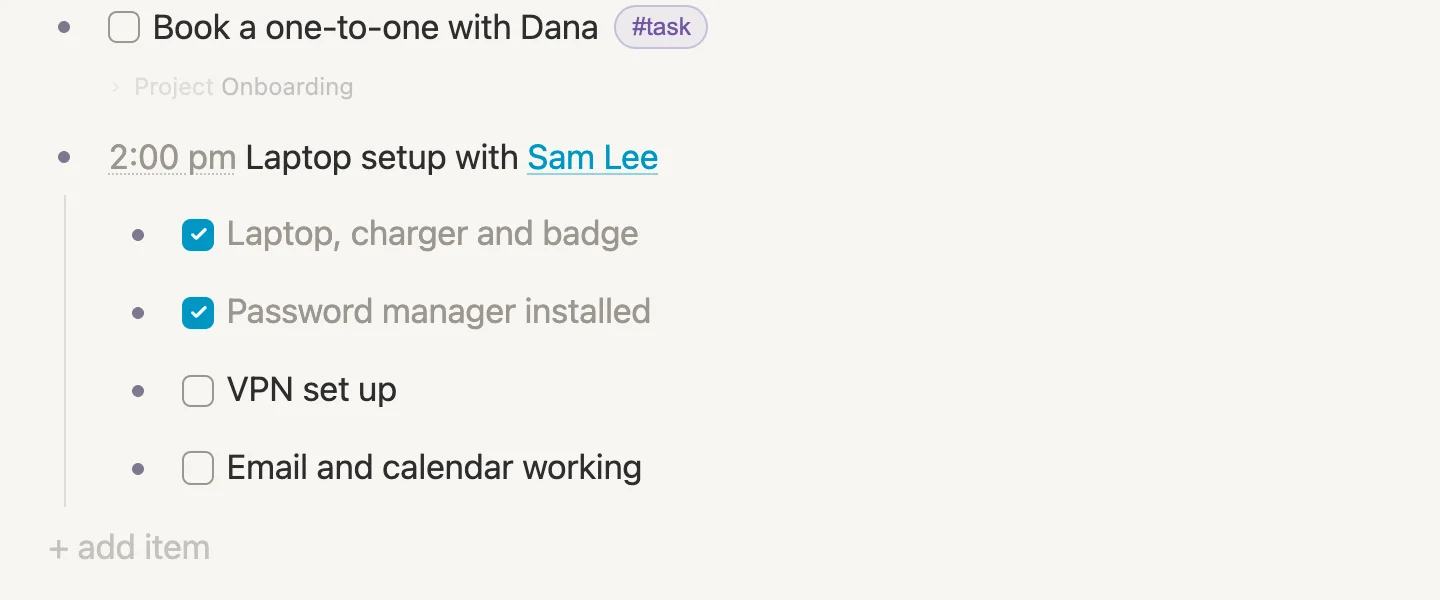
Press Enter, then Tab, and type the steps Sam walks us through, pressing Enter after each. Give the first one a checkbox with Cmd-Enter, and the rest bring theirs along:
Laptop, charger and badgePassword manager installedVPN set upEmail and calendar working
Tick the first two as Sam hands things over.
Sam, in the sidebar
Remember the VPN question from coffee? Sam is the person to ask, and Sam is sitting right here. Hold Shift and click Sam Lee in the 2:00 pm line. Sam's note opens as a card in the sidebar, on the right, and today's page stays exactly where it is.
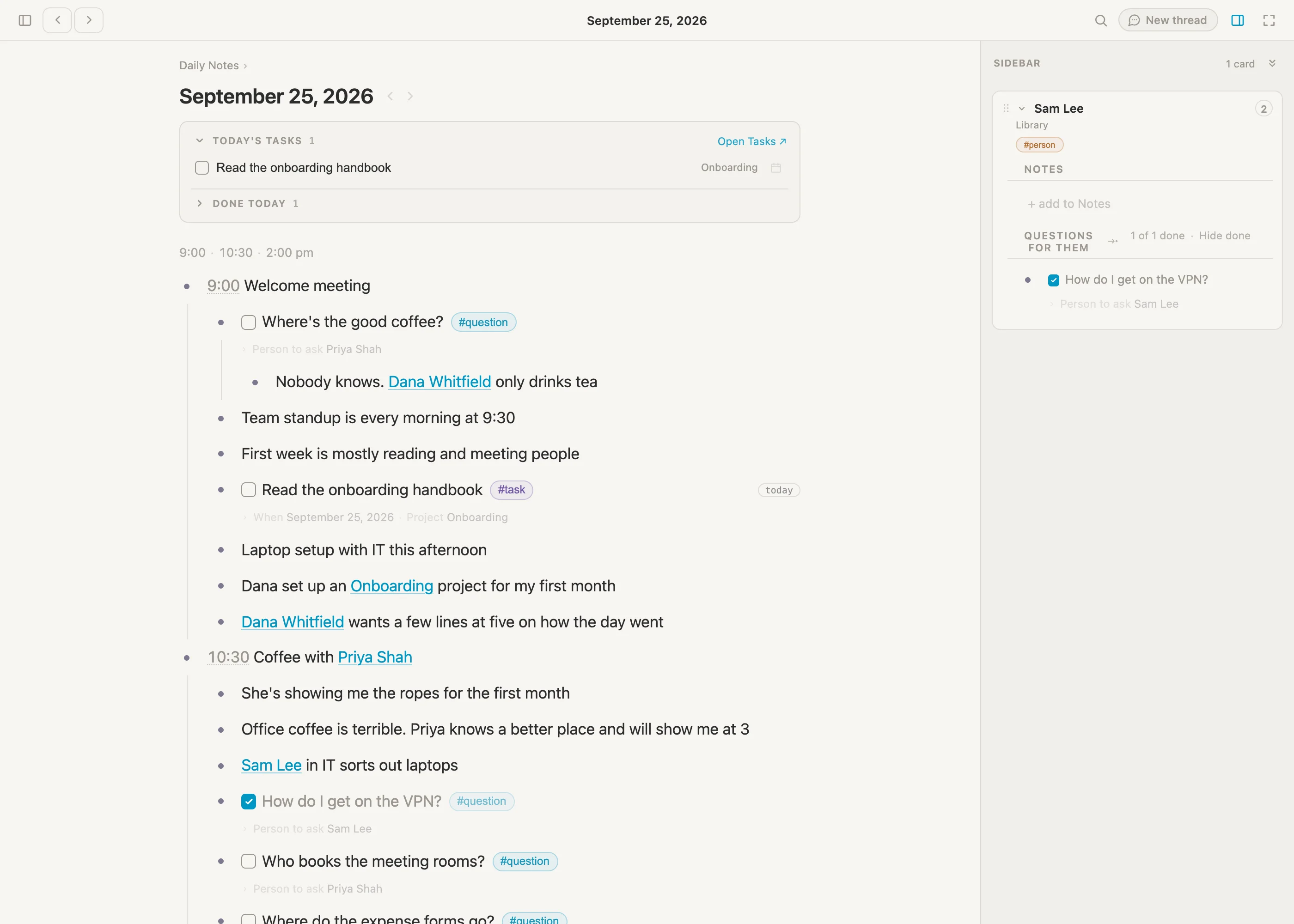
There's Sam's QUESTIONS FOR THEM section, with How do I get on the VPN? in it. Once the VPN is working, tick it right there in the sidebar card, and tick VPN set up in the meeting. Look back at the coffee meeting: the VPN question is ticked there as well. It's the same note, wherever we see it.
That's what the sidebar is for, keeping one note in view while we work on another. (Btw, cards in the sidebar can be can be dragged by the little grip at their top left to reorder them.) When you're done, click the sidebar icon at the top right to put it away.
One thing the sidebar card leaves out is a note's fields. For those, open the note in place instead. Cmd-click Sam Lee in the 2:00 pm line, fill in Role IT support and How we met Set up my laptop, then Cmd-click again to close it.
So now we know all three ways to open a link:
- click it, to go to that note's page
Cmd-click it, to open it right where it isShift-click it, to open it in the sidebar
Tag pages and views
A tag is more than a label. Every tag has a page of its own, listing every note that wears it. We've been on a few already, when we took the Books section off #person, and when we viewed Tasks and Projects from the rail. Now let's use one properly.
Click Priya Shah in the 10:30 meeting line, then the #person pill on her page.
Under the Notes and Schema tabs there's a row of small icons. These are views, different ways of looking at the same notes: List, Table, Cards, Board and Chart. Click the second one, Table.
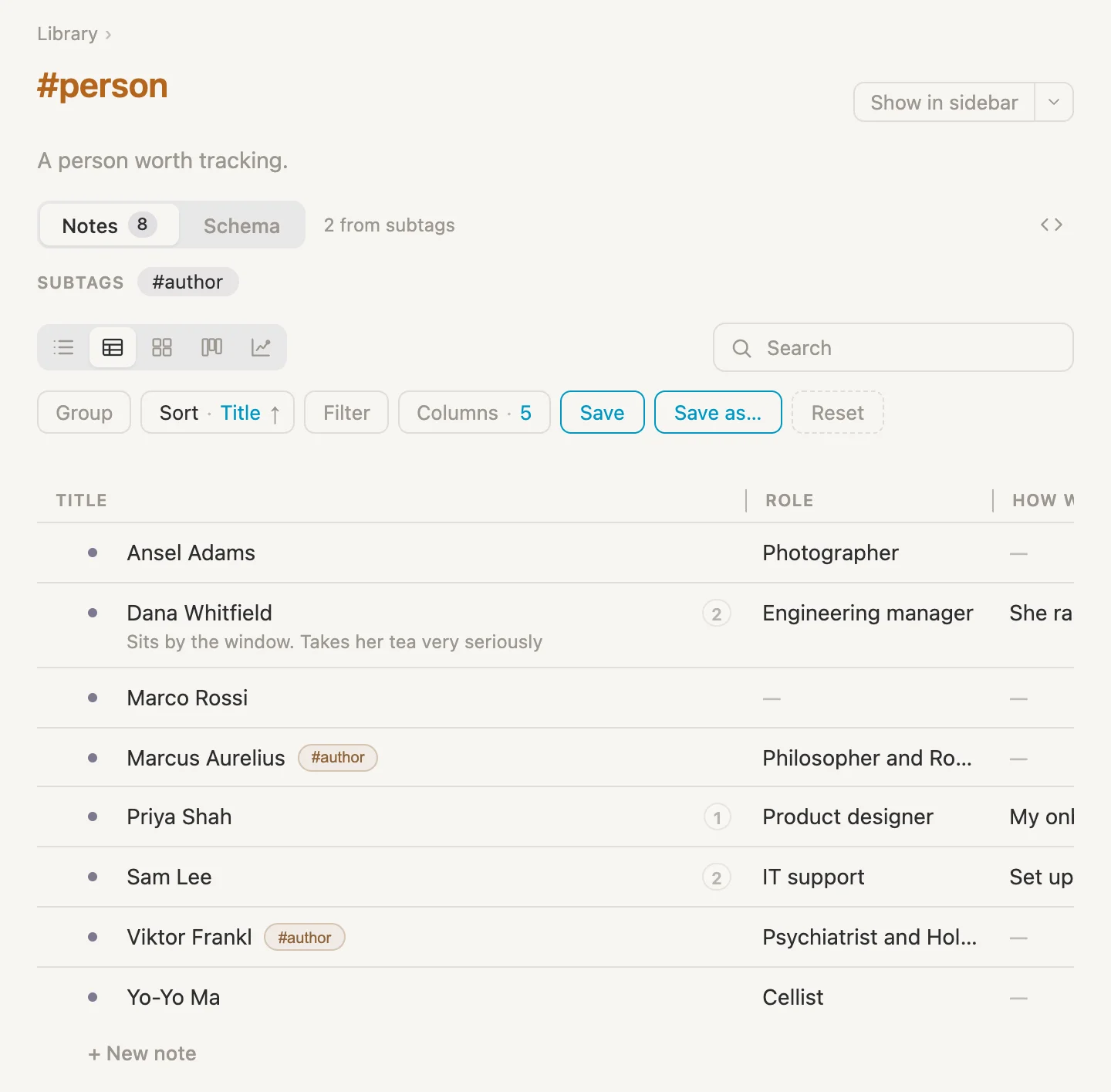
Every person gets a row, and their fields become columns. The four people who came with the vault are in there as well.
The table is a little too wide for the page, and TEAM has run off the right-hand edge. Two quick fixes:
- Click Columns and untick How we met and Via. We don't need them today.
- Drag the thin line at the right end of the TITLE header to the left, until TEAM comes into view.
Sam has no team yet, and IT isn't one of our options. Click Sam's TEAM cell, then click it again to open its list, and type IT. The list offers Add option "IT", to Team on #person, for every #person. Press Enter, then Escape. Sam is in IT now, and IT is one of Team's options for everybody.
Now click Group and choose Team.
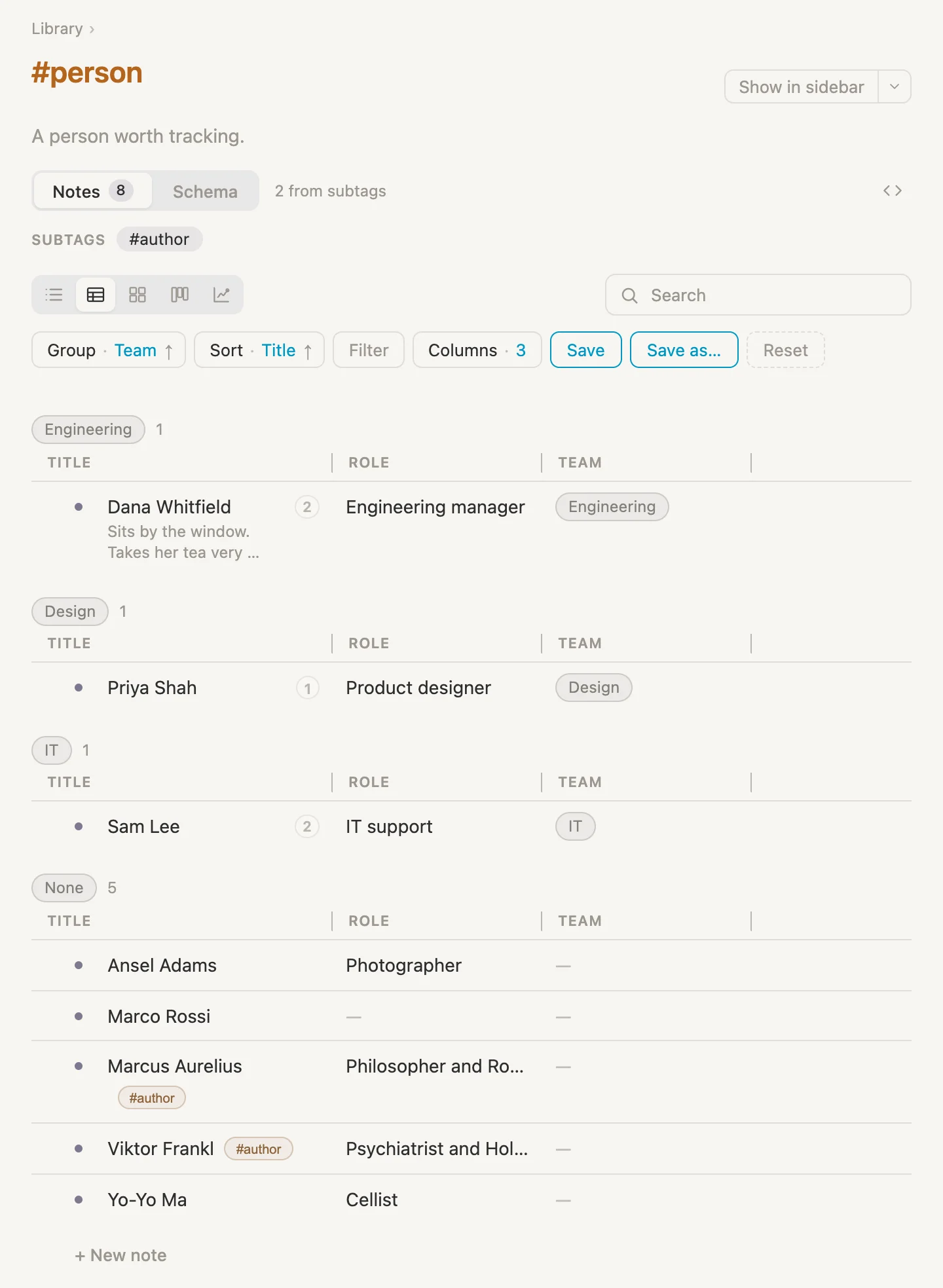
Everyone, sorted into their teams: Dana in Engineering, Priya in Design, Sam in IT, and everyone without a team under None. When we change a view like this, Save lights up. Click it, and the #person page opens this way from now on. (Reset puts it back the way it was.)
Click Cards, the third icon, to see the same people as cards, still grouped by team.
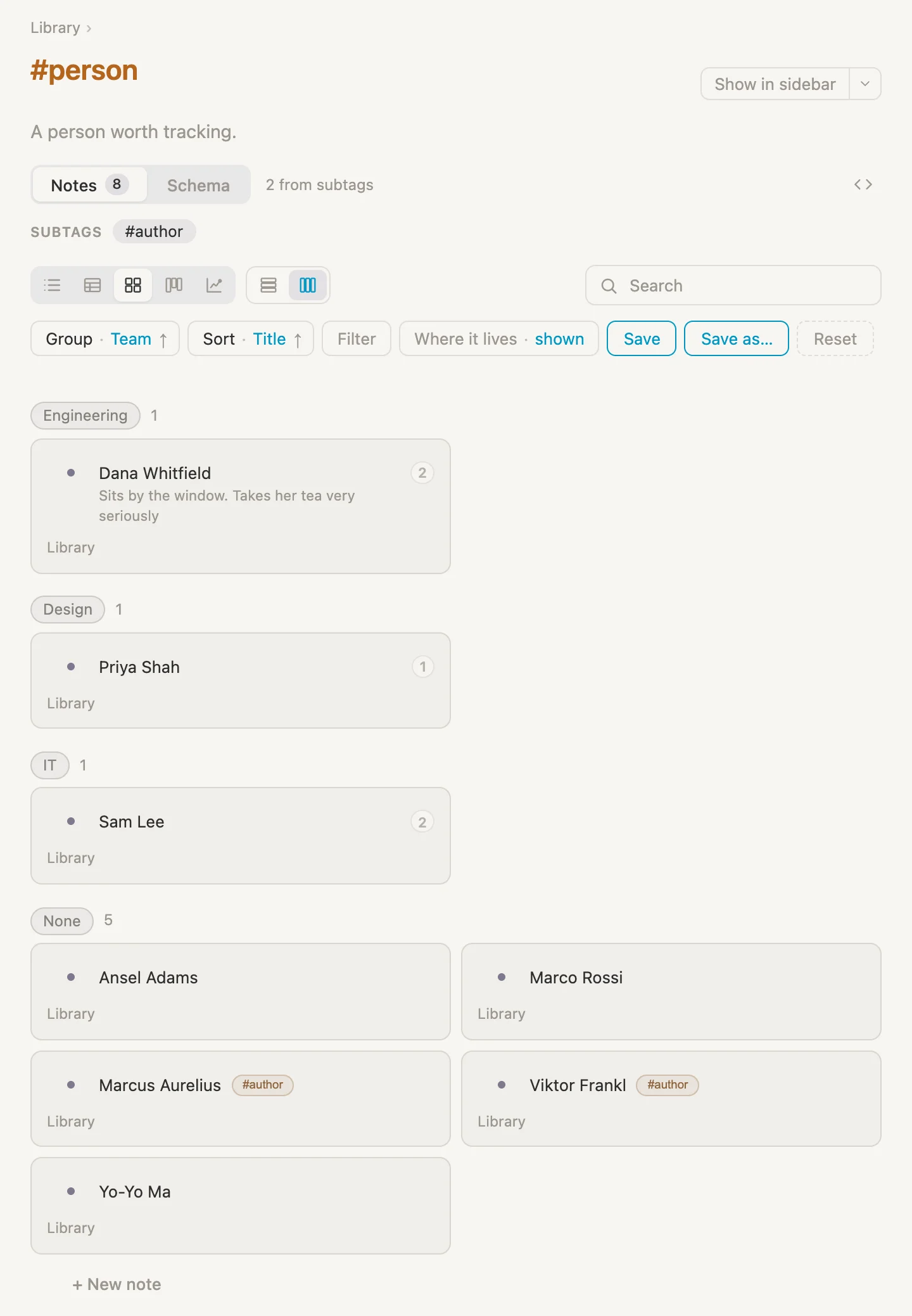
Then click Table again.
A board of questions
Press Cmd-D, and click the #question pill on the coffee question. Click Board, the fourth icon, then Group, and choose Person to ask.
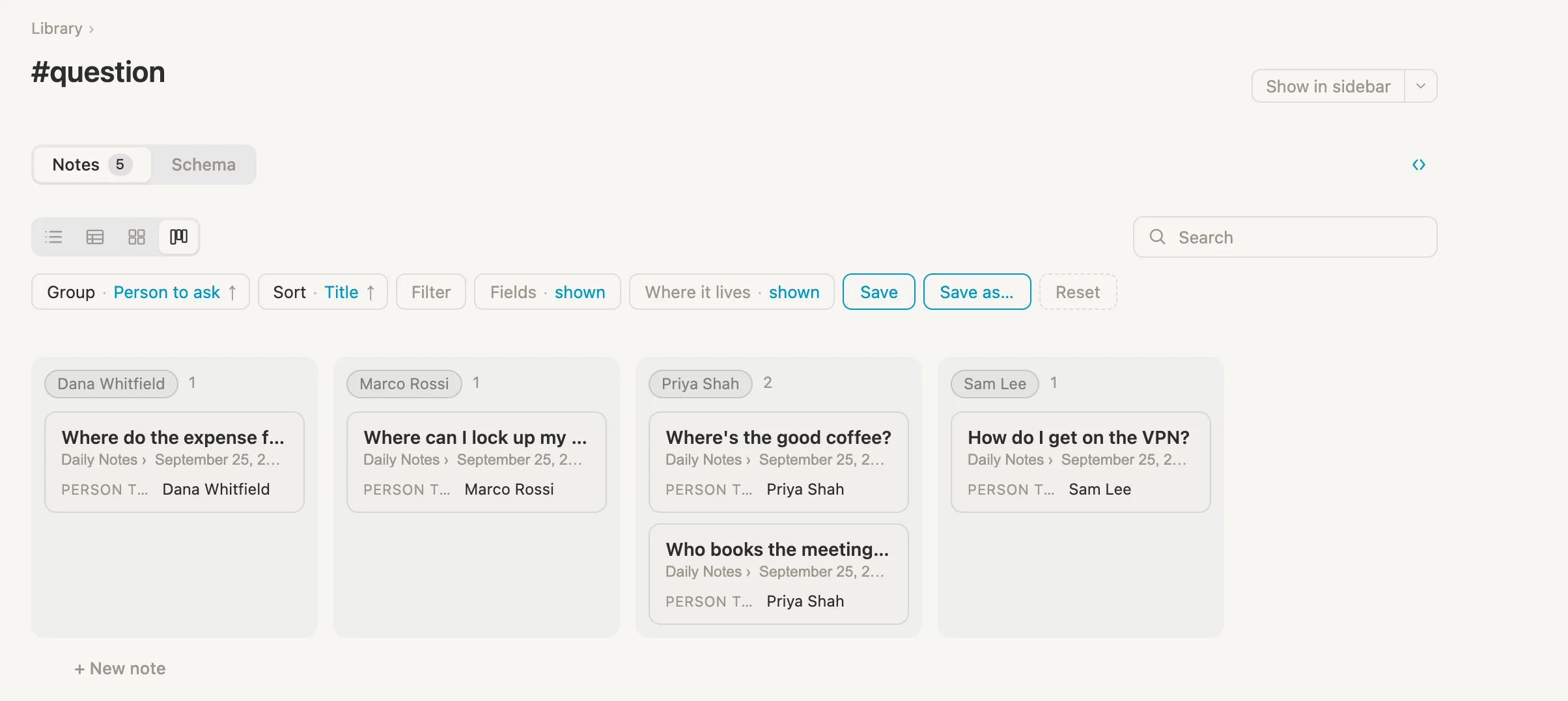
One column per person, holding the questions waiting for them. If the board runs off the right-hand edge, click the small <> icon to the right of the tabs, Widen the page, and click it again when you're done.
A note's own notes, as a table
Views aren't only for tag pages. Any note with notes tucked under it can show them another way. Press Cmd-D, click on the word Coffee in the 10:30 meeting line, press Cmd-K, type table, and press Enter on Show as a table.
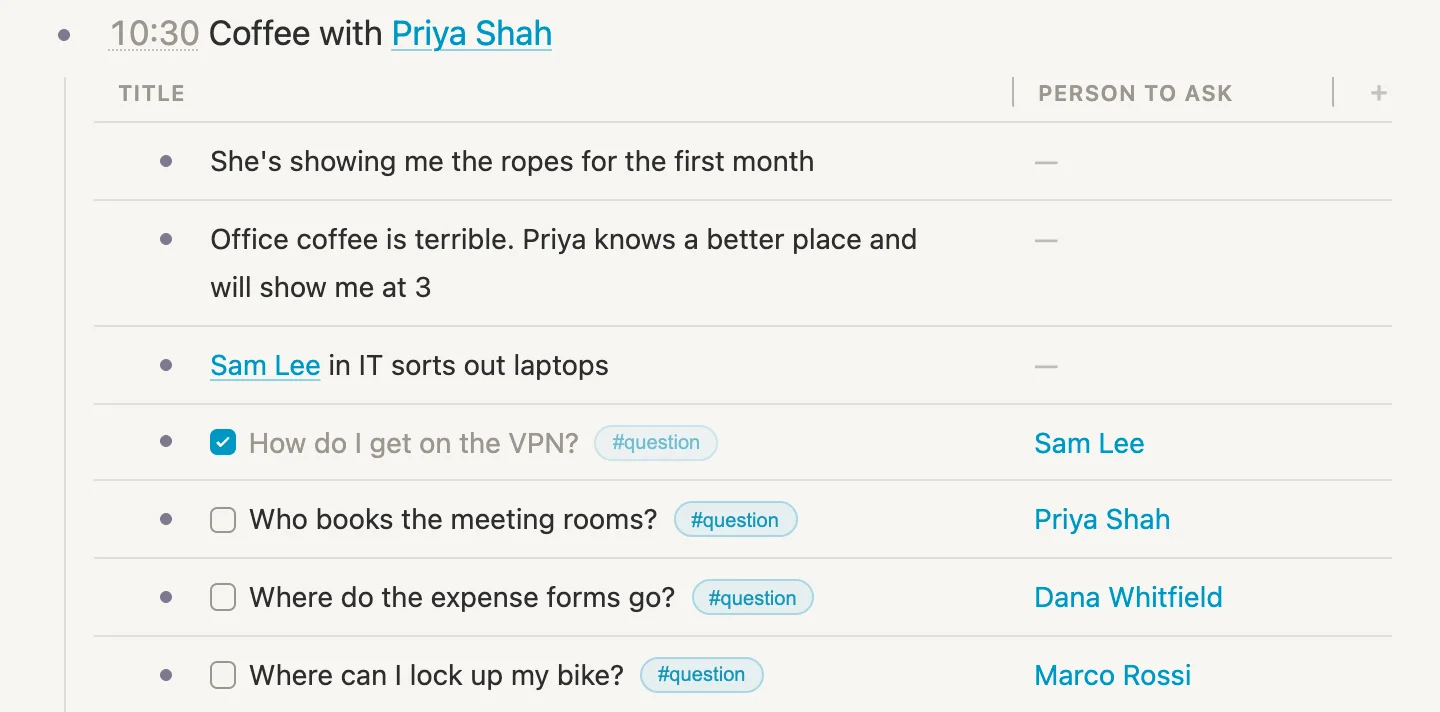
The meeting's notes become rows, with a PERSON TO ASK column for the ones that have one. To put it back, press Cmd-K again and choose Show as a list. (Cmd-Shift-T flips between the two.)
Getting around
We've already been getting around all day, mostly without noticing: the rail, the crumb, links, Cmd-D for today. Here's the rest of it, all in one place.
Jump anywhere with Cmd-P
Press Cmd-P. Before we type anything, it shows where we've been lately, under RECENT, and anything pinned, under PINNED.
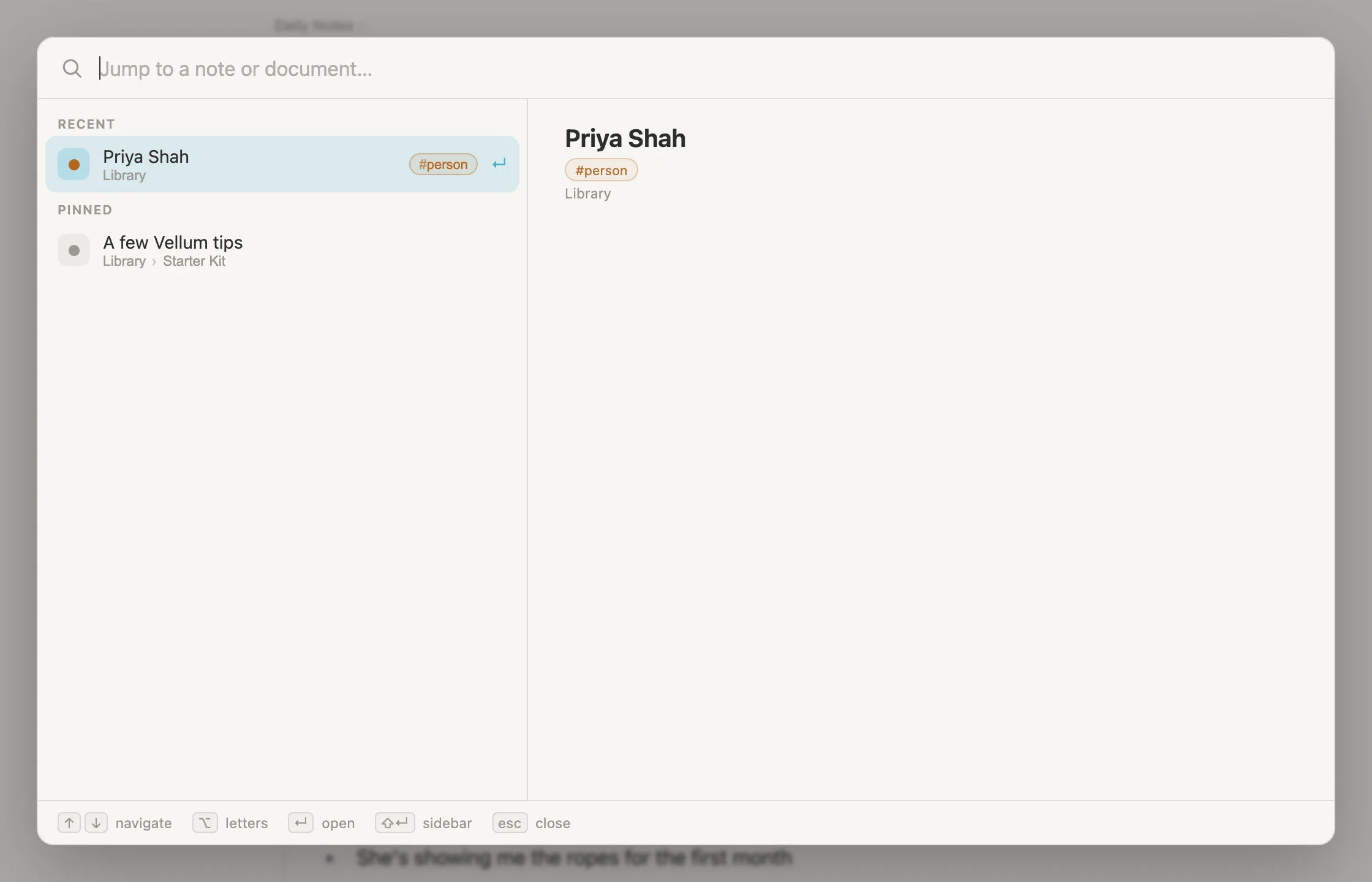
Start typing and it searches everything we've written, names and lines alike, however deep they're tucked. Type vpn.
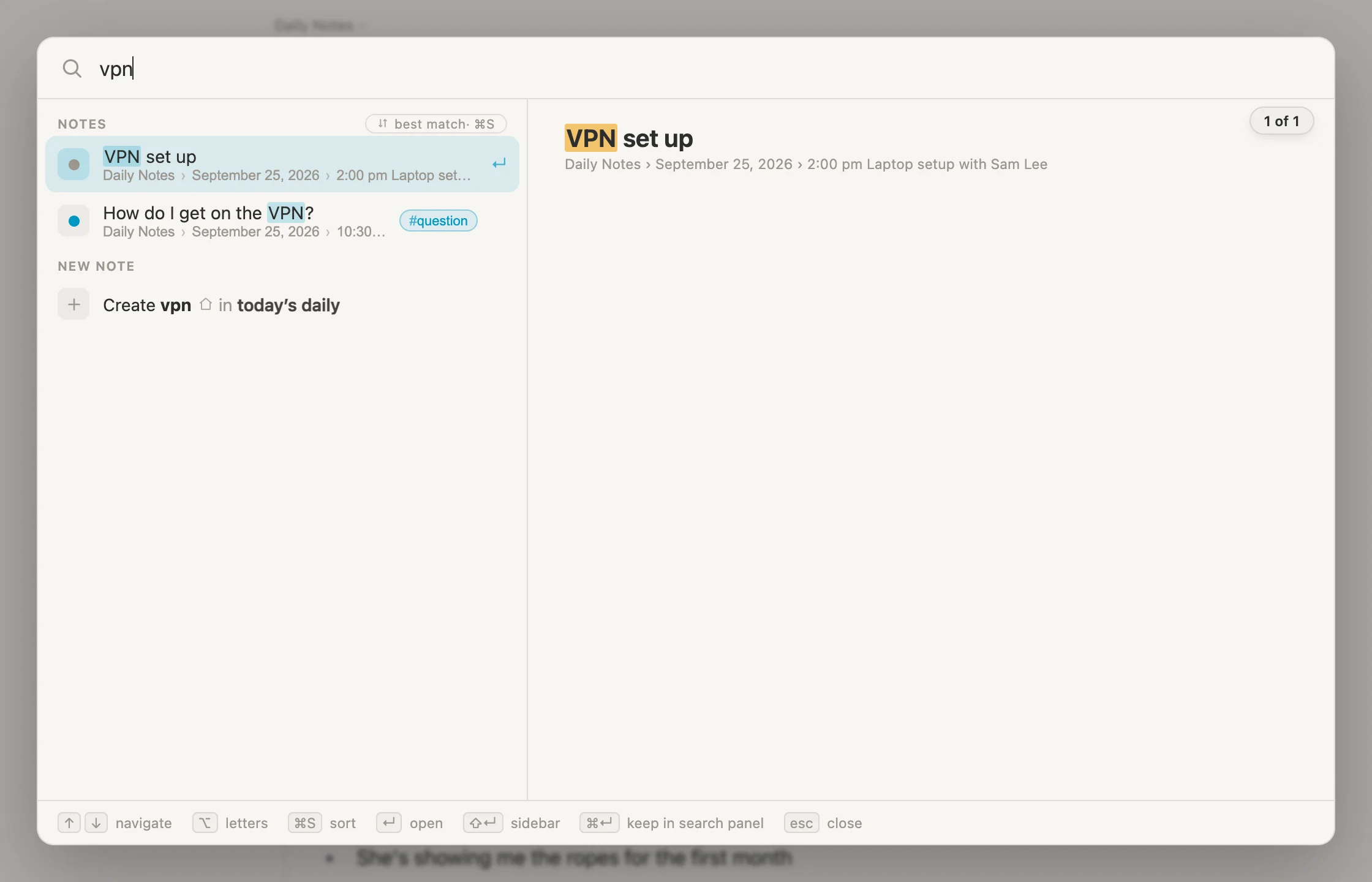
Both VPN lines, with a preview of the highlighted one on the right. Enter opens it, Shift-Enter opens it in the sidebar, and when nothing matches, the last line offers to make a new note with those words.
A few tricks worth knowing:
#questionlists every note wearing that tag, and the tag itself."good coffee", in quotes, finds those words side by side.coffee -officefinds coffee, but skips anything that also says office.tomorrow, ornext tue, jumps to that day's page, and makes it if it doesn't exist yet.
Pinning
Press Cmd-P, type onb, and press Enter. The Onboarding project opens. We'll be in and out of it all month, so let's keep it one click away. Click in its title, press Cmd-K, type pin, and press Enter. A small pin appears beside the title, and in the rail, under PINNED, there it is.
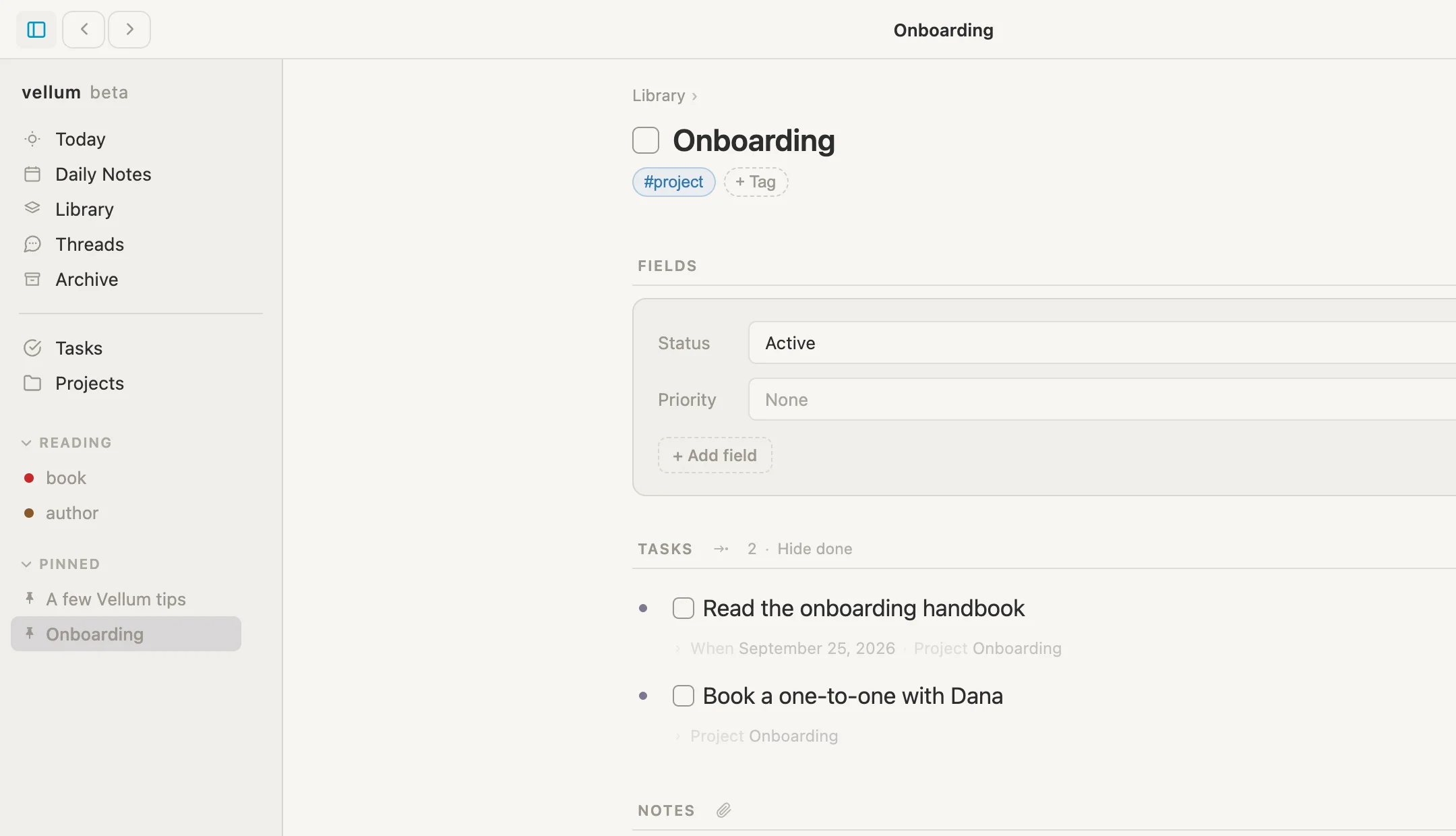
(A few Vellum tips was pinned by the vault itself. It's worth a read.)
Back and forward
The two arrows at the top left of the window, beside the rail icon, work like a web browser's: back to the page we were just on, and forward again. From the keyboard, Cmd-[ goes back and Cmd-] goes forward.
The rail, once more
- Today takes us to today's page, the same as
Cmd-D. - Daily Notes holds every day's page.
- Library is where the people and the project live.
- Tasks and Projects we've met.
- PINNED holds whatever we've pinned.
Cmd-\ opens and closes it.
A quiet view
When it's time to write, press Cmd-. (Cmd and the full stop). Everything around the page fades away. Press it again to come back. The app calls this zen mode.
3:00 pm, the coffee
At last. Priya taps on the desk: coffee time. The real kind.
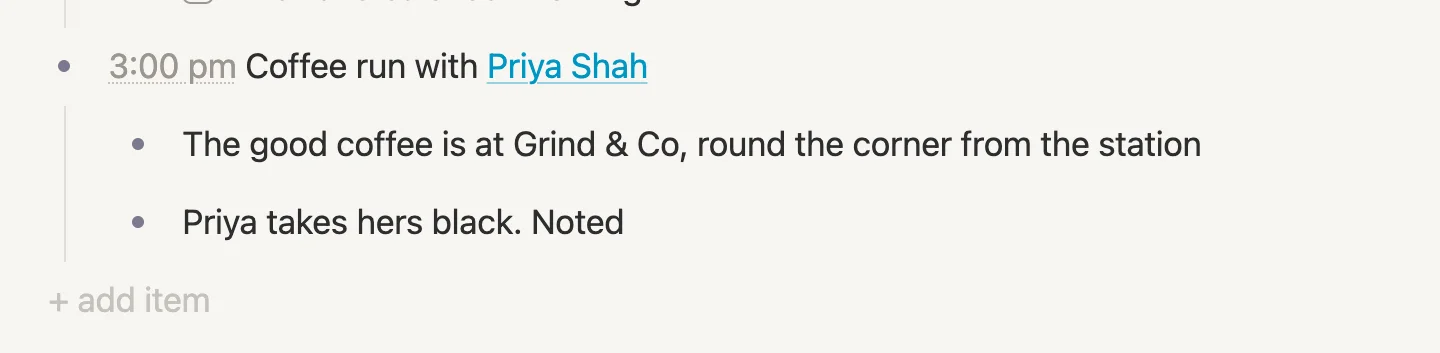
Click + add item at the bottom of today's page and type 3:00 pm Coffee run with [[Priya. Press Enter to take Priya Shah, then Enter again and Tab, and type:
The good coffee is at Grind & Co, round the corner from the stationPriya takes hers black. Noted
Now scroll back up to the welcome meeting, to the question we wrote at nine this morning. Tick Where's the good coffee?. Then let's put the answer where we'll find it again: click at the end of Nobody knows. Dana Whitfield only drinks tea, press Enter, and type Grind & Co, round the corner from the station. Found at 3:00 pm.
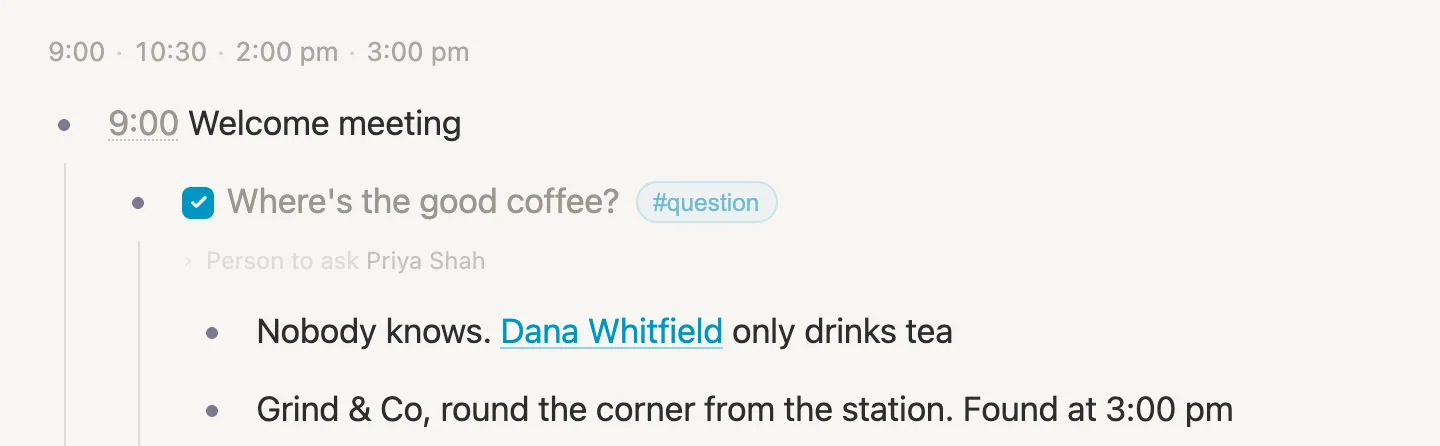
Six hours from question to cup. Worth every minute. ☕🤎
(Notice the line of times at the top only picked up the new meeting, not the "3:00 pm" at the end of the answer. A time only counts when it starts the line.)
Ticked everywhere
Click Priya Shah in the 3:00 pm line and look at her page.
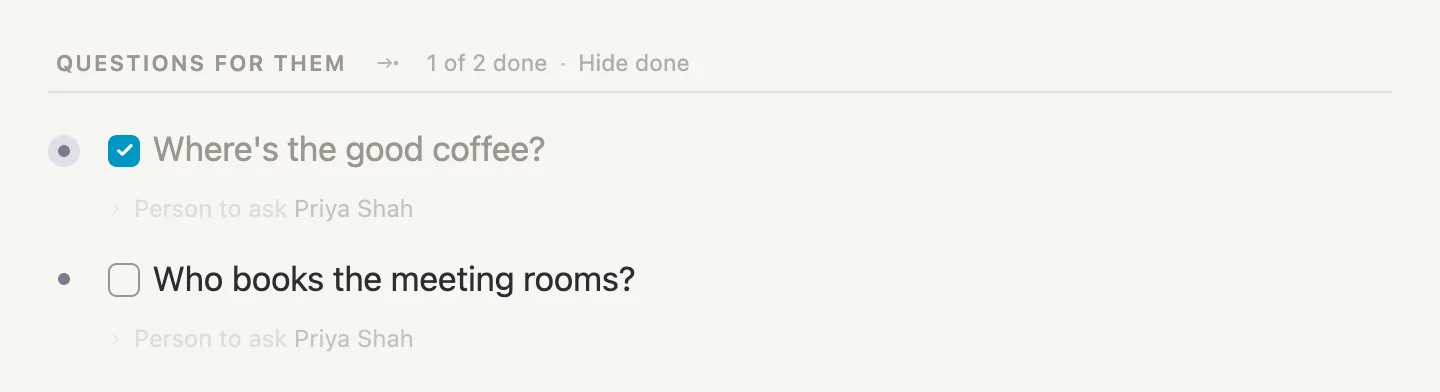
QUESTIONS FOR THEM now says 1 of 2 done, and the coffee question is ticked here as well. It's the same question, wherever it shows. Beside the count, click Hide done, and the finished ones step out of the way, leaving only what's still waiting.

Click Show done to bring them back.
Saved searches
Our questions are scattered all over today's page: one in the welcome meeting, four under coffee with Priya. Tomorrow there'll be more, on tomorrow's page. What we'd really like is one list of every question we still need answered, wherever we wrote it, that keeps itself up to date.
That's a saved search: a few rules, kept as a note, that always shows whatever matches them right now.
Making one
Click + add item at the bottom of today's page and type /search. A / at the start of a line opens a menu of things we can add, and here it offers Live search, A live list of every note matching rules you set.

Press Enter. A new search appears, called Untitled search, with its rules open and a menu of the kinds of rule we can add. Choose Tagged…. The rule reads Tag is #author, the first tag it found, so click #author, type question, and press Enter.
Now click + And and choose Done / not done. The new rule shows Done and not done yet, which is exactly what we want.
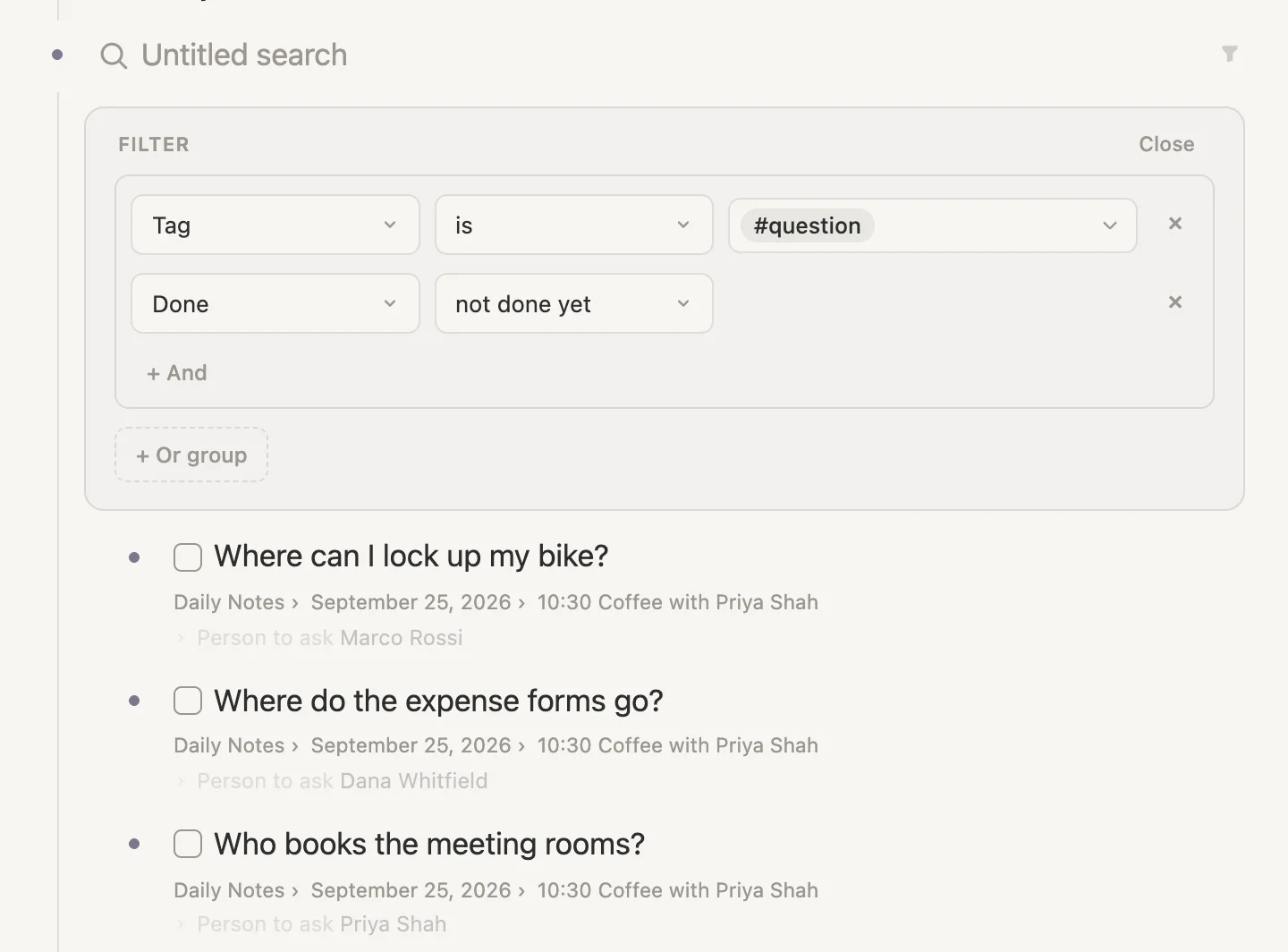
The results are already there underneath: three questions. The coffee question and the VPN question are missing, because they're ticked. Two rules joined by And means a note has to match both: a #question AND not done yet. (+ Or group is for when a note should match one set of rules or another.) The menu has plenty more kinds of rule as well, such as words a note contains, when it was made, or what's in one of its fields.
Click Close to fold the rules away. Then click Untitled search, type Questions still open, and press Escape.
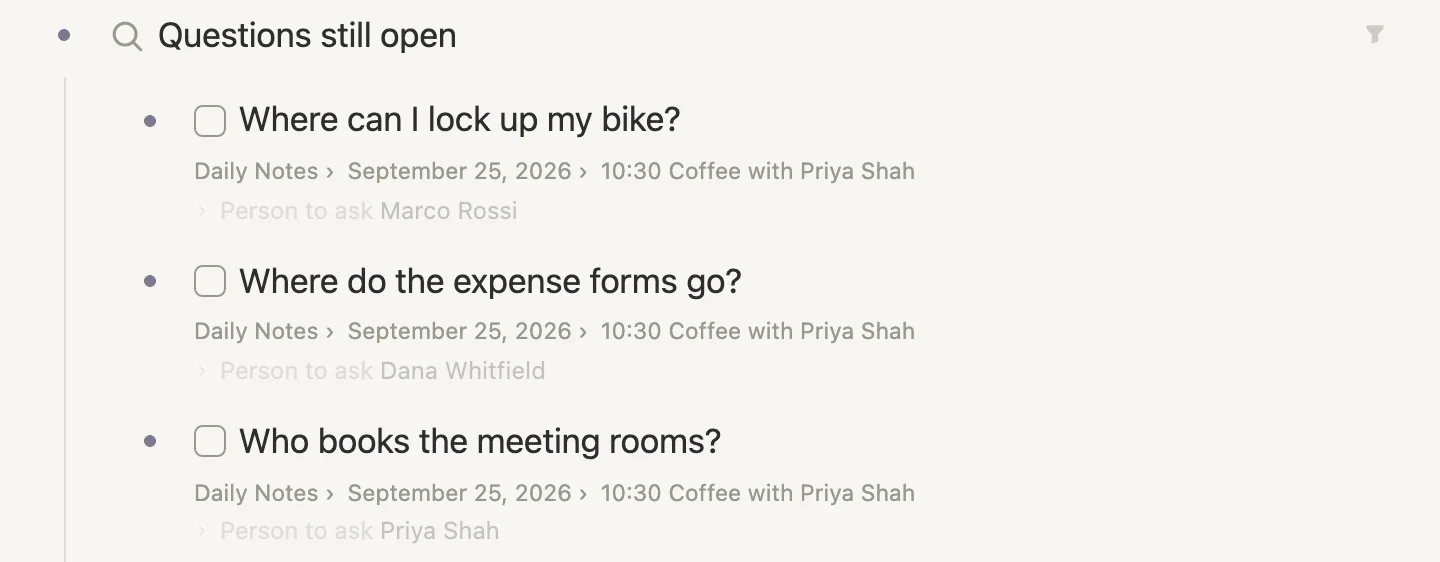
A better look
Click the search's bullet to open it on its own page. At the top, the rules read like a sentence, #question · not done yet, with 3 notes beside them. The icons below are the same views we met on tag pages. Click Table, then Group, and choose Person to ask.
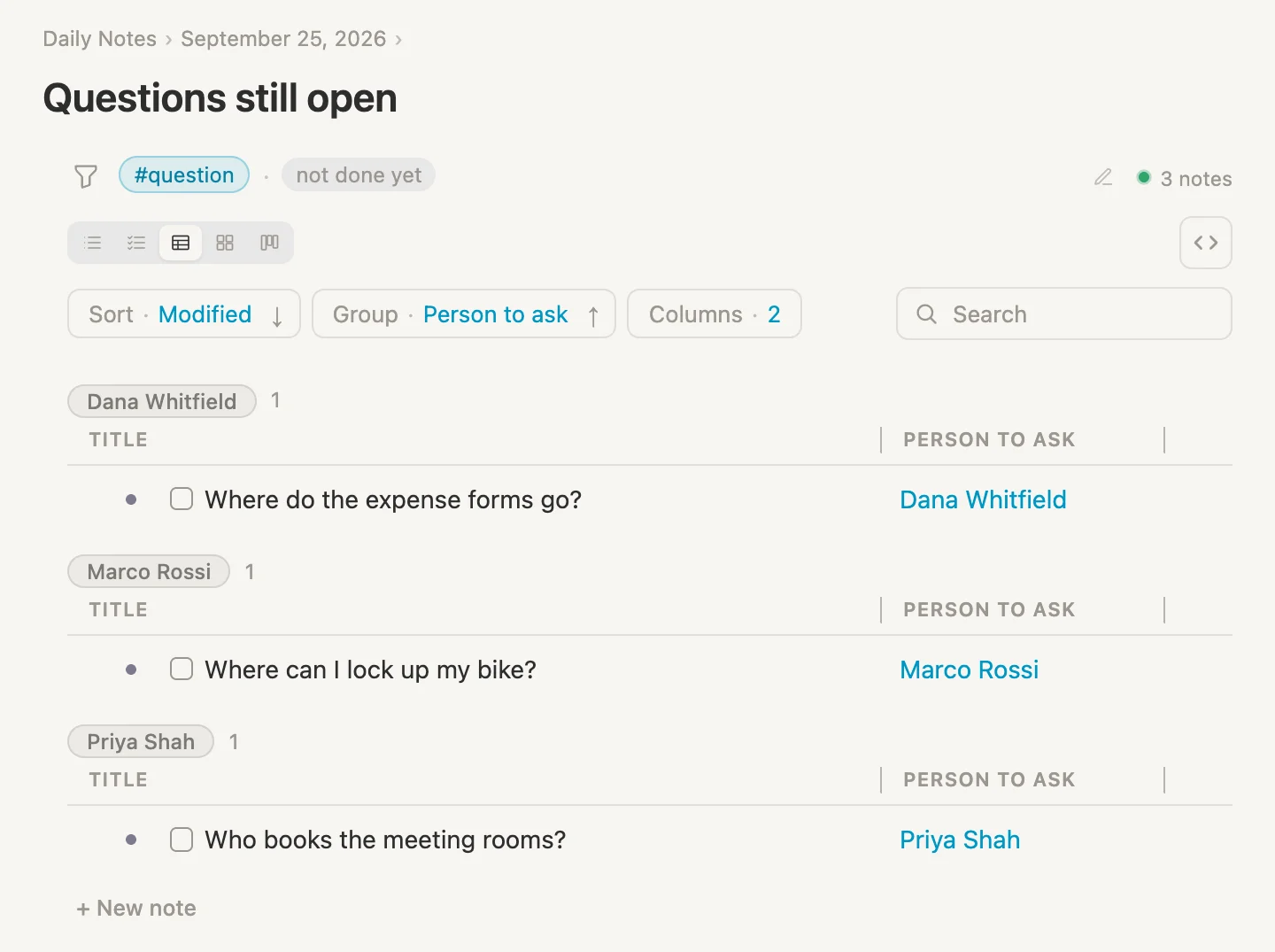
Every open question, grouped by who can answer it. That's the list to glance at when you bump into Dana in the corridor. A saved search remembers how we left it, so there's nothing to save.
It keeps itself up to date
Press Cmd-D. The search is still on today's page, now showing as a table. On the way back from coffee, Marco showed us where the bike racks are. So tick Where can I lock up my bike? right there, in the search.
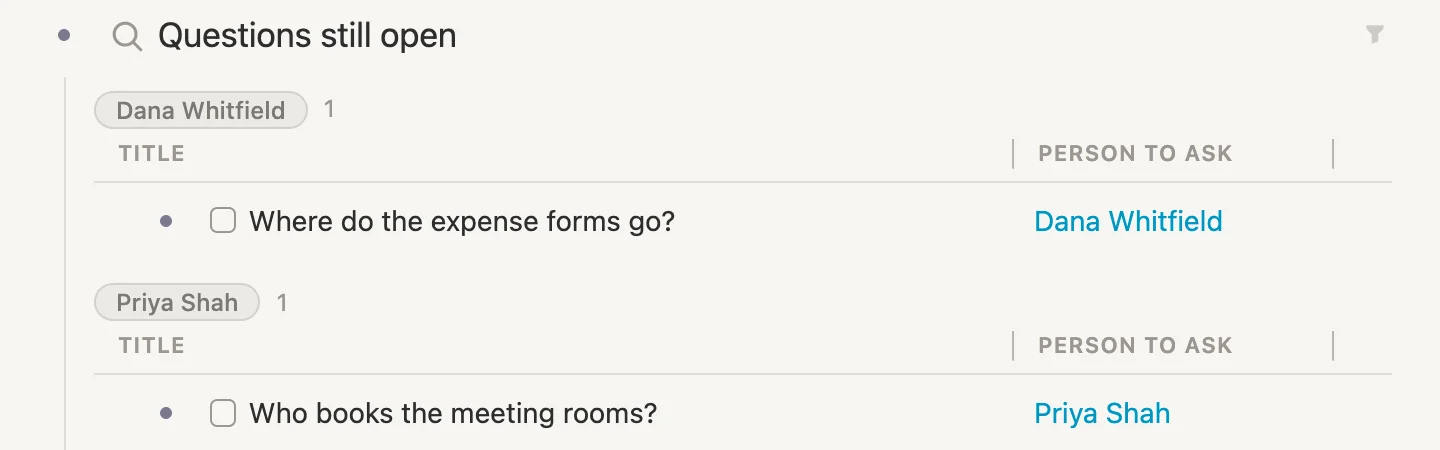
And it's gone. It no longer matches "not done yet", so it steps out of the list on its own. Nobody tidied anything. It's ticked back in the coffee meeting as well, because it's the same question. And tomorrow's questions will turn up here the moment we write them, wherever we write them.
Keeping it handy
The search lives on today's page for now, but it isn't really about today. Click in its name, press Cmd-K, type libr, and press Enter to move it to the Library.
We'll want it every morning, so let's pin it as well. Press Cmd-P, type still open, and press Enter to open it. Click in its title, press Cmd-K, type pin, and press Enter. It's in the rail now, under PINNED, beside Onboarding.
5:00 pm, the write-up
Remember the line from this morning, Dana Whitfield wants a few lines at five on how the day went? It's five.
A few lines means sentences, not bullets. That's what a document is for: a note whose page is for writing, plain flowing prose, the way a regular ole word processor works.
Click + add item at the bottom of today's page and type 5:00 pm My first day, for Dana. Then, with the cursor still in that line, press Cmd-K, type document, and press Enter on Convert to document.

A small page icon appears in front of the line. That's how a document shows on the page. Click the icon to open it.
A document's page has its title at the top and room to write underneath. Click just under the title and start typing. A few things are handy to know as you go:
- Start a line with
##(two hashes and a space) for a heading. - Start a line with
-(a dash and a space) for a list.Entercarries the list on to the next line,Entertwice ends it, and once more leaves a blank line. - Put two asterisks on each side of some words,
**like this**, to make them bold. [[works here just as it does in bullets.
Here's what we wrote. Type the same, or write your own. (Where it says [[Priya and [[Sam, pick them from the list as usual.)
A good first day. The welcome meeting set out the plan for the month, and [[Priya has been a great guide.

## What I got done
- Laptop, charger and badge
- Password manager and VPN, thanks to [[Sam
- Started the onboarding handbook

## Still to find out
Who books the meeting rooms, and where the expense forms go. Both are on my list.

**Most important discovery:** the good coffee is at Grind & Co.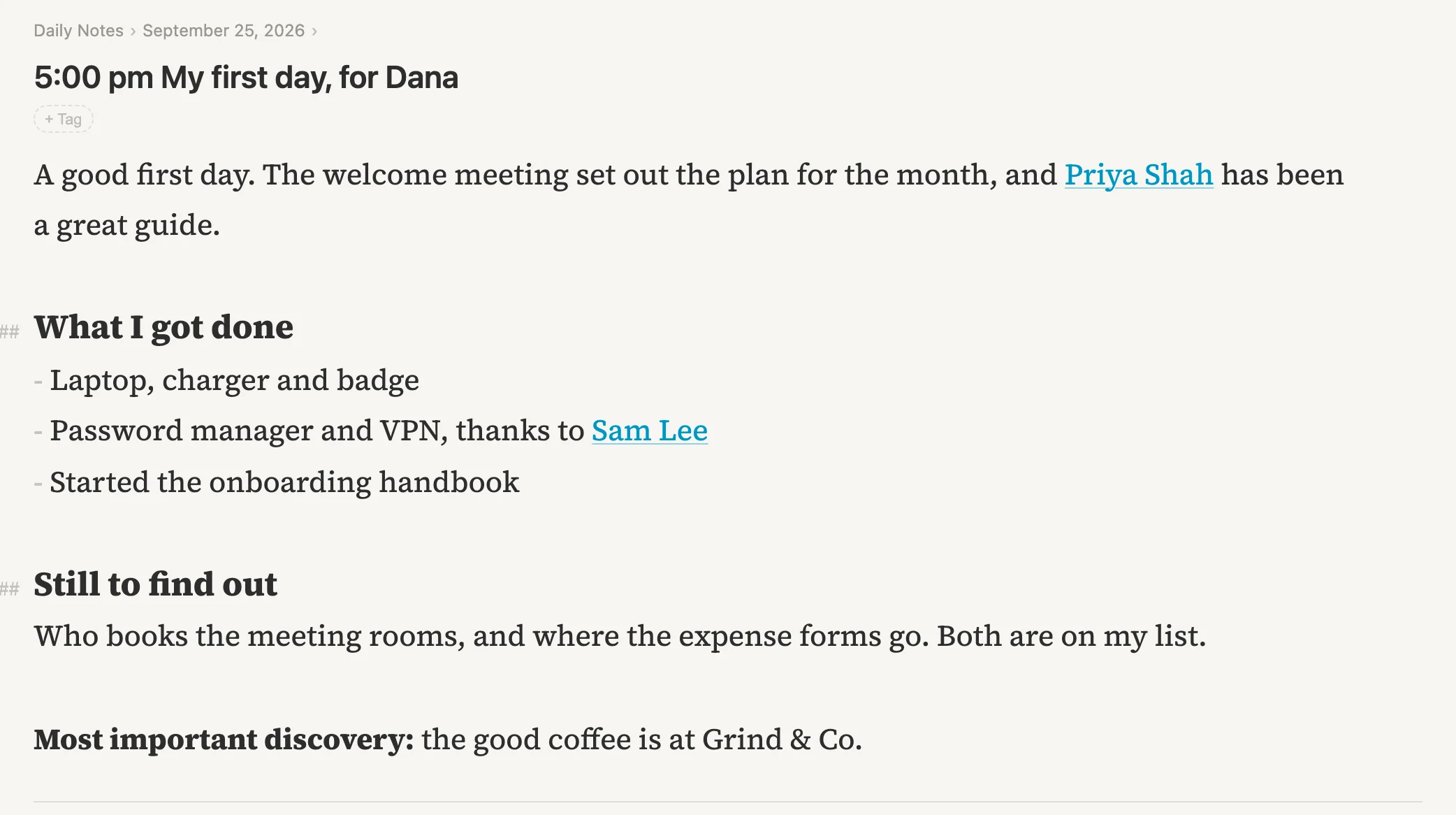
The marks we typed step back once we move away ... the ## fades into the margin, the dashes turn grey, and the asterisks disappear, leaving just the bold. Under the writing there's a line across the page, with + add item beneath it. A document can still hold bullets of its own, below its prose, whenever that's useful. (The skillet chicken recipe that came with the vault is a document like this, with its ingredients as a checklist under the method.)
Links in prose
Press Cmd-D, click Priya Shah in the 3:00 pm line, and look at the bottom of her page.
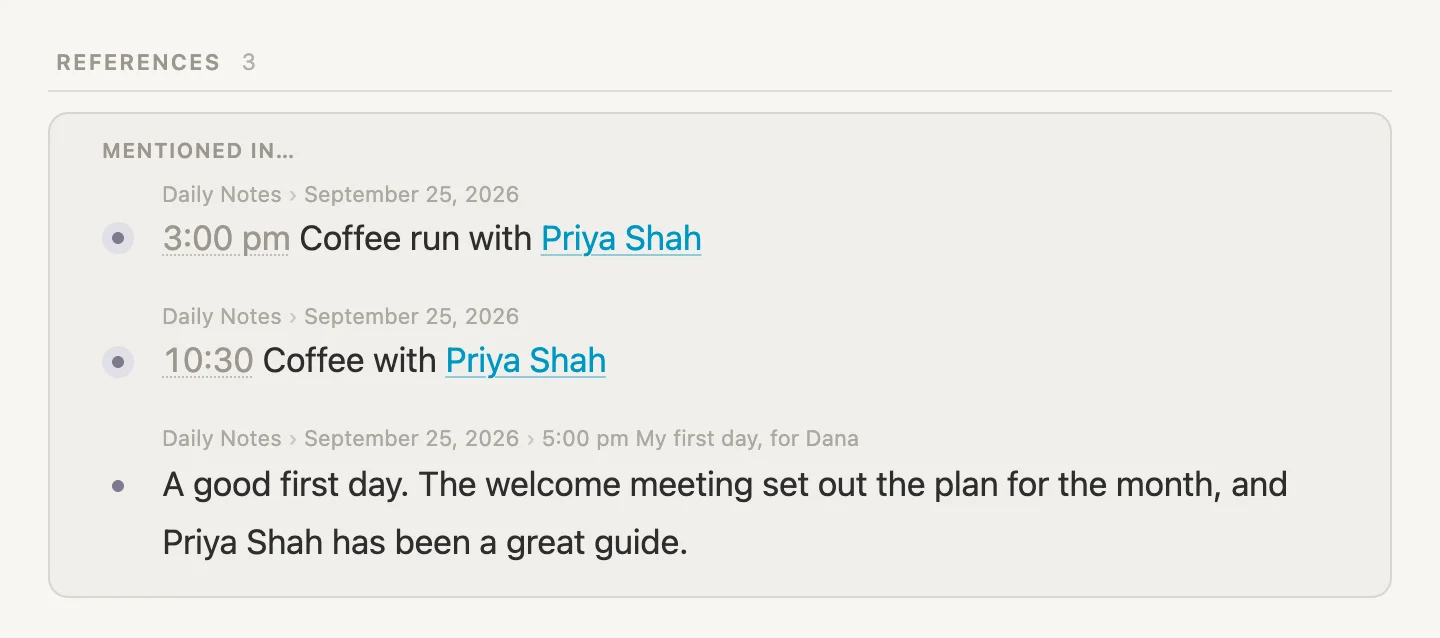
Her count is 3 now, including our prose write-up, with the whole paragraph that mentions her. A link in a document works just like a link in a bullet. Sam's count went up by one as well.
Finding words inside a document
Press Cmd-P and type grind. The two bullets that mention it come first, and then, under MENTIONS, the write-up. Press the down arrow twice to reach it, and the preview on the right shows the document, with the word picked out.
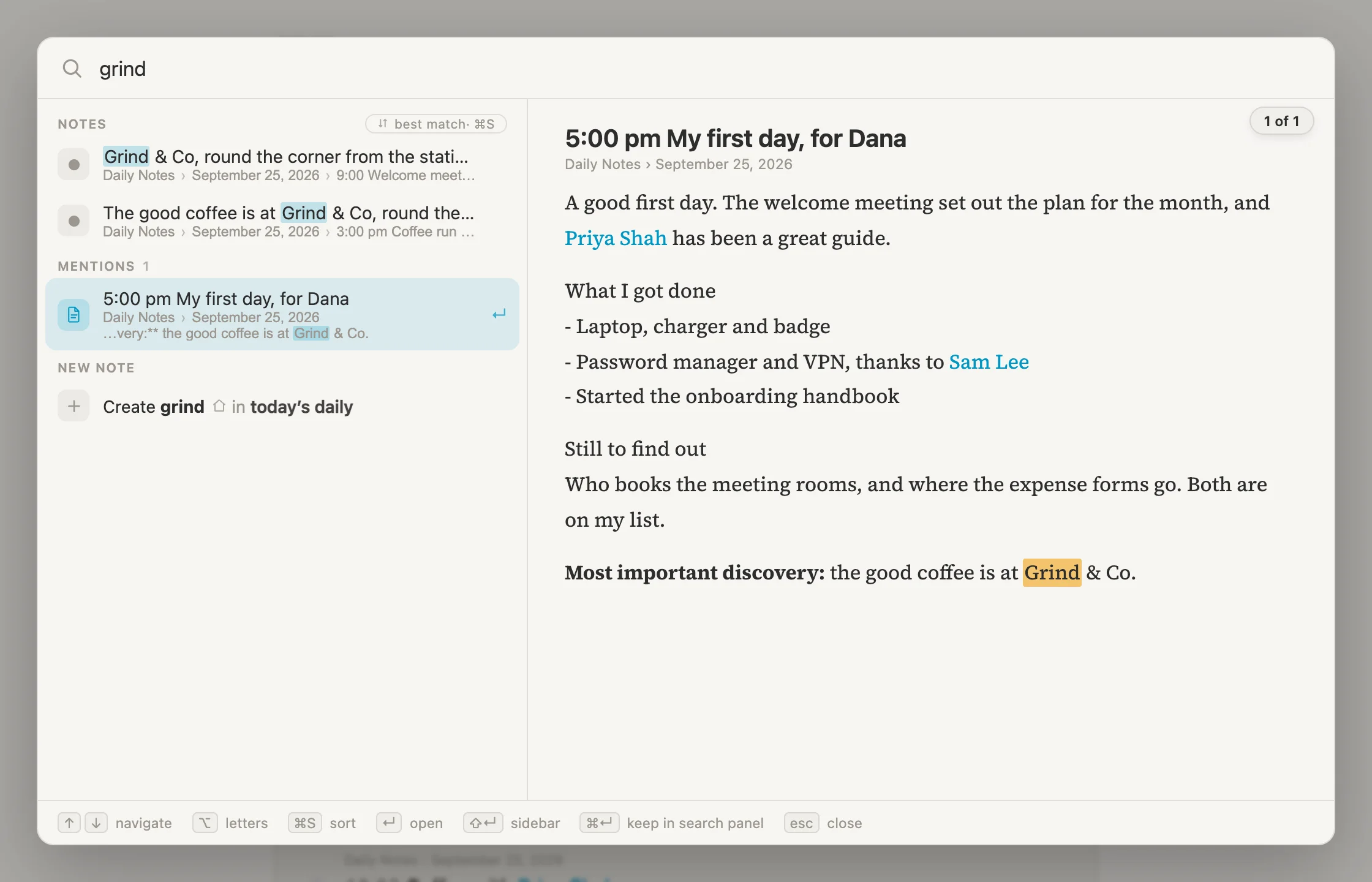
Everything we write can be found this way, bullets and documents alike. Press Escape to close it.
Tomorrow
That's the day. One last thing before we head home.
Press Cmd-P and type tomorrow. Vellum offers tomorrow's page: Daily note. Not created yet.
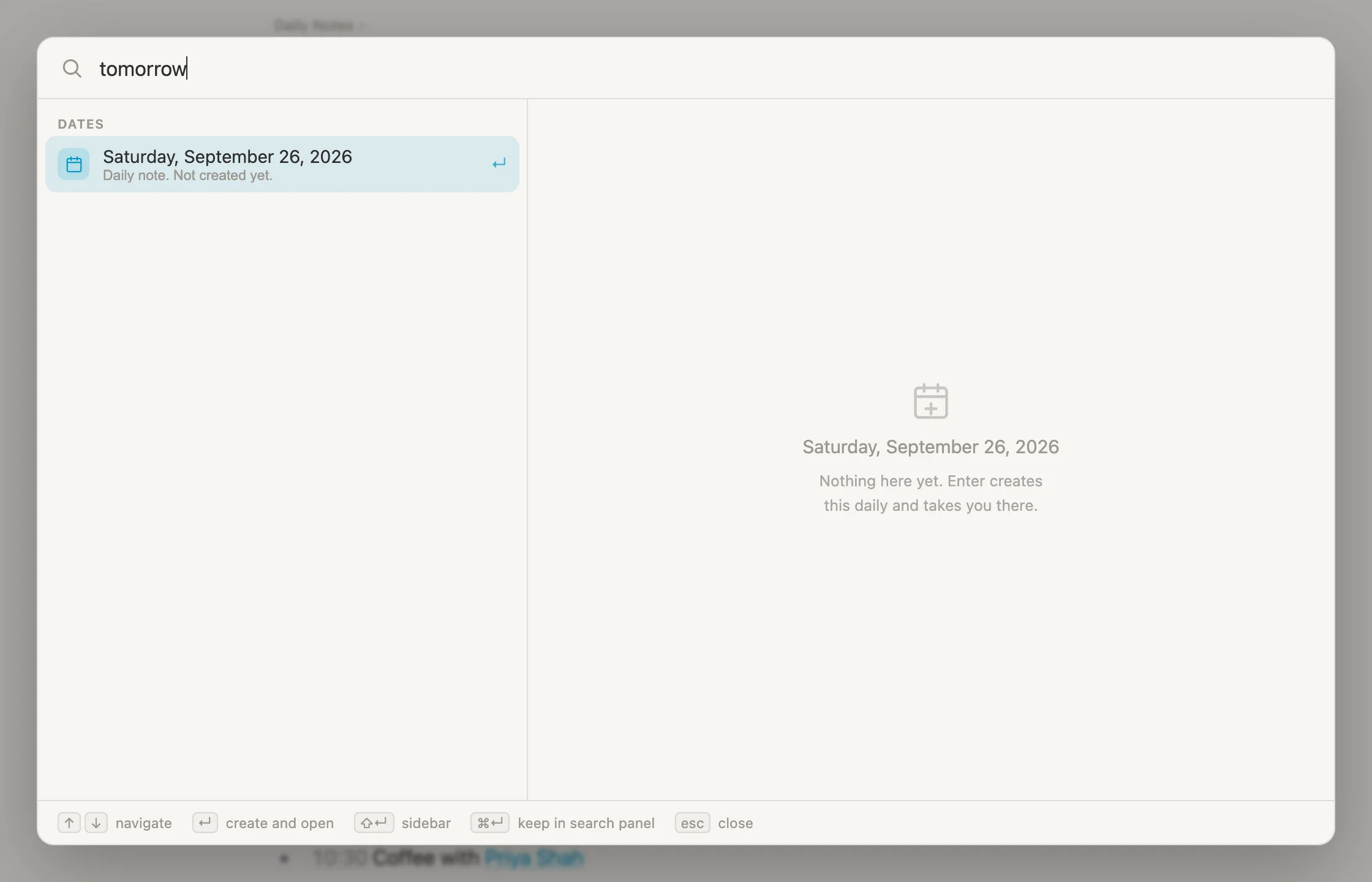
Press Enter, and it makes the page and takes us there. An empty day. Let's give it the only line that matters: click on the empty page and type 8:45 am Coffee at Grind & Co, before anything else.
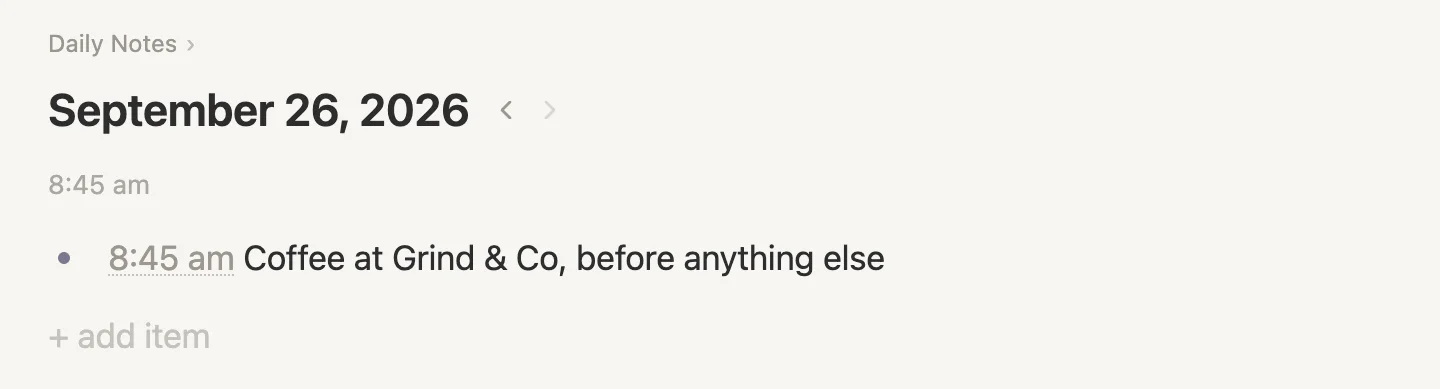
Look at the arrows beside the date. The one pointing back has "woken up", because there's a day before this one to step to now: today. The one pointing forward stays grey until there's a day after.
And when tomorrow actually comes, Cmd-D takes us straight to it. If the handbook still isn't finished, it'll be waiting in the Today's tasks box, and Questions still open is one click away in the rail.
Wrapping up
One new tag, two new fields, a new section on every person, a project, a saved search and a document. And a whole first day.
What it gets us: a page for everyone we met, which fills itself with the questions waiting for them and every place we mentioned them. A project that gathers its own tasks. A list of open questions that tidies itself as they get answered. And a page for the day, written one line at a time, that reads back like a diary.
The ideas underneath it all:
- Everything is a note. A line on today's page, a person, a project, a document, a search. Any note can be opened as a page of its own, and can hold notes of its own.
- A tag says what kind of thing a note is. It brings fields and sections with it, and it has a page of its own listing every note that wears it.
- Links work both ways. Link a note with
[[, or pick it in a reference field, and the note on the other end knows about it: a count, its References, and sections that fill themselves in. - Days are for what happens. The Library is for what lasts. Write things down where you are, and move them later if they outlast the day.
- Tasks turn up where they're needed. In the box on today's page, in the Tasks tabs, and on the project they belong to.
- A saved search answers a question, and keeps on answering it.
Nothing here is special to a new job. Swap the tags and the same few ideas run a house move, a class you teach, a book club or a research project. The notes point, and the pages gather.
Let's get some more coffee, shall we? Now that we know where the good stuff is 😁.
What's next
- More walkthroughs, each one a story like this: planning a trip, keeping track of your tools, who's doing what, and where, and dates on a trip.
- Capture from your phone, to send notes into your vault through Telegram, wherever you are.
- Keyboard shortcuts, every one of them on a single page.
- The FAQ, for the questions people ask most.
- Release notes, for what's new in each version.