Planning a trip
What we're building
A trip to Lisbon. And this walkthrough will attempt to answer a few questions people often ask: how to use sections, how do reference fields work, what does Add to actually do, how to set up and configure tag inheritance, and how (and when) should saved searches be used.
So let's build out a trip to Lisbon, shall we. Along the way we'll be fleshing out a page like below. Through the magic of sections, references, add to, saved searches, and tag inheritance, most of the information you see in the Lisbon page below will be automatically captured.
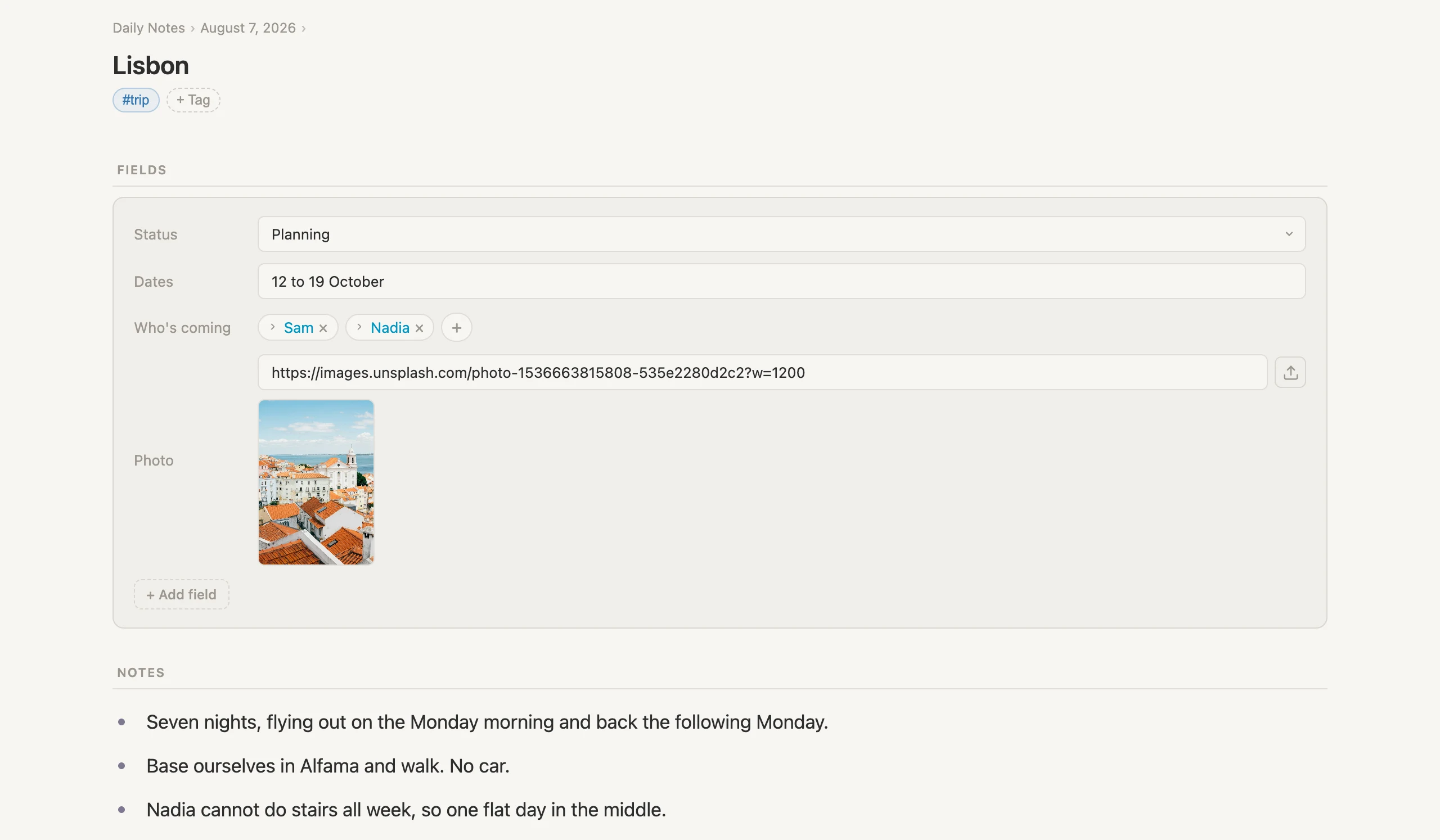
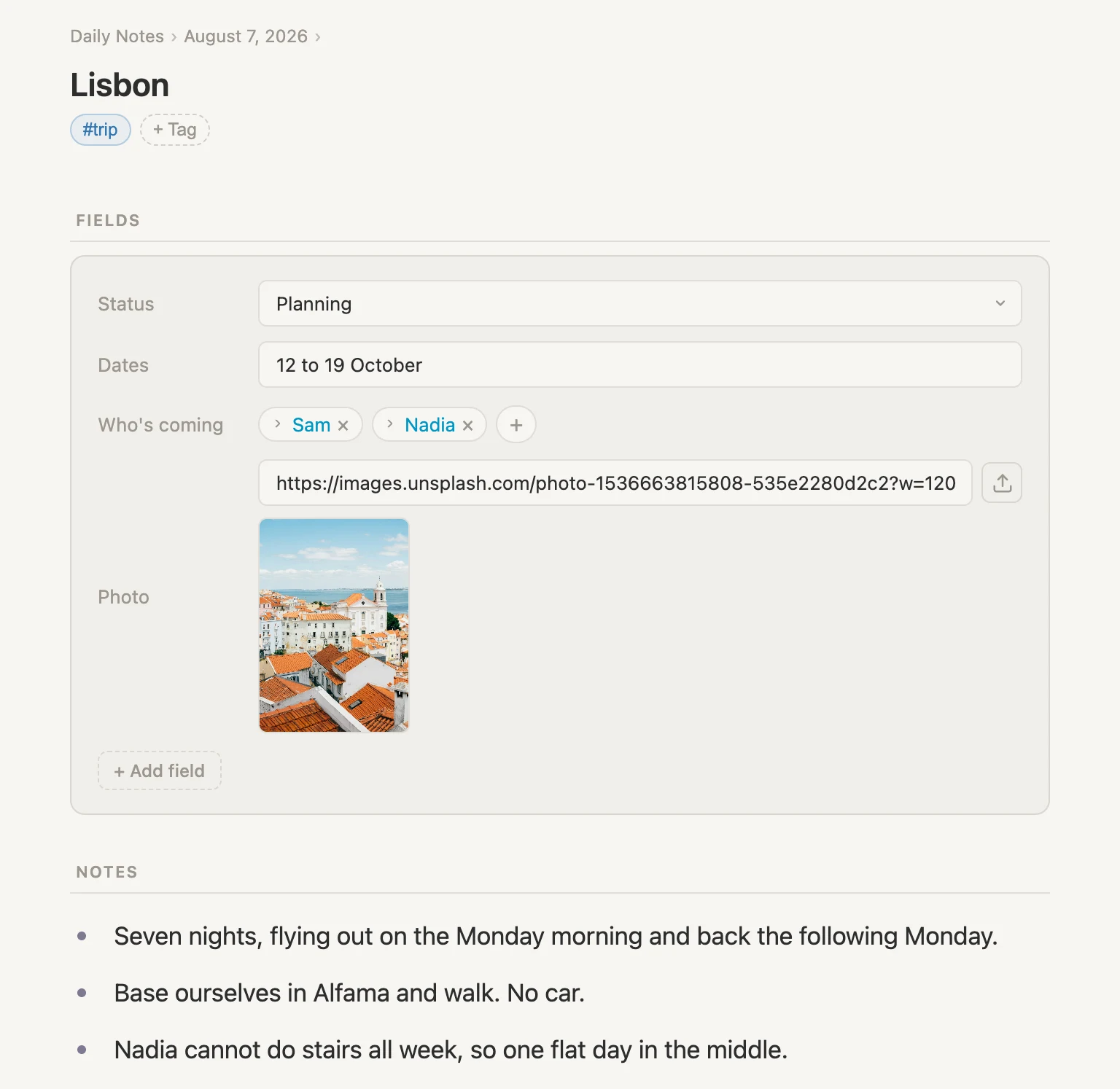
Our Lisbon note starts with a handful of fields, a cover photo, and a few notes we typed in ourselves. Ordinary enough. No magic there.
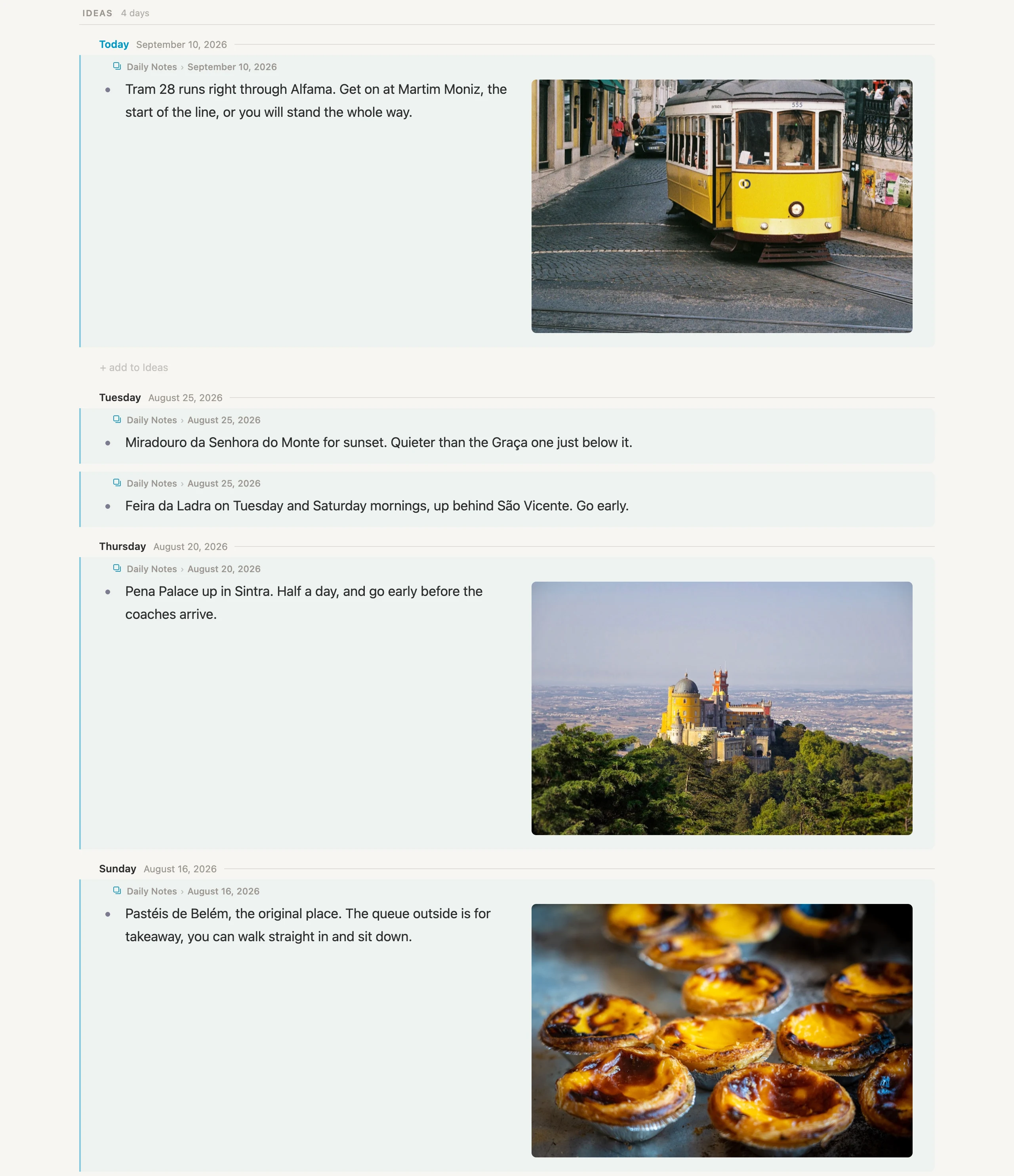
The ideas section will be populated by thoughts and inspirations we captured in our daily notes, grouped by the day each was written. Not one of those was typed on this page.
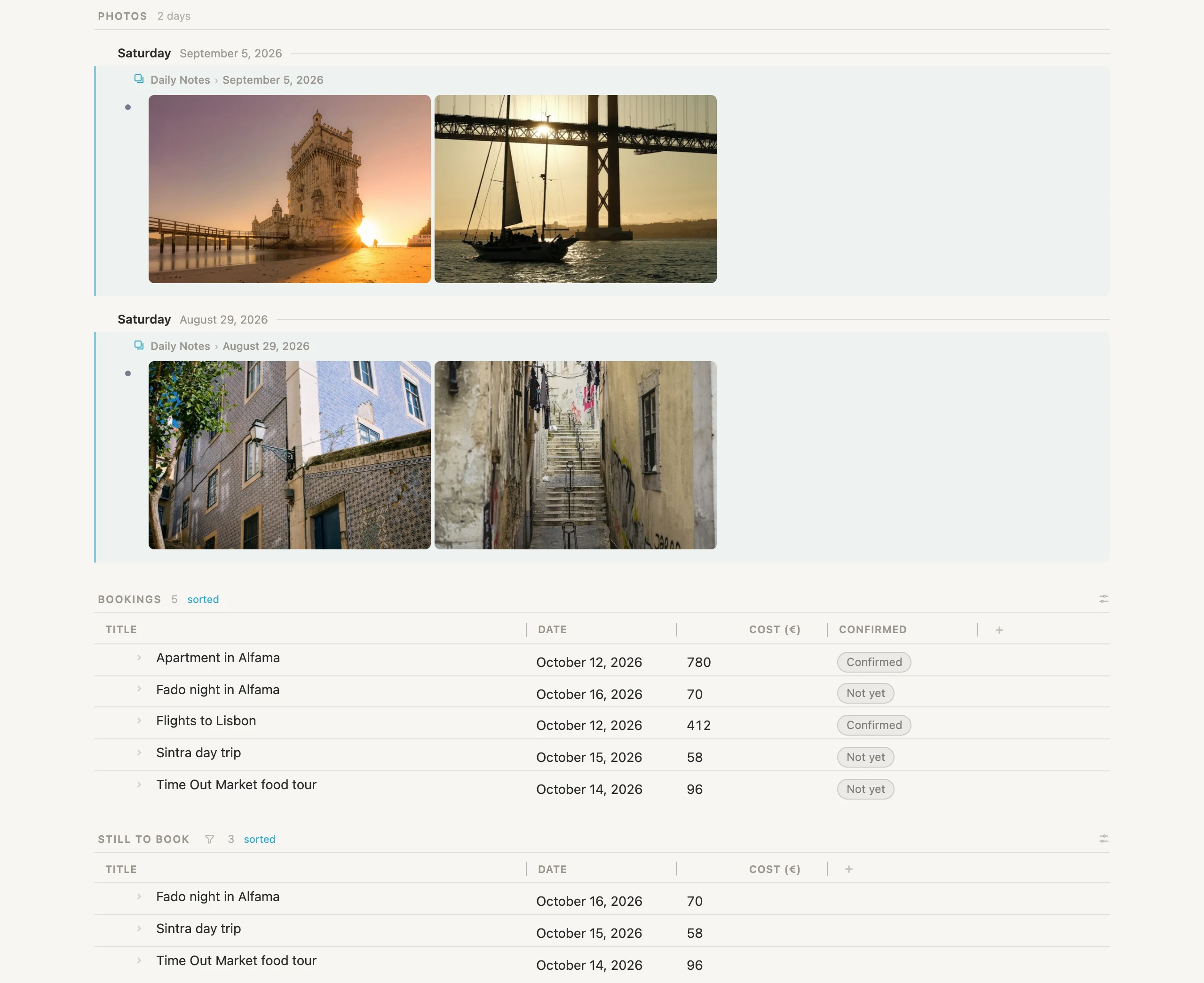
Finally, a photo gallery, a table of everything booked, and a short list of what still needs paying for. All this information gathered itself - none of it typed into the Lisbon page.
That's where we're headed. So let's get started.
NB: Cmd throughout is the Mac key. Use Ctrl on Windows and Linux.
Setting up as we go
Rather than declaring a bunch of tags up front, we'll make each one at the moment we first need it, on a note we actually want. A tag comes into being the first time you use it, so writing the note and creating the tag are the same act.
The first person
Let's start with somebody we'll be traveling with, Sam. On today's page, click + add item, type Sam #person and pick Create #person from the list, then hit Enter. (If your vault already has a #person tag then you won't see the Create option.)
Two things just happened. There's a note called Sam, and there's now a #person tag in your Library that didn't exist a second ago (unless your vault already contained it).
The trip
Same move. + add item, type Lisbon #trip, pick Create #trip, Enter.
Click the bullet dot next to Lisbon to open it on its own page. It's an ordinary note wearing an ordinary tag, and there's nothing on it yet, because we haven't configured the #trip tag with what fields a trip should carry.
What a trip carries
A field is a named property on a note. Configuring a tag means deciding which properties its notes get.
Click the #trip pill, then Schema, then + Add field. Type Status, pick New field "Status", and in the card that opens change Type from text to select. In the Options field type Someday, Planning, Booked, Done and click away.
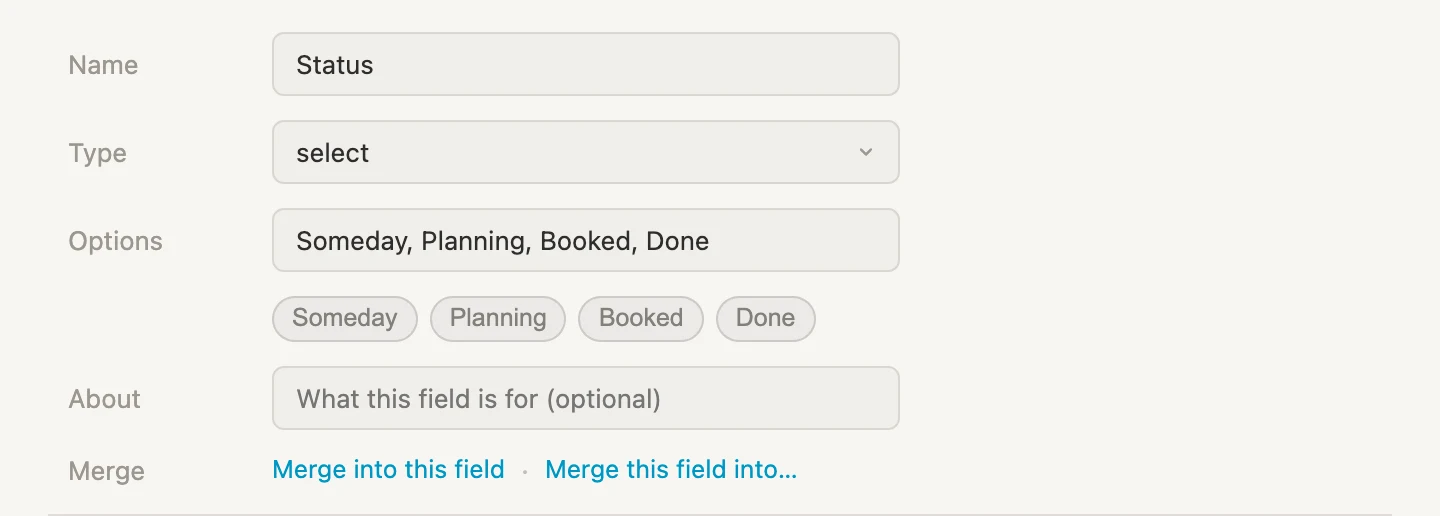
Add two more fields the same way: Dates, left as text, and Who's coming, Type reference, pointing at #person.
A reference field is worth pausing on. It doesn't hold words, it holds a pointer to another note. That pointer is what makes pages build themselves later on, so it's worth getting in the habit of reaching for it whenever a field's value is really a thing rather than a word or phrase. It's also why we made the #person tag first: a reference field can only point at a tag that already exists.
Now go back to Lisbon. The three fields are waiting. Set Status to Planning, type something into Dates like 12 to 19 October, and for Who's coming pick Sam.
While we're here, let's type a couple of lines about the trip in the NOTES section where it reads "Click to start typing".
- Seven nights, flying out on the Monday morning and back the following Monday
- Base ourselves in Alfama and walk. No car!
- Nadia cannot do stairs all week, so one flat day in the middle
Then click the + next to Sam to add a second person, and watch what happens when you type a name that doesn't exist yet.
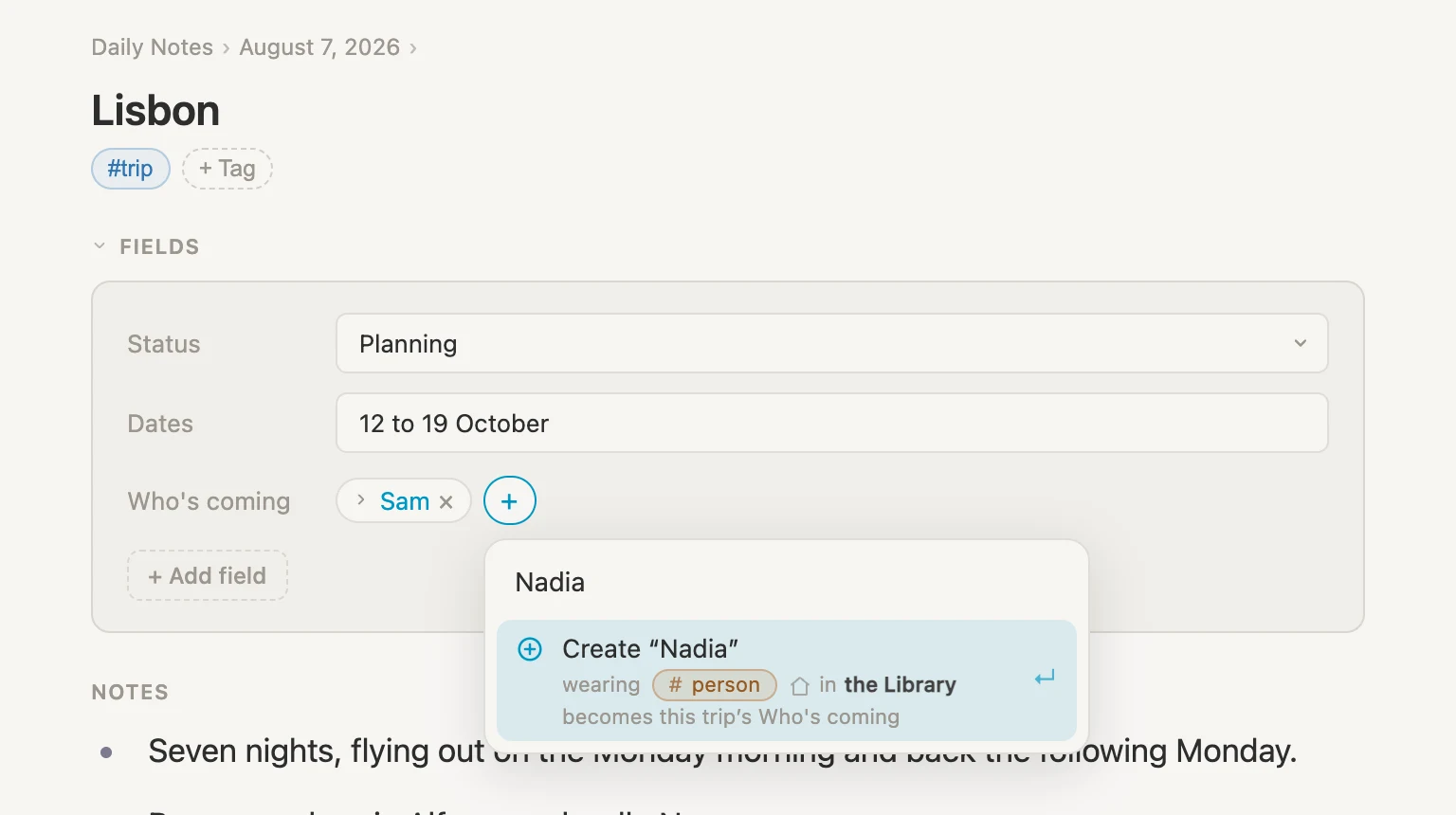
The picker offers to make the new person for us: Create "Nadia", wearing #person in the Library, becoming this trip's Who's coming. Accept it, and Nadia is now a #person note in the Library, pointed at from this trip. Same create-as-you-go trick, available on any reference field.
One more field, because a trip deserves a cover picture. Back on #trip, Schema, + Add field, name it Photo and set Type to image. An image field holds a web address, so paste in the link to any picture you like. Here's a URL from Unsplash you can use: https://images.unsplash.com/photo-1536663815808-535e2280d2c2?w=1200 (the Alfama rooftops, Lisbon, shot by Tom Byrom). There's also an upload button beside the box if you'd rather use a photo from your own machine. It holds one picture, which is all a cover needs. We'll make room for the rest of the album later on.
A booking
Now we'll add our first booking. Back on today's daily note, + add item, type Sintra day trip #booking, pick Create #booking, Enter.
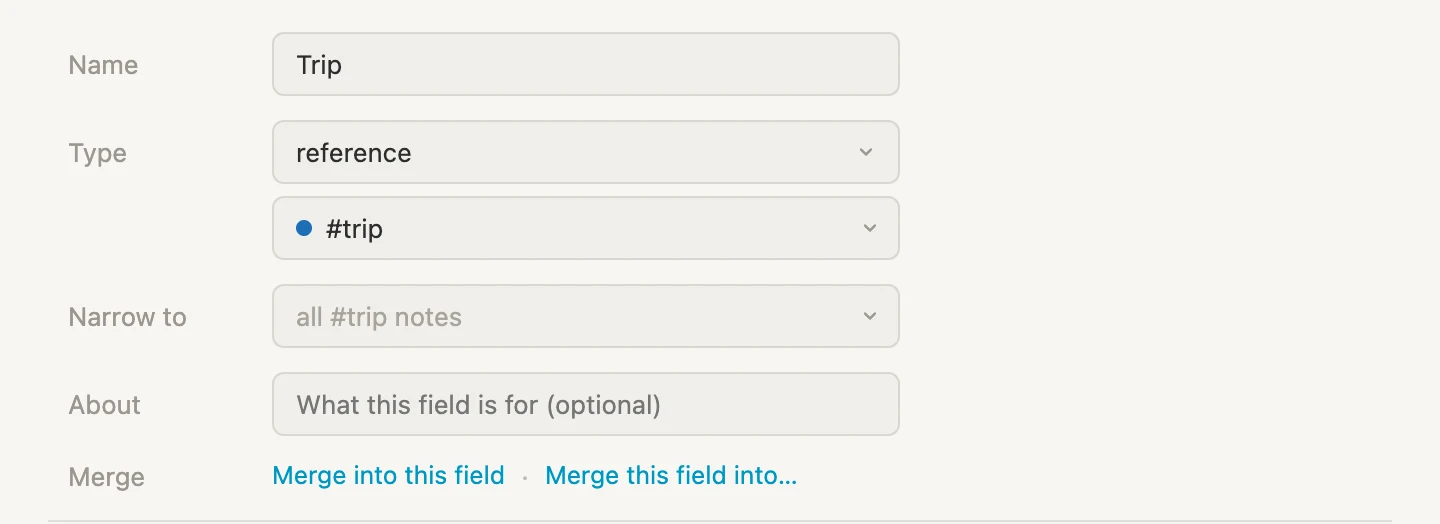
#booking needs fields of its own, so open it, Schema, and add four: Trip as a reference pointing at #trip, Cost (€) as a number, Confirmed as a select with Not yet, Confirmed, and Date as a date.
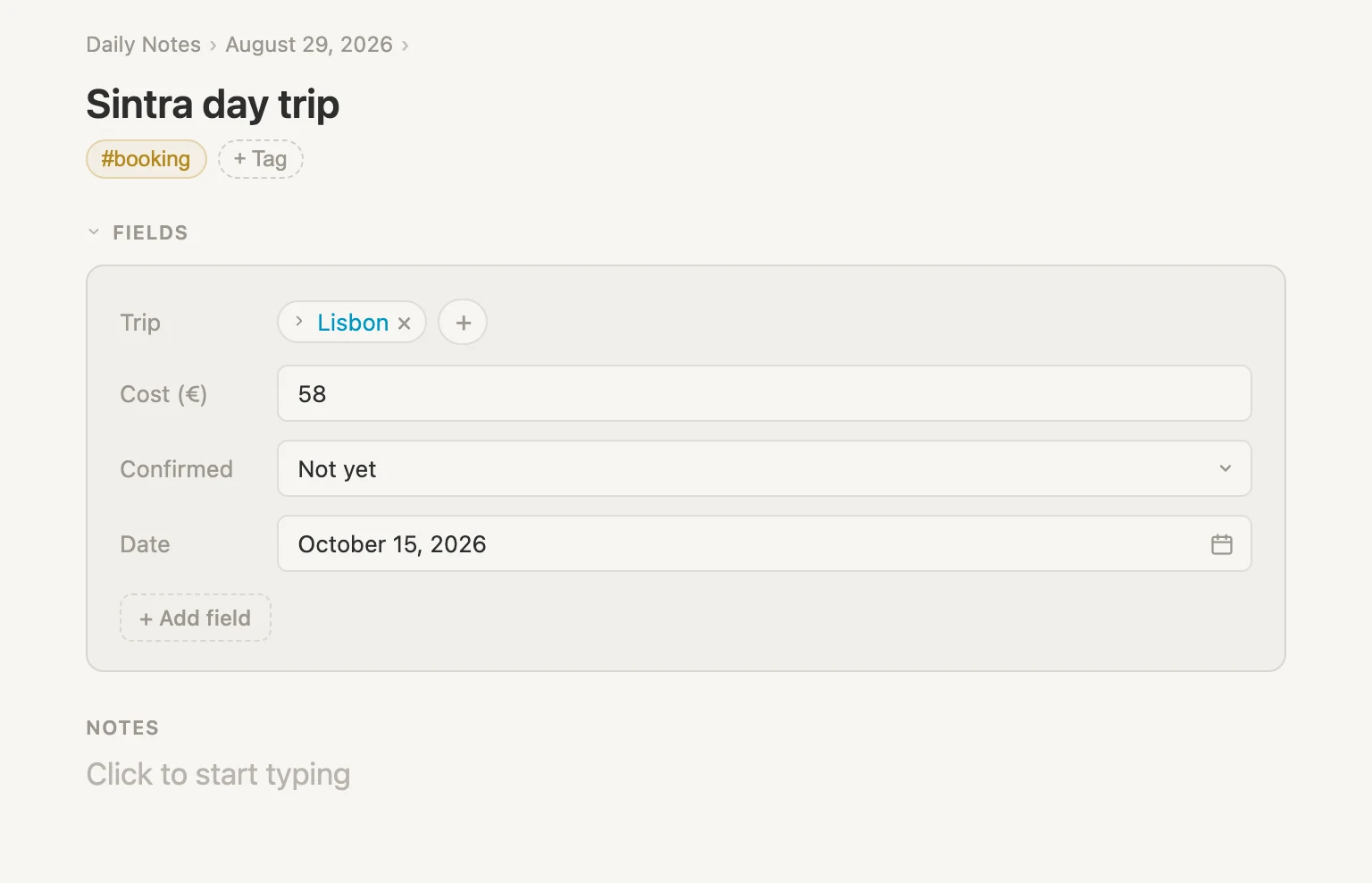
Go back to the daily note, click the bullet dot next to Sintra day trip to open it, and fill it in: Cost (€) 58, Confirmed Not yet, Date 15 October 2026, and Trip pointing at Lisbon. That pointer is the one that matters most, and we'll see why in a moment.
Two kinds of booking
A flight is a booking. So is a hotel. But a flight has a flight number and a hotel has a number of nights, and neither cares about the other's. This is where tag inheritance comes into play.
Back on today's daily note, + add item, type Flights to Lisbon #flight, pick Create #flight, Enter, then open it.
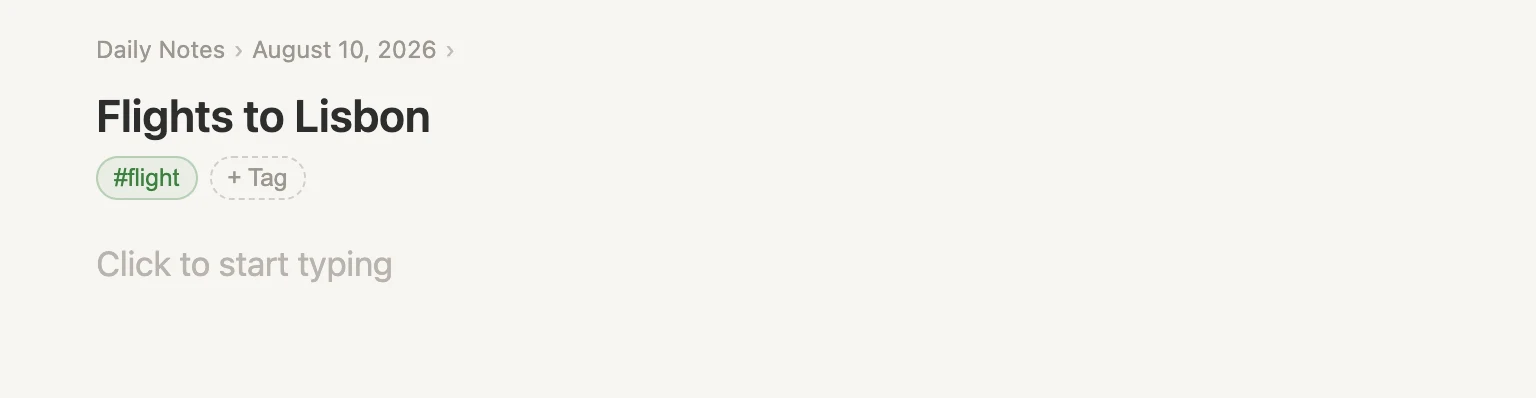
Not much. #flight is a brand new tag and we haven't given it any fields yet. Let's do that now.
Now click the #flight pill, then Schema. Below the description you'll see Subtag of set to Nothing, a top-level tag. Change it to #booking.
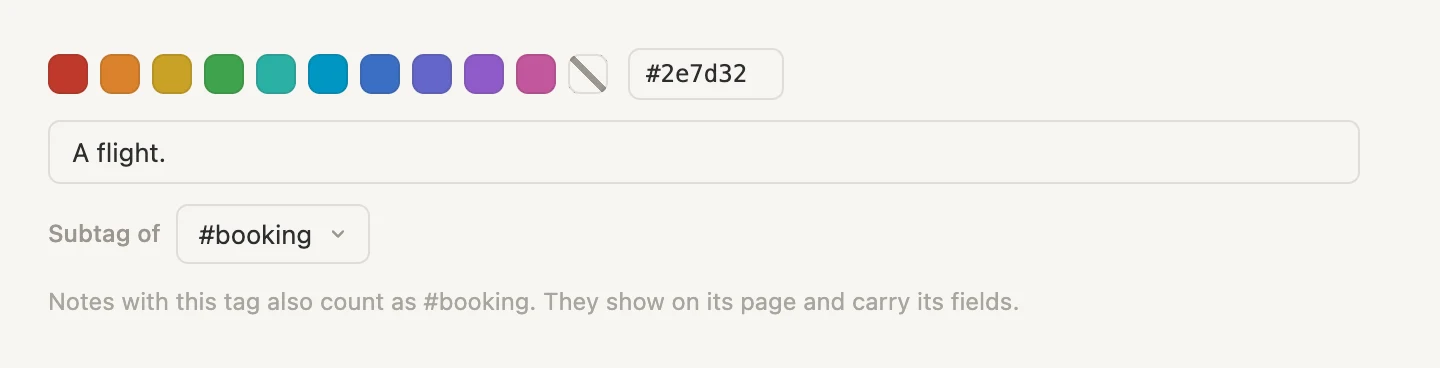
The message underneath says what you just did: Notes with this tag also count as #booking. They show on its page and carry its fields.
Go back to the flight note.
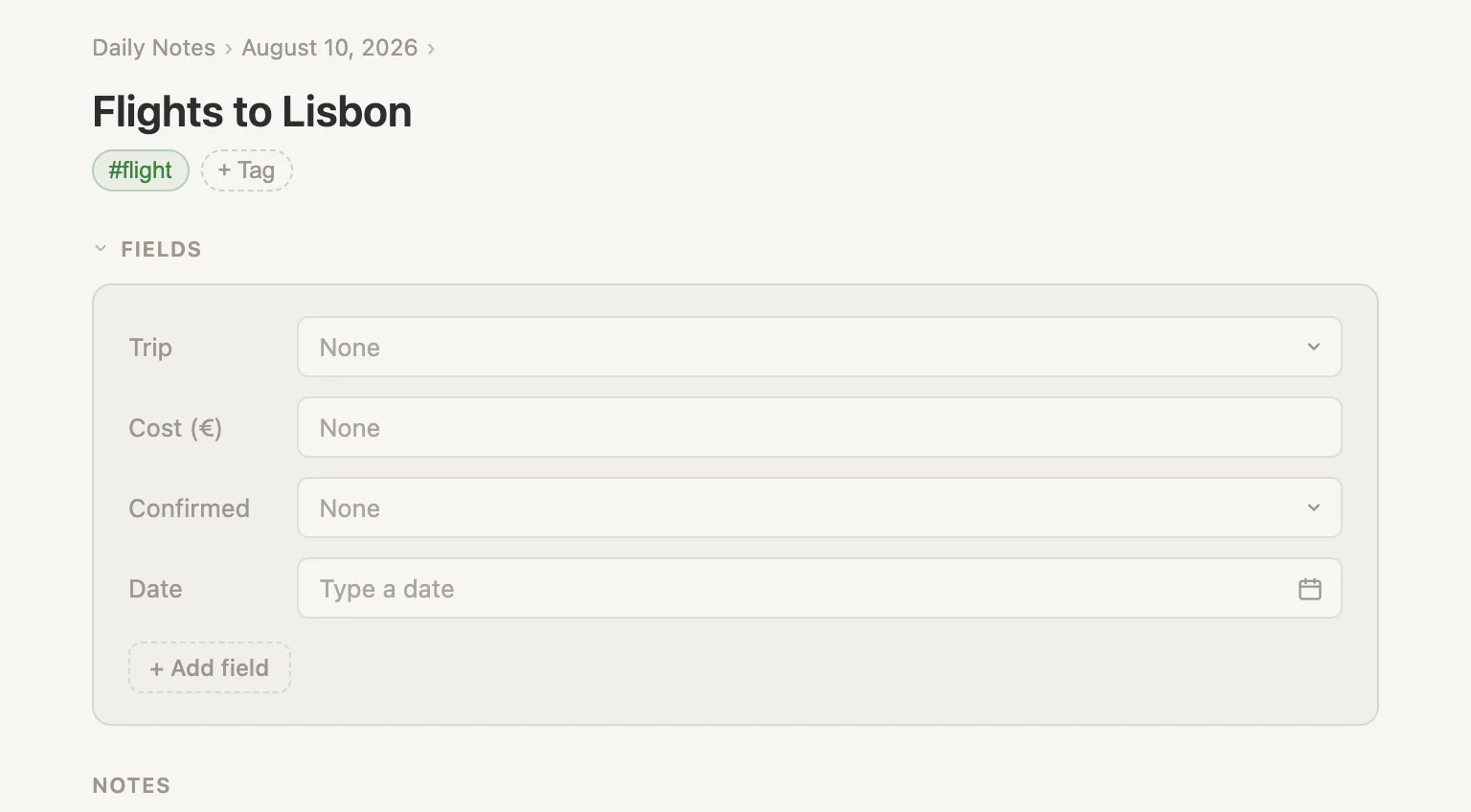
Four fields, out of nowhere. We didn't touch the note, we changed the tag, and every note wearing that tag caught up instantly. That's tag inheritance, and it's the reason we're not going to define Cost and Date twice.
Now let's do the same for a place to sleep. Back on today's daily note, + add item, Apartment in Alfama #stay, then make #stay a subtag of #booking too, so it inherits the same four fields.
If you want, give #flight its own Flight number (text) and #stay its own Nights (number). Those belong to one kind each, so they go on the subtag rather than the parent, and the other kind never sees them.
Fill in enough to see it work
Before we go further let's add a bit more data. All of it is the same two steps we've been doing: write a note on today's page with a tag on the end, then open the note and fill in its fields.
Four Lisbon bookings. You already made the first two, so those only need their fields filling in. The last two are new notes.
| Note to type | Cost (€) | Confirmed | Date |
|---|---|---|---|
Flights to Lisbon #flight | 412 | Confirmed | 12 October 2026 |
Apartment in Alfama #stay | 780 | Confirmed | 12 October 2026 |
Time Out Market food tour #booking | 96 | Not yet | 14 October 2026 |
Fado night in Alfama #booking | 70 | Not yet | 16 October 2026 |
Set Trip to Lisbon on all four. If you added Flight number and Nights earlier, fill those in too.
Then two more trips, so that later on there is something to compare Lisbon against:
| Note to type | Status | Dates | Who's coming |
|---|---|---|---|
Hokkaido #trip | Someday | February, sometime | Sam |
Cornwall #trip | Done | 2 to 9 August | Sam, Tom, Mira |
Tom and Mira don't exist yet. Type their names into Who's coming and take the Create row, the same way we made Nadia.
And two bookings for Hokkaido, both still unpaid:
| Note to type | Cost (€) | Confirmed | Date |
|---|---|---|---|
Flights to Sapporo #flight | 1240 | Not yet | 8 February 2027 |
Ryokan in Noboribetsu #stay | 520 | Not yet | 10 February 2027 |
Set Trip to Hokkaido on both.
That's all the data we need. Now let's move on to Sections.
Sections
A section is a named shelf on a page. What makes sections worth learning about is that you can choose where each shelf's contents come from, and only one of the choices is "things you manually put there yourself". In other words, sections are ideal for automatically gathering information from throughout Vellum and presenting it in an organized structure.
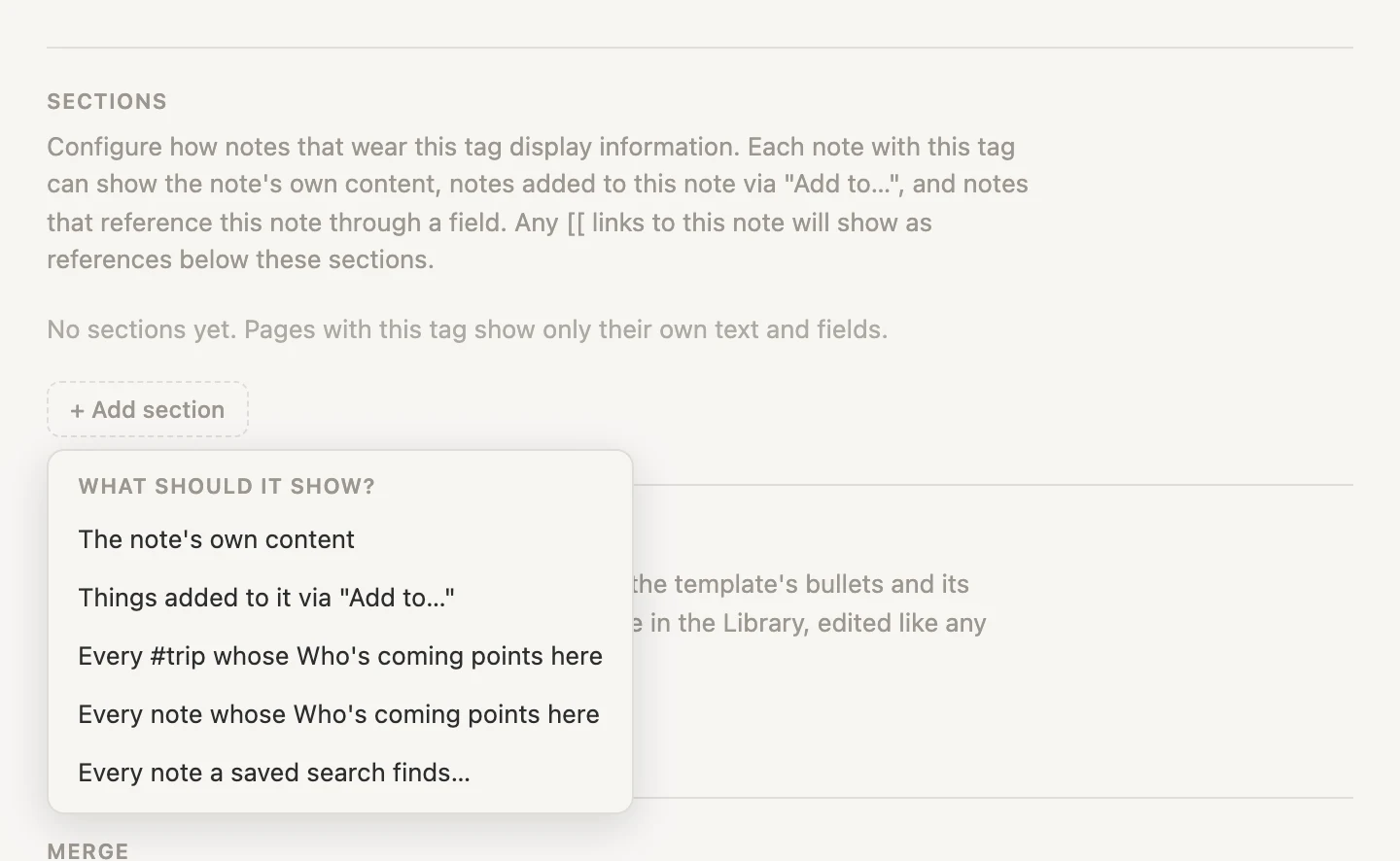
Open #trip, Schema, scroll down to Sections, and click + Add section. This little menu is the whole idea.
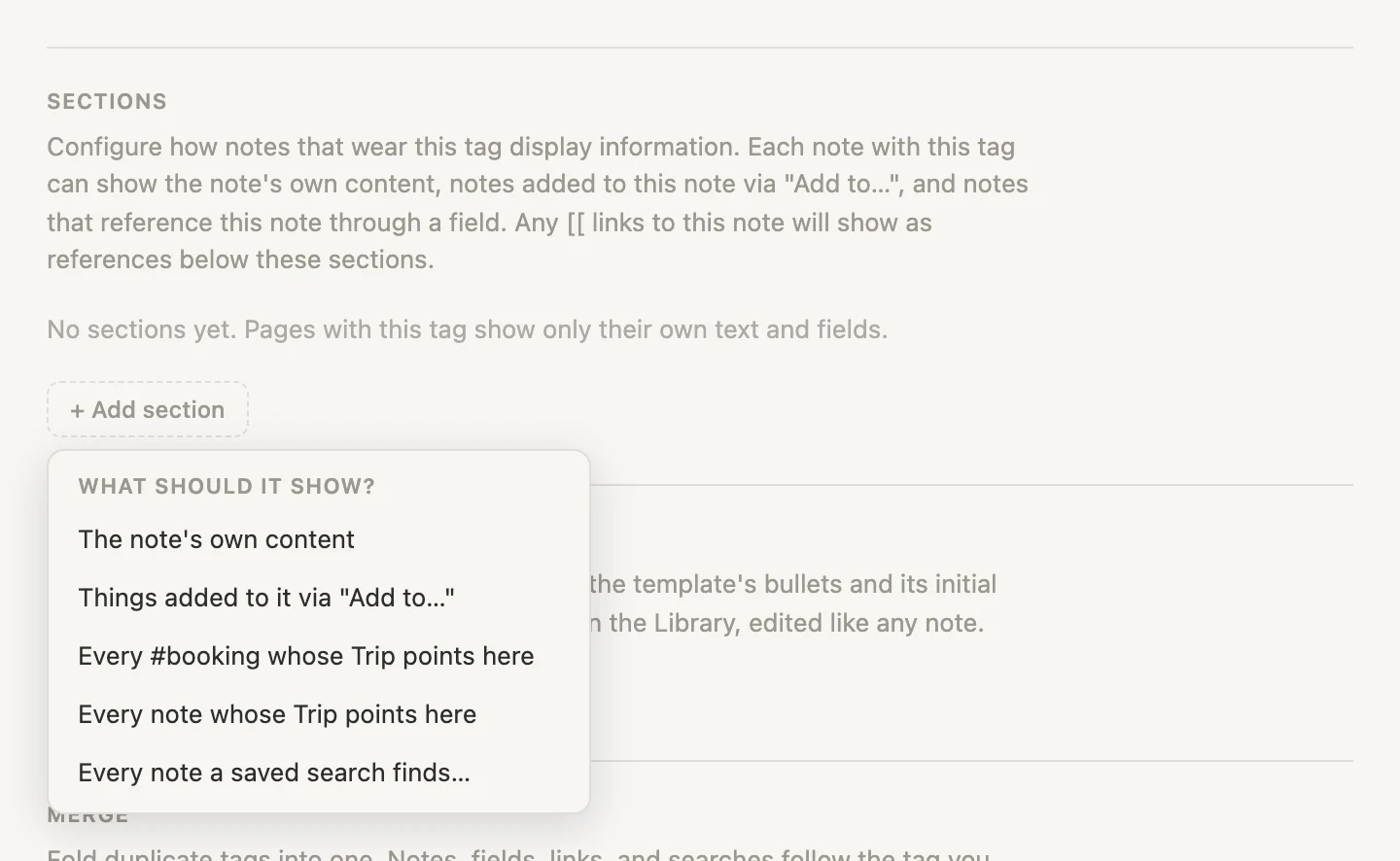
Read those five options as answers to "where does this shelf fill up from":
- The note's own content is what we type on the page ourselves
- Things added to it via "Add to…" is anything we send here from somewhere else, which we'll do in a moment
- Every #booking whose Trip points here gathers every note that both wears
#bookingand has its Trip field pointed at this page - Every note whose Trip points here is the same thing without the tag test, so it would also catch a note that has a Trip field but isn't a booking. Useful when a field is shared across several kinds of notes.
- Every note a saved search finds… is a search rule (filter) we write once and every trip page runs it as a live query. We'll do just this later in our walkthrough.
Options three and four only exist because we made a Trip field earlier. Sections offer whatever our own fields make possible, which is why we defined the fields before we configure the sections.
We're going to use three of those five options on our #trip tag right now, and come back for a fourth later on.
The trip's own notes
Choose The note's own content. Make the section name Notes if it doesn't already read that way. And leave shown as on list.
Go back to the Lisbon note. Those lines you typed earlier now sit under a proper heading.
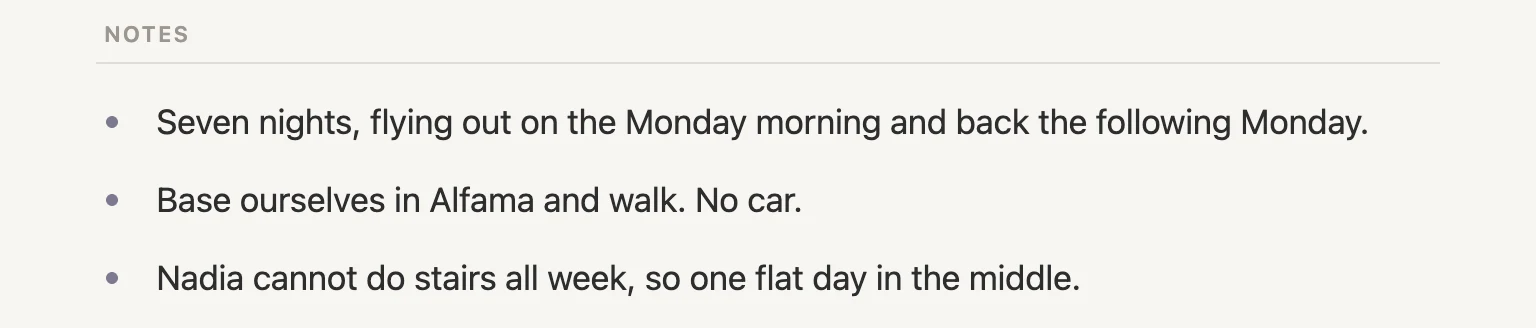
Nothing clever yet. This is the shelf filled in by hand, and it behaves the way you'd expect.
Ideas, sent in from wherever you were
Here's the one that changes how you work.
Back on #trip, Schema, + Add section, and choose Things added to it via "Add to…". Rename it from Notes to Ideas, and set shown as to journal, which groups what arrives by the day it was written.
Now forget about the trip for a moment. You're in today's daily note, doing something else entirely, and you come across a photo of a tram and a fact worth keeping. You drop both into today's note, because that's where you already are. Pictures paste, drag and drop straight into a line like any other. Copy/paste this line into your daily note.
Tram 28 runs right through Alfama. Get on at Martim Moniz, the start of the line, or you will stand the whole way. 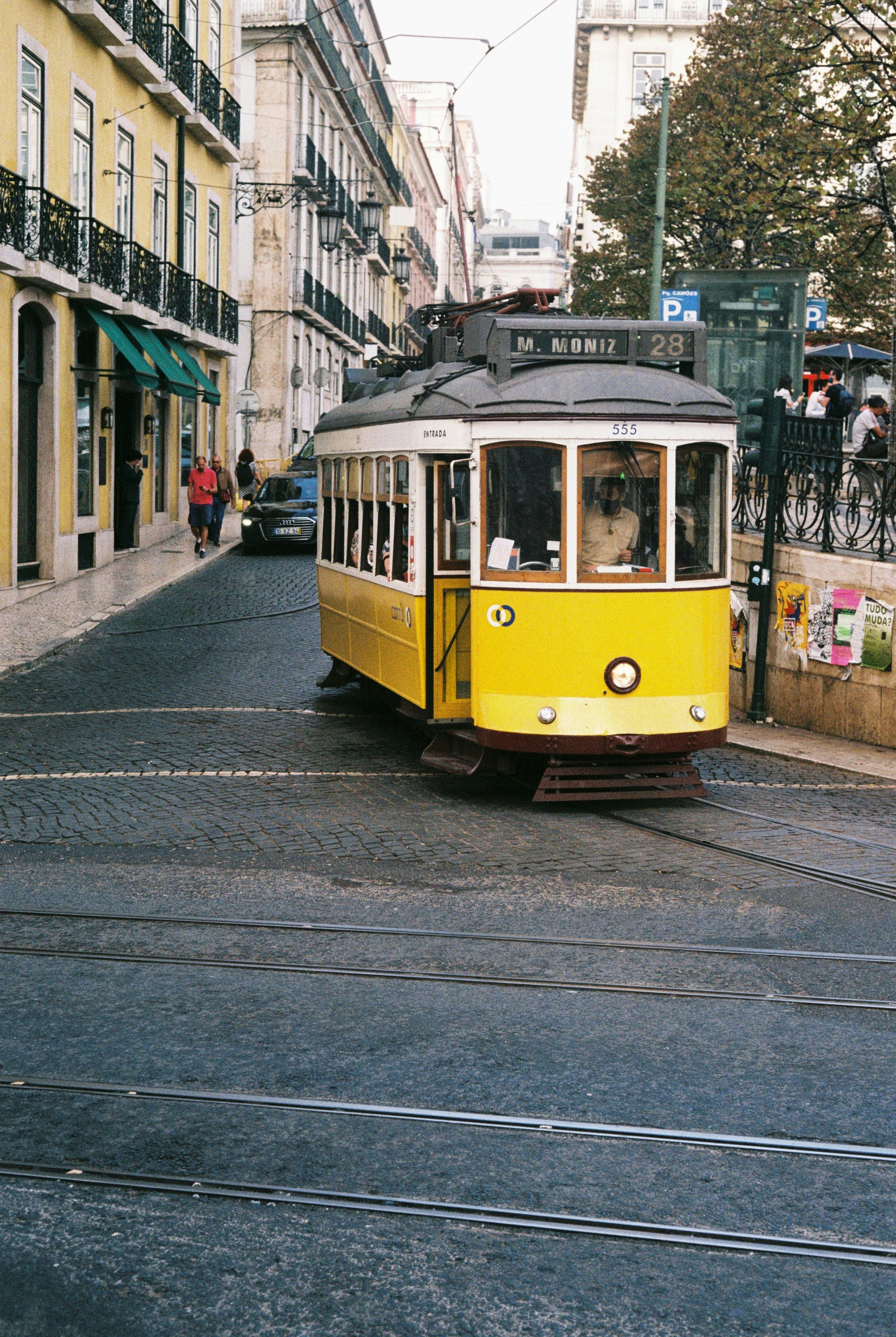
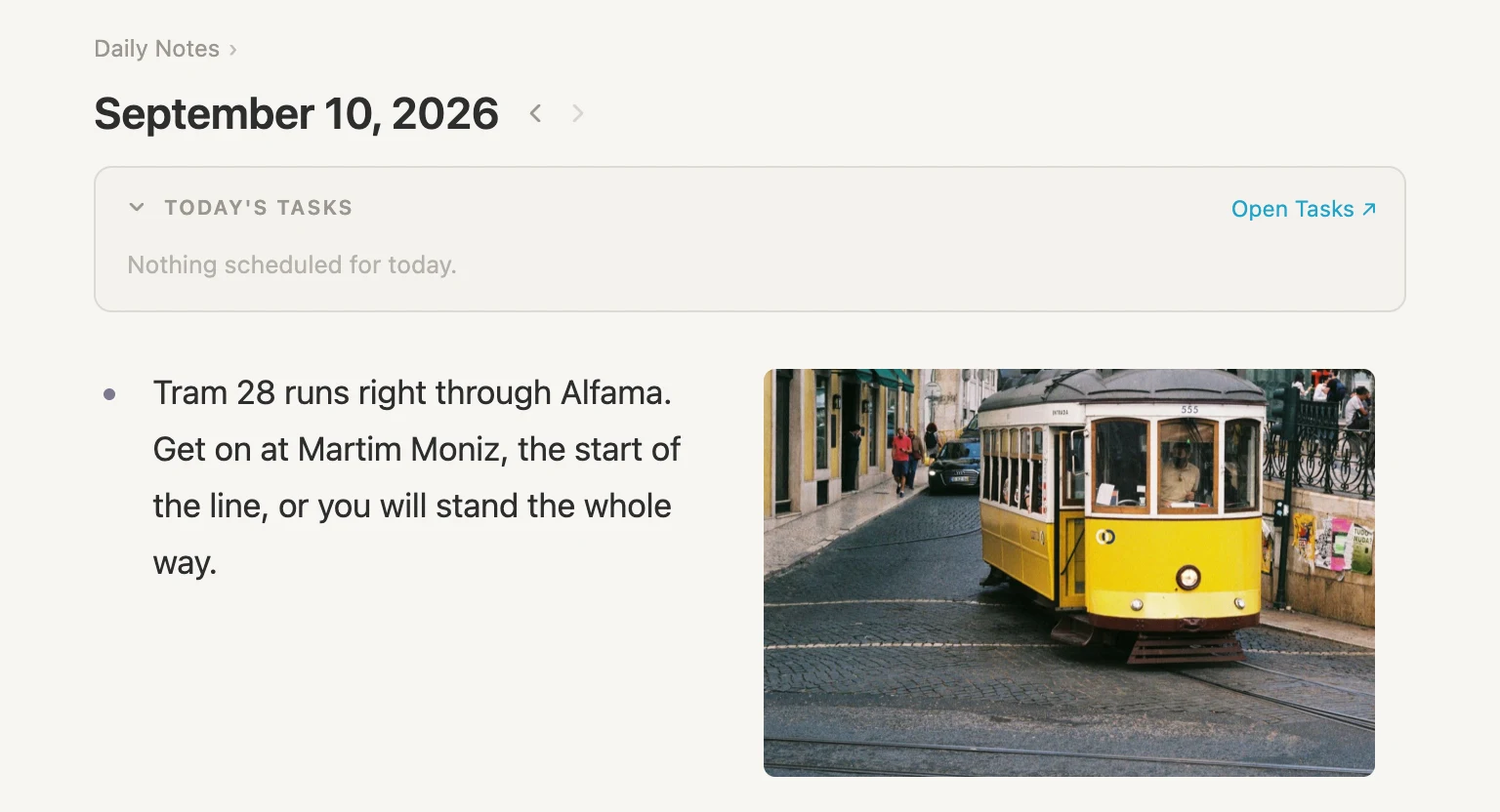
You could go and find the Lisbon page and move your tram note there. Instead, leave it where it is in the daily note. Put your cursor in that line and press Cmd-K.
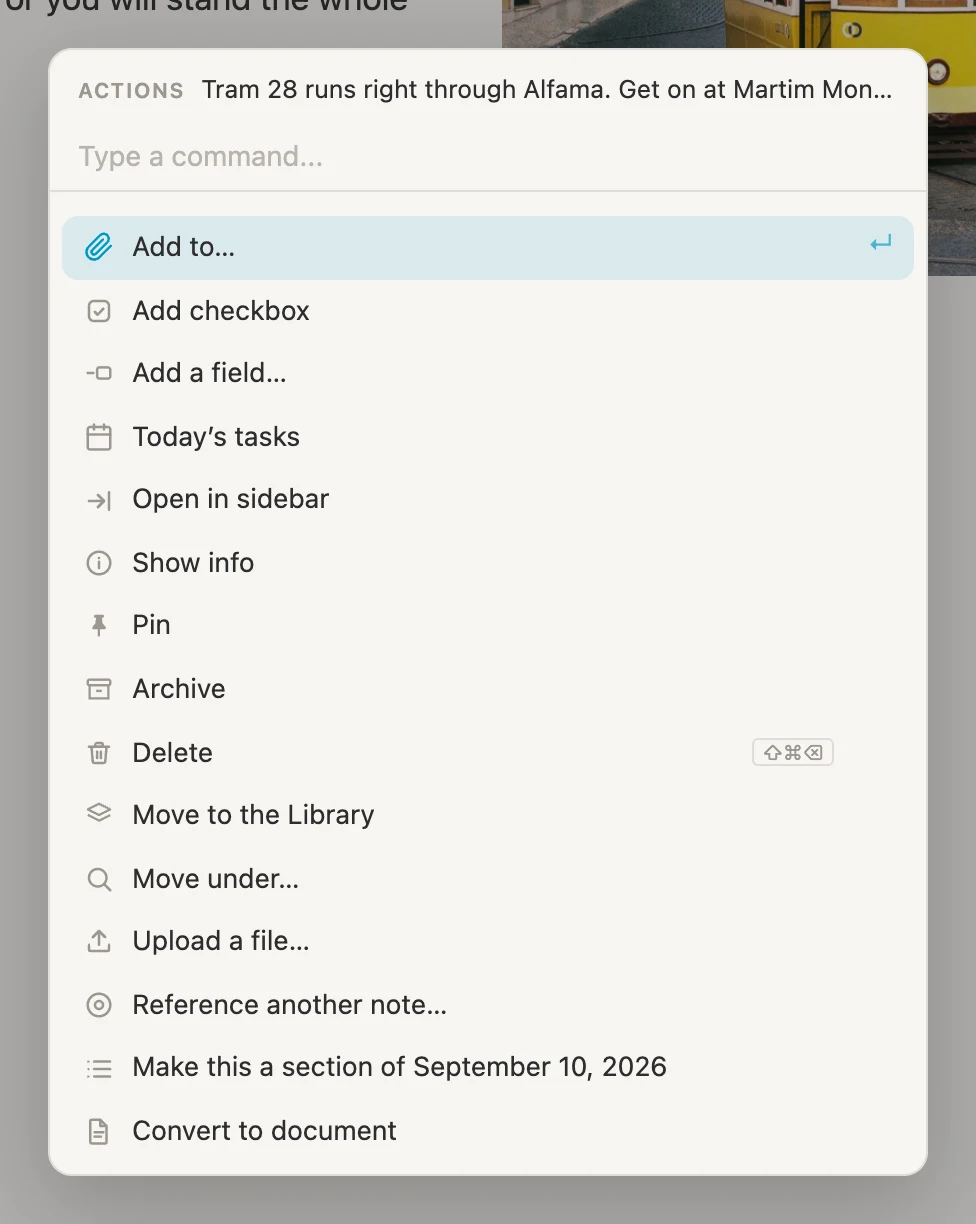
Choose Add to…, start typing the trip's name (Lis). Notice the chip in the top-right corner showing as Idea: that's the section it's headed for, and it's there because Ideas is the only section on #trip that was defined with Things added to it via "Add to…". Select Lisbon.
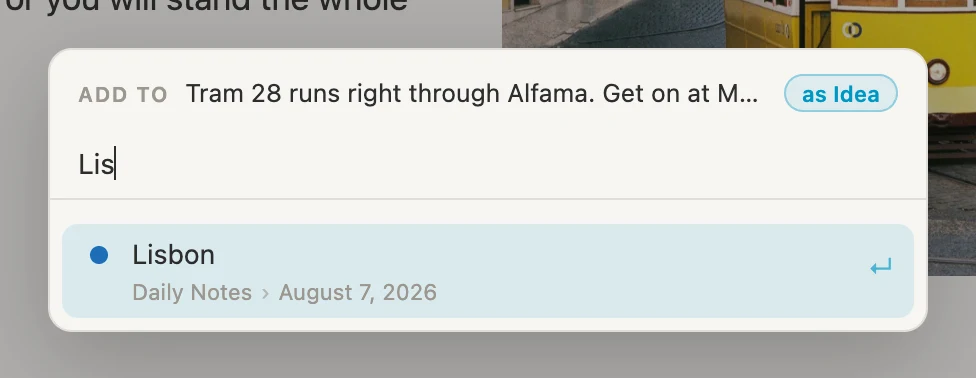
Now the cool part. Nothing moved. The note is still sitting in today's daily note exactly where you wrote it. The only change is a small marker on the right, and hovering it says where else the note now shows.
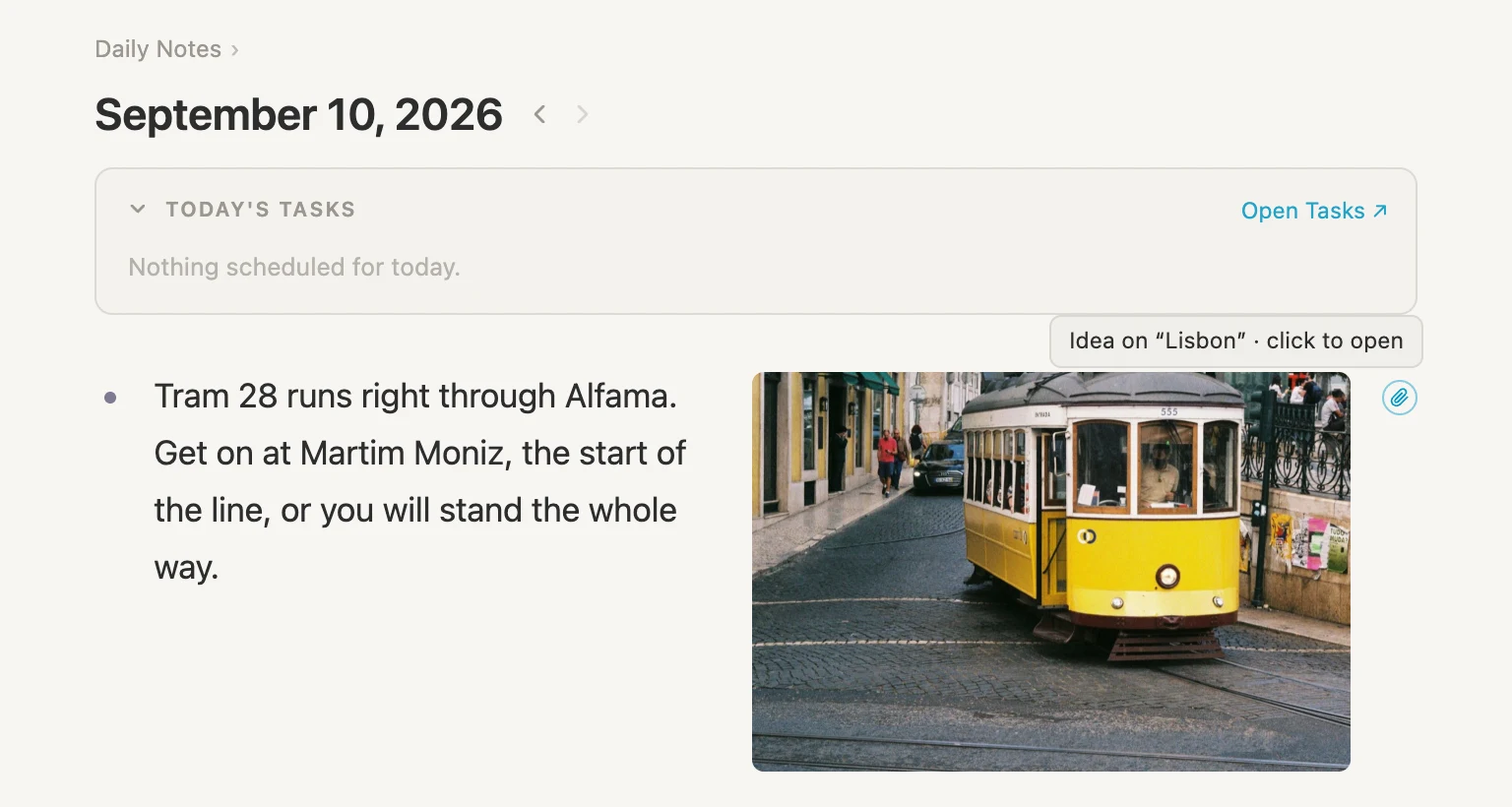
Click that link and now we see the same note on the trip page, in the Ideas section, filed under the day you wrote it.
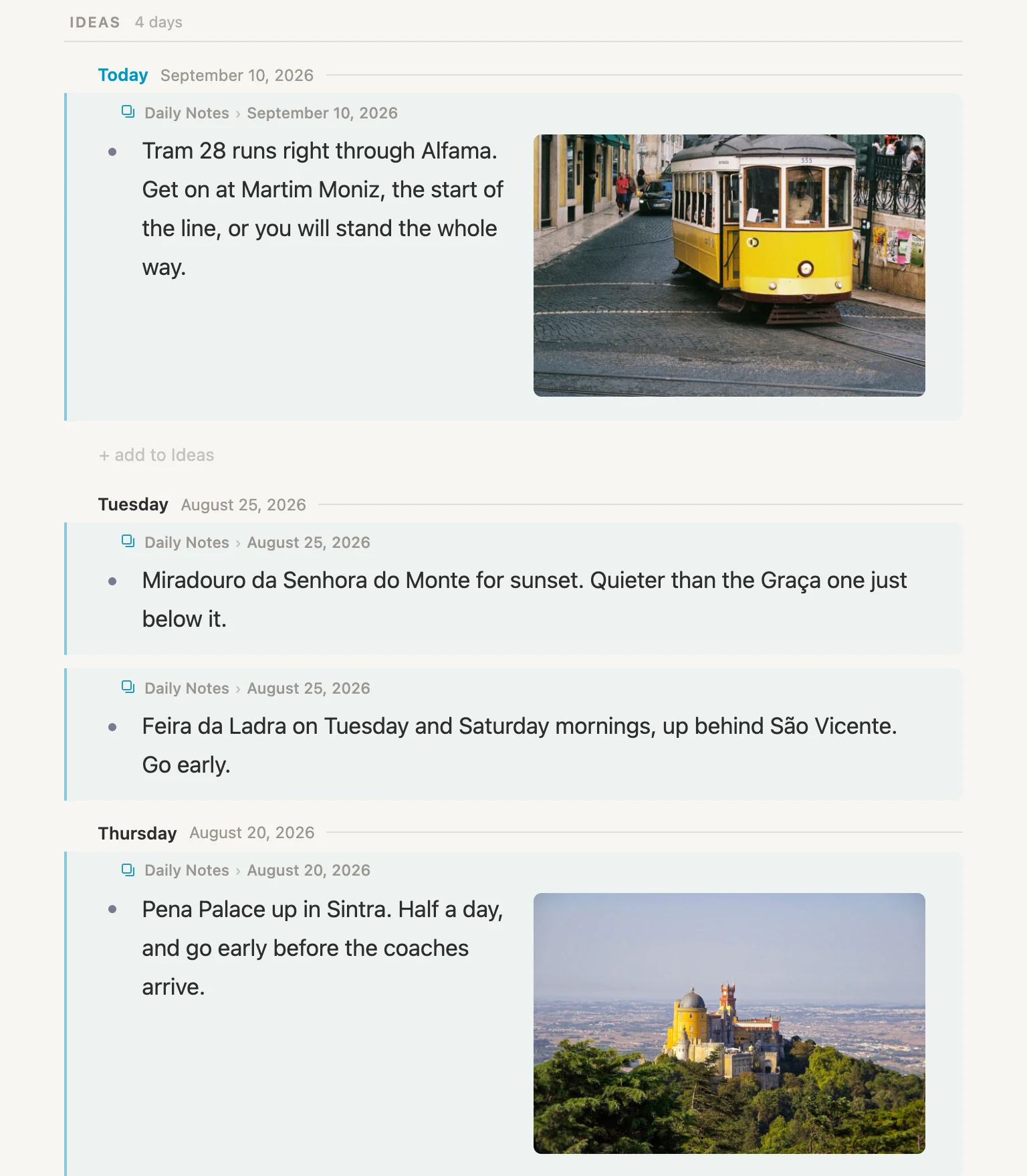
That's Add to in one sentence: it puts a note on another page without taking it out of the one it lives in.
Which means you never have to decide where something goes at the moment you think of it. You write it down where you are, send it, and carry on. Do that for three months and the trip page above assembles itself, in date order, with the photos, without a single act of filing.
It works from the other end too. Open the trip, click the dimmed + add to Ideas line in the IDEAS section, just under the most recent day, and type something like Miradouro da Senhora do Monte for sunset. Quieter than the Graça one just below it. And now visit today's daily note. Same note, two places. And you can edit it in either one.
Photos, on a second shelf
Ideas showed that Add to can send a note somewhere else. Here's what makes it more than a single trick: a tag can have more than one shelf that accepts things, and you pick which one as you send.
Back on #trip, Schema, + Add section, and choose Things added to it via "Add to…" for a second time. Name this one Photos and set shown as to journal.
Now we'll drop a couple of pictures into a daily note. Copy/paste this line:
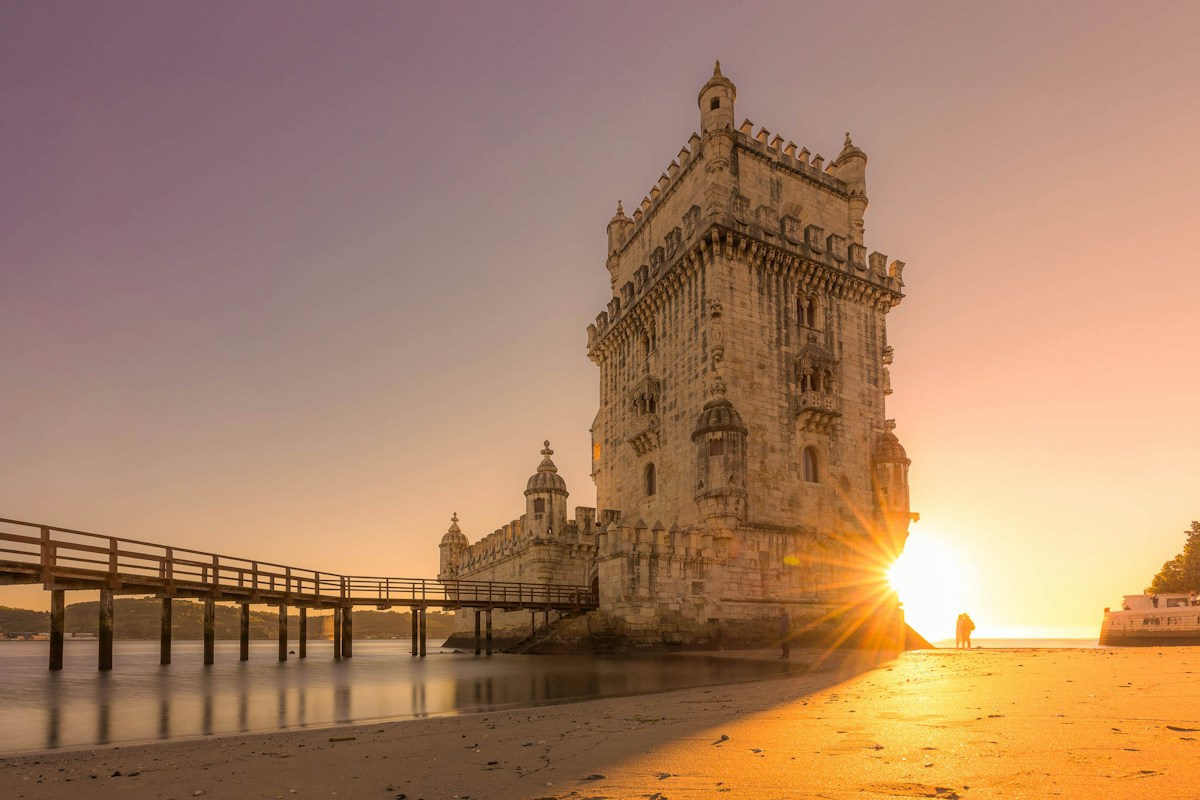 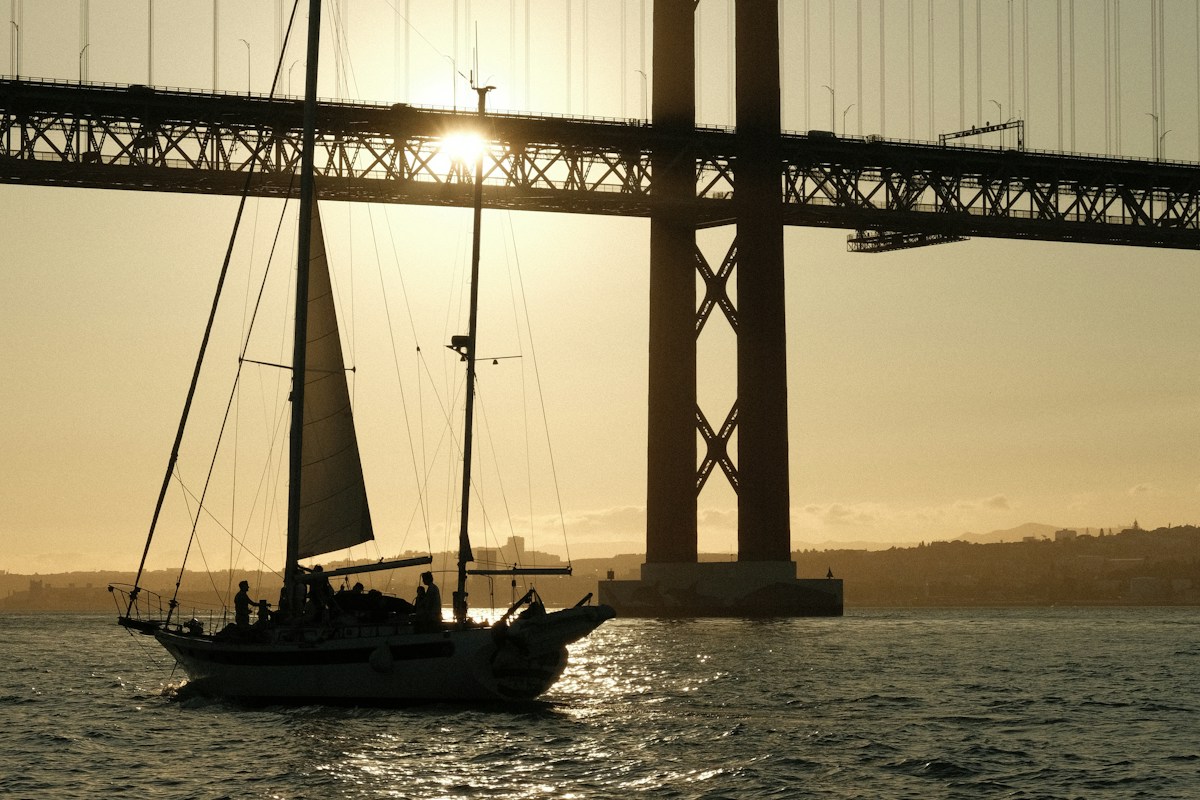
And then with your cursor in that row, Cmd-K, Add to…, type Lis but don't select Lisbon just yet. Look at the chip in the top-right corner this time.
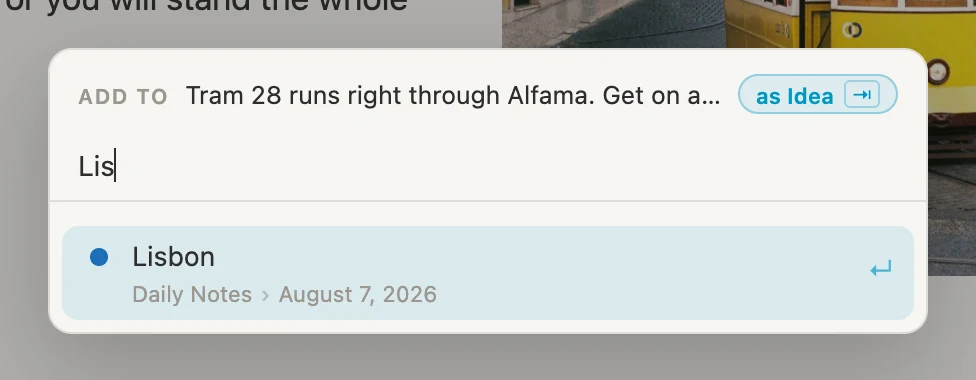
It says as Idea, but there's a Tab icon beside it, because now there are two shelves to choose from. Press Tab and it flips to as Photo. Same gesture, two destinations, decided in the moment. Now select Lisbon.
Visit your Lisbon page now and you'll see a new section called PHOTOS with your images. Imagine doing this kind of thing a week later with two more images. Your own photo gallery as part of the one Lisbon page.
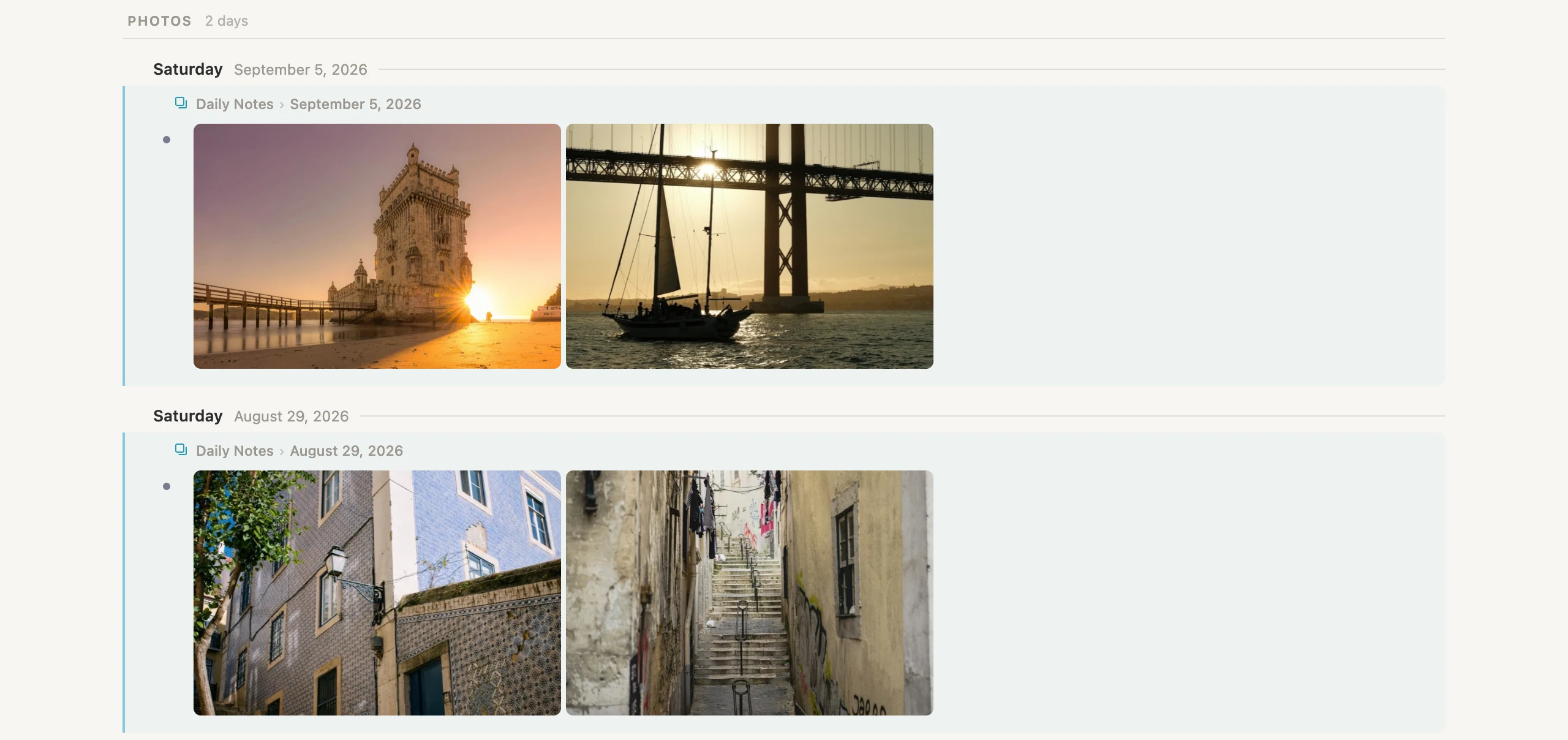
In Vellum, if you hover over any picture you'll see options to view in full screen, or drag its corner to resize. A small control strip also lets you park a picture on the left or right of any words.
Bookings, which arrive on their own
The third kind of section needs no sending at all.
We already have five bookings, each one pointing at a trip through its Trip field. We never put any of them on the trip page. Let's make the trip page fetch and display them.
Go to #trip, Schema, + Add section one last time, and choose Every #booking whose Trip points here. Name it Bookings and set shown as to table. Then visit your Lisbon note.

Now we have a new Bookings section on our Lisbon page. We never added any of those to the trip. Each one simply says which trip it belongs to, and the section collects them. Change a booking's Trip field and it moves pages. Add a booking tomorrow and it appears without us needing to visit the trip page at all.
Notice the flights and the stays both turn up here, because both count as bookings. That's the subtag work from earlier paying off.
If you hover the top-right of the Bookings section you'll see a slider icon. If you click that you'll be able to sort, group, and filter the table however you'd like. Click the slider icon again to toggle off the view options.
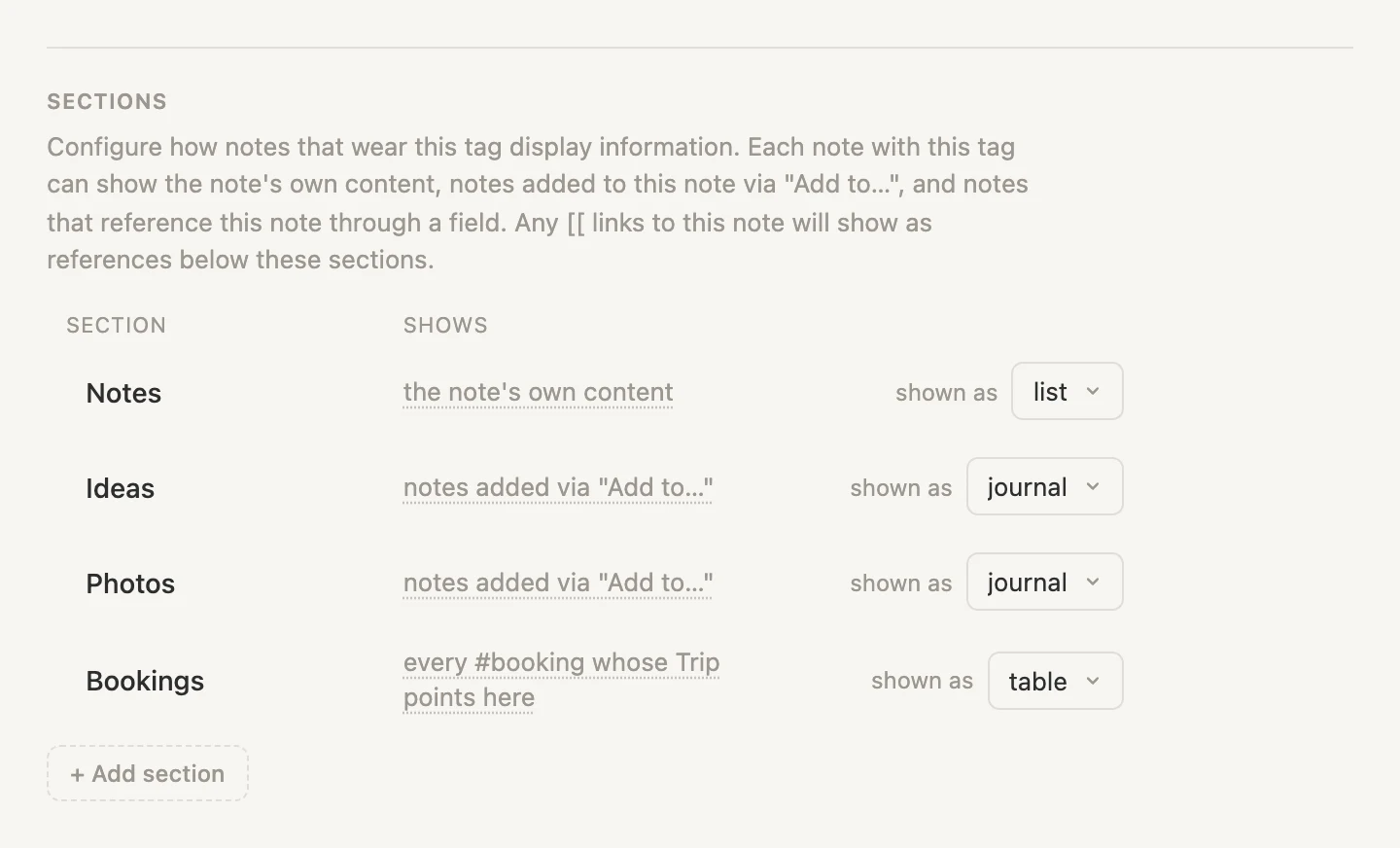
So, in our #trip tag schema, we have four sections so far, from three different sources.
A page we never set up
Here's where it gets slightly magical.
Who's coming is a field on each trip, and it points at a person. And a section can gather that.
Open #person, Schema, + Add section, and choose Every #trip whose Who's coming points here. Name it Trips and set shown as to table.
Open anybody.
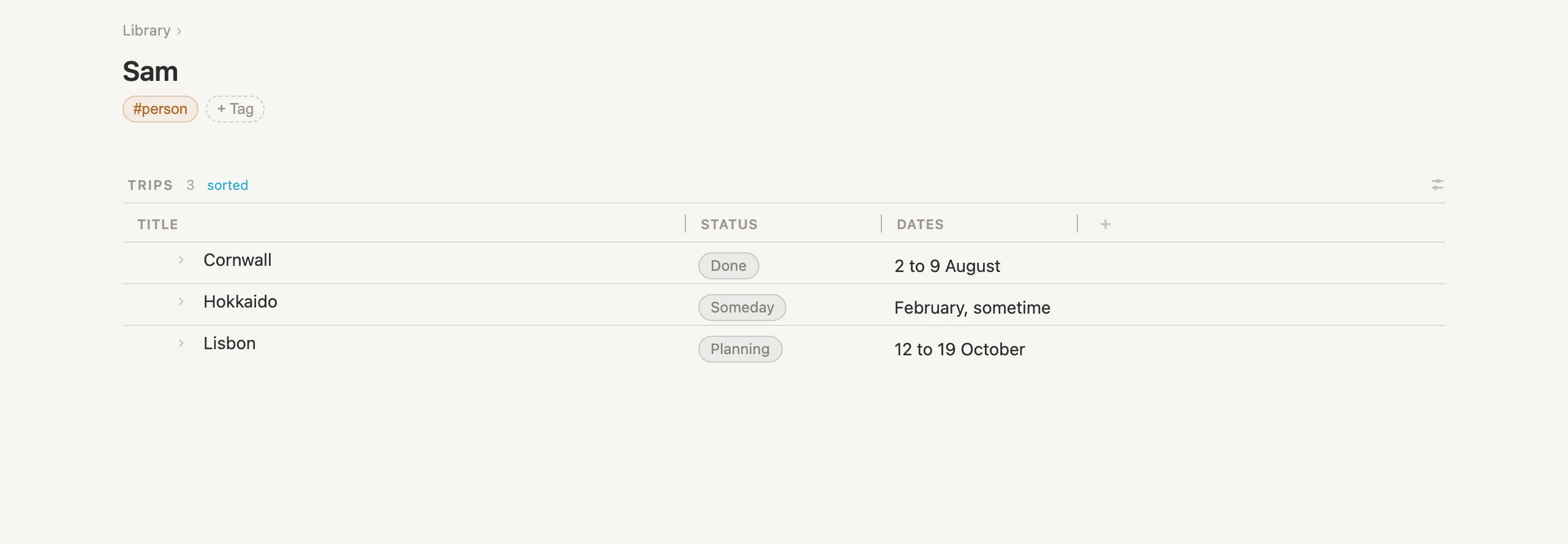
We're looking at Sam's page and we see a table of every trip that includes Sam. This is true for every person involved in our trip. We defined it once, on the tag, and now every person has a page showing every trip they're on, past and future, and it stays updated without any maintenance. Nobody built Sam's page. It's a view of things that were already true.
Saved searches
A section gathers what points at one page. A saved search asks a question, and we get to decide how wide the question is.
We're going to ask the same question twice, at two different widths, because a trip needs both answers and neither one can give you the other.
Wide: everything, everywhere
The first question is the money one. What have I not paid for yet, across every trip I have going?
On today's page, click + add item, type / and pick Live search. Name it Everything still to book and click its bullet to open it. Click the pencil beside the rules and add two:
- Tag is #booking
- Confirmed is Not yet
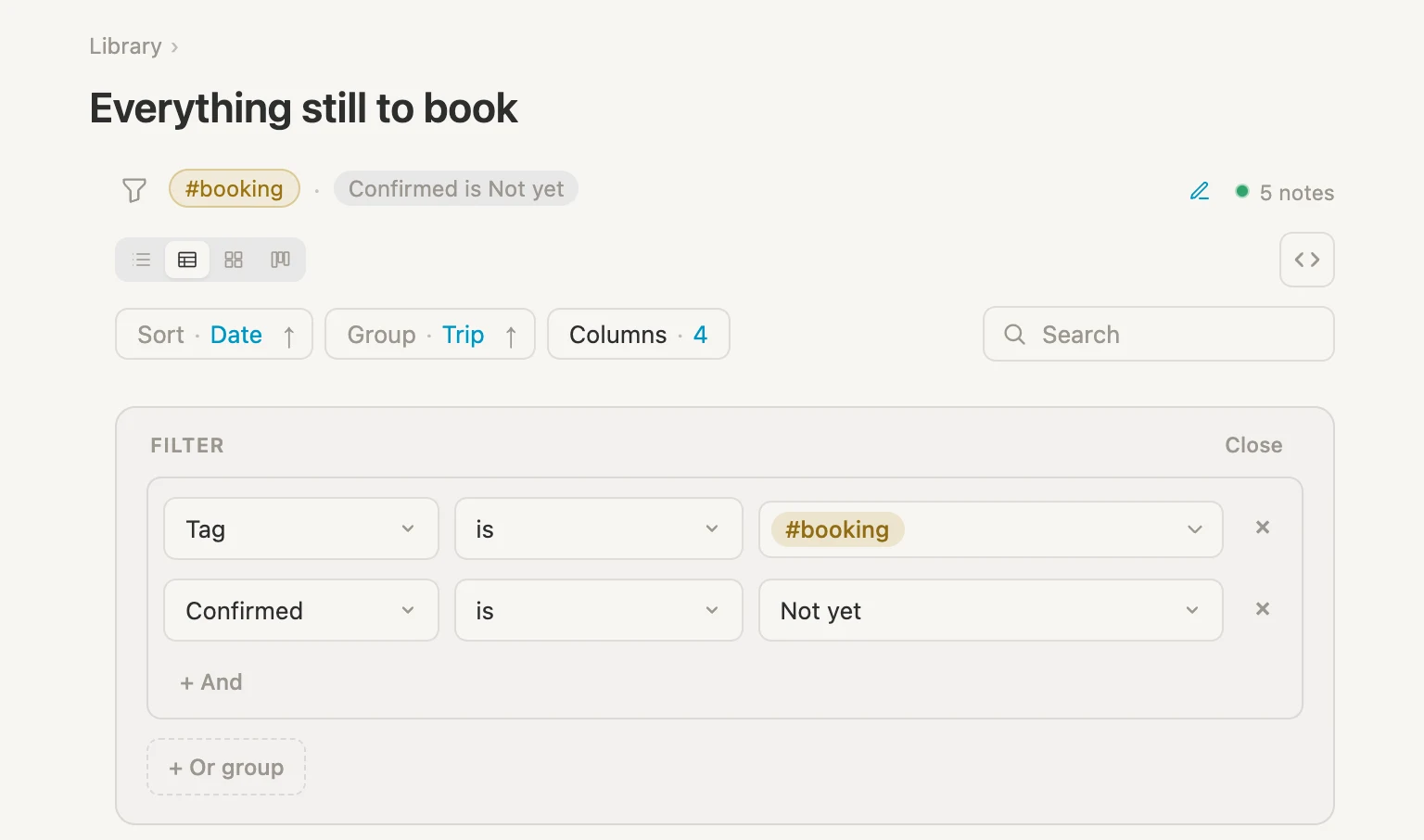
Then click the table icon, set Group to Trip and Sort to Date ascending. And under the Columns menu you can untick Confirmed.
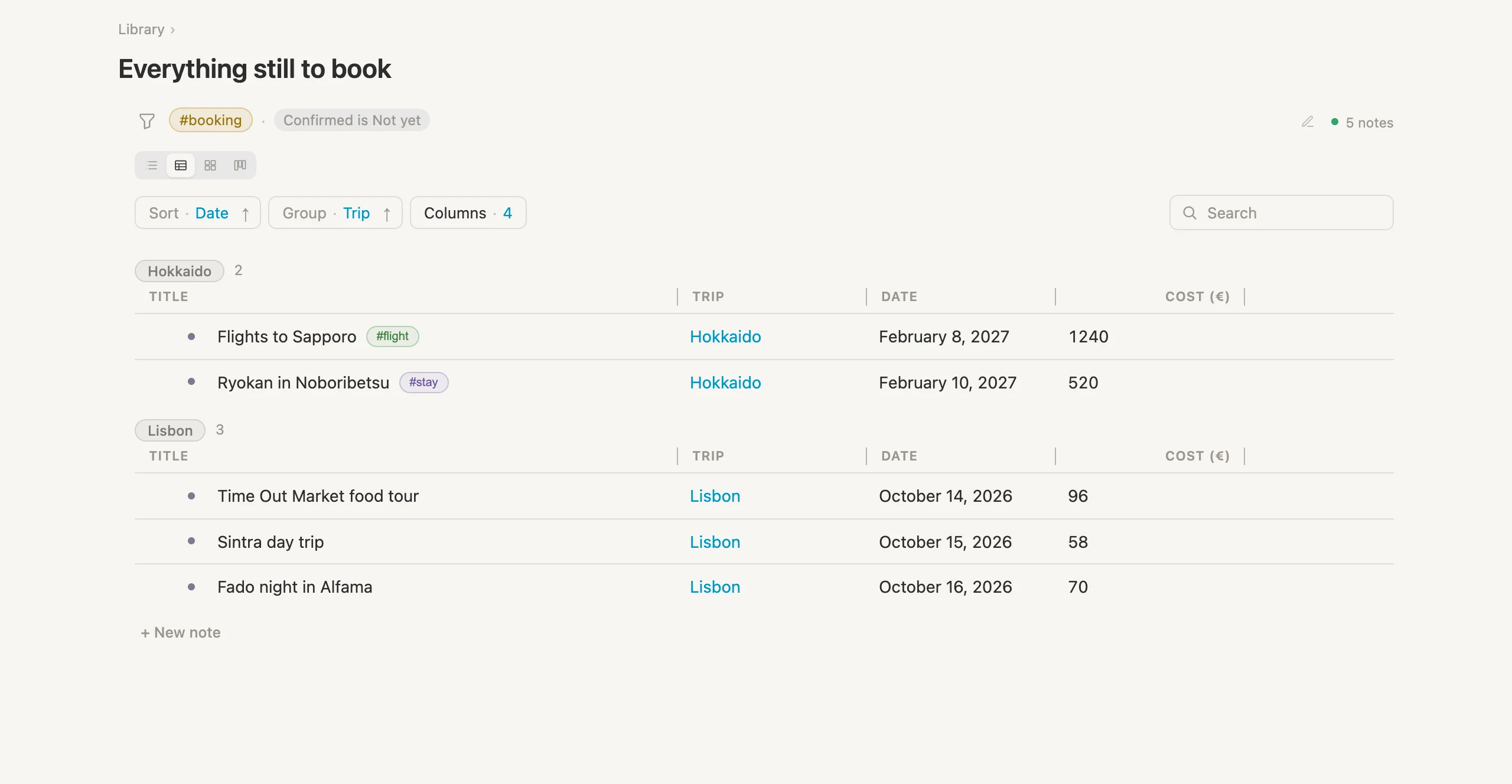
Two trips, five things unpaid, in date order, on one page. This is the list you open when you're deciding whether next February is affordable at all, or when you want to know what's about to need paying. It's live, so it clears itself as you confirm things.
We'll keep this saved search in the Library where we can easily find it later: on its row, Cmd-K, then Move to the Library.
Narrow: the same question, on one trip
The wide list is the right tool at our desk on a Sunday in planning mode with checkbook in hand. It's the wrong tool when we're viewing the Lisbon page, because the wide-search (Everything still to book) tells us about Hokkaido too.
So let's ask it again, narrowed. On today's daily note, make a second search called Still to book for this trip, with the same two rules as before plus one more in the middle:
- Tag is #booking
- Trip is This note
- Confirmed is Not yet
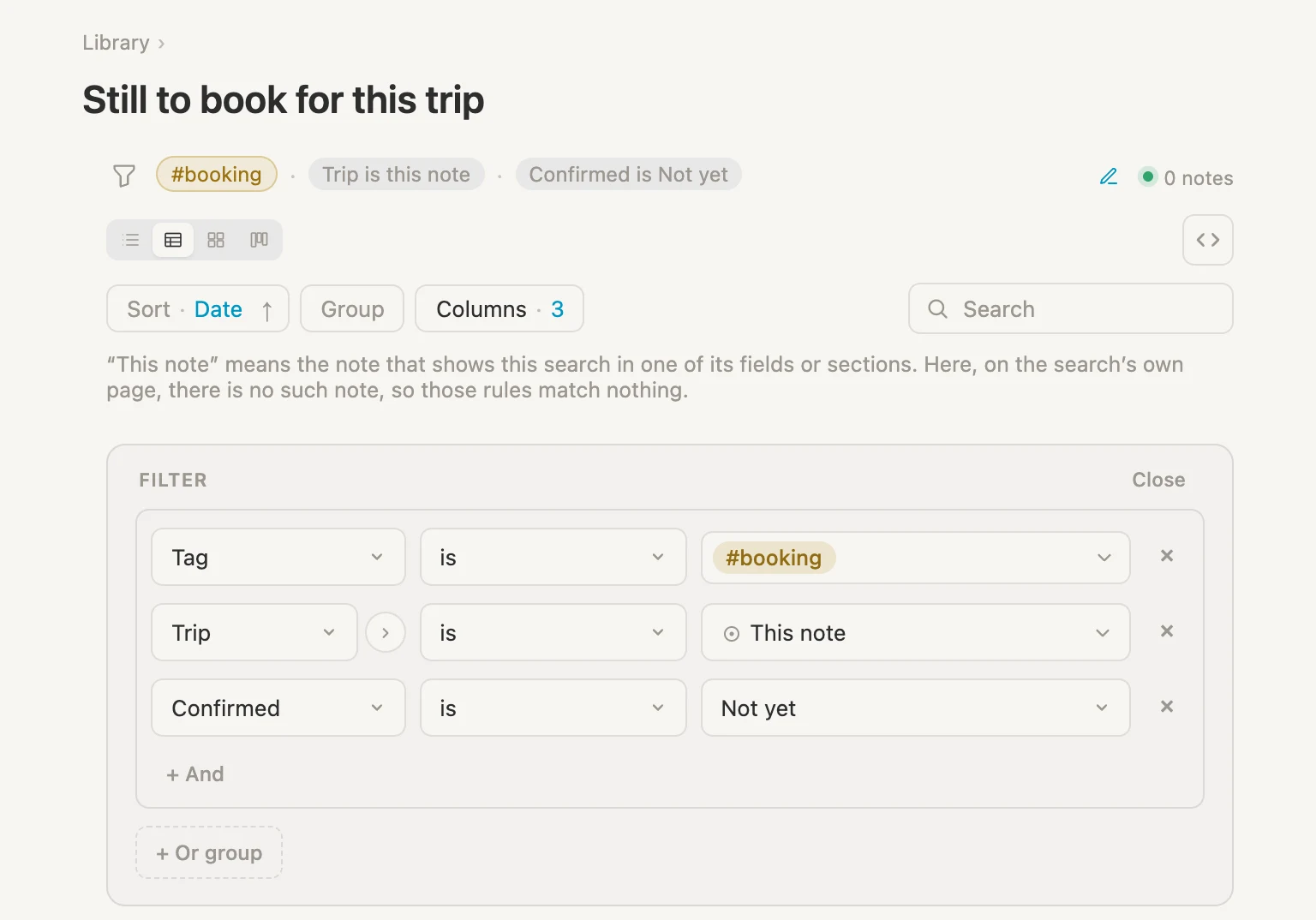
This note is the whole trick. It means whichever note is showing the search. On the search's own page there is no such note, so it finds nothing and says so, which is expected and not a mistake.
That one rule is the difference between the two searches, and it's why we need both. The wide one has no page to sit on, so it can never narrow itself. The narrow one only ever gathers for the page it's on, so it can never show you the total. Same question, two widths, two jobs.
Now let's put it to work. Move this one to the Library too, the same Cmd-K way, then open #trip, Schema, + Add section, choose Every note a saved search finds… and select the Still to book for this trip saved search. Name the section Still to book and set shown as to table.
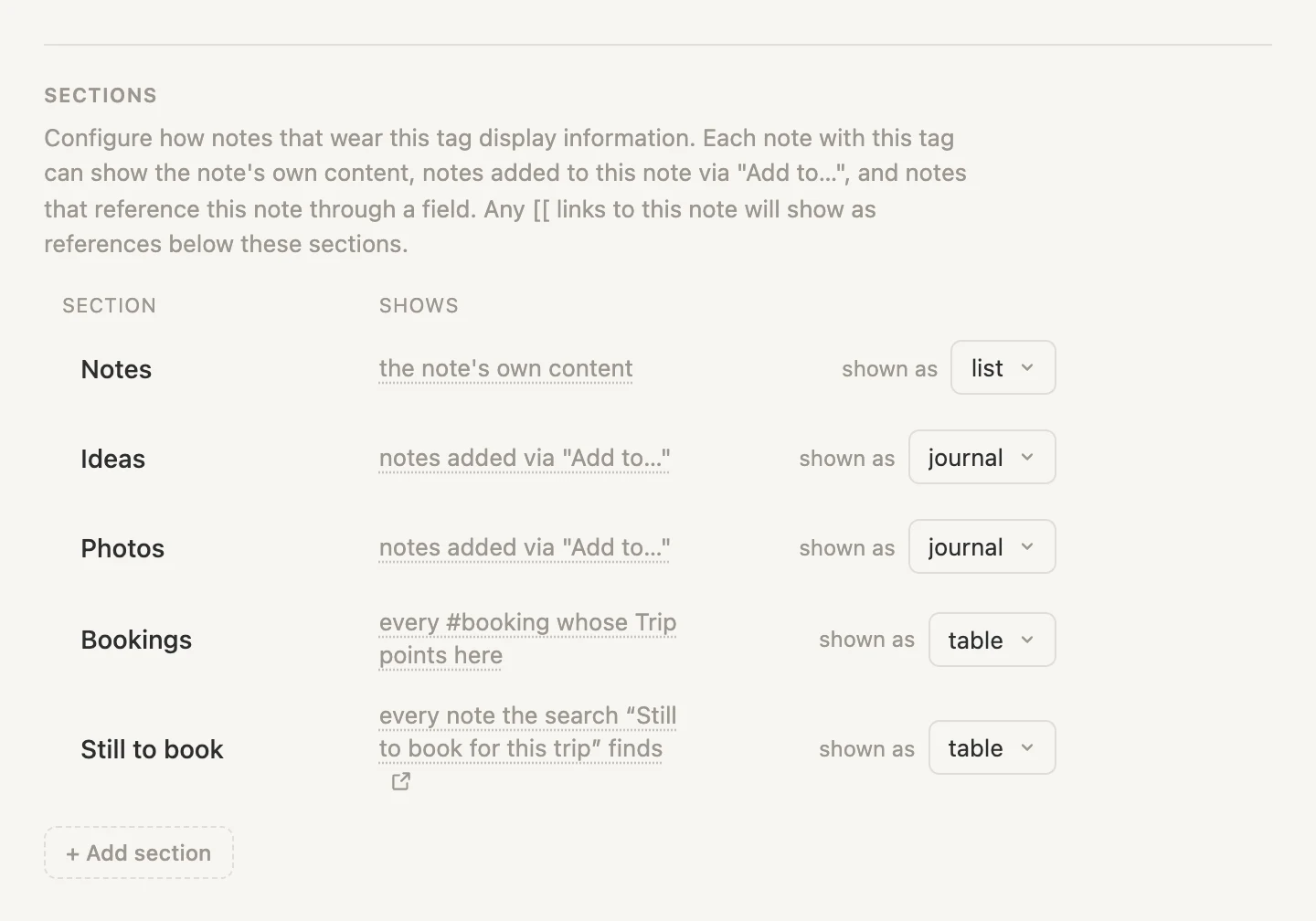
Visit the Lisbon page and see the new STILL TO BOOK section added at the bottom. In fact, every trip page now carries its own short list of what's outstanding, narrowed to that trip, without a single per-trip setup step. See the Hokkaido page for instance.
So ... that's the page from the top of this walkthrough, built. Its own fields and photo, the notes we typed, the ideas we sent in from our daily notes, the bookings that gathered themselves, and the short list of what's left to pay for.
Wrapping up
Five tags, eight fields, six sections, two saved searches. And a few minutes of setup.
What it gets us: a page per trip that fills itself from our daily notes, a booking list that gathers itself from a field, a page per traveling companion that nobody built, and the same money question answered two ways, once across everything and once on each trip.
The four ideas underneath it all:
- Configuring a tag decides what properties its notes get. A reference field points at another note, and that pointer is what everything else is built on.
- A section is a shelf whose contents come from somewhere we choose: our own typing, things sent in, things pointing here, or a search. A tag can have several, and two of them can take sent things without getting in each other's way.
- Add to puts a note on another page without moving it. Capture where we are, sort it out later, or never.
- A saved search asks one question at whatever width we choose. On its own it looks across everything. Given a This note rule and dropped in as a section, the same question narrows itself to whichever page is asking.
Nothing here is special to travel. Swap the tags and the same four ideas run a house renovation, a reading list, a client roster, or a research project. The shelves and the pointers are the building blocks. The rest is just naming things.